Can You Reset Wifi From the Xfinity App Right Now
Yes, you can reset wifi from the Xfinity app right now. The xfinity app reset wifi feature lets you restart your wireless network without touching any equipment. Whether your internet is slow, dropping connections, or not working at all, a quick reset through the Xfinity xFi app often fixes the problem in minutes. This guide walks you through every step, including soft resets, hard resets, and common mistakes to avoid. You will also learn when a simple reboot is enough and when you need to call Xfinity customer support for help.
Your wifi keeps dropping. The video call freezes. The streaming buffer just won’t stop. It is frustrating when your home network stops working right. The good news is that you can often fix these problems in minutes. You do not even need to call a technician or touch any cables. The Xfinity app lets you reset wifi from the Xfinity app right from your phone. This guide shows you exactly how to do it. You will learn the difference between a soft reset and a hard reset. You will also discover when each option works best and what mistakes to avoid. Let us get your home network back up and running.
Many Xfinity users do not know that the xFi app has a built-in reset tool. It is hidden in plain sight inside the app’s settings. This feature saves you time and effort. No more unplugging cables or holding down tiny reset buttons on the back of your modem. A few taps on your phone can restart your entire home network setup. Whether you are dealing with network connectivity issues or just a slow broadband connection, resetting your wifi is often the first and best step. Let us walk through the process together.
Key Takeaways
- Yes, you can reset wifi from the Xfinity app: The xFi app has a built-in restart feature that works in just a few taps.
- Soft resets are quick and safe: They restart your wireless network without erasing any settings or passwords.
- Hard resets wipe your configuration: Use a full factory reset only when nothing else works.
- Most wifi issues resolve after a reset: Slow speeds, connection dropouts, and device errors often disappear with a simple reboot.
- Avoid common mistakes: Don’t unplug the wrong cable, and always wait at least 60 seconds before turning the gateway back on.
- Contact Xfinity support if problems persist: Some issues need professional help beyond a simple app reset.
📑 Table of Contents
- What Happens When You Reset Your Xfinity Wifi
- How to Reset Wifi From the Xfinity App (Step-by-Step)
- Soft Reset vs. Hard Reset: What Is the Difference
- Common Reasons You Need to Reset Your Xfinity Wifi
- Quick Tips to Avoid Frequent Wifi Resets
- Common Mistakes People Make When Resetting Their Xfinity Wifi
- When to Contact Xfinity Support Instead
- Conclusion
What Happens When You Reset Your Xfinity Wifi
Before you tap that reset button, it helps to understand what actually happens. A wifi reset is not magic. It follows a predictable process that refreshes your wireless network. Knowing what to expect makes the whole experience less stressful.
Why Resets Work to Fix Connection Problems
Your Xfinity modem and router handle a lot of data every day. They keep track of connected devices, manage wifi signal strength, and route traffic between your home and the internet. Over time, this work can build up. Memory fills up. Temporary files pile up. The system slows down. A reset clears all of that out. It gives your wireless router a fresh start. Think of it like restarting your computer when it starts acting slow. The same idea applies here.
When you reset wifi from the Xfinity app, the system refreshes its connection to Xfinity’s servers. It clears out old network configuration data and rebuilds it. This often fixes small glitches that cause connection dropouts or slow speeds. The reset does not change your wifi name or password. Your devices stay saved. Everything stays in place. That is the beauty of a soft reset through the app.
What Gets Wiped After a Reset
A soft reset through the Xfinity xFi app does not erase much. Here is what stays the same:
- Your wifi network name (SSID) remains unchanged.
- Your wifi password stays exactly as it was.
- Connected devices are still saved in the app.
- Parental controls and network settings remain intact.
- Guest network settings stay in place.
However, a hard factory reset is different. A factory reset wipes everything. It restores your gateway to its original settings. You would need to set up your home network setup again from scratch. That includes creating a new wifi name and password. We will talk more about hard resets later in this guide.
How Long Does a Reset Take
A soft reset through the app usually takes about two to five minutes. The xFi gateway restarts, reconnects to the network, and your internet comes back. A hard reset takes longer, sometimes up to 15 minutes. That is because the system needs to reload all its default settings. Be patient during this time. Do not unplug anything or press any buttons. Just let the process finish.
How to Reset Wifi From the Xfinity App (Step-by-Step)
Now let us get into the actual steps. Following this process is simple. Even if you are not very tech-savvy, you can do this. Just follow along with each step.
Step 1: Open the Xfinity App on Your Phone
Find the Xfinity app on your phone or tablet. It has a purple and orange icon. If you do not have the app yet, download it from the App Store or Google Play Store. Sign in with your Xfinity account credentials. Make sure you are connected to your home wifi or mobile data. The app needs an internet connection to communicate with your gateway.
Step 2: Go to the Network or Internet Section
Once you are logged in, look at the bottom menu. Tap on Internet or Network. This section shows your current connection status. You will see your xFi gateway listed here. Tap on it to see more details about your network.
Step 3: Find the Restart or Reset Option
Look for a button that says Restart or Reset Connection. On some versions of the app, it might be under a menu with three dots. Tap on it. The app will ask you to confirm that you want to restart your wifi. Confirm the action. That is it. The reset process has begun.
Step 4: Wait for the Gateway to Reconnect
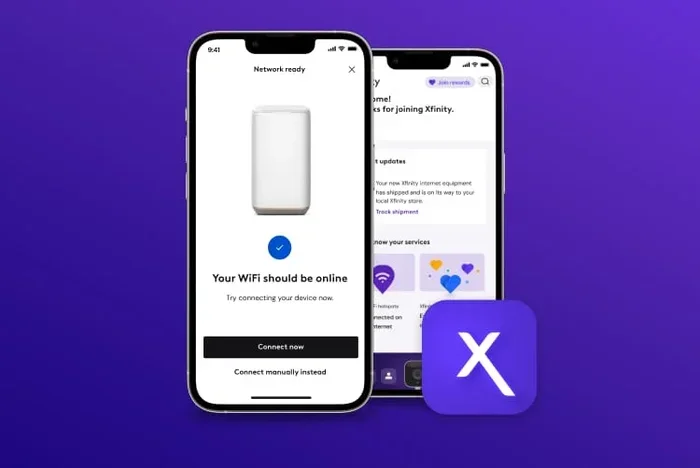
After you tap confirm, the Xfinity gateway starts its restart cycle. The lights on your modem will change. They might blink or turn off and back on. This is normal. Wait for the light to turn solid white or green. That means your wireless network is back online. This usually takes about two to five minutes. Do not try to use the internet during this time.
Step 5: Test Your Connection
Once the gateway is back, open a web browser or try streaming a video. Run an internet speed test to check if your speeds have improved. If everything looks good, you are all set. If not, you might need to try a harder reset or contact Xfinity customer support.
Quick Tips
- Make sure your phone is close to the gateway during the reset process.
- Do not force-close the app while the reset is running.
- Restart your phone if the app does not respond during the process.
- Keep your account credentials handy in case you need to sign in again.
Soft Reset vs. Hard Reset: What Is the Difference
Not all resets are the same. Understanding the difference helps you choose the right option for your problem. A soft reset and a hard reset do very different things to your xfinity wifi reset setup.
When to Use a Soft Reset
A soft reset is your go-to option for most everyday problems. It is quick, safe, and does not erase any settings. Use a soft reset when:
- Your internet is running slower than usual.
- You experience connection dropouts during the day.
- A few devices cannot connect to the wifi.
- Your wifi signal strength seems weaker than normal.
- You just finished a long streaming session and things feel sluggish.
A soft reset refreshes the connection without disturbing your network configuration. It is like giving your gateway a quick nap and waking it up refreshed. This is the option you will use most often when you reset wifi from the Xfinity app.
When to Use a Hard Reset
A hard reset, also called a factory reset, wipes everything. It restores your xFi gateway to the exact settings it had when you first took it out of the box. Use a hard reset only when:
- A soft reset does not fix your problem.
- You are selling or giving away your equipment.
- Your gateway has been compromised by a security issue.
- You want to start your home network setup completely fresh.
- You have tried everything else and nothing works.
To do a hard reset, you usually need to press and hold the reset button on the back of your gateway for about 10 to 15 seconds. The xfinity app reset wifi feature does not offer a factory reset option directly. You must do this manually on the device itself.
Soft Reset vs. Hard Reset Comparison
| Feature | Soft Reset (via App) | Hard Reset (Factory Reset) |
|---|---|---|
| How to do it | Tap in the Xfinity app | Press button on gateway |
| Time to complete | 2-5 minutes | 10-15 minutes |
| Erases settings | No | Yes |
| Wipes wifi password | No | Yes |
| Wipes connected devices | No | Yes |
| Best for | Minor connection issues | Major or persistent problems |
| Risk level | Very low | Medium |
Common Reasons You Need to Reset Your Xfinity Wifi
People reset wifi from the Xfinity app for many different reasons. Understanding why can help you prevent problems in the future. Here are the most common causes of wifi issues that a reset can fix.
Slow Internet Speeds
Slow internet is the number one reason people restart their wifi. Over time, your modem restart cycle gets needed. Background apps use bandwidth. Devices connect and disconnect constantly. All of this adds up. A reset clears the backlog and gives your broadband connection a fresh start. After a reset, run an internet speed test to see if your speeds have improved.
Frequent Connection Dropouts
If your wifi keeps cutting out during the day, that is a red flag. Connection dropouts can be caused by overloaded memory in your gateway. The system struggles to manage too many devices or too much traffic. A soft reset clears the memory and stabilizes the connection. If dropouts happen every day, you might need a harder reset or a new gateway altogether.
Devices Won’t Connect to the Network
Sometimes a new phone, laptop, or smart TV just will not connect to your wifi. Before you panic, try a reset. The xfinity app reset wifi feature can clear up network configuration conflicts. Your gateway will re-establish its handshake with each device. Most of the time, this fixes the problem right away.
After a Firmware Update
Xfinity sometimes pushes firmware updates to your xFi gateway automatically. These updates can cause temporary glitches. Your wifi might act strange for a few hours after an update. A quick soft reset helps the system settle into the new software. It is a good habit to restart your gateway after any major update.
Expert Insights
Networking experts recommend restarting your Xfinity gateway at least once a month. This keeps the wireless access point running smoothly and prevents memory buildup. Think of it like restarting your computer regularly. It is a simple habit that saves you from bigger problems down the road. Many Xfinity technicians suggest setting a monthly reminder on your phone to do a quick soft reset through the app.
Quick Tips to Avoid Frequent Wifi Resets
Resetting your wifi is a great fix, but you do not want to do it every day. Here are some tips to keep your home network setup running smoothly and reduce the need for frequent resets.
Optimize Your Router Placement
Where you put your xFi gateway matters a lot. Place it in a central location in your home. Keep it elevated, like on a shelf. Avoid hiding it in a closet or behind a TV. Walls, metal objects, and microwaves can weaken your wifi signal strength. Good placement reduces the need for constant resets.
Reduce Network Congestion
Too many devices on one network can slow things down. If you have a smart home with dozens of connected devices, your gateway works harder. Consider splitting devices between the main network and the guest network. Also, disconnect devices you are not using. Less congestion means fewer connection problems and fewer resets.
Keep Your Firmware Updated
Xfinity sends updates to improve performance and fix bugs. Make sure your gateway is always running the latest firmware. You can check for updates in the Xfinity app under the gateway settings. Updated firmware means fewer glitches and a more stable wireless network.
Use a Surge Protector
Power surges can damage your gateway and cause connection problems. Plug your Xfinity modem into a surge protector. This protects your equipment from electrical spikes. It also keeps your internet connection reset needs to a minimum because the hardware stays healthy longer.
Common Mistakes People Make When Resetting Their Xfinity Wifi
Even with a simple process like a wifi reset, people make mistakes. These mistakes can cause more problems or waste your time. Here are the most common ones to avoid.
Unplugging the Wrong Cable
When doing a manual reset, it is easy to pull the wrong cord. Make sure you unplug the power cable from the gateway, not the ethernet or coaxial cable. Unplugging the wrong cable can cause more issues. If you are using the app, you do not need to touch any cables at all. That is one of the biggest advantages of using the xfinity app reset wifi feature.
Not Waiting Long Enough
After you restart your gateway, give it time to fully boot up. Do not try to use the internet after just 30 seconds. The wireless router reboot process takes a few minutes. Wait until the lights on the gateway turn solid. Then test your connection. Patience is key here.
Forgetting to Reconnect Devices
After a hard reset, your gateway forgets all saved devices. You will need to reconnect each one with your wifi password. This can be annoying if you have many devices. To save time, write down your wifi password before doing a factory reset. That way you do not have to look it up later.
Resetting Too Often
A reset is a quick fix, not a permanent solution. If you find yourself reset wifi from xfinity app every single day, something deeper is wrong. You might have a failing gateway, outdated firmware, or a problem with your broadband connection from Xfinity. In those cases, contact Xfinity customer support for a proper diagnosis.
When to Contact Xfinity Support Instead
Most wifi problems go away after a simple reset. But some issues need professional help. Knowing when to call Xfinity customer support saves you time and frustration.
Persistent Network Outages
If your entire neighborhood has no internet, the problem is not your gateway. Check the Xfinity service status page or app. If there is a network outage in your area, you just need to wait. Xfinity works to restore service as quickly as possible. No amount of resetting will fix a wide-area outage.
Hardware Failure Signs
Look for warning signs of hardware failure. If your gateway overheats, makes strange noises, or the lights blink red constantly, it might be broken. A reset will not fix broken hardware. You will need a replacement unit. Contact Xfinity to request a new gateway.
Account and Billing Issues
Sometimes wifi problems come from your account, not your equipment. If your service has been suspended for non-payment or a billing issue, resetting the gateway will not help. Check your account status in the app. Resolve any billing issues first, and then try a reset if needed.
Quick Tips Summary
- Always try a soft reset first before attempting a hard reset.
- Use the Xfinity app for the easiest and safest reset process.
- Restart your gateway monthly to keep things running smoothly.
- Check for Xfinity service outages before troubleshooting your own equipment.
- Contact Xfinity support if resets do not fix the problem after two or three tries.
Conclusion
So, can you reset wifi from the Xfinity app? Absolutely, yes. The xFi app makes it easy to restart your wireless network in just a few minutes. You do not need any special tools or technical knowledge. A soft reset refreshes your connection, clears minor glitches, and gets your home network setup running smoothly again. A hard reset is there for bigger problems, but use it carefully because it wipes all your settings.
Remember to try a soft reset first for most issues. Slow speeds, connection dropouts, and device problems often disappear after a quick restart. Avoid common mistakes like unplugging the wrong cable or not waiting long enough. And if the problem keeps coming back, do not hesitate to reach out to Xfinity customer support. They are there to help.
Take control of your broadband connection today. The next time your wifi acts up, open the Xfinity app and try a reset. You will be surprised how often this simple step solves the problem. Keep your gateway updated, place it in a good spot, and restart it regularly. Your wireless network will thank you for it.
Frequently Asked Questions
Can I reset my Xfinity wifi without the app?
Yes, you can. You can manually restart your gateway by unplugging the power cable, waiting 30 seconds, and plugging it back in. However, using the app is faster and more convenient. The app also lets you monitor your network while the reset happens.
Will resetting my Xfinity wifi delete my wifi password?
A soft reset through the app will not delete your wifi password. Your network name and password stay exactly the same. A hard factory reset, however, will erase all settings including your password. You would need to set a new one after a factory reset.
How often should I reset my Xfinity wifi?
There is no need to reset your wifi every day. A monthly soft reset is a good habit to keep your xFi gateway running smoothly. If you experience problems more often than that, there might be an underlying issue that needs professional attention.
Why does my wifi keep disconnecting even after a reset?
If your wifi keeps disconnecting after a reset, the problem might be deeper than a simple software glitch. It could be a hardware issue with your gateway, a problem with Xfinity’s service in your area, or too much network congestion. Contact Xfinity customer support for help diagnosing the real cause.
Can I reset wifi from the Xfinity app if I am not at home?
Yes, you can. As long as you have the app installed and are logged into your Xfinity account, you can trigger a reset from anywhere. Your phone just needs an internet connection, either through mobile data or a different wifi network.
What is the difference between restarting and resetting wifi on Xfinity?
Restarting and resetting are often used interchangeably for a soft reset. Both mean rebooting your gateway without changing any settings. A reset can also refer to a factory reset, which wipes everything. When you use the app, you are typically doing a soft restart or soft reset that refreshes your connection safely.