Do All Printers Use The Same Usb Cable Or Are They Different
Do All Printers Use The Same USB Cable? The short answer is no. Different printers use different USB cable types, connector shapes, and data standards. This guide breaks down the key differences so you can pick the right cable, avoid compatibility headaches, and set up your printer without frustration.
Do All Printers Use The Same USB Cable? It is a question many people ask when they unbox a new printer and reach for a cable, only to find it does not fit. The truth is that not every printer uses the same USB cable. Different brands, models, and printer types rely on different connectors and cable standards.
Understanding this can save you time, money, and a lot of frustration. Whether you are setting up a home office printer or a bulky office machine, knowing which cable you need matters. This guide covers everything you need to know about printer USB cables. We will look at the different types, common compatibility issues, and practical tips to get your printer connected the right way.
The world of printer cables can feel confusing at first glance. USB-A, USB-B, USB-C, Mini-USB, and more. Each connector type serves a specific purpose. Some printers use standard cables you already have at home. Others need specialized cables that you may need to buy separately. Let us break it all down so you never have to guess again.
Key Takeaways
- Not all printers use the same USB cable: Printers use USB-A, USB-B, USB-C, and Mini-USB connectors depending on the model and brand.
- USB 2.0 is standard for most printers: USB 2.0 cables work with the vast majority of printers and offer reliable speeds.
- Brand matters for compatibility: HP, Canon, Epson, and Brother each use different default cable types and connectors.
- USB adapters can solve connection problems: If your cable doesn’t fit, a simple adapter often fixes the issue.
- Wireless printers reduce cable dependency: Many modern printers support Wi-Fi, Bluetooth, or Ethernet, so USB cables are optional.
- Wrong cables cause slow printing and errors: Using an incompatible or low-quality cable leads to connection drops and poor performance.
- Check your printer manual before buying: The manual lists the exact cable type, size, and standard you need.
📑 Table of Contents
- Understanding USB Cable Types Used in Printers
- Do All Printers Use The Same USB Cable? Brand-by-Brand Breakdown
- USB Cable Standards and Printer Performance
- Common Printer USB Connection Problems and Solutions
- Quick Tips for Choosing the Right Printer USB Cable
- USB vs Wireless: Do You Still Need a USB Cable?
- Expert Insights on Printer USB Cable Compatibility
- Key Takeaways
- Conclusion
Understanding USB Cable Types Used in Printers
Do All Printers Use The Same USB Cable when it comes to connector types? Absolutely not. Printers use several different USB connector types. Each one has a specific shape and purpose. Knowing these types helps you identify the right cable for your device quickly.
USB Type-A
USB Type-A is the flat, rectangular connector most people recognize. It plugs into your computer or laptop. This is the standard host-side connector. Most printers use a USB-A cable on one end to connect to the computer. If your cable has a standard flat plug on one side, that is USB-A.
USB-A cables come in different versions. USB 2.0 is the most common for printers. It offers data transfer speeds up to 480 Mbps. USB 3.0 USB-A cables are faster but less common in printer setups. For most printing needs, USB 2.0 is more than enough.
USB Type-B
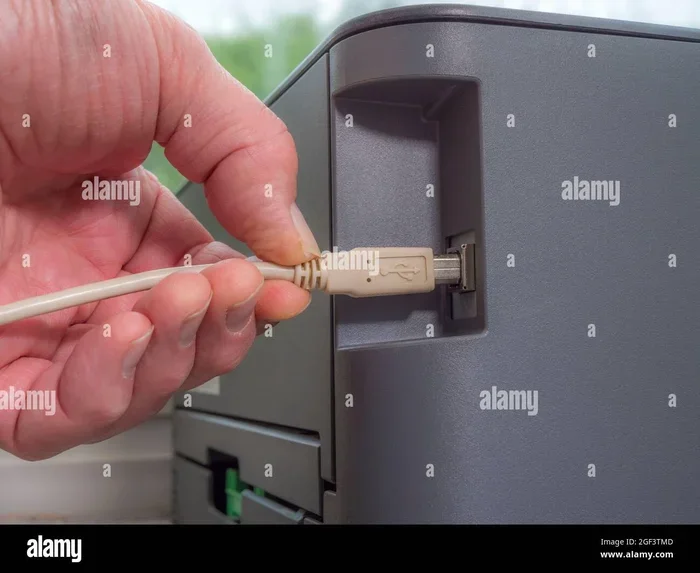
USB Type-B is the square-shaped connector that plugs into the printer. It looks quite different from USB-A. Most printer USB cables have a USB-A plug on one end and a USB-B plug on the other. This is the classic printer cable design you have probably seen before.
USB-B connectors come in standard and mini versions. Standard USB-B is used in larger printers. Mini USB-B was common in older or compact printers. Both serve the same basic purpose of connecting the printer to the computer or hub.
USB Type-C
USB Type-C is the newest and most versatile connector. It is small, oval-shaped, and reversible. Many modern printers now use USB-C. This connector supports faster data transfer and can carry more power. USB-C is becoming more popular in compact and wireless printers.
One big advantage of USB-C is its reversibility. You do not have to flip the cable to find the right orientation. This makes connecting your printer much easier and more convenient. If you buy a new printer with USB-C, you can often use the same cable for your phone or laptop too.
Mini USB and Micro USB
Mini USB and Micro USB connectors appear in some older or smaller printer models. Mini USB was popular in the mid-2000s. Micro USB is more common in portable devices but occasionally shows up in compact printers. These connectors are less common today but still appear in budget or older models.
Do All Printers Use The Same USB Cable? Brand-by-Brand Breakdown
Do All Printers Use The Same USB Cable across different brands? No, they do not. Each major printer brand has its own preferences when it comes to USB cables and connectors. Here is a closer look at what to expect from popular printer manufacturers.
HP Printers
HP printers commonly use USB-B to USB-A cables. Most HP printers come with a USB cable in the box. However, the included cable may be short or may not match what you already have at home. HP uses standard USB 2.0 connections for the majority of its printer lineup.
Some newer HP models support USB-C connectivity. These are typically found in the HP OfficeJet and HP Envy series. Always check the back of your HP printer to see which port type it uses before buying a replacement cable.
Canon Printers
Canon printers also favor the USB-A to USB-B setup. Most Canon inkjet and laser printers ship with a USB cable included. Canon uses standard USB 2.0 for reliable printing performance.
Canon’s compact and portable printers sometimes use Mini USB-B connectors. These are smaller than standard USB-B and were common in earlier Canon models. If you own an older Canon printer, check for a Mini USB-B port on the back.
Epson Printers
Epson printers generally use USB-B connectors on the printer side. Epson includes USB cables with many of its models. The company has been transitioning some of its newer printers to USB-C connections.
Epson EcoTank printers and Expression series models often use standard USB-B. Epson’s compact and photo printers may use Mini USB-B. Always verify the port type on your specific Epson model.
Brother Printers
Brother printers typically use USB-B connectors. Brother includes USB cables in most printer boxes. The company sticks with USB 2.0 as the standard for wired connections.
Some Brother multifunction printers use USB-A to USB-B cables. Brother’s compact and portable models may use different connectors. Check your Brother printer’s manual or the port on the back to confirm the cable type.
USB Cable Standards and Printer Performance
Not all USB cables are created equal when it comes to performance. The USB standard your cable supports affects printing speed and reliability. Here is how different USB standards impact your printer setup.
USB 2.0 vs USB 3.0
USB 2.0 is the standard for most printers. It handles print jobs efficiently and works with nearly all printer models. USB 2.0 cables are widely available and affordable. You can find them at any electronics store or online.
USB 3.0 offers faster data transfer speeds. However, most printers do not benefit from USB 3.0 speeds. Printing involves relatively small data transfers. A USB 2.0 cable handles printing tasks without any noticeable delay. USB 3.0 cables work with USB 2.0 ports but cost more for no real printing advantage.
USB Cable Length and Signal Quality
The length of your USB cable matters more than you might think. Longer cables can cause signal loss. This leads to slower printing, connection drops, or failed print jobs. Most printer setups work best with cables under 6 feet long.
If you need a longer cable, consider a USB extension cable or a USB hub with a shorter cable. Active USB cables with built-in signal boosters work well for longer distances. Avoid cables longer than 10 feet without a signal booster.
Cable Quality and Compatibility
Not all USB cables are built the same. Cheap cables may lack proper shielding. This can lead to interference and connection problems. High-quality cables from reputable brands offer better reliability and longer lifespan.
Look for cables with braided shielding and gold-plated connectors. These features reduce signal loss and improve durability. A good USB printer cable is a small investment that pays off in consistent performance.
Common Printer USB Connection Problems and Solutions
Even with the right cable, printer USB connections can sometimes fail. Understanding common problems helps you troubleshoot quickly and effectively.
Printer Not Recognized by Computer
If your computer does not detect the printer, the cable may be the culprit. Try a different USB cable first. A damaged or low-quality cable often causes this issue. Also, try plugging the cable into a different USB port on your computer.
Make sure you are using the correct connector type. A USB-A to USB-B cable will not work if your printer uses USB-C. Check the printer ports carefully before swapping cables. Sometimes the simplest fix is the right one.
Slow Printing Over USB
Slow printing can result from a poor-quality USB cable. Long cables or cables with weak shielding often cause this problem. Replace the cable with a shorter, high-quality USB 2.0 cable to improve speed.
Background programs on your computer can also slow printing. Close unnecessary applications while printing. Update your printer USB driver to ensure optimal communication between the printer and computer.
Intermittent Connection Drops
If your printer keeps disconnecting during print jobs, the USB cable may be loose or damaged. Inspect the cable for fraying or bent connectors. A loose connection causes intermittent drops that interrupt your work.
Try a different USB port on your computer. Some USB ports provide less stable connections than others. If the problem persists, replace the cable. A new cable often solves intermittent connection issues completely.
Quick Tips for Choosing the Right Printer USB Cable
Do All Printers Use The Same USB Cable? Now that you know the answer, here are quick tips to help you choose the right cable every time.
- Check your printer manual first. The manual lists the exact cable type and connector you need. This saves you from buying the wrong cable.
- Look at the ports on your printer. Match the connector shape to the port on the back of your printer. USB-B, USB-C, Mini USB, and USB-A all look different.
- Buy a high-quality cable. Invest in a cable from a trusted brand. Better shielding and connectors mean fewer connection problems.
- Keep your cable length reasonable. Stick to cables under 6 feet for best performance. Longer cables need signal boosters.
- Keep a spare cable on hand. USB cables wear out over time. Having a backup saves you when a cable fails unexpectedly.
- Consider USB-C if buying a new printer. USB-C is versatile and future-proof. It works with many modern devices beyond just printers.
- Update your printer drivers. Sometimes connection issues are software-related, not cable-related. Always update drivers before replacing hardware.
USB vs Wireless: Do You Still Need a USB Cable?
Many modern printers offer wireless connectivity options. Wi-Fi, Bluetooth, and Ethernet allow you to print without a cable. So do you still need a USB cable? The answer depends on your setup and needs.
When You Need a USB Cable
USB cables remain essential for initial printer setup. Most printers require a USB connection during the first installation. This allows the computer to detect the printer and install the necessary drivers. Without a USB cable, wireless setup can sometimes be more complicated.
USB cables also provide a reliable fallback option. Wireless connections can be unstable in some environments. A USB cable guarantees a direct, stable connection. For critical printing tasks, USB remains a dependable choice.
When Wireless Works Fine
If your printer supports Wi-Fi or Bluetooth, you may never need a USB cable for daily use. Wireless printing is convenient and eliminates cable clutter. Many home and office users rely entirely on wireless connections.
Keep in mind that wireless printing may have slightly slower speeds than USB. Large print jobs or high-resolution images may print faster over a USB connection. Wireless is perfect for everyday printing but USB still has its advantages.
Expert Insights on Printer USB Cable Compatibility
Printer technicians and IT professionals agree on a few key points about USB cables and printers. Here is what the experts want you to know.
Always match the connector type to the port. USB-A does not fit into USB-B ports and vice versa. Forcing a wrong connector can damage your printer or computer port. Take a moment to check before plugging in.
USB 2.0 is enough for most printers. You do not need a USB 3.0 cable for printing. Save your money and stick with a quality USB 2.0 cable. It will work reliably with virtually every printer on the market.
Buy cables from reputable sellers. Cheap knockoff cables often fail quickly. They may also damage your devices. Spending a few extra dollars on a quality cable prevents costly problems down the road.
Keep documentation for your printer model. Save your printer manual or note the model number. This makes it easy to find the right replacement cable whenever you need one.
Key Takeaways
- Printers use different USB cable types: USB-A, USB-B, USB-C, and Mini USB connectors all appear in different printer models.
- Brand-specific cable preferences exist: HP, Canon, Epson, and Brother each favor certain connector types and cable standards.
- USB 2.0 is the standard for printing: USB 3.0 offers no real benefit for most print jobs and costs more.
- Cable quality affects reliability: Invest in well-built cables with proper shielding and gold-plated connectors.
- Wireless printers reduce cable dependence: Many modern printers support Wi-Fi and Bluetooth, making USB cables optional for daily use.
- Check your printer manual before buying: The manual tells you exactly which cable type and size you need.
- USB cables are still essential for setup: Most printers require a USB connection during initial driver installation.
Conclusion
Do All Printers Use The Same USB Cable? Now you know the answer clearly. Not all printers use the same USB cable. Different brands, models, and printer types rely on different connectors and cable standards. USB-A to USB-B remains the most common setup, but USB-C is gaining popularity in newer models.
Choosing the right USB cable for your printer does not have to be complicated. Check your printer ports, read the manual, and buy a quality cable from a trusted brand. These simple steps ensure a smooth, reliable connection every time you print.
Whether you are a home user or running a busy office, understanding your printer cable options gives you confidence. You will never have to scramble for a replacement cable or wonder why your printer is not connecting. The right cable makes all the difference in your printing experience. Keep this guide handy for your next printer setup or cable replacement.
Frequently Asked Questions
Can I use any USB cable for my printer?
No, you cannot use just any USB cable for your printer. Printers require specific connector types like USB-A to USB-B or USB-C. Using the wrong cable will not work and may cause connection problems. Always check your printer manual or the ports on your printer before buying a cable.
What USB cable does my printer need?
Most printers use a USB-A to USB-B cable. Some newer models use USB-C. Check the back of your printer to see which port type it has. Your printer manual will also list the exact cable type you need. Match the connector shape to the port on your printer for a proper fit.
Does the USB cable length affect printing?
Yes, cable length can affect printing performance. Longer cables may cause signal loss, leading to slow printing or connection drops. Cables under 6 feet work best for most printer setups. If you need a longer cable, use an active USB cable with a built-in signal booster.
Can I use a USB 3.0 cable with my printer?
Yes, you can use a USB 3.0 cable with most printers. USB 3.0 is backward compatible with USB 2.0 ports. However, most printers do not benefit from USB 3.0 speeds since printing requires minimal data transfer. A quality USB 2.0 cable is sufficient for the vast majority of printers.
Why is my printer not connecting via USB?
Several factors can cause USB connection problems. A damaged or low-quality cable is the most common culprit. Try a different cable or a different USB port on your computer. Also check that your printer drivers are up to date. If the cable and drivers are fine, the printer port itself may need inspection.
Do wireless printers still need a USB cable?
Wireless printers do not need a USB cable for daily printing. However, you will typically need a USB cable during the initial setup to install drivers. After setup, you can print wirelessly over Wi-Fi or Bluetooth. Keeping a USB cable handy is still useful for troubleshooting and firmware updates.