Do All Macbooks Have Hdmi Port Discover The Answer
Not all MacBooks come with an HDMI port. Only select models, like certain MacBook Pro versions, include a built-in HDMI port, while the MacBook Air relies on USB-C or Thunderbolt connections. If your MacBook lacks HDMI, you can use a USB-C to HDMI adapter to connect to external displays, TVs, and projectors with ease.
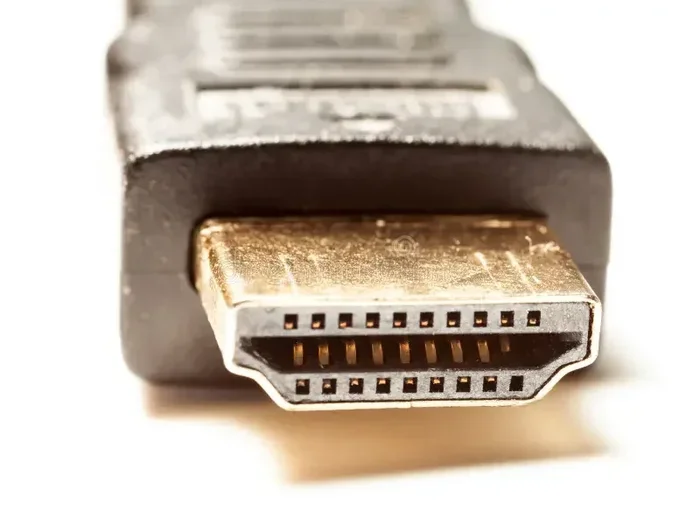
Do all Macbooks have HDMI port? That is a question many Mac users ask, especially when they want to hook up their laptop to a TV, a projector, or an external monitor. The short answer is no, not all MacBooks come with an HDMI port. Some do, and some do not. The answer depends on which MacBook model you own, what year it was made, and which generation it belongs to.
In this guide, we will break down exactly which MacBook models include HDMI and which ones do not. We will also show you how to connect your Mac to any HDMI display, even if your laptop does not have a built-in port. Whether you are using a MacBook Air or a MacBook Pro, this article has you covered.
We will walk through practical solutions, common mistakes, and expert tips. By the end, you will know everything you need about MacBook HDMI port availability and how to set up your display the right way. Let us get started.
Key Takeaways
- Not every MacBook has HDMI: Only specific MacBook Pro models include a built-in HDMI port, while MacBook Air models do not.
- USB-C and Thunderbolt are the alternatives: Most modern MacBooks use USB-C or Thunderbolt ports for video output.
- Adapters solve the problem: A USB-C to HDMI adapter lets you connect any MacBook to an HDMI display or TV.
- Model matters: The presence of HDMI depends on the MacBook model, year, and generation you own.
- Apple Silicon changed the game: M1, M2, and M3 MacBook models often removed the HDMI port in favor of USB-C.
- Docking stations help: A USB-C docking station gives you HDMI and multiple other ports in one hub.
📑 Table of Contents
- The Short Answer: Do All Macbooks Have HDMI Port?
- Which MacBook Models Have HDMI Ports?
- How to Connect a MacBook Without HDMI to an External Display
- Benefits of Having an HDMI Port on Your MacBook
- Common Mistakes People Make With MacBook HDMI Connections
- Expert Tips for the Best Display Setup With Your Mac
- Conclusion
The Short Answer: Do All Macbooks Have HDMI Port?
No, not all MacBooks have an HDMI port. Apple has changed its port lineup across different MacBook models over the years. Some MacBooks include a full-size HDMI port built right into the laptop. Others rely entirely on USB-C or Thunderbolt ports for all connections, including video output.
The presence of an HDMI port depends on several factors. These include the MacBook model, the year of release, and the chip inside the laptop. For example, older MacBook Pro models from 2015 and earlier often had HDMI ports. But newer MacBook Air models, especially those with Apple Silicon chips, usually do not include HDMI at all.
Here is a quick look at the general trend:
- MacBook Pro (certain models): Some MacBook Pro laptops include a built-in HDMI port, especially higher-end and older models.
- MacBook Air (most models): The MacBook Air typically does not include an HDMI port, regardless of the year or chip.
- MacBook (retired line): The original MacBook line was discontinued, and it never had HDMI in its later versions.
So if you are wondering whether your specific MacBook has HDMI, the answer is: it depends on your model. Let us dig deeper into which models do and do not include this port.
Which MacBook Models Have HDMI Ports?
Understanding which MacBook models include HDMI helps you figure out if you need an adapter. Apple has been moving away from HDMI over the years, replacing it with USB-C and Thunderbolt ports. Let us look at the models that still include a built-in HDMI port.
MacBook Pro Models With HDMI
Several MacBook Pro models include a full-size HDMI port. These are generally the more powerful and higher-end laptops Apple sells. Here are the key models:
- MacBook Pro 16-inch (2019 and newer): Most 16-inch MacBook Pro models include an HDMI port. This includes models with Intel processors and those with Apple Silicon chips like the M1 Pro, M1 Max, M2 Pro, M2 Max, M3 Pro, and M3 Max.
- MacBook Pro 14-inch (2021 and newer): The 14-inch MacBook Pro also includes HDMI, starting from the models with Apple Silicon chips.
- MacBook Pro 13-inch (certain Intel models): Some older 13-inch MacBook Pro models from the Intel era included HDMI, but this was not consistent across all years.
Apple introduced the HDMI port on the 14-inch and 16-inch MacBook Pro models with the M1 Pro and M1 Max chips in 2021. This was a welcome addition for many users who needed to connect their laptop to a TV or projector without carrying an extra adapter.
MacBook Models Without HDMI
On the other hand, many MacBook models do not include HDMI. Here are the models that lack a built-in HDMI port:
- MacBook Air (all models): Whether you have an Intel-based MacBook Air or an Apple Silicon MacBook Air, none of them include an HDMI port.
- MacBook Pro 13-inch (Apple Silicon): The 13-inch MacBook Pro with M1, M2, or M3 chips does not have HDMI.
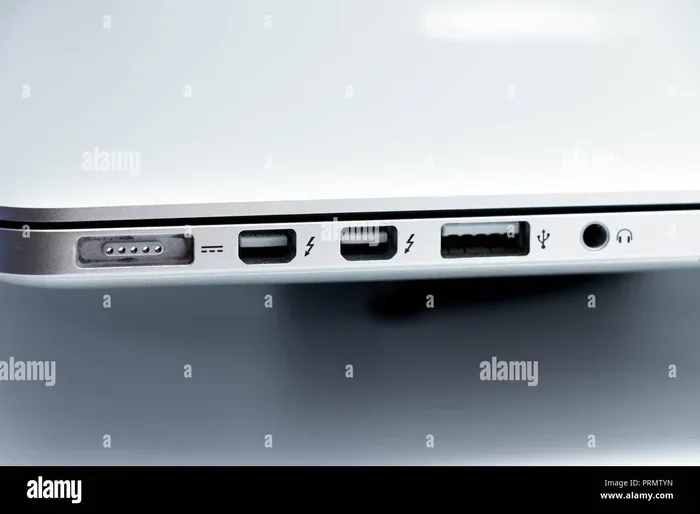
- Older MacBook models: The original MacBook and MacBook Pro models from the early 2000s through mid-2010s used different ports like Mini DisplayPort and MagSafe, but not always HDMI.
This means a large portion of the MacBook lineup does not come with HDMI. If you own one of these models, you will need an adapter or a docking station to connect to an HDMI display.
Quick Reference: MacBook HDMI Availability
Here is a simple table to help you quickly check if your MacBook has HDMI:
| MacBook Model | HDMI Port? | Notes |
|---|---|---|
| MacBook Pro 16-inch (2019+) | Yes | Built-in HDMI on most models |
| MacBook Pro 14-inch (2021+) | Yes | HDMI included with Apple Silicon |
| MacBook Pro 13-inch (Intel) | Sometimes | Check your specific year and model |
| MacBook Pro 13-inch (Apple Silicon) | No | Uses USB-C/Thunderbolt only |
| MacBook Air (all models) | No | No HDMI on any generation |
| MacBook (retired) | No | Discontinued product line |
This table gives you a clear picture. If your MacBook is not listed here or you are unsure, check the specs on Apple’s website or look at the sides of your laptop for an HDMI port.
How to Connect a MacBook Without HDMI to an External Display
If your MacBook does not have a built-in HDMI port, do not worry. You still have several options to connect to an external display, TV, or projector. The key is using the right adapter or cable.
Option 1: USB-C to HDMI Adapter
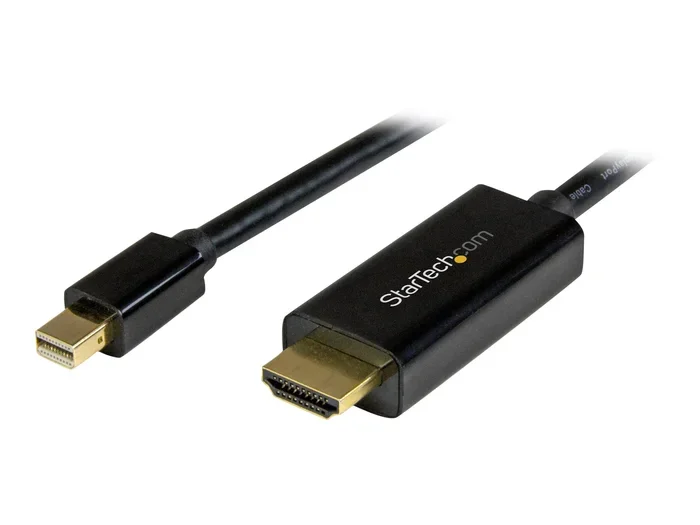
The most common solution is a USB-C to HDMI adapter. This small device plugs into your MacBook’s USB-C port on one side and provides an HDMI output on the other side. You then connect a standard HDMI cable from the adapter to your TV or monitor.
These adapters are affordable and widely available. You can find them on Amazon, at Best Buy, or directly from Apple. Look for adapters that support 4K resolution if you need high-quality video output.
Here are some tips when choosing a USB-C to HDMI adapter:
- Make sure the adapter supports your desired resolution, such as 1080p or 4K.
- Choose a reputable brand to avoid signal issues or dropped connections.
- Check if the adapter supports audio output as well, so you can get sound through your HDMI display.
Option 2: Thunderbolt to HDMI Adapter
If your MacBook has a Thunderbolt port, you can use a Thunderbolt to HDMI adapter. Thunderbolt ports look the same as USB-C ports, but they offer faster data transfer speeds and better video performance. A Thunderbolt to HDMI adapter works the same way as a USB-C to HDMI adapter but may offer more reliable performance.
This option is great for MacBook Pro users who want a stable connection for presentations or extended desktop setups.
Option 3: USB-C Docking Station
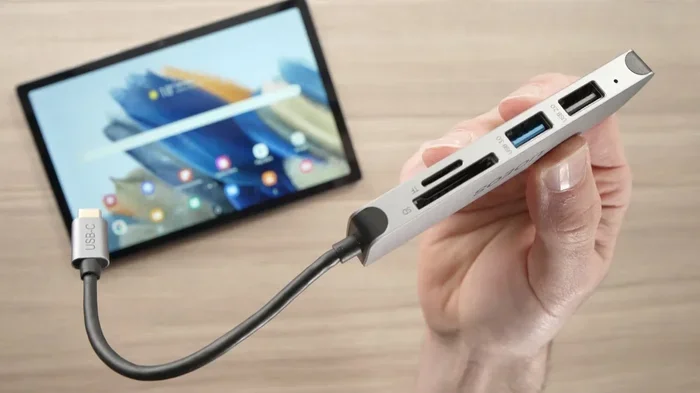
A USB-C docking station is another excellent option. These hubs connect to your MacBook through a single USB-C cable and provide multiple ports, including HDMI, USB-A, SD card slots, and sometimes even Ethernet. A docking station is ideal if you work at a desk and need to connect several peripherals at once.
Popular docking station brands include CalDigit, Anker, Satechi, and Belkin. They range in price from around $50 to $200 depending on the features and number of ports.
Option 4: Wireless Screen Mirroring
If you do not want to deal with cables at all, you can use wireless screen mirroring. Apple’s AirPlay feature lets you mirror your MacBook screen to an Apple TV or a compatible smart TV. This works over Wi-Fi and does not require any adapter.
However, wireless mirroring can sometimes have a slight delay or lower image quality compared to a wired HDMI connection. For presentations or gaming, a wired connection is usually better.
Quick Tips for Choosing the Right Adapter
Here are some quick tips to keep in mind when picking an adapter:
- Always check your MacBook’s port type before buying an adapter.
- Buy from trusted sellers to avoid counterfeit products.
- Read reviews before purchasing to learn about real-world performance.
- Consider a cable with a built-in adapter if you want a cleaner setup.
Benefits of Having an HDMI Port on Your MacBook
Having a built-in HDMI port on your MacBook offers several advantages. Let us look at why it matters and when it makes a difference.
Plug and Play Convenience
The biggest benefit of a built-in HDMI port is convenience. You simply plug in an HDMI cable and your MacBook connects to the display instantly. There is no need to carry an extra adapter or dongle in your bag.
This is especially useful for professionals who present in meetings or classrooms frequently. You can walk into a room, plug in a single cable, and you are ready to go. No setup hassle, no adapters to fumble with.
Better Reliability
Wired HDMI connections tend to be more reliable than wireless options. You get a stable video signal with no lag, no dropped frames, and no audio sync issues. This matters a lot during important presentations, video conferences, or when watching movies on a big screen.
Support for Multiple Displays
Many MacBook Pro models with HDMI also support multiple external displays. Combined with USB-C or Thunderbolt ports, you can connect several monitors at once for a powerful multitasking setup. This is a game-changer for creative professionals, developers, and anyone who needs screen real estate.
No Extra Cost
When your MacBook already has HDMI, you do not need to spend money on adapters. A simple HDMI cable is all you need. Over time, this saves you money and reduces clutter in your workspace.
Common Mistakes People Make With MacBook HDMI Connections
Even when people know how to connect their MacBook to an HDMI display, they still make mistakes that cause frustration. Let us look at some common errors and how to avoid them.
Buying the Wrong Adapter
The most common mistake is buying the wrong type of adapter. Some people buy a USB-C to HDMI adapter when their MacBook actually needs a Thunderbolt to HDMI adapter. While they may look similar, not all adapters work with every MacBook model.
To avoid this, always check your MacBook’s port specifications before purchasing. Look at the shape and labeling of your ports, and match them to the right adapter.
Using a Low-Quality Cable
Cheap HDMI cables can cause all sorts of problems. You might experience flickering screens, no signal at all, or poor resolution. Always invest in a good quality HDMI cable from a trusted brand. A $10 cable from a reputable brand will outperform a $3 cable from an unknown seller every time.
Forgetting to Change the Display Settings
After connecting your MacBook to an HDMI display, you may need to adjust your display settings. Go to System Settings, then Displays, and choose whether you want to mirror your screen or extend it. Many people forget this step and wonder why their external display is not working properly.
Ignoring Audio Output
When you connect your MacBook to a TV via HDMI, the sound should automatically come through the TV speakers. But sometimes it does not. If you notice no sound, go to your sound settings and select the HDMI display as your audio output device. This is a simple fix that many people overlook.
Not Checking the Resolution
Another mistake is not checking the resolution of your external display. If your MacBook is connected to a 4K TV but the output is set to 1080p, you will not get the best picture quality. Go to your display settings and choose the native resolution of your TV or monitor for the sharpest image.
Expert Tips for the Best Display Setup With Your Mac
Setting up your MacBook with an external display can be a smooth experience if you follow a few expert tips. These recommendations come from years of experience helping users connect their Macs to various screens.
Use a Docking Station for Your Desk Setup
If you use your MacBook at a desk most of the time, a USB-C docking station is the best investment. It gives you HDMI, USB ports, an Ethernet connection, and more, all from a single cable. Your MacBook connects to the dock, and the dock connects to everything else. It is clean, organized, and incredibly convenient.
Keep Your macOS Updated
Apple regularly improves display support in macOS updates. Keeping your MacBook updated ensures the best compatibility with external monitors and TVs. Sometimes, an update fixes issues with HDMI output or improves performance on certain display configurations.
Label Your Cables and Adapters
If you use multiple adapters and cables, label them. This sounds simple, but it saves a lot of confusion. You will always know which cable goes where, and you will not waste time trying to figure out which adapter works with which device.
Test Your Setup Before Important Meetings
Never wait until a big presentation to test your HDMI connection for the first time. Set up your MacBook with your external display the day before. Make sure the video output looks correct, the audio works, and everything runs smoothly. This small step can save you from an embarrassing technical glitch during an important meeting.
Consider an External Monitor With USB-C Input
Many modern monitors now come with USB-C inputs that carry both video and power. If you buy a USB-C monitor, you can connect it directly to your MacBook with a single USB-C cable. This setup charges your MacBook and delivers video at the same time. It is the cleanest and simplest external display setup you can have.
Conclusion
So, do all Macbooks have HDMI port? The answer is clearly no. Not every MacBook includes a built-in HDMI port. Only certain MacBook Pro models, particularly the 14-inch and 16-inch versions, come with HDMI. The MacBook Air and the 13-inch MacBook Pro with Apple Silicon chips do not include HDMI at all.
However, this does not mean you are stuck. With a USB-C to HDMI adapter, a Thunderbolt to HDMI adapter, or a USB-C docking station, you can connect any MacBook to any HDMI display. The solutions are affordable, easy to use, and widely available.
Understanding your MacBook’s port options is the first step to setting up a great display experience. Whether you are connecting to a TV in your living room, a projector in a conference room, or a second monitor at your desk, knowing what your MacBook supports makes all the difference.
Take a moment to check your MacBook model and see if it has HDMI. If it does not, grab an adapter and enjoy the flexibility of connecting to any screen you need. The world of external displays is wide open, and your MacBook can connect to all of it with the right tools.
Frequently Asked Questions
Do all MacBook Pro models have HDMI?
No, not all MacBook Pro models have HDMI. The 14-inch and 16-inch MacBook Pro models with Apple Silicon chips (M1 Pro and newer) include HDMI. However, the 13-inch MacBook Pro with Apple Silicon does not have HDMI. Older Intel-based MacBook Pro models vary, so check your specific model year.
Can I connect my MacBook Air to a TV with HDMI?
Yes, you can. Since the MacBook Air does not have a built-in HDMI port, you need a USB-C to HDMI adapter. Plug the adapter into your MacBook Air’s USB-C port, connect an HDMI cable to the adapter, and plug the other end into your TV. It works seamlessly.
Do I need a special adapter for M1 or M2 MacBook?
M1 and M2 MacBook models use USB-C or Thunderbolt ports for video output. You need a USB-C to HDMI adapter or a Thunderbolt to HDMI adapter. These adapters are widely available and affordable. Make sure the adapter supports the resolution you need, such as 4K if your TV supports it.
Why does my MacBook not show up on the HDMI display?
There are a few common reasons. First, make sure your adapter is working properly and is compatible with your MacBook model. Second, check your display settings in System Settings and make sure the external display is detected. Third, try a different HDMI cable or a different port on your TV or monitor.
Can I use a USB-C hub instead of an adapter?
Yes, absolutely. A USB-C hub or docking station with an HDMI output works just as well as a standalone adapter. In fact, a hub gives you more ports, such as USB-A, SD card slots, and Ethernet, which can be very useful if you work with multiple devices at once.
Does wireless AirPlay work as well as HDMI for connecting to a TV?
AirPlay is convenient and wireless, but it does not match the reliability of a wired HDMI connection. AirPlay can have a slight delay, occasional lag, or lower image quality, especially if your Wi-Fi network is busy. For presentations, gaming, or movie watching, a wired HDMI connection is the better choice.