Can You Use Cricut Sticker Paper In Printer Safely
Yes, you can use Cricut sticker paper in a printer safely if you pick the right paper and settings. This guide shows you exactly how to print stickers at home with an inkjet or laser printer. You will learn which papers work, common mistakes to avoid, and expert tips for perfect results every time.
Have you ever held a roll of Cricut sticker paper and wondered if you could print on it with your home printer? The short answer is yes. You can use Cricut sticker paper in a printer safely, but you need to know a few key details first. This guide will walk you through everything you need to print beautiful stickers at home without harming your machine.
Many crafters love the convenience of making custom stickers whenever they want. Whether you run a small business or just enjoy DIY projects, printable sticker paper saves time and money. But not all sticker papers are the same, and using the wrong one can cause paper jams, poor print quality, or even permanent damage. That is why understanding your printer and paper type is so important.
In this article, we will answer the question Can You Use Cricut Sticker Paper In Printer in simple, step-by-step terms. You will learn about different printer types, the best sticker paper options, and how to set up your machine for flawless prints. We will also share common mistakes to avoid and pro tips that take your sticker game to the next level.
Key Takeaways
- It works with most printers: Both inkjet and laser printers can handle Cricut sticker paper when you use the correct settings.
- Pick the right paper type: Glossy, matte, and waterproof sticker papers each have unique printer requirements.
- Settings matter: Choosing the right print quality and paper type prevents smudging and jams.
- Load paper carefully: Proper tray setup keeps your printer running smoothly and avoids wrinkles.
- Avoid common mistakes: Using the wrong side of the paper or old ink can ruin your stickers and damage your machine.
- Safety first: Always follow the manufacturer’s guidelines for both your printer and Cricut sticker paper.
📑 Table of Contents
- What Is Cricut Sticker Paper and Why Do People Use It?
- Can You Use Cricut Sticker Paper In Printer?
- Types Of Cricut Sticker Paper For Home Printers
- Step-By-Step Guide To Printing Stickers Safely
- Common Mistakes That Damage Your Printer
- Pros And Cons Of Using Cricut Sticker Paper In A Printer
- Expert Tips For Perfect Stickers Every Time
- Final Verdict: Is It Safe To Use Cricut Sticker Paper In Your Printer?
What Is Cricut Sticker Paper and Why Do People Use It?
Cricut sticker paper is a special type of printable adhesive paper designed to work with Cricut cutting machines. It has a printable side and a sticky back. You print your design on the glossy or matte side, then use the Cricut machine to cut around the shapes. The result is a custom sticker ready to peel and stick.
People use Cricut sticker paper for many reasons. It lets you create waterproof stickers, vinyl-style decals, and personalized labels. Crafters love that they can print full-color designs at home instead of ordering custom stickers online. The paper comes in different finishes, including glossy, matte, and clear, so you can match the look you want.
The paper also works with standard home printers. You do not need a special commercial printer to get great results. As long as you choose the right paper for your printer type, you can produce high-quality sticker sheets at home. This makes it a popular choice for small business owners and hobbyists alike.
Can You Use Cricut Sticker Paper In Printer?
Yes, you can use Cricut sticker paper in a printer safely. Most Cricut sticker papers are made for home inkjet and laser printers. The key is to match the paper to your printer type and adjust your settings correctly. When you do this, you will get clean, vibrant prints that feed through the printer smoothly.
Inkjet vs Laser Printers: Which Sticker Paper Works?
Inkjet printers use liquid ink that soaks into the paper. Laser printers use toner that bonds to the surface with heat. Cricut makes sticker papers for both types. Using the wrong paper can cause smudging, poor adhesion, or even damage to your printer.
- Inkjet sticker paper: Has a special coating that absorbs ink without bleeding. It gives bright, detailed prints. Always use inkjet paper with inkjet printers.
- Laser sticker paper: Has a heat-resistant coating. It works with toner and does not melt in the printer. Use laser paper only with laser printers.
Check the packaging of your Cricut sticker paper to see which printer type it supports. Most papers are clearly labeled as inkjet or laser. If you are unsure, look for a symbol on the box or check the product description online.
Printer Settings You Need to Change
Getting the right print settings is just as important as picking the correct paper. Default settings are often set for plain paper, which will not work well with sticker paper. Here is what you need to do:
- Open your printer settings on your computer before you print.
- Select Sticker Paper or Photo Paper as the media type. This tells the printer to use more ink and a slower feed speed.
- Choose High Quality or Best print mode for sharp details.
- Turn off any fast draft modes. They can cause streaks or incomplete coverage.
- If your printer has a glossy paper setting, use it for glossy sticker paper.
These small changes make a big difference. Your stickers will have vibrant colors and the ink will dry quickly, which prevents smudging when you handle the paper.
| Feature | Inkjet Sticker Paper | Laser Sticker Paper |
|---|---|---|
| Printer Type | Inkjet only | Laser only |
| Ink/Toner | Liquid ink | Dry toner |
| Print Quality | Very vibrant, good detail | Sharp, smudge-resistant |
| Drying Time | Slightly longer | Instant (fused by heat) |
| Common Use | Home crafts, photo stickers | Labels, waterproof stickers |
Types Of Cricut Sticker Paper For Home Printers
Cricut offers several sticker paper options. Each type has its own strengths. Choosing the right one depends on what kind of stickers you want to make and which printer you own.
Glossy Sticker Paper
Glossy sticker paper gives your designs a shiny, professional finish. It is perfect for photo stickers, product labels, and decorative decals. The glossy coating helps colors pop and makes the stickers look vibrant. This paper works best with inkjet printers because the ink bonds well to the glossy surface.
One thing to watch out for is smudging right after printing. Let glossy prints dry for a few minutes before handling them. You can also use a clear acrylic sealer spray to add extra protection.
Matte Sticker Paper
Matte sticker paper has a flat, non-shiny finish. It looks elegant and modern. Many people prefer matte for wedding invitations, planner stickers, and minimalist designs. Matte paper also hides fingerprints better than glossy paper.
Matte paper works well with both inkjet and some laser printers. It tends to dry faster than glossy paper, so you can handle your stickers sooner. The adhesive on matte paper is usually strong and permanent.
Waterproof Sticker Paper
Waterproof sticker paper is a game-changer for outdoor stickers and product labels. It has a plastic-like layer that blocks moisture. You can use it for water bottles, car decals, and jar labels. This paper is often compatible with both inkjet and laser printers, but you must check the packaging.
Waterproof paper can be thicker than standard sticker paper. Make sure your printer can handle the thickness. Some printers have a manual feed slot that works better with thicker media.
Clear Sticker Paper
Clear sticker paper lets you see the background through your design. It is great for window decals, cup decals, and transparent labels. Cricut clear sticker paper is available for both inkjet and laser printers. Print on the matte side for a smooth finish, or the glossy side for a shiny look.
Step-By-Step Guide To Printing Stickers Safely
Now that you know the basics, let us walk through the printing process step by step. Following these steps will help you avoid common problems and get great results every time.
Step 1: Prepare Your Design
Open your design software or Cricut Design Space. Create your sticker design and make sure it is the right size. Use high-resolution images for the best print quality. If you are using a Cricut machine, you can design directly in Design Space and then send the print job to your printer.
Remember to flip your design horizontally if you want the sticker to look correct when the paper is loaded face down. Some printers print in reverse, but most modern printers do not. Check your printer manual if you are unsure.
Step 2: Load The Sticker Paper Correctly
Take a fresh sheet of Cricut sticker paper from the package. Do not use paper that is bent, wrinkled, or old. Place the paper into the printer tray with the printable side facing the correct direction. Most printers require the printable side to face down, but some require it to face up. Look for a small icon on your printer tray that shows the paper orientation.
Do not overfill the tray. Use only one or two sheets of sticker paper at a time. Sticker paper is thicker than regular paper, and overloading the tray can cause jams. If your printer has a manual feed slot, use that for the best results.
Step 3: Print With The Right Settings
Send your design to the printer. Before you hit print, double-check the media type setting. Choose sticker paper or photo paper. Set the quality to high or best. Then click print.
Watch the first few inches of the print come out. If the ink looks faint or streaky, stop the print and check your ink levels. Low ink can ruin a sheet of sticker paper. Let the print dry completely before you try to cut or handle it.
Step 4: Cut And Weed Your Stickers
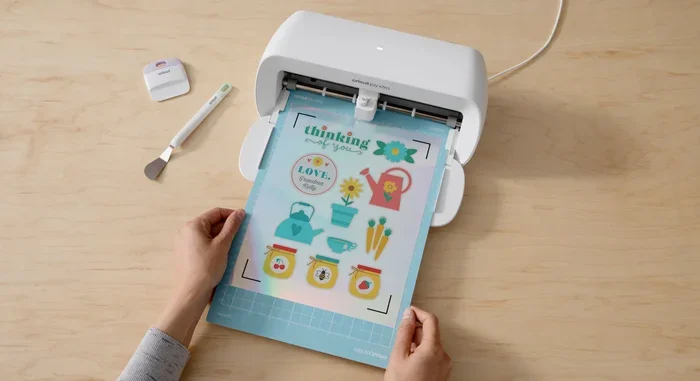
Once the ink is dry, place the printed sheet onto your Cricut cutting mat. Use the Cricut machine to cut around your designs. After cutting, gently remove the excess paper around each sticker. This process is called weeding. Use a weeding tool or your fingers to peel away the unwanted areas.
If you are making clear stickers, you will need to apply transfer tape over the design before you remove the backing paper. This helps you transfer the sticker smoothly onto your desired surface.
Common Mistakes That Damage Your Printer
Even though using Cricut sticker paper in a printer is safe, mistakes can still happen. Knowing what to avoid will protect your printer and save you frustration.
Using The Wrong Paper Type
The biggest mistake is using inkjet paper in a laser printer or vice versa. Inkjet paper will melt or smear in a laser printer because it is not heat-resistant. Laser paper can cause poor ink adhesion in an inkjet printer because the coating repels liquid ink. Always check the paper packaging for the correct printer type.
Ignoring Paper Thickness
Cricut sticker paper is thicker than regular copy paper. If your printer does not handle thick media well, it may jam or feed the paper crooked. Look for a manual feed slot on your printer. This slot is designed for thicker paper and reduces the risk of jams.
Printing On The Wrong Side
Sticker paper has a printable side and a sticky side. Printing on the sticky side will ruin your design and clog your printer. Always print on the smooth, glossy or matte side. The sticky side has a special coating that repels ink.
Overloading The Paper Tray
It is tempting to load a whole stack of sticker paper to save time. But sticker paper is rigid and does not feed through printers as easily as plain paper. Load only one or two sheets at a time. This keeps the paper feeding straight and prevents jams.
Pros And Cons Of Using Cricut Sticker Paper In A Printer
Like any crafting material, Cricut sticker paper has its advantages and disadvantages. Understanding both will help you decide if it is the right choice for your projects.
| Pros | Cons |
|---|---|
| Creates professional-looking stickers at home | Sticker paper costs more than plain paper |
| Works with most inkjet and laser printers | Can cause paper jams if loaded incorrectly |
| Many finishes available: glossy, matte, clear, waterproof | Ink may smear if you touch it too soon |
| Saves money compared to ordering custom stickers | Thicker paper may require manual feed |
| Easy to use with Cricut Design Space | Not all sticker papers are compatible with all printers |
Expert Tips For Perfect Stickers Every Time
Experienced crafters know a few tricks that make a big difference. Here are some quick tips to help you get the best results from your Cricut sticker paper and printer.
- Use fresh ink cartridges. Old or low ink causes faded prints and can clog your printhead. Replace cartridges before you start a big sticker project.
- Let prints dry completely. Give your stickers at least 10 minutes to dry before you handle them. This is especially important for glossy paper.
- Store paper in a cool, dry place. Humidity can warp sticker paper and cause it to feed poorly through the printer.
- Run a test print on plain paper first. This helps you check the size and layout before you waste a sheet of expensive sticker paper.
- Clean your printer rollers regularly. Sticker paper can leave residue. Wipe the rollers with a dry cloth to keep your printer running smoothly.
- Use transfer tape for clear stickers. It makes application easier and prevents bubbles.
- Match the paper finish to your project. Glossy looks great for product labels, while matte is perfect for planner stickers.
Final Verdict: Is It Safe To Use Cricut Sticker Paper In Your Printer?
So, can you use Cricut sticker paper in a printer safely? The answer is a clear yes. As long as you choose the right paper for your printer type, use the correct settings, and follow proper loading techniques, you will not harm your machine. In fact, millions of crafters print beautiful stickers at home every day without any issues.
The key is to take your time and pay attention to the details. Check the paper packaging, adjust your printer settings, and never rush the drying process. With a little care, your Cricut sticker paper and printer will work together perfectly. You will enjoy creating custom stickers that look professional and last a long time.
Start with a small project to build your confidence. Try printing a few matte stickers or clear labels. Once you see how easy and fun it is, you will wonder how you ever made stickers without a printer. Happy crafting, and enjoy your new sticker-making skills!
Frequently Asked Questions
Can I use Cricut sticker paper in any printer?
Most Cricut sticker papers work with common home inkjet and laser printers. However, you must check the paper packaging to confirm it is compatible with your printer type. Using the wrong paper can cause smudging or jams.
Is Cricut sticker paper safe for inkjet printers?
Yes, inkjet sticker paper is specifically designed for inkjet printers. The coating absorbs the liquid ink without bleeding. Just make sure you select the correct media type in your printer settings for the best results.
Can I print on both sides of Cricut sticker paper?
No, you should only print on the designated printable side. The other side has an adhesive coating that will not accept ink properly and can damage your printer. Always check which side is glossy or matte for printing.
Why does my printer jam when I use sticker paper?
Jams usually happen when the paper is loaded incorrectly or the printer cannot handle the thickness. Use the manual feed slot if your printer has one. Also, never overfill the tray with more than one or two sheets of sticker paper.
Do I need special ink for Cricut sticker paper?
You do not need special ink, but you should use fresh, high-quality ink cartridges. Original or high-yield cartridges give the best color and adhesion. Low-quality or old ink can cause fading and smudging on sticker paper.
Can I use Cricut sticker paper with a Cricut Joy machine?
Yes, Cricut Joy can print on compatible sticker paper sheets. The Cricut Joy has a built-in printer that works with certain Cricut sticker paper sizes. Always check the Cricut Joy material list to ensure your paper is supported.