Can You Use Both HDMI Ports On Your Computer Or TV
Yes, you can use both HDMI ports on your computer or TV for dual monitors, extended displays, or connecting multiple devices. This guide walks you through every setup option, from HDMI splitters to graphics card configurations, so you can get the most out of your ports.
If you have ever looked at the back of your computer or TV and wondered about those two HDMI ports, you are not alone. The question can you use both HDMI ports comes up all the time, and the answer is a resounding yes. But how you use them depends on what you want to achieve. Whether you are a gamer chasing a dual-monitor setup or someone who wants to connect a laptop to a TV and a soundbar at the same time, understanding your HDMI options opens up a world of possibilities.
This guide breaks down everything you need to know about using both HDMI ports on your computer or TV. We will cover setup methods, hardware requirements, common pitfalls, and expert tips that save you time and money. By the end, you will feel confident setting up your own dual-HDMI configuration with zero guesswork.
HDMI ports have become the standard connection for audio and video. Almost every modern computer, television, monitor, and streaming device uses them. But not all HDMI ports are created equal. Some support 4K resolution. Others handle higher refresh rates. And some are designed for specific tasks like HDMI ARC, which sends audio back to a sound system. Knowing these differences helps you make smart decisions about how to use both ports at once.
Key Takeaways
- Dual HDMI Use Is Possible: You can absolutely use both HDMI ports on your computer or TV for extended displays, multi-device setups, or mirroring.
- Graphics Card Matters: Your GPU determines whether you can run two HDMI outputs simultaneously for multiple monitors.
- HDMI Splitters and Switches Help: These affordable accessories let you share or switch between HDMI sources with ease.
- HDMI Version Differences Matter: HDMI 2.0 and HDMI 2.1 offer different bandwidth and resolution support for your setup.
- Common Mistakes Slow You Down: Using the wrong cables, ignoring EDID issues, or mismatched resolutions can cause problems.
- TVs Have Unique HDMI Features: HDMI ARC and CEC add functionality when using both ports on a television.
📑 Table of Contents
Understanding Your HDMI Ports
Before diving into setups, let us understand what HDMI ports actually do and why your device has more than one. This foundation makes everything else easier to grasp.
What Is an HDMI Port?
HDMI stands for High-Definition Multimedia Interface. It carries both video and audio through a single cable. This is why it is so popular. You plug in one cable, and you get picture and sound without any extra wires. The standard HDMI connector has been around since the early 2000s, and it has evolved significantly over the years.
Today, most computers and TVs come with at least two HDMI ports. Desktops often have them on the motherboard and the graphics card. Laptops may have one or two depending on the model. TVs typically have three or four, giving you plenty of room for multiple devices like a cable box, game console, and streaming stick.
HDMI Versions: Why Version Number Matters
Not all HDMI connections are the same. The version of HDMI your port supports determines what it can do. Here is a quick breakdown of the most common versions you will encounter.
- HDMI 1.4: Supports 4K at 30Hz. Good for basic 4K content but not ideal for fast gaming.
- HDMI 2.0: Supports 4K at 60Hz. This is the sweet spot for most home entertainment setups.
- HDMI 2.1: Supports 4K at 120Hz and even 8K at 60Hz. Perfect for next-gen gaming and high-end displays.
When you use both HDMI ports, check the version of each port. Mixing HDMI 2.0 and HDMI 2.1 on the same device is common. The setup will work, but both ports will default to the lower version’s capabilities unless your device handles it differently.
HDMI Port Types on Computers vs. TVs
Computers and TVs use HDMI ports differently. On a computer, HDMI ports often serve as output-only connections. You send a signal from your PC to an external monitor. Some computers also have HDMI input ports, but this is rare. Most laptops and desktops use HDMI for output only.
On a TV, HDMI ports are input ports. They receive signals from external devices. This distinction matters because it affects how you can use both ports. You cannot use a TV’s HDMI ports to output a signal the way you would on a computer. But you can absolutely use both input ports to connect multiple devices at once.
Can You Use Both HDMI Ports on a Computer?
This is the most common question people ask. The short answer is yes, but the method depends on what you want to accomplish. Let us explore the different scenarios.
Using Both Ports for Dual Monitors
The most popular reason people want to use both HDMI ports on a computer is to run dual monitors. Having two screens boosts productivity massively. You can have your email open on one screen while working on a document on the other. Gamers love it too because it creates a wider field of view.
To set up dual monitors via HDMI, you need a graphics card that supports multiple outputs. Most modern dedicated GPUs from NVIDIA and AMD have at least two HDMI or DisplayPort outputs. Integrated graphics on Intel processors sometimes support dual displays as well, but you should check your specific model.
Here is how you set it up in simple steps:
- Connect your first monitor to HDMI port one on your computer.
- Connect your second monitor to HDMI port two.
- Power on both monitors and your computer.
- Right-click on your desktop and open Display Settings.
- Choose between Extend, Duplicate, or Show Only on one display.
The Extend option is the most useful for productivity. It gives you a larger desktop workspace across both screens. Duplicate mode mirrors the same image on both displays, which works well for presentations.
Using Both Ports for Different Devices
Some people use both HDMI ports to connect different types of devices to the same computer. For example, you might plug in an HDMI monitor for work and an HDMI capture card for streaming. This works well as long as your graphics card can handle multiple outputs simultaneously.
Quick Tip: If your computer only has one HDMI port but you need two, you can use an HDMI adapter or a USB-to-HDMI docking station. These expand your output options without replacing any hardware.
Limitations of Using Both HDMI Ports on a Computer
There are some limitations you should know about. First, not all graphics cards support active dual-output at high resolutions. Running two 4K monitors at 60Hz requires a powerful GPU with enough bandwidth. Second, some older computers share bandwidth between ports, which can reduce performance. Third, laptops with only one physical HDMI port cannot output to two HDMI monitors without an adapter.
Expert Insight: According to display technology specialists, the real bottleneck is usually the GPU, not the HDMI ports themselves. A mid-range graphics card can handle two 1080p monitors easily but may struggle with dual 4K displays.
Can You Use Both HDMI Ports on a TV?
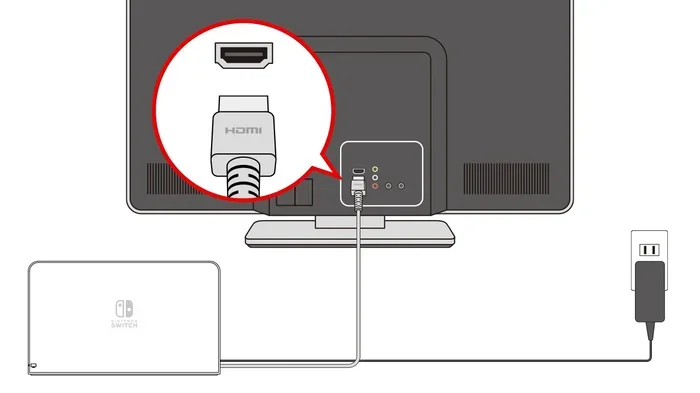
Using both HDMI ports on a TV is straightforward and very common. TVs are designed to accept input from multiple sources simultaneously. You can connect a cable box to one port and a gaming console to the other, then switch between them using your remote.
Multi-Device Setup on Your TV
The simplest use case is connecting multiple devices to your TV’s HDMI ports. Most people connect a streaming device like a Roku or Apple TV to one port and a game console to another. This way, you can switch inputs without unplugging anything.
Here is what a typical dual-device TV setup looks like:
- HDMI Port 1: Connected to a cable box or satellite receiver.
- HDMI Port 2: Connected to a PlayStation or Xbox console.
- HDMI Port 3: Connected to a streaming stick or Blu-ray player.
Your TV remote lets you switch between these inputs instantly. Most modern TVs have an input selector button or a dedicated source button on the remote. Some even label the ports in the settings menu so you know which device is on which port.
HDMI ARC and Its Role in TV Setups
HDMI ARC (Audio Return Channel) is a special feature found on many HDMI ports. It allows audio to travel back from your TV to a soundbar or AV receiver through the same HDMI cable. This eliminates the need for a separate audio cable.
When setting up both HDMI ports on a TV, make sure you know which port supports ARC. Not all ports do. Usually, the TV manufacturer labels the ARC port with a special marking or mentions it in the user manual. Connecting your soundbar to the ARC port gives you the best audio experience without extra wires.
HDMI CEC: Controlling Multiple Devices
HDMI CEC (Consumer Electronics Control) is another handy feature. It lets you control multiple devices with one remote. If you have a soundbar and a TV connected via HDMI, CEC allows you to adjust the volume with your TV remote. Different brands call this feature by different names like SimpLink, Bravia Sync, or Anynet+, but they all work the same way.
When you use both HDMI ports on your TV and connect devices that support CEC, everything works together seamlessly. You turn on the TV, and the connected devices power on too. You switch inputs, and the audio follows. It is a small feature that makes a big difference.
HDMI Splitters vs. HDMI Switches
Sometimes you need extra help to use both HDMI ports effectively. This is where HDMI splitters and switches come in. They solve different problems, and knowing the difference saves you from buying the wrong device.
What Is an HDMI Splitter?
An HDMI splitter takes one input and copies it to multiple outputs. You plug a single device into the splitter, and the signal reaches two or more screens. This is useful when you want to display the same content on multiple TVs or monitors from one source.
Common uses for an HDMI splitter include:
- Showing the same presentation on two screens in a conference room.
- Sending a gaming console signal to both a TV and a capture card.
- Displaying digital signage in a retail store.
Most HDMI splitters are passive, meaning they do not boost the signal. For long cable runs, an active splitter with a power supply works better because it amplifies the signal and prevents quality loss.
What Is an HDMI Switch?
An HDMI switch does the opposite of a splitter. It takes multiple inputs and sends them to a single output. You connect several devices to the switch, and then use one cable from the switch to your TV or monitor. A remote control or button lets you toggle between inputs.
HDMI switches are perfect when your TV runs out of ports. If you have a cable box, a game console, a Blu-ray player, and a streaming stick but only two HDMI ports on your TV, a 4-input HDMI switch solves the problem easily.
Comparison Table: Splitter vs. Switch
| Feature | HDMI Splitter | HDMI Switch |
|---|---|---|
| Number of Inputs | One | Two or more |
| Number of Outputs | Two or more | One |
| Primary Use | Duplicate signal to multiple screens | Share one screen among multiple devices |
| Signal Direction | One input to many outputs | Many inputs to one output |
| Power Required | Sometimes | Rarely |
| Typical Cost | $10 to $30 | $10 to $25 |
Common Mistakes When Using Both HDMI Ports
Even with the right equipment, people make mistakes that cause frustration. Here are the most common ones and how to avoid them.
Using the Wrong HDMI Cable
Not all HDMI cables are the same. A standard HDMI cable supports 1080p, but it may not handle 4K at 60Hz. If you want both HDMI ports to deliver high-quality video, you need High Speed HDMI cables or Premium High Speed cables. For HDMI 2.1 features like 4K at 120Hz, you need an Ultra High Speed HDMI cable.
Using an older cable limits your setup. You might get a black screen, no signal, or reduced resolution without understanding why. Always check the cable specification before purchasing.
Ignoring EDID Handshake Issues
EDID (Extended Display Identification Data) is the communication between your computer and monitor. When you connect a second display, the two devices need to agree on resolution, refresh rate, and color depth. Sometimes they do not agree, and you get a blank screen or flickering display.
The fix is usually simple. Disconnect both monitors, restart your computer, and reconnect them one at a time. This forces a fresh EDID handshake and often resolves the issue immediately.
Mismatched Resolutions and Refresh Rates
When using both HDMI ports for dual monitors, each monitor can have its own resolution and refresh rate. But if they are mismatched, you may experience stuttering or scaling issues. For the best experience, try to match the resolution and refresh rate of both displays, especially if they are the same model.
Forgetting to Update Graphics Drivers
Outdated graphics drivers are a hidden cause of dual-monitor problems. Your GPU driver controls how both HDMI outputs work together. An outdated driver might not support the resolution or configuration you want. Always keep your graphics drivers up to date from the official NVIDIA, AMD, or Intel website.
Quick Tips:
- Label your HDMI cables so you know which one goes where.
- Use cable management clips to keep wires tidy behind your desk.
- Test each HDMI port individually before setting up a dual configuration.
- Keep your HDMI firmware updated if your device supports it.
Expert Tips for Getting the Most From Both HDMI Ports
Experienced users and tech professionals share a few tips that make a big difference in daily use.
Use High-Quality HDMI Cables
Cheap cables can cause signal degradation, especially over long distances. A well-made HDMI cable with proper shielding ensures clean video and audio. Look for cables from reputable brands or those certified by HDMI Licensing LLC. You do not need to spend a fortune, but avoid the cheapest options that lack certification.
Consider a Docking Station for Laptops
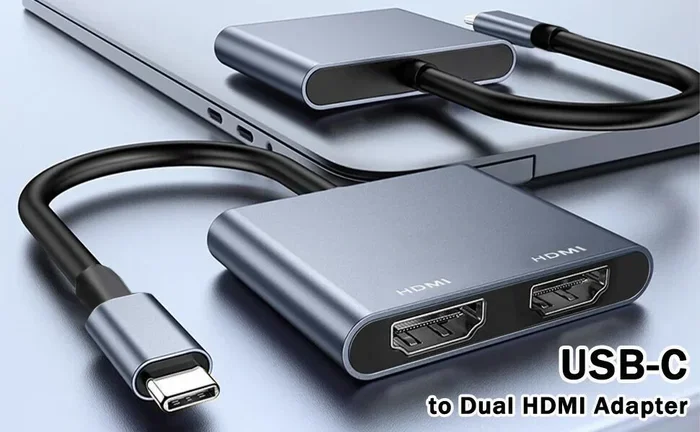
If your laptop has only one HDMI port, a USB-C docking station with dual HDMI output is a game changer. These docks connect to your laptop through a single USB-C cable and provide two or more HDMI outputs. You can run dual external monitors with ease, turning your laptop into a desktop workstation.
Take Advantage of HDMI Passthrough
Some devices like AV receivers and certain monitors offer HDMI passthrough. This means the HDMI signal passes through the device without any processing delay. Gamers especially appreciate passthrough because it keeps input lag low. When setting up both HDMI ports, look for passthrough support if you want the smoothest possible experience.
Plan Your Cable Length Carefully
Longer HDMI cables can lose signal quality. For runs under 15 feet, a standard cable works fine. For runs between 15 and 30 feet, consider an active HDMI cable or a fiber optic HDMI cable. These maintain signal integrity over longer distances without degradation.
Expert Insight: AV professionals recommend keeping HDMI cable runs under 20 feet for standard cables. Beyond that, active cables or signal boosters become necessary to maintain a reliable connection.
Final Thoughts
So can you use both HDMI ports on your computer or TV? Absolutely. Whether you want dual monitors for work, multiple devices connected to your television, or a combination of both, your HDMI ports give you the flexibility to create the setup that fits your needs. The key is understanding what your hardware supports, choosing the right cables and accessories, and avoiding the common mistakes that trip people up.
Start with your goals. Do you need extended displays or mirrored screens? Are you connecting multiple devices to one TV? Once you know what you want, the setup becomes much simpler. Follow the steps in this guide, take it one step at a time, and you will have a fully functional dual-HDMI setup in no time.
The world of HDMI connectivity is vast, but it does not have to be confusing. With the right knowledge and a little patience, you can unlock the full potential of both HDMI ports on any device. Your setup will be cleaner, more efficient, and ready for whatever you need next.
Frequently Asked Questions
Can I use both HDMI ports on a laptop?
Most laptops have only one HDMI port. However, some models come with two. If your laptop has a single HDMI port, you can use a USB-C docking station or an HDMI adapter to add a second output. Always check your laptop’s specifications before purchasing any additional hardware.
Do I need a special graphics card to use both HDMI ports?
Not necessarily. Many integrated graphics processors support dual HDMI output. However, for high-resolution setups or gaming on two monitors, a dedicated graphics card with multiple HDMI or DisplayPort outputs gives you the best performance and reliability.
Can I connect two TVs to one computer using both HDMI ports?
Yes, you can connect two TVs to one computer if your graphics card supports dual outputs. You can extend your desktop across both TVs or mirror the same content. Keep in mind that both TVs should support the same resolution for the best viewing experience.
Does using both HDMI ports reduce performance?
Using both HDMI ports does not significantly reduce performance for everyday tasks. However, running demanding applications like video editing or gaming across two high-resolution displays does use more GPU power. Make sure your graphics card can handle the workload.
What is the difference between HDMI 2.0 and HDMI 2.1 ports?
HDMI 2.0 supports 4K resolution at 60Hz, while HDMI 2.1 supports 4K at 120Hz and 8K at 60Hz. HDMI 2.1 also features higher bandwidth, Dynamic HDR, and Enhanced Audio Return Channel. If you have both versions on your device, the HDMI 2.1 port delivers better performance for high-refresh-rate content.
Can I use an HDMI splitter to connect two monitors to one HDMI port?
Yes, an HDMI splitter copies the signal from one port to two monitors. However, both monitors will display the same image. If you want extended displays, you need two separate output ports on your computer or a DisplayPort MST hub instead of a splitter.
=== CONCLUSION ===
Can you use both HDMI ports on your computer or TV? Yes, and the possibilities are exciting. From dual-monitor productivity setups to multi-device entertainment centers, both HDMI ports open doors that single-port devices simply cannot match. The key is matching your hardware capabilities to your goals, using the right cables, and avoiding common setup mistakes.
Whether you are a student, a professional, a gamer, or a home theater enthusiast, understanding how to use both HDMI ports gives you an edge. You get more screen space, more connectivity options, and a cleaner, more organized setup. Apply the tips and insights from this guide, and you will enjoy a seamless dual-HDMI experience every single day.