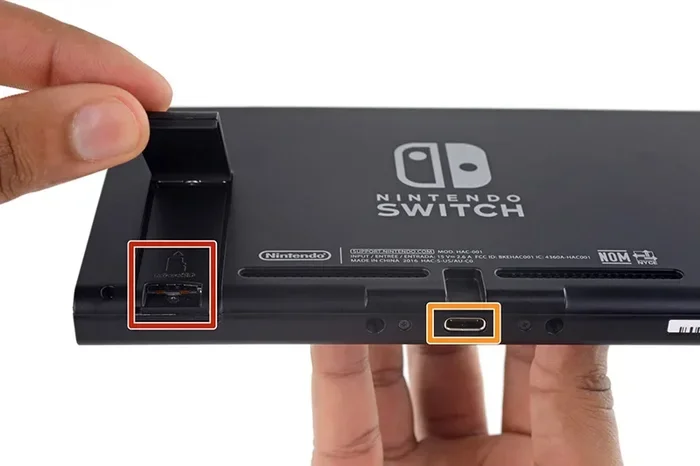
Can You Use A Usb C On A Switch And Why It Matters
Yes, you can use a USB C on a Switch — and it opens up faster charging, better docks, and more gaming options. USB C on Nintendo Switch means better connectivity, but not all cables work the same way. This guide covers everything you need to know about USB C compatibility with your Switch console.
If you own a Nintendo Switch, you have probably looked at the charging cable that came in the box. It is not the old USB A type. It is a USB C connector. This small but powerful port has changed how we think about Nintendo Switch accessories. Many players ask the same question: can you use a USB C on a Switch?
The short answer is yes. But the full story is more interesting than that. USB C on Nintendo Switch devices brings faster charging, better docking options, and more flexibility for gamers. Whether you play on the original Switch, the Switch OLED, or the Switch Lite, the USB C port plays a big role in your daily gaming routine.
In this guide, we will walk through everything you need to know. We will cover how USB C charging works, what docks and adapters you can use, and which cables are worth your money. By the end, you will feel confident about every USB C connection on your Switch.
Key Takeaways
- USB C works on the Nintendo Switch: The Switch uses a USB C port for charging and data transfer.
- Not all USB C cables are equal: Cheap cables may not support fast charging or data speeds.
- USB C docks expand your gaming setup: You can connect to TVs, charge while playing, and add peripherals.
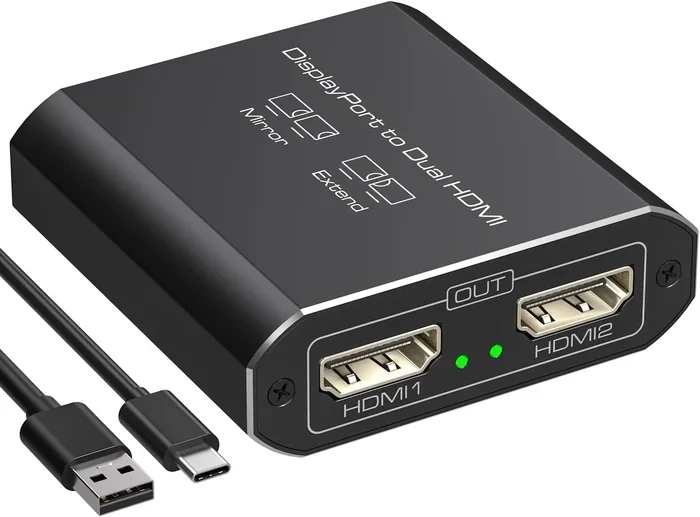
- USB C to HDMI adapters work well: They let you output gameplay to larger screens easily.
- Check power delivery ratings: Use a USB C cable rated for at least 15W to charge your Switch safely.
- USB C works on Switch Lite and OLED: Both models share the same USB C port design.
- Avoid knockoff cables: Poor quality USB C cables can damage your console or cause slow charging.
📑 Table of Contents
- What Is USB C and Why Does It Matter for the Switch?
- Can You Use a USB C Cable to Charge the Switch?
- Using USB C Docks and Hubs With the Switch
- USB C on Switch Lite and Switch OLED
- Common Mistakes People Make With USB C on the Switch
- Expert Tips for Getting the Most From USB C on Your Switch
- Key Takeaways
- Conclusion
What Is USB C and Why Does It Matter for the Switch?
USB C is a type of connector used across many devices today. You find it on phones, laptops, tablets, and gaming consoles. Unlike the older USB A ports, USB C is smaller, reversible, and faster. It carries both power and data through a single cable.
The Nintendo Switch adopted USB C starting with the Switch Lite in 2019. The original Switch model got a USB C port too through a later hardware revision. This shift to USB C Nintendo Switch designs brought real benefits to players.
Why USB C Is Better Than Older USB Types
Older USB A cables are bulky and only fit one way. You have to flip them multiple times to get a connection. USB C solves that problem. The connector is tiny and reversible. You can plug it in either direction.
USB C also supports USB C power delivery, which means faster and more efficient charging. For a handheld gaming device like the Switch, this matters a lot. You spend less time waiting for a charge and more time playing.
Here are some key advantages of USB C for Switch users:
- Reversible design: No more flipping the cable to get it right.
- Faster charging: USB C power delivery speeds up charge times.
- Data transfer: Move games and files quickly between devices.
- Smaller size: The port takes up less space on the console.
- Wide compatibility: Many modern devices use the same connector.
Can You Use a USB C Cable to Charge the Switch?
Absolutely. Charging your Switch with a USB C cable is the standard method. The console comes with a USB C cable and a power adapter in the box. You can also use third-party cables as long as they meet the right specs.
What Kind of USB C Cable Do You Need?
Not every USB C cable is built the same. Some cables only carry data. Others carry power. And some handle both at high speeds. When you are looking for a USB C charging cable for your Switch, pay attention to these details.
The Nintendo Switch needs a USB C cable that supports at least 15 watts of power. Most quality USB C cables will meet this requirement easily. Look for cables that mention USB C power delivery or list the wattage on the packaging.
Here are some quick tips for choosing the right cable:
- Check the wattage rating: Go for 15W or higher for safe charging.
- Pick braided cables: They last longer and resist fraying.
- Buy from trusted brands: Anker, Belkin, and Cable Matters make great options.
- Avoid ultra-cheap no-name cables: They may not deliver the right power.
- Look for USB C certification: This ensures the cable meets safety standards.
Can You Use Your Phone Charger for the Switch?
Yes, in most cases. If your phone uses a USB C charger, it will likely work with the Switch. The key is making sure the charger outputs enough power. A standard 5-watt phone charger will charge the Switch, but it will be slow.
For faster USB C fast charging, use a charger that outputs 15W or more. The Switch will draw only the power it needs, so a higher-rated charger will not damage the console. This is one of the great perks of USB C power delivery technology.
Using USB C Docks and Hubs With the Switch
This is where USB C on Nintendo Switch setups really shine. A USB C dock lets you turn your portable console into a home console in seconds. You plug the dock into your TV, connect the Switch, and start playing on the big screen.
How USB C Docks Work
A USB C dock connects to the Switch through the USB C port. The dock then sends video to your TV through an HDMI cable. At the same time, it charges the console. Many docks also add extra USB ports for controllers, headsets, or storage devices.
The official Nintendo Switch dock uses USB C to connect to the console. Third-party docks work the same way. A good USB C to HDMI dock gives you a reliable connection and smooth gameplay.
What to Look for in a USB C Dock
Not all docks are created equal. Some are cheap and unreliable. Others offer great performance and extra features. Here is what you should check before buying a dock for USB C gaming on the Switch:
- HDMI output resolution: Look for 1080p or 4K support depending on your TV.
- Pass-through charging: The dock should charge the Switch while you play.
- Extra USB ports: Useful for connecting wired controllers or flash drives.
- Build quality: Metal housings and thick cables last longer.
- Compatibility: Make sure the dock works with the Switch, Switch Lite, and Switch OLED.
USB C Hub vs USB C Dock: What Is the Difference?
People often use these terms interchangeably, but they are different. A USB C hub adds ports like USB A, SD card slots, and Ethernet. A USB C dock focuses on video output and charging. Some products combine both features into one unit.
If you mostly want to play on your TV, a dock is the better choice. If you need to connect a keyboard, mouse, or external drive while traveling, a hub is more useful. Many USB C multiport adapter options blend both worlds nicely.
USB C on Switch Lite and Switch OLED
Both the Switch Lite and the Switch OLED use the same USB C port. This means your USB C cables, docks, and adapters work across all Switch models. You do not need different accessories for each version.
The Switch Lite is a fully portable handheld. It has no dock mode. But it still charges through USB C and supports USB C data transfer. The Switch OLED has a larger screen and a built-in dock, but it uses the same USB C charging method.
This cross-model compatibility is a huge win for players who own multiple Switch versions. One USB C cable can handle all your charging needs. One dock works with every model. It makes managing your Nintendo Switch accessories much simpler.
Quick Comparison of USB C Across Switch Models
Here is a simple breakdown of how USB C works on each Switch model:
- Original Switch: USB C port, supports charging, data transfer, and dock connection.
- Switch Lite: USB C port, charging and data transfer only (no dock mode).
- Switch OLED: USB C port, supports all features including dock and charging.
Common Mistakes People Make With USB C on the Switch
Even though USB C on Nintendo Switch setups are straightforward, some common mistakes can cause problems. Avoiding these pitfalls will keep your console safe and your gaming experience smooth.
Using Cheap, Uncertified Cables
This is the number one mistake. A $3 no-name USB C cable from an unknown brand might seem like a good deal. But it can deliver inconsistent power or damage your port over time. Always buy from reputable brands or cables with proper certification.
Forcing the Connector
USB C is reversible, but it still fits in one orientation. If you are forcing it, you might be using the wrong cable or inserting it at an angle. A loose or damaged port can lead to charging failures.
Ignoring Power Delivery Ratings
Using a charger that outputs too little power means slow charging. Using one that outputs too much is usually fine because the Switch regulates the intake. But always check that your USB C power delivery setup matches the console’s requirements.
Bending the Cable at Sharp Angles
USB C cables can break if you bend them sharply near the connector. This is especially common when the Switch is docked and the cable gets pulled. Use cable management clips or choose a longer cable to reduce strain.
Expert Tips for Getting the Most From USB C on Your Switch
Want to level up your USB C gaming setup? Here are some expert-backed tips that make a real difference.
Invest in a Quality USB C Cable
A good USB C cable is one of the best investments you can make. Look for cables that are braided, rated for high current, and from trusted brands. A quality cable will last longer, charge faster, and keep your Switch safe.
Keep a Spare Cable at Home and On the Go
USB C cables wear out over time. Having a backup at home and in your travel bag saves you from unexpected downtime. Pick up a couple of extra cables and keep them in your Switch carrying case.
Use a USB C Hub for More Connectivity
If you play games on your Switch and want to connect a Pro Controller, headset, or memory card at the same time, a USB C hub is perfect. It expands your options without cluttering your setup.
Update Your Switch Firmware Regularly
Nintendo occasionally releases firmware updates that improve USB C compatibility and fix connection issues. Keeping your console updated ensures the best performance with all your USB C accessories.
Clean the USB C Port Gently
Dust and lint can build up inside the USB C port over time. This can cause loose connections or slow charging. Use a soft brush or compressed air to clean the port carefully. Never poke it with metal objects.
Key Takeaways
- USB C is the standard port on all Nintendo Switch models: Original, Lite, and OLED all use it.
- USB C charging is fast and reliable: Use quality cables rated for at least 15W.
- USB C docks and hubs expand your setup: Connect to TVs, charge while playing, and add peripherals.
- USB C to HDMI adapters work great: They let you play on any screen with an HDMI input.
- Avoid cheap cables: They can cause slow charging, data issues, or even damage your console.
- USB C is compatible across all Switch models: One cable and one dock work for everything.
- Maintain your USB C port: Keep it clean and handle cables gently for long-lasting performance.
Conclusion
The answer to can you use a USB C on a Switch is a clear yes. USB C has become the go-to connector for Nintendo Switch players around the world. It brings faster charging, better docking, and more flexibility to your gaming setup.
Whether you are using the original Switch, the Switch Lite, or the Switch OLED, USB C on Nintendo Switch devices works seamlessly. You just need the right cable, a good dock if you want TV output, and a little knowledge about what to look for.
Do not fall for cheap, uncertified cables. Do not ignore power delivery ratings. And do not skip the simple maintenance steps that keep your USB C port working perfectly. With the right approach, your USB C Switch setup will serve you well for years to come.
Now that you know the ins and outs of USB C compatibility with the Switch, you can shop with confidence. Pick the right accessories, set up your gaming station, and get back to what matters most: playing great games.
Frequently Asked Questions
Can I use any USB C cable to charge my Nintendo Switch?
Most USB C cables will work, but not all of them are ideal. You need a cable that supports at least 15 watts of power delivery. Cheap or uncertified cables may charge slowly or not work at all. Stick with trusted brands for the best results with your USB C Nintendo Switch setup.
Does USB C on the Switch support video output?
Yes, it does. You can use a USB C dock or a USB C to HDMI adapter to send video from your Switch to a TV. This is how the official Nintendo Switch dock works. Just make sure your dock or adapter supports video output and is compatible with your Switch model.
Can I use a USB C hub with the Nintendo Switch?
You can use a USB C hub with the Switch for data transfer and connecting peripherals. However, most USB C hubs do not support video output on their own. If you want to connect to a TV, you need a dock that includes an HDMI port. Always check the hub’s specs before buying.
Is USB C fast charging supported on the Nintendo Switch?
The Switch supports USB C power delivery for charging. While it does not use the fastest USB C standards available, it charges faster than older USB A methods. A 15W or higher USB C charger will give you the best charging speeds for your console.
Will a USB C cable work on the Switch Lite?
Yes, the Switch Lite uses the same USB C port as other Switch models. You can charge it, transfer data, and use compatible accessories with a standard USB C cable. The Switch Lite does not support dock mode, but the USB C connection works perfectly for all other functions.
How do I clean my Switch USB C port?
Use a soft, dry brush or a burst of compressed air to gently remove dust from the port. Do not use metal objects like pins or needles, as they can damage the contacts. Keeping the port clean ensures a solid connection and prevents slow charging or data issues with your USB C Switch setup.