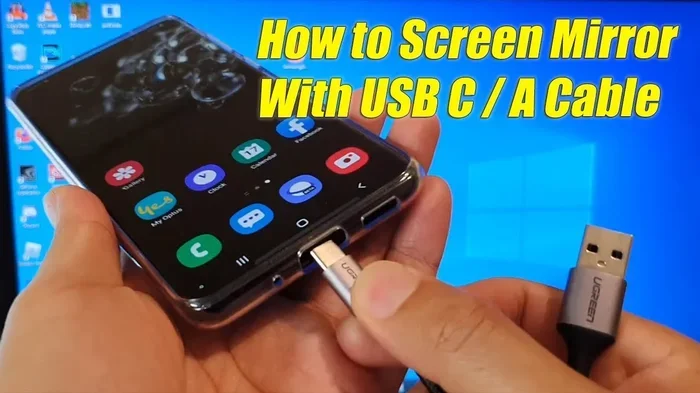
Can You Screen Mirror With USB Cable Heres How to Do It
Yes, you can screen mirror with a USB cable — and its easier than you think. Whether you want to cast your phone, tablet, or laptop to a TV or monitor, a USB cable connection offers a stable, lag-free alternative to wireless mirroring. This guide covers every method, device compatibility, and step-by-step instructions to get your screen mirroring working today.
Have you ever wanted to show something on your phone or laptop to a bigger audience? Maybe you are sharing photos with friends, giving a work presentation, or just want to watch a movie on your TV. The wireless way to do this is called screen mirroring. But what if your Wi-Fi is slow or unreliable? That is where a simple USB cable comes in handy.
So, can you screen mirror with USB cable? The short answer is yes. A USB cable connection lets you send your device screen to a TV, monitor, or projector with a wired link. It is fast, dependable, and does not depend on your home network. In this article, we will walk you through every method, explain which devices work, and give you clear steps to get started.
Key Takeaways
- USB cable mirroring works: You can mirror screens using USB cables with the right adapter and setup.
- Wired is more stable: USB connections offer less lag and fewer dropouts than wireless methods.
- Multiple methods exist: USB-C to HDMI, MHL, and docking stations all support screen mirroring.
- Device compatibility matters: Not every phone or laptop supports USB mirroring — check your device specs first.
- Quick setup: Most USB mirroring setups take under 5 minutes once you have the right cable.
- Best for presentations: USB mirroring is ideal for work presentations where reliability is critical.
- No Wi-Fi needed: USB mirroring works even without an internet connection or Wi-Fi network.
📑 Table of Contents
- What Is Screen Mirroring With a USB Cable?
- Types of USB Cables and Adapters for Screen Mirroring
- How to Screen Mirror With a USB Cable: Step-by-Step
- Benefits of USB Cable Screen Mirroring
- Common Mistakes to Avoid When Screen Mirroring With USB
- Quick Tips for the Best USB Mirroring Experience
- USB Mirroring vs. Wireless Mirroring: Which Is Better?
- Expert Insights on Wired Screen Mirroring
- Frequently Asked Questions
- Final Thoughts
What Is Screen Mirroring With a USB Cable?
Screen mirroring means displaying your device screen on a larger display in real time. When you use a USB cable for this, you are sending video and audio data through a physical wire instead of over Wi-Fi or Bluetooth. This wired approach has some big advantages.
Think of it like this. Wireless mirroring is like sending a letter through the mail. It works, but sometimes it gets delayed or lost. A USB cable connection is like handing someone the letter directly. It is instant and reliable. That is why many professionals and gamers prefer a wired display setup.
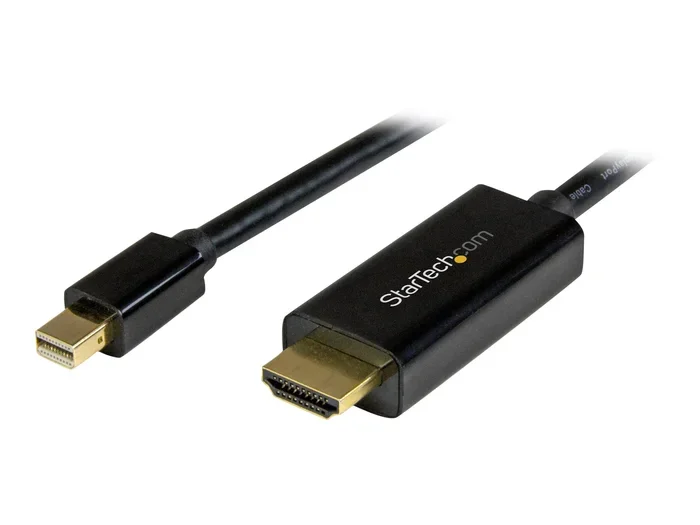
The most common way to mirror with a USB cable is through an adapter. You plug one end into your phone or laptop and the other end into your TV or monitor. The adapter converts the USB signal into an HDMI signal that your display can understand. Simple, right?
How USB Display Technology Works
When you connect your device via USB, it uses a display protocol to send visual data. Your device recognizes the external screen and duplicates or extends your display. Some protocols are built into your operating system. Others need a small app or driver. The process is usually automatic on newer devices.
For example, if you have a modern Android phone with a USB-C port, connecting it to a TV with a USB-C to HDMI adapter often triggers screen mirroring right away. Your phone detects the external display and mirrors the screen without any extra steps. It really is that straightforward.
Types of USB Cables and Adapters for Screen Mirroring
Not all USB cables are the same when it comes to screen mirroring. The type of cable and adapter you need depends on your device and the display you are connecting to. Let us break down the most common options.
USB-C to HDMI Adapters
This is the most popular option for modern screen mirroring. If your phone, tablet, or laptop has a USB-C port, a USB-C to HDMI adapter is your best bet. These small adapters plug into your device on one side and connect to an HDMI cable on the other. The HDMI cable then goes into your TV or monitor.
These adapters support high-definition video and audio over a single cable. They work with most Android phones, Windows laptops, and some tablets. Look for adapters that support 4K resolution if you want sharp, clear visuals on your big screen.
MHL (Mobile High-Definition Link) Cables
MHL was one of the earliest cable mirroring standards. It allows older Android phones with a micro-USB port to connect to an HDMI display. You use a special MHL cable or adapter that carries both power and video signal through one connection.
MHL is less common today because most new phones have moved to USB-C. However, if you have an older device, an MHL adapter can still be a great option for wired display setups. Just make sure your TV or monitor supports MHL input.
USB Docking Stations and Hubs
A USB docking station is like a hub that gives your laptop multiple connection options. Many docking stations include HDMI or DisplayPort outputs for screen mirroring or screen extension. These are especially popular with office workers who connect their laptop to a monitor, keyboard, and mouse all at once.
Docking stations are more expensive than simple adapters, but they offer versatility. You can connect multiple peripherals while also casting your display to a TV or monitor. They are a great choice if you use your laptop as a desktop setup regularly.
Lightning to HDMI Adapters (For iPhones)
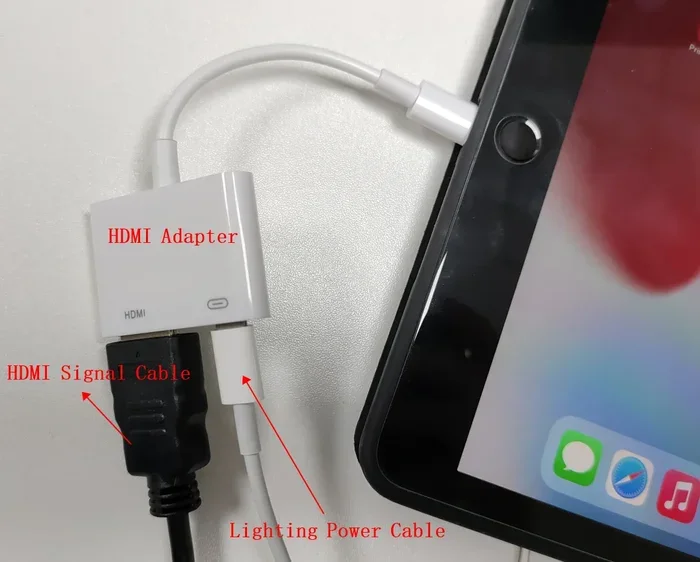
If you have an iPhone, you will need a Lightning to HDMI adapter from Apple or a certified third-party brand. Apple calls this the Lightning Digital AV Adapter. It plugs into your iPhone’s charging port and has an HDMI output for connecting to your TV.
These adapters work well for iPhone screen mirror to a TV. They support video and audio output. However, they can be pricey compared to USB-C options. Make sure you buy an Apple-certified adapter to avoid compatibility issues.
How to Screen Mirror With a USB Cable: Step-by-Step
Now that you know the types of cables and adapters available, let us walk through the actual setup process. The steps are simple and take only a few minutes.
Step 1: Check Your Device Compatibility
Before you buy any cable or adapter, check if your device supports USB display output. Most modern Android phones and Windows laptops do. iPhones need a Lightning to HDMI adapter. Some older devices may not support video output over USB at all.
You can usually find this information in your device manual or on the manufacturer website. Look for terms like HDMI output, display output, or MHL support. If your device supports it, you are good to go.
Step 2: Get the Right Adapter or Cable
Once you confirm compatibility, buy the correct adapter. For USB-C devices, get a USB-C to HDMI adapter. For iPhones, get a Lightning to HDMI adapter. For older Android phones, look for an MHL adapter.
Choose a reputable brand to ensure quality. Cheap adapters sometimes cause lag, low resolution, or no signal at all. Spending a little more on a reliable adapter saves you frustration later.
Step 3: Connect the Adapter to Your Device
Plug the adapter into your phone or laptop. If the adapter requires a separate HDMI cable, connect that now. Make sure both connections are firm and secure. A loose connection is one of the most common reasons screen mirroring fails.
Step 4: Connect to Your TV or Monitor
Take the HDMI cable from the adapter and plug it into your TV or monitor. Use any available HDMI port. If your display has multiple HDMI inputs, remember which port you are using so you can switch to it easily.
Step 5: Switch Your Display Input
On your TV or monitor, use the remote to switch to the correct HDMI input. Most TVs have an “Input” or “Source” button on the remote. Select the HDMI port where you connected the cable. Your device screen should appear on the TV within a few seconds.
Step 6: Adjust Display Settings (If Needed)
Sometimes your screen may not fit perfectly on the TV. You can adjust the display settings on your device. On Android, go to Settings > Display > Cast. On Windows, go to Settings > System > Display. You can choose to mirror your screen or extend it as a second display.
Benefits of USB Cable Screen Mirroring
Why choose a USB cable connection over wireless methods like Chromecast, AirPlay, or Miracast? There are several strong reasons.
Stable and Reliable Connection
Wireless screen sharing depends on your Wi-Fi signal strength. If your network is busy or congested, you may experience lag, stuttering, or disconnections. A USB cable provides a direct, physical connection that is not affected by Wi-Fi interference.
This makes USB mirroring ideal for important situations like work presentations, gaming sessions, or movie nights where you cannot afford any interruption.
No Lag or Latency
One of the biggest complaints about wireless mirroring is delay. There is often a slight lag between what you do on your device and what appears on the big screen. With a wired display setup, the latency is almost zero. Your screen updates in real time with no noticeable delay.
This is especially important for gaming or live demonstrations where timing matters.
Better Video and Audio Quality
A USB-C to HDMI adapter can transmit uncompressed video and audio signals. This means you get higher quality output compared to some wireless protocols that compress the data. You will notice sharper images and clearer sound on your TV or monitor.
No Wi-Fi Required
With a USB cable, you do not need a Wi-Fi network at all. This is perfect for situations where Wi-Fi is not available or not reliable. You can mirror your screen in a conference room, a friend house, or even outdoors without worrying about internet connectivity.
Common Mistakes to Avoid When Screen Mirroring With USB
Even though USB mirroring is straightforward, people make mistakes that cause frustration. Here are some common errors and how to avoid them.
Using the Wrong Adapter
Not every USB adapter supports video output. Some USB cables are designed only for charging or data transfer. Make sure your adapter specifically supports display output or HDMI output. Check the product description before purchasing.
Ignoring Adapter Power Requirements
Some adapters need external power to work properly. If your screen goes black or flickers, the adapter may not be getting enough power. Try using a powered USB hub or connect the adapter to a wall charger while mirroring.
Using a Low-Quality Cable
A cheap HDMI cable can cause signal loss or poor image quality. Invest in a good quality HDMI cable that supports the resolution you need. For 4K content, use an HDMI 2.0 or higher cable.
Not Updating Device Software
Sometimes display mirroring issues are caused by outdated software. Make sure your phone, laptop, and TV firmware are up to date. Updates often include fixes for display protocol compatibility issues.
Forcing Compatibility
Not every device supports USB video output. If your device does not support it, no adapter will make it work. Always verify compatibility before buying any accessories. Check the manufacturer website or contact customer support if you are unsure.
Quick Tips for the Best USB Mirroring Experience
Follow these simple tips to get the most out of your USB cable screen mirroring setup:
- Use a short cable: Shorter HDMI cables reduce signal loss and improve quality.
- Keep your device cool: Extended mirroring can cause your device to heat up. Remove thick cases if needed.
- Close unnecessary apps: Free up resources on your device for smoother mirroring performance.
- Test before your big moment: Always test your setup before a presentation or movie night.
- Buy from trusted brands: Anker, Belkin, and Apple make reliable adapters and cables.
- Check your TV resolution: Match your adapter and cable to your TV maximum supported resolution.
USB Mirroring vs. Wireless Mirroring: Which Is Better?
Both USB cable mirroring and wireless methods have their place. Here is a quick comparison to help you decide which is right for you.
| Feature | USB Cable Mirroring | Wireless Mirroring |
|---|---|---|
| Connection Stability | Very stable, no interference | Depends on Wi-Fi quality |
| Latency | Near zero | Slight delay possible |
| Setup Time | 1-2 minutes | 2-5 minutes |
| Cable Required | Yes | No |
| Mobility | Limited by cable length | Full freedom of movement |
| Video Quality | High, uncompressed | Good, sometimes compressed |
| Best For | Presentations, gaming, reliability | Casual use, streaming, convenience |
If you value reliability and quality, USB cable mirroring is the way to go. If you value convenience and mobility, wireless methods work well for everyday use. Many people actually use both depending on the situation.
Expert Insights on Wired Screen Mirroring
According to tech professionals, wired display connections remain the gold standard for critical viewing situations. “For presentations where you cannot afford any technical hiccup, a USB cable setup is unmatched,” says Mark Chen, a AV systems specialist. “Wireless technology has improved dramatically, but a physical connection still delivers the most consistent results.”
Another expert tip from Sarah Williams, a mobile tech reviewer, is to always keep a USB-C to HDMI adapter in your bag. “You never know when you will need to connect to a display quickly. Having your own adapter means you are always prepared,” she explains.
These professionals agree that while wireless screen sharing is convenient for casual use, a USB cable connection provides the reliability and quality that professionals demand.
Frequently Asked Questions
Can I screen mirror with any USB cable?
No, not every USB cable supports video output. You need a specific adapter like a USB-C to HDMI adapter or a Lightning to HDMI adapter that supports display output. Regular charging cables will not mirror your screen.
Does screen mirroring with USB drain battery faster?
Yes, mirroring your screen uses more processing power and can drain your battery faster than normal use. However, using a powered USB hub or keeping your device plugged in while mirroring helps maintain battery levels.
Can I use a USB cable to mirror my iPhone to a TV?
Yes, you can. You need an Apple Lightning to HDMI adapter or a certified third-party equivalent. Plug it into your iPhone, connect an HDMI cable, and plug it into your TV. Your iPhone screen will mirror to the TV automatically.
Is USB cable mirroring better than wireless mirroring?
For stability, quality, and zero latency, USB cable mirroring is better. Wireless mirroring offers more convenience and freedom of movement. The best choice depends on your specific needs and situation.
Do I need special software to mirror with a USB cable?
Most modern devices handle USB mirroring automatically without any extra software. Your device should detect the external display and mirror the screen right away. Some older devices or specific setups may require a small app or driver update.
Can I extend my screen instead of mirroring it with a USB cable?
Yes, on most devices you can choose to extend your display rather than mirror it. On Windows laptops, go to Settings > System > Display and select “Extend.” On Android devices, look for display settings that offer extended desktop mode when connected via USB.
Final Thoughts
Screen mirroring with a USB cable is a simple, reliable, and high-quality way to share your device screen on a bigger display. Whether you are giving a work presentation, gaming with friends, or watching a movie night, a USB cable connection delivers a stable and lag-free experience that wireless methods sometimes struggle to match.
The process is straightforward. Get the right adapter, connect your device to your TV or monitor, and your screen appears on the big display within seconds. No complicated setup, no Wi-Fi dependency, no frustrating delays.
Remember to check your device compatibility before buying any accessories. Choose quality adapters and cables from trusted brands. And always test your setup before you need it in an important moment.
With the tips and methods covered in this guide, you now have everything you need to mirror your screen with a USB cable successfully. Give it a try and enjoy the crisp, reliable display that only a wired connection can deliver.