Can You Run Hdmi Through Usb C Yes Here Is Everything
Can you run HDMI through USB C? Absolutely yes! USB-C supports HDMI Alt Mode, which lets you send video and audio from your laptop or phone to an HDMI display. Whether you use a USB-C to HDMI adapter, a docking station, or a Thunderbolt 3 connection, you can mirror or extend your screen in minutes. This guide covers everything you need to know about USB-C video output, setup steps, common problems, and the best products to buy.
Can you run HDMI through USB C? The short answer is a big yes. USB-C technology has changed how we connect devices. Today, a single cable can carry video, audio, data, and power all at once. This is huge for anyone who uses a laptop, tablet, or phone with an external monitor or TV.
If you have ever sat in front of a laptop and wished you could plug it straight into a bigger screen, this guide is for you. We will walk through every detail about running HDMI through USB-C. You will learn how it works, what gear you need, and how to avoid common mistakes.
Let us start with the basics. USB-C is a connector type. It is small, reversible, and fast. HDMI is a standard for carrying video and audio to screens. When these two work together, you get a powerful and simple way to share your screen with the world.
Key Takeaways
- Yes, you can: USB-C supports HDMI Alt Mode, allowing direct video output to HDMI displays without extra software.
- Adapters are essential: Most devices need a USB-C to HDMI adapter or cable to connect to an HDMI monitor or TV.
- Thunderbolt 3 is faster: Thunderbolt 3 and 4 ports handle higher resolutions and refresh rates than standard USB-C.
- 4K is possible: Many USB-C HDMI adapters support 4K at 60Hz, but check your device specs before buying.
- Setup is simple: Plug in the adapter, connect an HDMI cable, and your display should appear instantly.
- Common issues exist: Drivers, cable quality, and port compatibility can cause problems, but they are easy to fix.
📑 Table of Contents
- What Is HDMI Alt Mode and How Does It Work?
- Do You Need a USB-C to HDMI Adapter?
- USB-C to HDMI vs Thunderbolt 3 HDMI
- How to Set Up HDMI Through USB-C
- Common Problems and How to Fix Them
- Best USB-C to HDMI Adapters and Hubs for 2024
- Which Devices Support HDMI Over USB-C?
- Expert Insights and Pro Tips
- Common Mistakes to Avoid
- Future of USB-C Video Output
- Conclusion
What Is HDMI Alt Mode and How Does It Work?
The key to understanding HDMI over USB-C is something called HDMI Alt Mode. This is a feature built into the USB-C specification. It allows a USB-C port to output HDMI signals directly. No extra adapters or software needed in many cases.
How Alt Mode Connects Your Devices
When your device supports HDMI Alt Mode, the USB-C port can speak the HDMI language. It takes the digital video signal from your laptop or phone and translates it into an HDMI signal. This signal then travels through a cable to your monitor or TV.
Here is how it works in simple steps:
- Your device sends a video signal through the USB-C port.
- The HDMI Alt Mode chip inside the port converts it.
- The signal travels through the adapter or cable.
- Your HDMI display receives and shows the image.
Not every USB-C port supports Alt Mode. This is an important detail. You need to check your device specifications. Look for terms like DisplayPort over USB-C or HDMI Alt Mode in the product manual or spec sheet.
What Resolutions Can You Expect?
The resolution you get depends on your device and the adapter you use. Many modern USB-C to HDMI adapters support 4K at 60Hz. Some older or cheaper adapters may only handle 1080p or 4K at 30Hz.
Here are common resolution limits:
- 1080p at 60Hz: Supported by almost all USB-C HDMI adapters.
- 4K at 60Hz: Requires a good quality adapter or Thunderbolt 3 port.
- 4K at 30Hz: Supported by most basic adapters but may feel laggy.
- 8K: Only possible with the latest Thunderbolt 4 or USB4 connections.
Always check the adapter specs before you buy. A USB-C video adapter that claims 4K support might only do 30Hz. For smooth video, you want 60Hz.
Do You Need a USB-C to HDMI Adapter?
In most cases, yes. Very few devices have a built-in HDMI port. Even fewer have a USB-C port that directly outputs HDMI without any accessory. A USB-C to HDMI adapter or cable bridges this gap.
Types of USB-C to HDMI Adapters
Not all adapters are the same. Here are the main types you will find on the market:
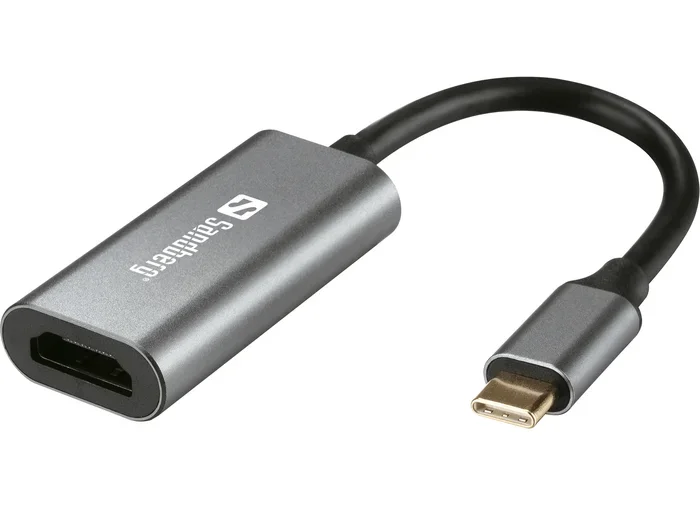
- USB-C to HDMI Adapter: A small dongle you plug into your USB-C port. Then you connect an HDMI cable to it.
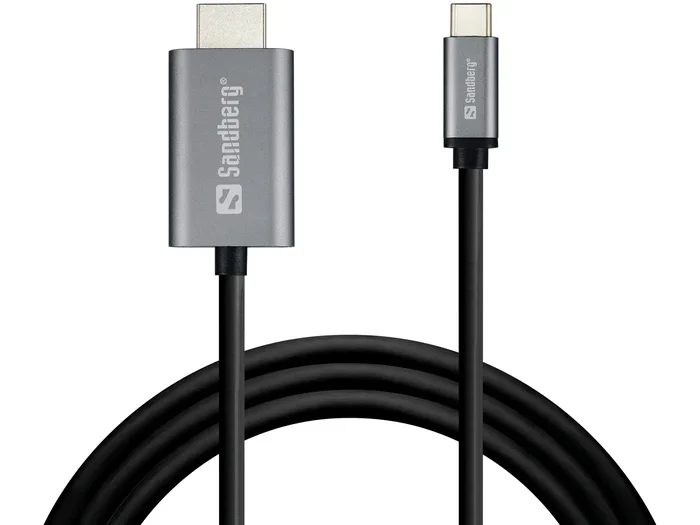
- USB-C to HDMI Cable: A single cable with USB-C on one end and HDMI on the other. No extra adapter needed.
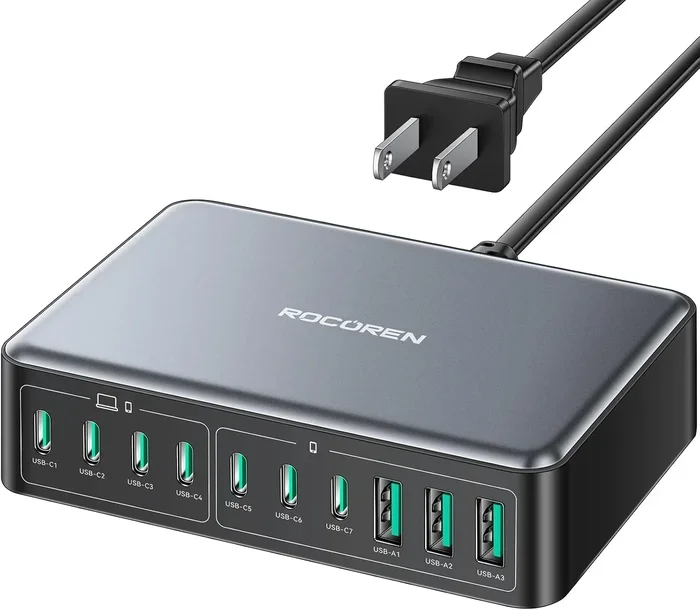
- USB-C Docking Station with HDMI: A larger hub that adds multiple ports, including HDMI, USB-A, SD card slots, and charging ports.
- Thunderbolt 3/4 Dock: The most powerful option. Supports high resolutions, fast data transfer, and charging through a single connection.
Your choice depends on what you need. If you just want to connect a monitor, a simple USB-C to HDMI cable works great. If you need multiple ports, a USB-C docking station is the way to go.
Do You Need a Special Cable?
A standard HDMI cable works fine with most adapters. You do not need an expensive premium cable for basic use. However, if you are running 4K at 60Hz or higher, you should use a High Speed HDMI cable or an Ultra High Speed HDMI cable.
Cheap, low-quality cables can cause flickering, no signal, or lower resolutions than expected. Invest in a decent cable. It makes a real difference.
USB-C to HDMI vs Thunderbolt 3 HDMI
This is where things get interesting. Not all USB-C ports are created equal. Standard USB-C and Thunderbolt 3 look the same but have different capabilities.
Standard USB-C HDMI Output
A standard USB-C port with HDMI Alt Mode can output video. It usually supports up to 4K at 60Hz. It works well for everyday tasks like presenting slides, watching movies, or extending your desktop.
The main limitation is bandwidth. Standard USB-C uses USB 3.1 or USB 3.2 protocols. These have enough bandwidth for video but may not handle the most demanding tasks.
Thunderbolt 3 HDMI Output
Thunderbolt 3 ports are much more powerful. They use the USB-C connector but offer far more bandwidth. A Thunderbolt 3 port can handle 4K at 120Hz or even dual 4K displays.
Here is a quick comparison:
- Standard USB-C: One display, up to 4K at 60Hz.
- Thunderbolt 3: One or two displays, up to 4K at 120Hz or dual 4K at 60Hz.
- Thunderbolt 4: Two displays, up to 4K at 144Hz or dual 4K at 120Hz.
If you have a Thunderbolt laptop, you can get much better performance. Look for a Thunderbolt 3 HDMI adapter or dock to unlock these speeds.
How to Set Up HDMI Through USB-C
Setting up HDMI through USB-C is surprisingly easy. You do not need to be a tech expert. Follow these steps and you will be up and running in minutes.
Step-by-Step Setup Guide
Here is the process for most laptops, tablets, and phones:
- Check your port: Make sure your device has a USB-C port that supports video output. Look for a lightning bolt icon (Thunderbolt) or check the manual.
- Get the right adapter: Buy a USB-C to HDMI adapter or cable that matches your needs.
- Plug in the adapter: Insert the USB-C end into your device’s port.
- Connect the HDMI cable: Run an HDMI cable from the adapter to your monitor or TV.
- Switch the display input: On your monitor or TV, select the correct HDMI input source.
- Configure your display: On your laptop, go to display settings and choose to mirror or extend your screen.
That is it. Your screen should now appear on the external display. If it does not, do not worry. We will cover troubleshooting next.
Quick Tips for a Smooth Setup
- Always use the adapter that came with your device if possible.
- Make sure your USB-C cable supports video output. Not all USB-C cables carry video signals.
- Restart your device after connecting the adapter if the screen does not appear.
- Update your display drivers before troubleshooting.
Common Problems and How to Fix Them
Even with the right gear, things can go wrong. Here are the most common issues people face when using HDMI over USB-C and how to solve them.
No Signal on the Display
This is the most common complaint. If your external screen shows nothing, try these fixes:
- Unplug the adapter and plug it back in.
- Try a different HDMI cable.
- Check that your monitor is on and set to the right input.
- Restart your device.
- Make sure the adapter is fully seated in the USB-C port.
Low Resolution or Flickering
If your image looks blurry or flickers, the problem is usually the cable or adapter quality. A cheap USB-C video adapter may not handle the full resolution. Upgrade to a certified adapter from a reputable brand.
Also, check your display settings. Your device may be defaulting to a lower resolution. Go to your display settings and manually select the highest available resolution.
Audio Not Working
Sometimes the video works but there is no sound. This happens when the system does not know to send audio through the HDMI connection. To fix this:
- Go to your sound settings and select the HDMI output as the default audio device.
- On Windows, right-click the speaker icon and choose your HDMI display.
- On macOS, go to Sound Preferences and select the HDMI output.
Adapter Overheating
Some USB-C HDMI adapters get warm during use. This is normal for small adapters. However, if it gets too hot to touch, stop using it. You may have a defective adapter or one that is not rated for your resolution needs.
Best USB-C to HDMI Adapters and Hubs for 2024
The market is full of options. Choosing the right one can feel overwhelming. Here are some of the best choices based on different needs and budgets.
Best Budget Option
The simple USB-C to HDMI cable from reputable brands like Cable Matters or Anker works great for most people. These cost around $15 to $25 and handle 4K at 60Hz easily.
Best All-in-One Hub
For professionals who need multiple ports, a USB-C docking station is the best choice. Look for docks that offer HDMI output, USB-A ports, an SD card reader, and a charging port. Brands like CalDigit, Anker, and Satechi make excellent options.
Best Thunderbolt Option
If you have a Thunderbolt laptop, invest in a Thunderbolt dock. The CalDigit TS4 and OWC Thunderbolt Dock are top picks. They offer incredible bandwidth, dual display support, and fast data transfer.
Best Portable Option
For travelers, a compact USB-C to HDMI adapter dongle is perfect. These are small enough to fit in your pocket and plug in anywhere. The Uni USB-C to HDMI adapter is a popular and reliable choice.
Which Devices Support HDMI Over USB-C?
Most modern devices support this feature, but not all of them. Here is a quick look at popular devices and their compatibility.
Laptops
Many Windows laptops and MacBooks with USB-C ports support HDMI Alt Mode. Apple MacBook Pro and MacBook Air models from 2016 onward work great with USB-C to HDMI adapters. Most Dell, HP, Lenovo, and Asus laptops also support it.
Tablets and Phones
Samsung Galaxy tablets and phones with USB-C support video output. Google Pixel devices also work. iPads with USB-C (iPad Pro and iPad Air models) can connect to HDMI displays using the right adapter.
What to Check Before Buying
Before you spend money on an adapter, confirm your device supports video output over USB-C. Look for these terms in your device specs:
- HDMI Alt Mode
- DisplayPort over USB-C
- USB-C video output
- Thunderbolt 3 or 4
If you do not see any of these terms, your USB-C port may only carry data and power, not video. In that case, you will need a different solution like a docking station that uses DisplayLink technology.
Expert Insights and Pro Tips
Here are some insider tips from professionals who use USB-C HDMI connections every day.
First, always buy adapters from trusted brands. Cheap no-name adapters from unknown sellers can damage your device or fail to work properly. A USB-C docking station from a well-known brand is a safer investment.
Second, keep your firmware updated. Some devices need software updates to support the latest USB-C video output standards. Check for updates regularly.
Third, if you use a docking station, connect it to power. Docks can draw power from your laptop, which may drain your battery faster. A dock with its own power supply keeps everything running smoothly.
Finally, test your setup before important presentations. Nothing is worse than a dead connection when you are standing in front of a room full of people. Set everything up the night before.
Common Mistakes to Avoid
Here are mistakes people make when setting up HDMI through USB-C and how to avoid them.
- Buying the wrong adapter: Not all USB-C adapters support video. Make sure it says HDMI output on the box.
- Using a USB 2.0 cable: USB 2.0 cables cannot carry video signals. Use a USB 3.0 or USB-C cable that supports video.
- Ignoring refresh rates: A cheap adapter may limit you to 30Hz. This makes the screen feel choppy. Pay attention to refresh rate specs.
- Not checking power delivery: Some adapters block the charging port on your laptop. Use an adapter that passes through power or buy a separate charger.
- Skipping driver updates: On Windows, outdated display drivers can cause connection issues. Keep them up to date.
Future of USB-C Video Output
The future looks bright for USB-C connectivity. USB4 is rolling out and it brings even more bandwidth and better video support. USB4 can handle multiple 4K displays and even 8K content.
As more devices adopt USB-C as their only port, adapters and docks will become even more important. The USB-C to HDMI adapter market will continue to grow and improve.
For now, if you have a device with a USB-C port, you are in great shape. You can connect to almost any HDMI display with the right accessory. The days of carrying multiple cables are fading fast.
Conclusion
Can you run HDMI through USB C? Yes, you absolutely can. USB-C technology makes it simple to connect your laptop, tablet, or phone to any HDMI display. Whether you use a basic USB-C to HDMI adapter, a full-featured USB-C docking station, or a Thunderbolt connection, the process is straightforward and reliable.
Remember to check your device specs, get the right adapter, and use a quality HDMI cable. Avoid the common mistakes we covered, and you will have a smooth and dependable connection every time.
The world of connectivity is moving toward USB-C. Learning how to use it for HDMI output gives you a huge advantage. You can work from anywhere, present with confidence, and enjoy big-screen content on the go. Embrace the USB-C video output revolution and make the most of your devices today.
Frequently Asked Questions
Do all USB-C ports support HDMI output?
No, not all USB-C ports support video output. You need to check if your device has HDMI Alt Mode or DisplayPort over USB-C support. Look for these terms in your device specifications or user manual.
Can I use a USB-C to HDMI adapter with a MacBook?
Yes, most MacBook models from 2016 onward support HDMI output through USB-C. You just need a compatible USB-C to HDMI adapter or cable. Apple’s own USB-C Digital AV Multiport Adapter works great.
What is the difference between USB-C and Thunderbolt 3 for HDMI?
Thunderbolt 3 uses the same USB-C connector but offers much more bandwidth. This means better resolution support, faster refresh rates, and the ability to drive multiple displays. Standard USB-C works fine for single 4K displays at 60Hz.
Do I need a special HDMI cable for USB-C adapters?
No, a standard HDMI cable works for most setups. However, if you are running 4K at 60Hz or higher, use a High Speed HDMI cable or Ultra High Speed HDMI cable for the best results.
Why is my USB-C HDMI adapter not working?
Try unplugging and replugging the adapter. Check that your HDMI cable is connected properly. Make sure your monitor is set to the correct input. Also, update your display drivers and restart your device if needed.
Can I charge my laptop while using a USB-C HDMI adapter?
It depends on the adapter. Some USB-C HDMI adapters pass through power, allowing you to charge while connected. Others block the charging port. Look for adapters with power delivery support if you need to charge and display at the same time.