Can You Power A Usb Hub And Keep Everything Running
Yes, you can power a USB hub, and it makes a huge difference for keeping all your devices running reliably. A powered USB hub draws its own electricity, so your connected devices get consistent power without draining your laptop or PC. Whether you need a bus-powered or self-powered hub depends on how many devices you plug in and what those devices demand.
You have a desk full of gadgets. A monitor. An external hard drive. A webcam. A printer. Maybe even a phone charger and a Bluetooth adapter. You plug them all into a single USB hub, and then you realize something. The hub keeps disconnecting. The external drive spins down. The webcam freezes mid-call. You start wondering — can you power a USB hub properly and keep everything running?
The short answer is yes. Absolutely. But the longer answer matters more, because not all USB hubs are created equal. Some hubs draw power directly from your computer. Others come with their own power supply. And choosing the wrong one can lead to frustration, data loss, and a whole lot of confusion.
In this guide, we will break down exactly how USB hub power works. You will learn about bus-powered versus self-powered hubs, how much power each USB port delivers, and what you need to look for when buying a powered USB hub. By the end, you will know exactly how to set up your hub so everything stays connected and running.
Key Takeaways
- You can power a USB hub two ways: bus-powered (draws from your computer) or self-powered (uses its own power adapter).
- A powered USB hub prevents disconnections and keeps high-demand devices like external drives and monitors working properly.
- USB power output varies by version — USB 3.0 delivers up to 900mA, while USB 3.1 and USB-C can deliver significantly more.
- Overloading a bus-powered hub is the most common mistake and causes devices to drop offline.
- Always check wattage and amperage before buying a hub to match your setup needs.
- Expert tip: Use a self-powered hub for any setup with three or more power-hungry devices.
📑 Table of Contents
- What Is a USB Hub and Why Does Power Matter?
- How Much Power Does a USB Hub Actually Need?
- Can You Power a USB Hub Without a Wall Adapter?
- Common Problems When You Cannot Power a USB Hub Properly
- How to Choose the Right Powered USB Hub
- Expert Tips for Keeping Your USB Hub Running Smoothly
- Quick Tips for USB Hub Power Management
- Common Mistakes to Avoid
- Comparison: Bus-Powered vs Self-Powered USB Hubs
- Final Thoughts on Powering Your USB Hub
What Is a USB Hub and Why Does Power Matter?
A USB hub is a device that expands a single USB port into multiple ports. It lets you connect several devices at once. Think of it like a power strip, but for data and electricity over USB cables.
But here is the thing most people do not realize. Every USB port has a limited amount of power it can supply. When you plug multiple devices into a hub, you are splitting that power. If the hub cannot deliver enough, devices start to misbehave.
This is exactly where the question can you power a USB hub becomes important. The answer depends on the type of hub you choose and what you plan to connect.
Bus-Powered vs Self-Powered USB Hubs
USB hubs come in two main types. Understanding the difference is the first step to solving your power problems.
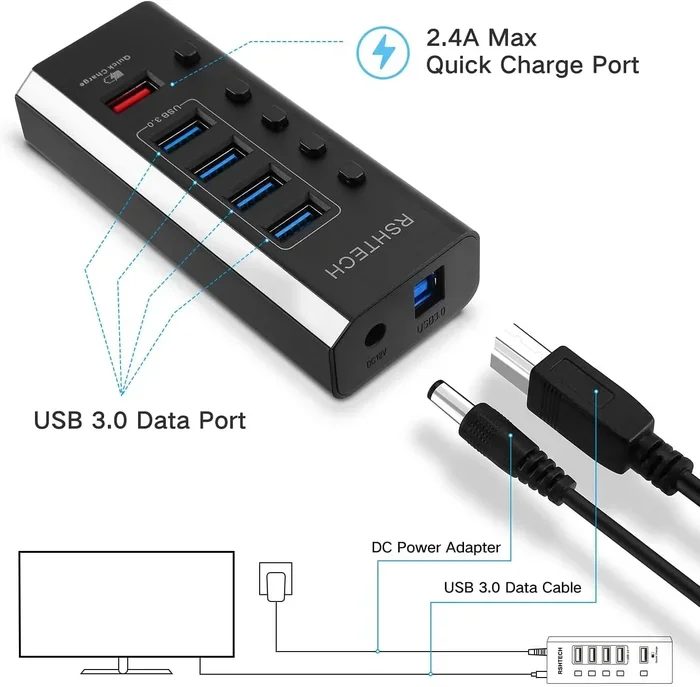
Bus-powered USB hubs draw all their power from the host computer or laptop. They do not have a power adapter. This makes them compact and portable. But there is a catch. They share the limited power of a single USB port. A standard USB 2.0 port delivers about 500 milliamps. USB 3.0 bumps that up to 900 milliamps.
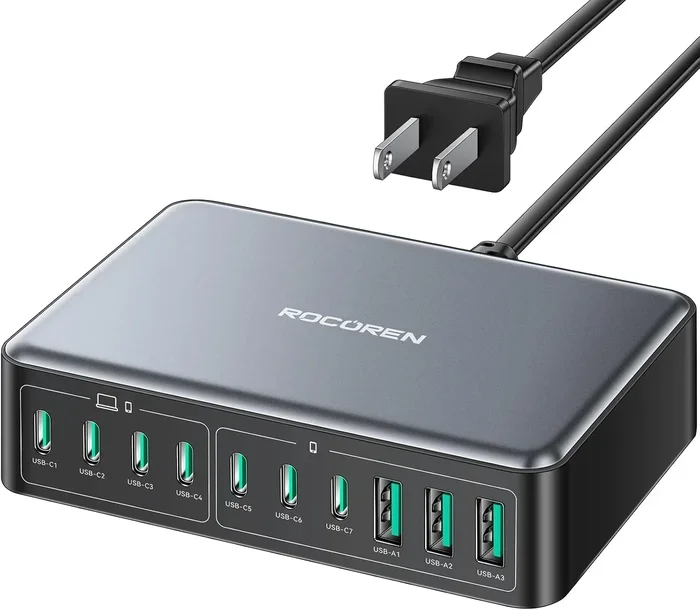
Self-powered USB hubs come with their own power supply or AC adapter. They do not rely on your computer for electricity. This means every port can deliver full power. These hubs are ideal for setups with multiple demanding devices.
When Does a Hub Need External Power?
You need a self-powered hub when you connect devices that draw a lot of power. External hard drives are a great example. They need more juice than a standard USB port can reliably provide through a hub. Same goes for USB monitors, cooling pads, and certain docking stations.
If you only plan to connect low-power devices like keyboards, mice, and flash drives, a bus-powered hub might work fine. But the moment you add something power-hungry, you will feel the difference.
How Much Power Does a USB Hub Actually Need?
Not all USB hubs require the same amount of power. The wattage and amperage you need depend entirely on what you plug into it. Let us break this down so you can make an informed choice.
Understanding USB Power Specifications
Each USB version has different power delivery standards. Here is a quick look at what you can expect.
- USB 2.0: Delivers up to 500mA per port at 5 volts. That is 2.5 watts per port.
- USB 3.0: Delivers up to 900mA per port at 5 volts. That is 4.5 watts per port.
- USB 3.1 (Gen 1 and Gen 2): Can deliver up to 150W with USB Power Delivery support.
- USB-C with Power Delivery: Supports up to 100W or more depending on the charger.
These numbers matter because they tell you how much power each port can provide. A hub with 10 ports and USB 3.0 specs can theoretically deliver 9 watts per port. But if the hub is bus-powered, it cannot exceed what the host computer supplies.
Calculating Your Power Needs
To figure out how much power your hub needs, add up the power requirements of all connected devices. Most devices list their power draw on the label or in the manual.
For example, an external SSD might need 1 amp. A USB fan might need 0.5 amps. A webcam might need 0.5 amps. Add those up and you know your minimum requirement. Always buy a hub with some headroom above that number.
Quick tip: never max out every single port. Leave at least 20 percent buffer for power spikes and surges. This keeps everything stable.
Can You Power a USB Hub Without a Wall Adapter?
This is one of the most common questions people ask. The answer depends on what you mean by “without a wall adapter.”
Using Your Computer as the Power Source
Yes, a bus-powered hub works without a wall adapter. It pulls power directly from the USB port on your computer or laptop. This is convenient for travel and light use.
But there is a limit. Most laptops can only supply 500mA through a USB 2.0 port and 900mA through USB 3.0. If you plug in more than one or two devices, you may run into problems.
Alternative Power Options
Some USB hubs support alternative power sources. You can use a USB power bank in a pinch. Certain hubs even support PoE (Power over Ethernet) adapters. These are less common but useful in specific setups.
However, for a reliable and stable setup, a dedicated power adapter is always the best choice. It ensures consistent power delivery and protects your devices from fluctuations.
Common Problems When You Cannot Power a USB Hub Properly
If you have ever plugged in a USB hub and experienced issues, you are not alone. Power problems are the number one complaint among hub users. Let us look at the most common issues and how to fix them.
Devices Disconnecting Randomly
This happens when the hub does not have enough power to keep all devices running. The hub cycles power to different ports to manage the load. The result is frustrating disconnections.
The fix is simple. Switch to a self-powered hub or reduce the number of connected devices. A powered USB hub eliminates this problem almost entirely.
External Hard Drives Not Being Recognized
External drives need consistent power to spin up and stay active. A bus-powered hub often cannot provide enough. The drive connects briefly and then drops off.
Use a hub with a dedicated power supply for any external drive setup. This is non-negotiable if you want reliable performance.
Hub Overheating
When a hub struggles to deliver enough power, it generates excess heat. Over time, this can damage connected devices and shorten the hub’s lifespan.
Look for hubs with built-in cooling fans or heat sinks. A quality active USB hub manages heat far better than a cheap passive one.
How to Choose the Right Powered USB Hub
Not all powered USB hubs are worth your money. Some are built well and last for years. Others are cheap and cause endless headaches. Here is what to look for when shopping.
Check the Power Adapter Rating
The power adapter is the heart of a self-powered hub. Look for the amperage rating on the adapter. A good rule of thumb is to get a hub with a power supply that exceeds your total device needs by at least 30 percent.
For example, if your devices need 5 amps total, get a hub with a 6.5-amp power supply. This gives you room to grow and prevents overload.
Consider the Number of Ports
More ports do not always mean more power. Some hubs have 10 ports but only supply enough power for four or five active devices. Check the per-port power delivery, not just the total port count.
Look for USB 3.0 or Newer
USB 3.0 and newer standards deliver more power per port. They also offer faster data transfer speeds. If you are buying a new hub, go with USB 3.0 or USB-C whenever possible.
Brand Reputation Matters
Stick with reputable brands like Anker, Sabrent, UGREEN, or CalDigit. These companies build hubs with proper power management and safety features. Cheap no-name hubs often skimp on power delivery and can even damage your devices.
Expert Tips for Keeping Your USB Hub Running Smoothly
Even with the best powered USB hub, you need to follow some basic practices. These tips will help you get the most out of your setup.
Use Quality Cables
Cheap USB cables can limit power delivery. They may also cause data transfer issues. Invest in high-quality, shielded cables that match your USB standard.
Avoid Daisy-Chaining Hubs
Connecting one hub to another hub can create power bottlenecks. Each hub in the chain loses some power. If you need many ports, buy a single hub with enough ports rather than chaining multiple hubs together.
Keep Firmware Updated
Some smart hubs have firmware updates that improve power management. Check the manufacturer’s website periodically for updates.
Monitor Power Usage
Use software tools to monitor how much power each device draws. This helps you identify power-hungry devices and manage your hub load more effectively.
Quick Tips for USB Hub Power Management
- Always use the included power adapter with a self-powered hub.
- Plug high-power devices into dedicated ports if your hub supports it.
- Do not exceed the hub’s total wattage rating. Check the label on the power supply.
- Use a surge protector to protect your hub and connected devices from power spikes.
- Unplug devices you are not using to free up power for active devices.
- Keep the hub in a well-ventilated area to prevent overheating.
Common Mistakes to Avoid
Many people make the same mistakes when setting up a USB hub. Avoiding these pitfalls will save you time and frustration.
- Assuming all ports deliver equal power. Some hubs prioritize certain ports. Check the manual.
- Ignoring the power supply rating. A weak adapter means weak performance across all ports.
- Plugging in too many devices at once. Start with a few devices and add more gradually.
- Using a bus-powered hub for external drives. This is the fastest way to experience disconnections.
- Buying the cheapest option available. A cheap hub can cost you more in the long run through data loss and device damage.
Comparison: Bus-Powered vs Self-Powered USB Hubs
| Feature | Bus-Powered Hub | Self-Powered Hub |
|---|---|---|
| Power Source | Draws from computer USB port | Uses own AC adapter |
| Power Per Port | Limited (up to 900mA USB 3.0) | Full power (varies by model) |
| Portability | Highly portable, no adapter needed | Less portable, requires power brick |
| Best For | Keyboards, mice, flash drives | External drives, monitors, printers |
| Price Range | Usually cheaper | Usually more expensive |
| Reliability | Lower with multiple devices | High, stable power delivery |
| Overheating Risk | Lower (less power drawn) | Moderate (more components) |
Final Thoughts on Powering Your USB Hub
So, can you power a USB hub and keep everything running? Without a doubt. The key is choosing the right type of hub for your needs. A self-powered USB hub gives you the reliability and consistency that a bus-powered hub simply cannot match when you have multiple demanding devices.
Take the time to understand your power requirements before you buy. Check the wattage of each device. Add them up. Then find a hub that can handle the load with room to spare. This small step saves you from hours of frustration later.
Remember to use quality cables, avoid daisy-chaining, and keep your hub ventilated. These simple habits go a long way in keeping your setup stable and your devices safe.
Whether you are a casual user with a few peripherals or a professional running a complex workstation, powering your USB hub correctly is the foundation of a smooth, reliable setup. Do it right, and everything just works.
Frequently Asked Questions
Can I power a USB hub from my laptop’s USB-C port?
Yes, if your laptop supports USB Power Delivery, it can supply enough power to run a small hub with low-demand devices. However, for setups with external drives or multiple accessories, a dedicated power adapter is still the safer and more reliable choice.
What happens if a USB hub doesn’t get enough power?
Devices may disconnect randomly, external drives may not spin up, and the hub itself may overheat. In some cases, your computer may display a “USB device not recognized” error until you reduce the load.
Do I need a powered USB hub for an external hard drive?
Yes, most external hard drives require more power than a bus-powered hub can deliver. A self-powered hub ensures the drive stays active and accessible at all times without interruptions.
Can I use a USB hub with a power bank?
Yes, you can use a USB hub with a power bank, but make sure the power bank can deliver enough amperage. A 5V/3A power bank works well for most hubs, but always check the hub’s power requirements first.
How many devices can I safely plug into a powered USB hub?
This depends on the hub’s power supply rating. As a general rule, do not connect devices that collectively exceed 80 percent of the hub’s maximum wattage. This leaves room for power spikes and keeps everything stable.
Is a self-powered USB hub better for gaming setups?
Absolutely. Gaming setups often include controllers, headsets, external SSDs, and RGB lighting strips. A self-powered hub provides the consistent power delivery needed to keep all these devices running without interruptions during gameplay.