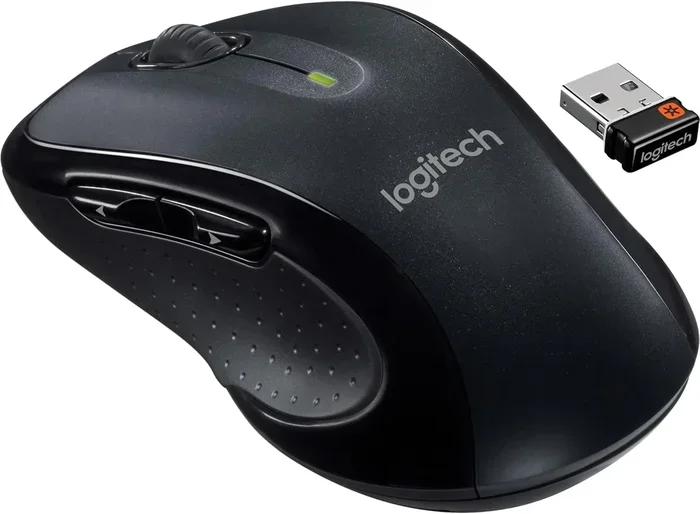
Can You Pair A Logitech Mouse With A Different USB Receiver
Yes, you can pair a Logitech mouse with a different USB receiver in many cases, but it depends on your mouse model and receiver type. Logitech uses two main wireless technologies — Unifying and Lightspeed — and each has its own pairing rules. This guide walks you through everything you need to know about Logitech mouse receiver compatibility, how to pair a new receiver, and what to do when things don’t work.
Have you ever lost your USB receiver or dropped it somewhere you’ll never find? It’s one of the most annoying things that can happen when you rely on a wireless mouse every day. And when it happens, your first thought is probably, “Can I just use a different receiver?”
The short answer is: it depends. Some Logitech mice work fine with a different USB receiver, while others refuse to cooperate. The good news is that most modern Logitech wireless devices follow a pattern that makes this process easier than you might think. In this article, we’ll break down exactly how Logitech mouse pairing works, which receivers are compatible, and how to get your mouse connected again — even if your original receiver is gone forever.
Whether you’re a gamer, a remote worker, or just someone who hates tangled cords, understanding how your wireless mouse connectivity works can save you time, money, and a lot of headaches. Let’s dive in.
Key Takeaways
- Logitech Unifying mice can often pair with a different Unifying receiver: This is one of the most flexible systems, allowing you to swap receivers in many cases.
- Logitech Lightspeed mice are more restrictive: These mice typically only work with the original receiver they came with, making swapping harder.
- You need the right software to pair: Logitech Options and Logitech Options+ are essential tools for managing your devices and receivers.
- Common problems include signal interference and outdated drivers: Most issues can be solved with simple troubleshooting steps.
- Always check compatibility before buying a replacement receiver: Not every receiver works with every Logitech mouse.
- You can connect up to six devices to one Unifying receiver: This is a huge advantage for users with multiple Logitech peripherals.
- Resetting both the mouse and receiver often fixes pairing issues: A simple reset can save you hours of frustration.
📑 Table of Contents
- What Is a Logitech USB Receiver and How Does It Work?
- Can You Pair a Logitech Mouse with a Different USB Receiver?
- How to Pair Your Logitech Mouse with a New Receiver
- Logitech Unifying vs. Lightspeed: Understanding the Differences
- Common Problems When Using a Different Receiver
- Tips for Better Wireless Mouse Performance
- When You Should Just Buy a New Mouse
- Expert Insights on Logitech Receiver Compatibility
- Key Takeaways
- Conclusion
What Is a Logitech USB Receiver and How Does It Work?
A USB receiver is a small plug-in device that talks to your wireless mouse. Think of it as a translator between your mouse and your computer. Without it, your mouse has no way to send signals back and forth.
Logitech uses two main wireless technologies for its mice:
- Logitech Unifying: This is the older but widely supported system. It uses a tiny USB dongle that can connect to multiple Logitech devices at once — up to six.
- Logitech Lightspeed: This is a newer, faster wireless technology designed for gaming and low-latency performance. The receiver is proprietary and works differently from Unifying.
Both systems rely on a specific USB receiver to function. The receiver plugs into a USB port on your computer and creates a dedicated wireless link with your mouse. This is why your wireless mouse connectivity depends so heavily on having the right receiver.
Why Do Logitech Mice Need a Receiver?
Unlike Bluetooth devices, most Logitech wireless mice don’t connect directly to your computer. Instead, they communicate through their own dedicated USB receiver. This gives them several advantages:
- Lower latency: The connection is faster and more responsive.
- Better range: You can move further from your computer without losing the signal.
- More stable connection: Less interference from other wireless devices.
However, this also means that if you lose your receiver, your mouse becomes useless — unless you know how to pair it with a replacement.
Can You Pair a Logitech Mouse with a Different USB Receiver?
This is the big question, and the answer is more nuanced than a simple yes or no. It all comes down to the type of receiver your mouse uses.
Logitech Unifying Mice: Yes, You Can Swap Receivers
If your Logitech mouse uses the Unifying system, you’re in luck. These mice are designed to work with any Logitech Unifying receiver. You can buy a new Unifying receiver, download the Logitech Options software, and pair your mouse with the new receiver in just a few minutes.
Here’s how it works:
- Plug the new Unifying receiver into a USB port on your computer.
- Download and install the Logitech Options or Logitech Options+ software.
- Put your mouse into pairing mode.
- Follow the on-screen instructions to connect the mouse to the new receiver.
The Logitech device pairing process for Unifying mice is straightforward. You can even pair multiple Logitech devices — like a keyboard and a mouse — to the same receiver. This is one of the biggest selling points of the Unifying system.
Just keep in mind that not every Unifying receiver is identical. Make sure you buy a genuine Logitech Unifying receiver. Third-party receivers won’t work, even if they look similar.
Logitech Lightspeed Mice: It’s Complicated
Lightspeed mice are a different story. These high-performance wireless mice — popular among gamers and professionals — use a proprietary connection that is tied to the original receiver. In most cases, you cannot pair a Lightspeed mouse with a different USB receiver.
Why is this? Lightspeed technology uses a custom wireless protocol that is optimized for speed and stability. The receiver and the mouse are paired at the hardware level, and swapping receivers usually breaks this connection.
That said, Logitech has been expanding its Unifying-compatible lineup over the years. Some newer Lightspeed mice may support both Lightspeed and Unifying connections. Always check the product specs before assuming a Lightspeed mouse won’t work with a different receiver.
Bluetooth Logitech Mice: A Different Approach
Some Logitech mice connect via Bluetooth instead of a USB receiver. These mice don’t need a receiver at all — they pair directly with your computer’s Bluetooth hardware. If you have a Bluetooth Logitech mouse, you can connect it to any device that supports Bluetooth.
However, Bluetooth mice tend to have slightly higher latency than receiver-based mice. For everyday tasks, this difference is barely noticeable. For competitive gaming, a receiver-based mouse like a Lightspeed model will feel more responsive.
How to Pair Your Logitech Mouse with a New Receiver
If you’ve lost your receiver or need to use a different one, here’s a step-by-step guide to get your Logitech mouse connected again.
Step 1: Check Your Mouse Model
Before you do anything, find out which wireless technology your mouse uses. Look at the bottom of the mouse or check the product page online. You need to know whether it’s a Unifying mouse, a Lightspeed mouse, or a Bluetooth model.
This step is crucial. If you buy the wrong type of replacement receiver, you’ll waste time and money.
Step 2: Get the Right Replacement Receiver
For Unifying mice, you need a Logitech Unifying receiver. You can buy these directly from Logitech or from authorized retailers. They’re small, affordable, and widely available.
For Lightspeed mice, your options are more limited. In most cases, you’ll need to contact Logitech support or look into whether your specific model supports a secondary connection method.
Step 3: Install the Logitech Software
You’ll need the right software to manage your Logitech receiver compatibility. Here are your options:
- Logitech Options: Works with most Unifying devices. It lets you pair, unpair, and customize your Logitech peripherals.
- Logitech Options+: The newer version of the software with additional features and support for newer devices.
Download the software from the official Logitech website. Make sure you get the right version for your operating system — Windows or macOS.
Step 4: Put Your Mouse in Pairing Mode
Most Logitech mice have a simple way to enter pairing mode. Look for a small button on the bottom of the mouse or near the USB receiver slot. Press and hold it for a few seconds until a light starts blinking.
The blinking light means your mouse is ready to be found by the new receiver. If you’re not sure how to put your specific model into pairing mode, check the user manual or visit Logitech’s support page.
Step 5: Complete the Pairing Process
Open the Logitech Options or Logitech Options+ software. It should detect the new receiver and your mouse. Follow the prompts to complete the pairing.
Once paired, your mouse should work right away. Move it around, click a few buttons, and make sure everything responds as expected.
Quick Tips for a Smooth Pairing Process
- Always plug the receiver directly into your computer. USB hubs can sometimes cause connection issues.
- Make sure your mouse has fresh batteries before you start pairing.
- Restart your computer if the software doesn’t detect your mouse right away.
- Keep the receiver close to the mouse during the pairing process.
Logitech Unifying vs. Lightspeed: Understanding the Differences
To really understand Logitech mouse receiver compatibility, you need to know the difference between these two technologies. Here’s a quick comparison:
| Feature | Logitech Unifying | Logitech Lightspeed |
|---|---|---|
| Receiver Type | Universal Unifying receiver | Proprietary receiver |
| Max Devices per Receiver | Up to 6 | 1 per receiver |
| Latency | Very low | Ultra-low (gaming grade) |
| Can Swap Receivers? | Yes, easily | Usually no |
| Price | Affordable | Higher-end |
| Best For | Everyday use, office work | Gaming, competitive use |
The Unifying system is built for flexibility. You can mix and match devices and receivers as you please. The Lightspeed system prioritizes performance over convenience, which is why it locks you into the original receiver in most cases.
When shopping for a replacement, always double-check which system your mouse uses. A quick search for your mouse model number will tell you everything you need to know.
Common Problems When Using a Different Receiver
Even when you follow all the steps correctly, things can go wrong. Here are the most common issues people face when trying to pair a Logitech mouse with a different USB receiver.
Mouse Not Detected by Software
If the Logitech Options software doesn’t see your mouse, try these fixes:
- Unplug and replug the receiver into a different USB port.
- Restart the software and try again.
- Make sure your mouse is in pairing mode.
- Check for software updates — outdated versions can cause detection problems.
Paired but Mouse Doesn’t Work Properly
Sometimes the mouse pairs but doesn’t function correctly. This can happen if the receiver and mouse firmware versions don’t match. Try updating both through the Logitech software.
Another common cause is mouse signal interference. Other wireless devices, USB 3.0 ports, and even microwaves can disrupt the wireless connection between your mouse and receiver. Try moving the receiver to a different port or using a USB extension cable to place it closer to the mouse.
Paired but Buttons Don’t Work as Expected
This usually happens when the mouse was previously paired with a different receiver. The old pairing information can conflict with the new one. To fix this:
- Reset your mouse to factory settings.
- Remove the old pairing from the software.
- Pair the mouse again with the new receiver.
Logitech Mouse Not Connecting After Receiver Swap
If your Logitech mouse not connecting after swapping receivers, don’t panic. This is a common issue, and it’s almost always fixable. Start by resetting both the mouse and the receiver. Then try pairing again from scratch. If that doesn’t work, check whether your mouse model is truly compatible with the new receiver type.
Tips for Better Wireless Mouse Performance
Once you’ve successfully paired your mouse with a new receiver, you’ll want to keep it running smoothly. Here are some tips to improve your experience.
Keep Your Drivers Updated
Logitech regularly releases firmware and driver updates for its devices. These updates can fix bugs, improve performance, and add new features. Check the Logitech website or use the Logitech Options software to stay up to date.
Minimize Wireless Interference
Wireless signals can be disrupted by other devices. If your mouse connection is unstable, try these things:
- Move your receiver away from USB 3.0 devices, which can cause interference.
- Keep the receiver at least a few inches away from your keyboard.
- Avoid placing the receiver near metal objects or walls.
- Turn off nearby Bluetooth devices if they seem to be causing issues.
Use Quality USB Ports
Not all USB ports are created equal. USB 2.0 ports tend to work best for wireless receivers because they produce less interference than USB 3.0 ports. If you’re having connection issues, try plugging your receiver into a USB 2.0 port instead.
Store Your Receiver Safely
One of the easiest ways to avoid the whole receiver-swapping situation is to keep your original receiver safe. Many Logitech mice come with a slot on the bottom where you can store the receiver when you’re not using the mouse. Use it! Losing a tiny USB dongle is one of the most common reasons people end up needing a replacement.
When You Should Just Buy a New Mouse
Sometimes, replacing the receiver isn’t worth the hassle. If your mouse is old, outdated, or no longer supported by Logitech software, it might be time to upgrade. Newer Logitech mice offer better performance, longer battery life, and more features.
Also, if you’re dealing with a Lightspeed mouse that won’t work with a different receiver, and the original receiver is gone, your best bet may be to contact Logitech support. They sometimes offer replacement receivers for defective or lost ones, especially if your mouse is still under warranty.
Expert Insights on Logitech Receiver Compatibility
According to Logitech’s support documentation, the Unifying system was specifically designed to allow receiver swapping. The company even sells replacement Unifying receivers on its website for this exact purpose. This means that if you have a Unifying-compatible mouse, you’re not stuck — you have options.
For Lightspeed users, Logitech has been more restrictive. The company designed Lightspeed as a closed ecosystem to guarantee performance. While this limits flexibility, it also ensures that users get the best possible wireless experience without compatibility headaches.
If you’re unsure about your specific model, the Logitech support team is a great resource. They can tell you exactly which receivers your mouse is compatible with and walk you through the pairing process.
Key Takeaways
- Unifying mice are receiver-flexible: You can pair them with any Logitech Unifying receiver, making replacement easy and affordable.
- Lightspeed mice are more locked in: They typically only work with the original receiver, so losing it can be a bigger problem.
- The Logitech Options software is essential: It’s the tool you need to manage pairings and troubleshoot connection issues.
- Always verify compatibility before buying: Check your mouse model and the receiver type to avoid wasted purchases.
- Resetting solves most problems: A simple factory reset on both the mouse and receiver can clear up most pairing issues.
- Keep your receiver safe: Store it properly to avoid losing it in the first place.
Conclusion
So, can you pair a Logitech mouse with a different USB receiver? The answer is yes — for most Unifying mice, it’s a straightforward process. For Lightspeed mice, it’s more complicated and often not possible without the original receiver.
The key is understanding which technology your mouse uses and following the right steps for pairing. With the right replacement receiver and the Logitech Options software, you can get your wireless mouse working again in no time.
Don’t let a lost receiver ruin your workflow. Take a few minutes to understand your options, and you’ll be back to clicking and scrolling in no time. And remember, the best way to avoid this problem in the future is to keep your receiver safe and always have a backup plan in place.
Frequently Asked Questions
Can I use any Logitech Unifying receiver with my mouse?
Yes, any genuine Logitech Unifying receiver should work with your Unifying-compatible mouse. You can pair up to six Logitech devices to a single receiver. Just make sure the receiver is authentic and not a counterfeit third-party product.
Why won’t my Logitech mouse connect to a new receiver?
This usually happens when the mouse was previously paired with a different receiver. Try resetting your mouse to factory settings and then pairing it again with the new receiver. Also make sure you’re using the correct software — Logitech Options or Logitech Options+ — and that your mouse model is compatible with the receiver type.
Is it safe to buy replacement Logitech receivers online?
Yes, as long as you buy from a reputable seller. Stick to genuine Logitech Unifying receivers or purchase directly from Logitech’s website. Avoid cheap knockoffs, as they often don’t work properly and can cause connection issues.
Can I pair a Logitech Lightspeed mouse with a Unifying receiver?
In most cases, no. Lightspeed mice use a proprietary wireless protocol that is not compatible with Unifying receivers. However, some newer Logitech mice support both Lightspeed and Unifying connections. Always check your specific model’s specifications before assuming compatibility.
What should I do if I lost my Logitech USB receiver?
First, check if your mouse supports Bluetooth. If it does, you can connect it directly without a receiver. If your mouse only uses a USB receiver, contact Logitech support to see if they offer a replacement. For Unifying mice, you can also buy a new Unifying receiver and re-pair your mouse.
How do I reset my Logitech mouse for a new receiver?
Look for a small reset button on the bottom of your mouse or near the receiver compartment. Press and hold it for about five seconds until the LED light blinks. This clears the old pairing information and puts the mouse in a ready-to-pair state. Then use the Logitech Options software to connect it to your new receiver.