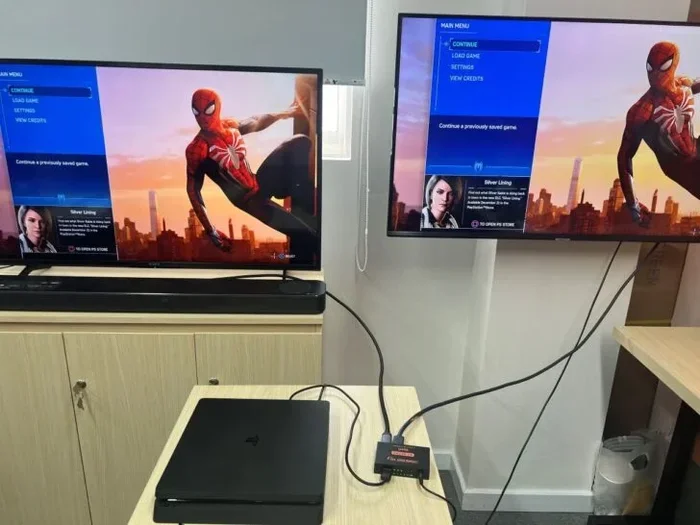
Can You Link 2 TVs Together With HDMI for Better Viewing
Yes, you can link 2 TVs together with HDMI using a few different methods. Whether you want a dual-screen setup for gaming, movie nights, or a larger viewing area, HDMI offers flexible solutions. You can use HDMI splitters, switches, matrix switches, or even wireless HDMI transmitters to share content across multiple screens. This guide walks you through every option, including pros, cons, and step-by-step setup tips for a link 2 TVs together with HDMI configuration that actually works.
Have you ever wanted to watch the same movie on two screens at the same time? Or maybe you need a bigger viewing area for a party or a sports event. The idea of linking two TVs together with HDMI sounds simple, but the reality involves a few different methods and some important details. This guide breaks it all down so you can set up your dual TV HDMI setup with confidence.
Whether you are a casual viewer or a home theater enthusiast, understanding your options helps you avoid wasted money and frustrating setup sessions. We will cover HDMI splitters, wireless transmitters, matrix switches, and more. By the end, you will know exactly which method fits your needs and budget.
Key Takeaways
- HDMI splitters let you duplicate the same content on two TVs from one source device.
- HDMI switches let you connect multiple source devices to a single TV, not two TVs together.
- Wireless HDMI transmitters remove cable clutter and offer flexible placement for your dual TV setup.
- HDMI matrix switches give you the most control, allowing multiple sources to display on multiple TVs.
- HDMI daisy chaining is not a native feature, but workarounds exist using specific hardware and settings.
- HDMI cable quality and version matter for signal strength and resolution support across linked TVs.
- Common mistakes like using cheap cables or wrong splitter types can cause signal loss or no audio.
📑 Table of Contents
- Understanding How HDMI Works Between Two TVs
- Method 1: Using an HDMI Splitter to Duplicate Content
- Method 2: Wireless HDMI Transmitters for Cable-Free Linking
- Method 3: HDMI Matrix Switches for Advanced Control
- Common Mistakes to Avoid When Linking TVs with HDMI
- Comparing HDMI Linking Methods Side by Side
- Expert Tips for the Best Dual TV HDMI Experience
- Can You Link 2 TVs Together With HDMI Using a Daisy Chain Method?
- Final Thoughts on Linking 2 TVs Together With HDMI
Understanding How HDMI Works Between Two TVs
Before you buy any equipment, it helps to understand what HDMI actually does. HDMI stands for High-Definition Multimedia Interface. It carries both video and audio through a single cable. This is why it has become the standard for connecting devices like Blu-ray players, game consoles, and streaming boxes to TVs.
But here is the catch. A standard HDMI cable connects one source device to one display. It does not natively support linking two TVs together. So how do you make it work? You need additional hardware or clever workarounds. Let us look at the most common approaches below.
What HDMI Versions Matter for Dual TV Setups
Not all HDMI cables are created equal. HDMI versions range from 1.4 to 2.1, and each supports different features. For a link 2 TVs together with HDMI setup, you want at least HDMI 2.0 or higher. Here is why it matters:
- HDMI 2.0 supports 4K resolution at 60Hz. This is great for most modern TVs.
- HDMI 2.1 supports 4K at 120Hz and even 8K. Ideal for gaming and high-end setups.
- Older versions like HDMI 1.4 may work but could limit resolution or refresh rate.
Always check the HDMI version your splitter, switch, or transmitter supports. Using an older version can cause lag, low resolution, or no signal at all. This is one of the most common mistakes people make when building a multi-screen HDMI configuration.
Method 1: Using an HDMI Splitter to Duplicate Content
The most popular way to link 2 TVs together with HDMI is by using an HDMI splitter. A splitter takes one HDMI input and duplicates the signal to two or more outputs. Both TVs show the exact same content at the same time.
This method works great for watching sports with friends, sharing a movie in another room, or creating a simple video wall effect. Let us look at how it works in practice.
How HDMI Splitters Work
An HDMI splitter plugs into your source device, like a cable box or streaming stick. Then you run separate HDMI cables from the splitter to each TV. The splitter copies the signal without losing quality, as long as you use a good-quality splitter.
Here is a simple setup example:
- Plug your streaming device into the HDMI splitter input.
- Run one HDMI cable from the splitter to TV 1.
- Run another HDMI cable from the splitter to TV 2.
- Power on the splitter if it requires external power.
- Select the correct input on both TVs.
That is it. Both TVs now display the same content. You can control playback from the source device. Some splitters also include an audio output so you can connect speakers or soundbars separately.
Best HDMI Splitters for Dual TV Setups
Not all splitters are worth your money. Cheap ones can cause signal degradation, no audio, or resolution drops. Look for splitters that explicitly support the HDMI version you need. A solid HDMI splitter for dual TV setup usually costs between $15 and $50, depending on features.
Popular options include powered splitters with amplification, which help maintain signal strength over longer cable runs. If your TVs are far apart, consider a splitter with an HDMI extender built in.
Quick Tips for Using HDMI Splitters
- Always use a powered splitter for best results. Passive splitters can weaken the signal.
- Keep HDMI cables under 25 feet to avoid signal loss.
- Match the splitter’s HDMI version to your devices for full resolution support.
- Test both TVs before mounting or permanently placing them.
Method 2: Wireless HDMI Transmitters for Cable-Free Linking
Running long HDMI cables across a room or through walls can be a hassle. Wireless HDMI transmitters solve this problem. They send the audio and video signal from your source device to your TVs without any cables between them.
This is a fantastic option if you want a clean look or if your TVs are in different rooms. The transmitter plugs into your source device, and small receiver units connect to each TV.
How Wireless HDMI Transmitters Work
Most wireless HDMI systems include a transmitter and one or more receivers. The transmitter sends the signal over the air to the receivers, which are plugged directly into each TV’s HDMI port. The process is straightforward:
- Connect the transmitter to your source device.
- Plug a receiver into each TV’s HDMI port.
- Power on both the transmitter and receivers.
- Pair the transmitter with the receivers following the manufacturer’s instructions.
Once paired, both TVs display the same content wirelessly. You can place the TVs in different rooms, as long as they stay within the transmitter’s range. Most systems offer a range of 30 to 100 feet, depending on the model and any obstacles like walls.
Pros and Cons of Wireless HDMI
Wireless HDMI is convenient, but it comes with trade-offs. Here is a quick comparison:
| Pros | Cons |
|---|---|
| No messy cables between devices | Can experience slight latency |
| Flexible TV placement | May interfere with Wi-Fi signals |
| Clean, clutter-free setup | Higher cost than wired splitters |
| Works well for casual viewing | Range can be limited by walls |
For most home setups, wireless HDMI transmitters work beautifully. They are especially popular for multi-room HDMI viewing where you want the same content in the living room and kitchen, for example.
Method 3: HDMI Matrix Switches for Advanced Control
If you want more than just duplicating content, an HDMI matrix switch is the way to go. A matrix switch lets you connect multiple source devices to multiple TVs and control which source appears on which screen.
This is the most flexible option for a link 2 TVs together with HDMI setup, especially in home theater environments or commercial displays. Think of it as a traffic director for HDMI signals.
When Do You Need a Matrix Switch?
You might need a matrix switch if you have two or more source devices and want to show different content on each TV. For example, you could watch a movie on TV 1 while your kids watch cartoons on TV 2, both from the same set of devices.
Matrix switches come in different configurations, like 2×2, 3×3, or 4×4. A 2×2 matrix switch connects two sources to two TVs. You can route any source to any TV at any time using a remote control or button on the device.
Setting Up a Matrix Switch
Setting up a matrix switch is slightly more involved than a basic splitter. Here is the general process:
- Connect all your source devices to the matrix switch inputs.
- Run HDMI cables from the matrix switch outputs to each TV.
- Power on the matrix switch.
- Use the remote or control buttons to select which source displays on which TV.
Matrix switches are more expensive than splitters, but they offer unmatched flexibility. Prices range from $50 for basic models to $300 or more for high-end units with 4K and HDR support.
Common Mistakes to Avoid When Linking TVs with HDMI
Even with the right equipment, things can go wrong. Here are the most common mistakes people make when trying to link 2 TVs together with HDMI and how to avoid them.
Using a Passive Splitter Instead of a Powered One
Passive splitters are cheap, but they do not amplify the signal. Over long cable runs or with high-resolution content, the signal weakens and you may get a blank screen or no audio. Always choose a powered splitter for reliable performance.
Ignoring HDMI Cable Quality
Not all HDMI cables are rated for 4K or high-speed data transfer. Using an old or low-quality cable can cause flickering, low resolution, or intermittent signal loss. Invest in certified high-speed HDMI cables, especially if you are using HDMI 2.0 or 2.1 devices.
Overlooking EDID Handshake Issues
EDID stands for Extended Display Identification Data. It is how your source device communicates with your TVs about supported resolutions and formats. When you split or distribute the signal, EDID handshake issues can cause one TV to show no picture or display the wrong resolution.
To fix this, try power cycling all devices, using a splitter with EDID management, or setting both TVs to the same resolution before connecting them.
Underestimating Power Requirements
Many HDMI splitters and wireless transmitters need external power. If you forget to plug them in, nothing works. Always check the power requirements before you set up and make sure you have enough outlets nearby.
Comparing HDMI Linking Methods Side by Side
Not sure which method is right for you? Here is a detailed comparison of the three main ways to link 2 TVs together with HDMI.
| Feature | HDMI Splitter | Wireless HDMI | Matrix Switch |
|---|---|---|---|
| Duplicates same content | Yes | Yes | Yes |
| Shows different content on each TV | No | No | Yes |
| Requires cables between devices | Yes | No | Yes |
| Ease of setup | Easy | Moderate | Moderate |
| Cost range | $15 to $50 | $50 to $200 | $50 to $300+ |
| Signal quality | High (with powered splitter) | High (minor latency possible) | High |
| Best for | Simple duplication | Cable-free multi-room setup | Advanced multi-source control |
Your choice depends on what you want to achieve. For simple duplication, go with a splitter. For cable-free flexibility, choose wireless HDMI. For full control over multiple sources and screens, invest in a matrix switch.
Expert Tips for the Best Dual TV HDMI Experience
Setting up two TVs with HDMI is one thing. Getting a great experience is another. Here are some expert insights to help you get the most out of your setup.
Match Your TVs as Closely as Possible
For the best viewing experience, try to use TVs with similar sizes, resolutions, and refresh rates. If one TV is 1080p and the other is 4K, the splitter may force both to display at 1080p to maintain compatibility. Matching your TVs ensures consistent picture quality across both screens.
Use an HDMI Extender for Long Runs
If your TVs are more than 25 feet apart, standard HDMI cables may lose signal. An HDMI extender uses Cat6 or Cat6a Ethernet cable to carry the HDMI signal over much longer distances. This is a game-changer for large rooms or whole-home setups.
Consider HDMI ARC for Audio Sharing
If you want both TVs to share the same audio system, look into HDMI ARC (Audio Return Channel). ARC allows audio to travel back from the TV to a soundbar or receiver through the HDMI cable. Not all splitters and switches support ARC, so check the specifications before buying.
Keep Firmware Updated
TV manufacturers regularly release firmware updates that improve HDMI compatibility and fix bugs. Before your setup, update the firmware on both TVs and all connected devices. This simple step can prevent many common issues.
Can You Link 2 TVs Together With HDMI Using a Daisy Chain Method?
Some people wonder if they can daisy chain TVs directly through HDMI. The short answer is no. HDMI does not support daisy chaining the way USB or DisplayPort does. You cannot plug one TV into another and expect the signal to pass through.
However, there is a workaround. If both TVs have HDMI output ports (which most do not), you could theoretically chain them. In practice, very few consumer TVs have HDMI output capabilities. Some monitors and professional displays do, but for standard home TVs, daisy chaining is not a viable option.
Instead, use one of the methods described above. A splitter or matrix switch is your best bet for connecting multiple TVs to a single source. These solutions are reliable, affordable, and widely available.
Final Thoughts on Linking 2 TVs Together With HDMI
Linking 2 TVs together with HDMI is absolutely possible, and it opens up a world of viewing possibilities. Whether you want to duplicate content for a party, create a larger display, or share media across rooms, the right HDMI equipment makes it happen.
Start by identifying your needs. Do you want the same content on both screens, or different content? How far apart are your TVs? What is your budget? Answering these questions helps you choose between an HDMI splitter, wireless transmitter, or matrix switch.
Invest in quality cables and reliable hardware. Avoid the temptation of the cheapest options, as they often lead to frustration. Follow the setup steps carefully, and do not skip firmware updates or resolution matching.
With the right approach, your dual TV HDMI setup will deliver an impressive viewing experience that beats a single screen every time. Enjoy your movies, sports, and games on a bigger, bolder canvas.
Frequently Asked Questions
Do I need a special HDMI splitter to link 2 TVs together?
Yes, you need an HDMI splitter that duplicates the signal from one source to two TVs. A powered splitter is recommended for the best signal quality and reliability. Passive splitters can cause signal loss, especially over longer cable runs.
Can I show different content on each TV using HDMI?
Yes, but a basic splitter will only duplicate the same content. To show different content on each TV, you need an HDMI matrix switch or a separate source device for each TV. Matrix switches let you route any source to any screen independently.
Does linking 2 TVs with HDMI affect picture quality?
It can, if you use low-quality cables or splitters. A good powered splitter maintains full resolution and audio quality. Always use certified high-speed HDMI cables and match your equipment to your TV’s resolution capabilities.
Can I link TVs in different rooms with HDMI?
Yes, wireless HDMI transmitters are designed for this. They send the signal through the air to receivers in other rooms, eliminating the need for long cables. Just make sure the receiver is within range and has a clear line of sight for the best results.
What HDMI version do I need for a dual TV setup?
HDMI 2.0 or higher is recommended for a link 2 TVs together with HDMI setup. HDMI 2.0 supports 4K at 60Hz, which is ideal for most modern TVs. If you have HDMI 2.1 devices, make sure your splitter or matrix switch also supports 2.1.
Can I use an HDMI switch instead of a splitter to link 2 TVs?
An HDMI switch does the opposite of a splitter. It lets you connect multiple source devices to one TV. It does not help you link two TVs together. For dual TV setups, you need a splitter, wireless transmitter, or matrix switch instead.
=== CONCLUSION ===
Linking 2 TVs together with HDMI is easier than most people think. You have several solid options, from simple HDMI splitters to advanced wireless transmitters and matrix switches. Each method serves a different purpose, so choose the one that matches your goals and setup.
Avoid common pitfalls like cheap cables, passive splitters, and mismatched HDMI versions. Follow the setup steps carefully, and your dual TV experience will be smooth and enjoyable. Whether you are hosting a movie night or creating a video wall, the right HDMI linking method makes all the difference.