Can You Get A Displayport To Hdmi Cable And Make It Work
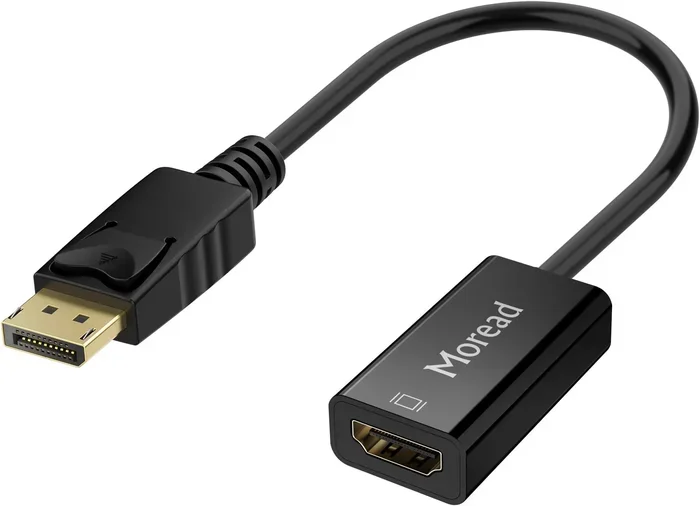
Yes, you can get a Displayport to HDMI cable and make it work with the right adapter or active cable. Whether you want to connect a monitor, gaming setup, or home theater, this guide covers everything you need to know about display connectivity and signal conversion.
Key Takeaways
- DisplayPort to HDMI cables exist: You can buy active adapter cables or use a separate adapter to convert the signal from DisplayPort output to HDMI input.
- Active vs passive matters: Active adapters do the signal conversion work for you, while passive cables only work in specific scenarios.
- 4K and high refresh rates are supported: Modern DisplayPort to HDMI adapters handle 4K resolution and high refresh rates for gaming and professional use.
- Compatibility is key: Always check your device ports, version support, and cable specs before buying.
- Audio transfers too: DisplayPort to HDMI cables can carry both audio and video signals to your display.
📑 Table of Contents
- Can You Get A Displayport To Hdmi Cable And Make It Work?
- How DisplayPort To HDMI Cables Work
- Active vs Passive Displayport To HDMI Adapters
- Choosing The Right Displayport To Hdmi Cable
- Setting Up Your Displayport To Hdmi Connection
- Common Problems And How To Fix Them
- Displayport To Hdmi For Gaming And Professional Use
- Expert Insights On Display Connectivity
- Key Takeaways
- Conclusion
Can You Get A Displayport To Hdmi Cable And Make It Work?
The short answer is yes. You absolutely can get a Displayport to HDMI cable and make it work. But the real question is how, and that is where things get interesting. Not all cables are created equal, and not every setup will work the same way. If you have a device with a DisplayPort output and a screen with an HDMI input, you need the right adapter or active cable to bridge the gap.
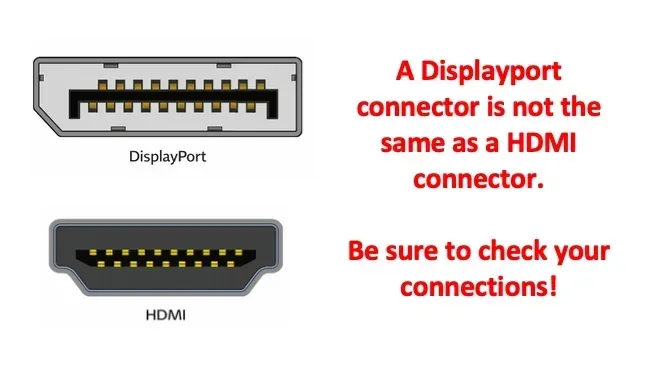
DisplayPort and HDMI are two different video interface standards. They carry signals differently, and that is exactly why you need a converter. A Displayport to HDMI cable or adapter takes the digital signal from your DisplayPort output and converts it into a format your HDMI input can read. This process is called signal conversion, and it happens inside the adapter or active cable.
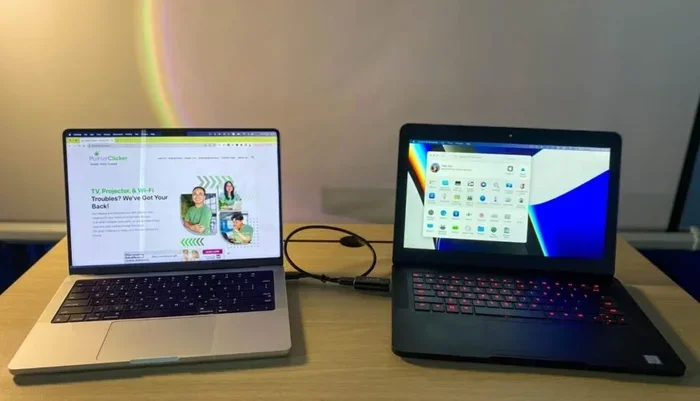
Whether you are setting up a new monitor, connecting a laptop to a TV, or building a gaming station, understanding how this conversion works saves you time and money. You do not need to be a tech expert. This guide walks you through everything step by step.
We will cover the different types of adapters, what to look for when buying, common problems, and how to get the best results. By the end, you will know exactly what to buy and how to set it up.
How DisplayPort To HDMI Cables Work
DisplayPort and HDMI both transmit digital video and audio, but they use different connectors and signaling protocols. DisplayPort was designed primarily for computer monitors and graphics cards. HDMI was built with TVs and home entertainment in mind. Despite these different origins, they share the same goal: delivering high-quality video and sound from a source to a display.
When you plug a DisplayPort device into an HDMI screen, the signal needs translation. Think of it like speaking two different languages. The adapter or active cable acts as the translator. It takes the DisplayPort signal and converts it into an HDMI signal that your monitor or TV understands.
Signal Conversion Basics
Signal conversion happens inside the adapter chip. This tiny chip reads the DisplayPort output from your device and re-encodes it into HDMI format. The HDMI input on your display then receives this converted signal and displays the image. This entire process happens in real time, so you do not notice any delay in most cases.
The quality of the adapter chip matters a lot. Cheap adapters with poor chips can cause flickering, no signal, or limited resolution. A quality Displayport to HDMI adapter ensures clean signal conversion and supports the full features of your display.
What Gets Transferred Through The Cable
A good Displayport to HDMI cable setup transfers both video and audio. You get picture and sound through a single HDMI cable running to your TV or monitor. This is a big advantage over some older connection methods that required separate audio cables.
Here is what a proper setup transfers:
- Video signal: The visual content from your source device to your display.
- Audio signal: Sound travels alongside the video through the HDMI connection.
- Resolution data: Information about the display quality, including 4K support.
- Refresh rate: How many times per second the screen refreshes the image.
Active vs Passive Displayport To HDMI Adapters
Not all adapters work the same way. The biggest distinction in the display connectivity world is between active and passive adapters. Understanding this difference helps you buy the right product the first time.
What Is An Active Adapter
An active adapter contains a built-in chip that performs the signal conversion. This is the most common type of Displayport to HDMI adapter you will find. It works with almost all devices because it handles the translation job itself. You plug in your DisplayPort cable, the adapter converts the signal, and out comes HDMI.
Active adapters are powered either by the DisplayPort source or through a USB connection. They do not need external power in most cases. This makes them convenient for everyday use at home or in the office.
What Is A Passive Adapter
A passive adapter does not have a conversion chip. Instead, it simply changes the physical connector shape. Passive adapters only work in specific situations, such as when both devices support DisplayPort over HDMI signaling. This is rare in consumer equipment.
For most users, a passive Displayport to HDMI cable will not work. You almost always need an active adapter. Do not fall for cheap passive cables marketed as universal solutions. They rarely deliver the results you want.
Quick Tip
Always check the product description. If it says “active” or “converter,” it will do the job. If it just says “cable” or “adapter” without mentioning signal conversion, it is probably passive and will not work for your setup.
Choosing The Right Displayport To Hdmi Cable
Buying the right cable or adapter depends on your specific needs. Not every Displayport to HDMI product is the same, and picking the wrong one leads to frustration. Here is what you need to consider before you click buy.
Check Your Device Ports
First, look at the ports on your source device and your display. Does your computer have a DisplayPort output? Does your monitor or TV have an HDMI input? These are the two things you need to confirm before shopping.
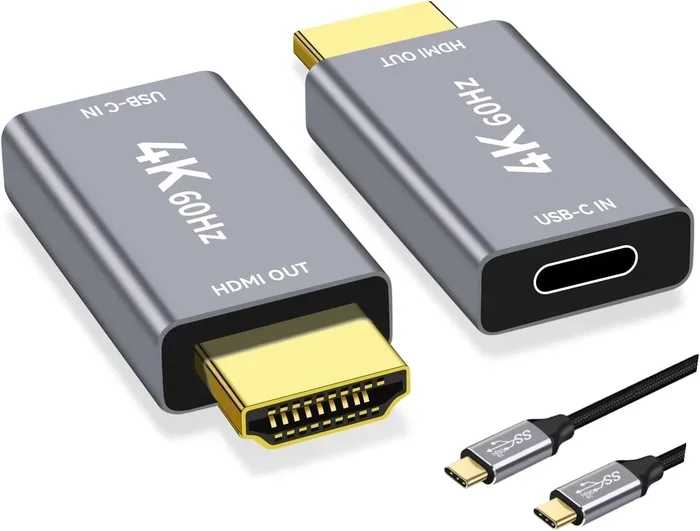
Some laptops have USB-C ports that support DisplayPort Alt Mode. In those cases, you might also consider a USB-C to HDMI adapter. But for standard DisplayPort connections, a dedicated Displayport to HDMI adapter is the way to go.
Resolution And Refresh Rate Support
Not all adapters support the same resolutions. If you want 4K resolution at 60Hz, you need an adapter that explicitly supports it. Older or cheaper models might only handle 1080p or 4K at 30Hz, which causes a laggy experience.
Here is a quick comparison of what different adapter tiers offer:
- Basic adapters: 1080p at 60Hz. Fine for office work and web browsing.
- Mid-range adapters: 4K at 60Hz. Great for content creation and media.
- Premium adapters: 4K at 144Hz or higher. Perfect for competitive gaming.
Cable Length Matters
Longer cables can weaken the signal. If you need a cable longer than 6 feet, consider an active Displayport to HDMI cable with a built-in signal booster. Shorter cables under 3 feet work great for desk setups without any signal loss.
Build Quality And Brand Reputation
Stick with reputable brands when buying your adapter. Brands that specialize in display connectivity and accessories tend to offer better support and firmware updates. Avoid the cheapest options on marketplaces, as they often use low-quality chips that cause problems.
Setting Up Your Displayport To Hdmi Connection
Setting up your connection is straightforward once you have the right adapter. Follow these steps for a smooth setup every time.
Step By Step Setup Guide
- Identify your ports: Check the back of your computer or laptop for a DisplayPort output. Check your monitor or TV for an HDMI input.
- Plug in the adapter: Connect the DisplayPort end to your source device. If using an active cable, plug the HDMI end directly into your display.
- Power on the display: Turn on your monitor or TV and select the correct HDMI input source.
- Check the connection: Your screen should display the image from your source device. If you do not see anything, move to the troubleshooting section below.
- Adjust display settings: Go into your operating system display settings to confirm the resolution and refresh rate are set correctly.
Common Setup Mistakes To Avoid
- Plugging the cable in the wrong direction. DisplayPort connectors have a specific orientation.
- Forgetting to select the correct HDMI input on your TV or monitor.
- Using a damaged or worn-out cable that causes intermittent signal loss.
- Not updating your graphics card drivers, which can cause compatibility issues.
Common Problems And How To Fix Them
Even with the right Displayport to HDMI cable, you might run into issues. This section covers the most common problems and their solutions.
No Signal On The Display
If your screen shows no signal, the first thing to check is the physical connection. Unplug the DisplayPort cable and plug it back in firmly. Check that the adapter is seated properly in both ports. Sometimes a loose connection is all that is causing the problem.
Next, try a different port if available. Some devices have multiple DisplayPort outputs, and one might not be working. Restarting both the source device and the display can also resolve temporary detection issues.
Flickering Or Intermittent Signal
Flickering usually points to a cable quality issue or a signal strength problem. If your cable is longer than 6 feet, the signal may be degrading. Try a shorter cable or an active adapter with a signal booster. Also check that your DisplayPort connector is clean and free of dust or debris.
Wrong Resolution Or Refresh Rate
If your display looks blurry or the image feels sluggish, your resolution or refresh rate settings might be wrong. Go to your display settings and manually set the resolution to match your display’s native resolution. Also check the refresh rate and set it to the highest supported value.
No Audio Through HDMI
Sometimes video works but audio does not. This happens when your system defaults to the wrong audio output. Go to your sound settings and select the HDMI output as your default audio device. The Displayport to HDMI connection should carry audio, but your system needs to know to send it there.
Displayport To Hdmi For Gaming And Professional Use
Gamers and professionals have higher demands for their display connections. A Displayport to HDMI setup needs to handle fast refresh rates, high resolutions, and color accuracy.
For gaming, look for adapters that support at least 4K at 60Hz or 1440p at 144Hz. These specs ensure smooth gameplay with minimal input lag. Premium adapters also support HDR (High Dynamic Range), which delivers richer colors and better contrast.
For professional work like video editing or graphic design, color accuracy matters most. Choose adapters that support the full color range and bit depth of your display. Some high-end adapters offer 10-bit color support, which is essential for professional-grade work.
When comparing options, consider reading about alternatives to Dish Network and DirectTV if you are also exploring display and entertainment setup options for your home or office. Understanding the full landscape of connectivity solutions helps you make better decisions.
Expert Insights On Display Connectivity
Industry experts recommend always checking the version compatibility of your ports. DisplayPort 1.2 and above support the bandwidth needed for 4K at 60Hz. HDMI 2.0 and above offer similar capabilities on the receiving end. Matching these versions ensures you get the best performance from your Displayport to HDMI adapter.
Another expert tip is to keep your graphics card drivers updated. Manufacturers regularly release driver updates that improve display connectivity and fix compatibility issues with adapters. A simple driver update can solve problems that might otherwise seem like hardware failures.
Finally, do not underestimate the value of a good quality adapter. Spending a little more on a reputable brand saves you from the headache of signal issues, compatibility problems, and short adapter lifespan. A reliable Displayport to HDMI cable is a small investment that makes a big difference in your daily workflow.
Key Takeaways
- DisplayPort to HDMI cables work with active adapters: Active adapters contain the conversion chip needed to translate the signal from DisplayPort output to HDMI input.
- Passive adapters rarely work: Avoid passive cables unless you have confirmed both devices support DisplayPort over HDMI signaling.
- Resolution and refresh rate depend on your adapter quality: Premium adapters support 4K at high refresh rates, while basic adapters may be limited to 1080p.
- Audio and video transfer through a single cable: A proper Displayport to HDMI setup carries both audio and video signals to your display.
- Check your device ports and versions first: Confirm your source device has DisplayPort output and your display has HDMI input before purchasing.
- Troubleshooting is usually simple: Most issues with Displayport to HDMI connections are solved by reseating cables, updating drivers, or adjusting display settings.
Conclusion
So can you get a Displayport to HDMI cable and make it work? Absolutely. With the right active adapter or active cable, you can connect any DisplayPort source to any HDMI display without hassle. The key is understanding your options and choosing quality hardware that matches your needs.
Whether you are connecting a laptop to a TV for movie night, setting up a dual-monitor workstation, or building a high-performance gaming rig, a Displayport to HDMI adapter gives you the flexibility you need. The signal conversion process is seamless, and modern adapters support 4K resolution, high refresh rates, and audio transfer through a single cable.
Take the time to choose the right product for your setup. Check your ports, verify resolution support, and invest in a reputable brand. Once your Displayport to HDMI connection is working, you will wonder why you ever hesitated. The setup process is simple, the results are reliable, and the convenience is unbeatable.
Now that you know how DisplayPort to HDMI conversion works and what to look for, you are ready to make the right purchase. Get the right adapter, follow the setup steps, and enjoy a seamless connection between your devices.
Frequently Asked Questions
Can I use a Displayport to HDMI cable for gaming?
Yes, you can use a Displayport to HDMI cable for gaming as long as you choose an active adapter that supports your desired resolution and refresh rate. For competitive gaming, look for adapters that handle 1440p at 144Hz or 4K at 60Hz to ensure smooth gameplay without lag.
Does a Displayport to HDMI cable carry audio?
Yes, a proper Displayport to HDMI setup carries both audio and video signals. The HDMI output sends picture and sound to your display in a single cable. If audio is not working, check your system sound settings and make sure HDMI is selected as the default audio output device.
What is the difference between Displayport and HDMI?
DisplayPort was designed for computer monitors and graphics cards, while HDMI was built for TVs and home entertainment. Both carry digital video and audio, but they use different connectors and signaling protocols. An active adapter bridges this gap by converting the DisplayPort output into a format the HDMI input can read.
Do I need a powered adapter for Displayport to HDMI conversion?
Most active Displayport to HDMI adapters do not need external power. They draw power from the DisplayPort source device. However, if you are using a long cable or connecting multiple devices in a chain, a powered adapter with USB support can provide more stable performance.
Can I go from HDMI to DisplayPort as well?
Yes, you can get an HDMI to DisplayPort adapter as well. However, this direction also requires an active adapter because the signal conversion works the same way in reverse. Make sure to buy an HDMI to DisplayPort active adapter for the best results.
Why is my Displayport to HDMI connection not working?
The most common reasons are a loose connection, a passive adapter being used instead of an active one, outdated graphics drivers, or an unsupported resolution setting. Try reseating the cables, updating your drivers, and checking your display settings to resolve the issue.