Can You Convert Sd Card To Usb With These Simple Steps
Yes, you can convert SD card to USB with the right adapter or card reader. This simple process lets you access your SD card files through any USB port on your computer or laptop. With a few affordable tools, you can turn your SD card into a portable USB drive in minutes.
Have you ever needed to move files from an SD card to a computer but didn’t have a built-in card slot? Maybe your laptop lacks a memory card reader, or your desktop computer has no SD slot at all. This is a common problem for photographers, gamers, and anyone who works with digital files.
The good news is that converting an SD card to USB is easier than you think. With a simple adapter or card reader, you can plug your SD card directly into any USB port. This opens up a world of convenience for file transfer, data backup, and portable storage.
In this guide, we will walk you through every method, tool, and tip you need. Whether you have a standard SD card or a tiny microSD, you will find a solution that works. Let us dive in and make your SD card USB-ready.
Key Takeaways
- SD to USB conversion is simple: You only need a card reader adapter or USB cable to make it work.
- Multiple methods exist: You can use a standalone card reader, a USB SD adapter, or a multi-card reader.
- Compatibility matters: Check that your adapter supports your SD card type (SD, microSD, SDHC, SDXC).
- Speed depends on your tools: USB 3.0 adapters offer much faster data transfer than USB 2.0 options.
- Format your card first: Formatting the SD card before use ensures smooth compatibility with USB devices.
- Portable storage made easy: Converting SD to USB gives you a compact, portable way to carry and share files.
📑 Table of Contents
- What Does It Mean to Convert SD Card to USB?
- Methods to Convert SD Card to USB
- Step-by-Step Guide to Converting SD Card to USB
- Choosing the Right SD to USB Adapter
- Common Problems When Converting SD Card to USB
- Benefits of Converting SD Card to USB
- Expert Tips for the Best Results
- Frequently Asked Questions
- Conclusion
What Does It Mean to Convert SD Card to USB?
When we talk about converting SD card to USB, we mean making your SD card work through a USB connection. An SD card on its own cannot plug into a USB port. It needs a bridge device to translate the signal.
Think of it like a translator between two people who speak different languages. The SD card speaks one “language” and the USB port speaks another. The adapter or card reader bridges that gap. Once connected, your computer treats the SD card just like any USB flash drive.
This conversion is useful in many situations. You might want to transfer photos from a camera, move game saves from a console, or back up important documents. Whatever your reason, the process is straightforward and affordable.
Why People Need SD to USB Conversion
Many modern laptops no longer include SD card slots. Ultrabooks and thin laptops especially have dropped this feature to save space. If you rely on SD cards for your work or hobbies, this creates a real problem.
Here are common reasons people need to convert SD to USB:
- Photography: Photographers shoot on SD cards and need to transfer images to a computer quickly.
- Gaming: Some consoles and handheld devices use SD cards for extra storage.
- Music Production: Audio files and samples are often stored on SD cards.
- Travel: A converted SD card serves as a lightweight, portable storage option.
- Data Backup: Backing up files from SD cards to a computer is easier with USB connectivity.
Methods to Convert SD Card to USB
There are several ways to make your SD card work through USB. Each method has its own advantages depending on your needs and budget. Let us explore the most popular options.
Method 1: Use a USB SD Card Reader
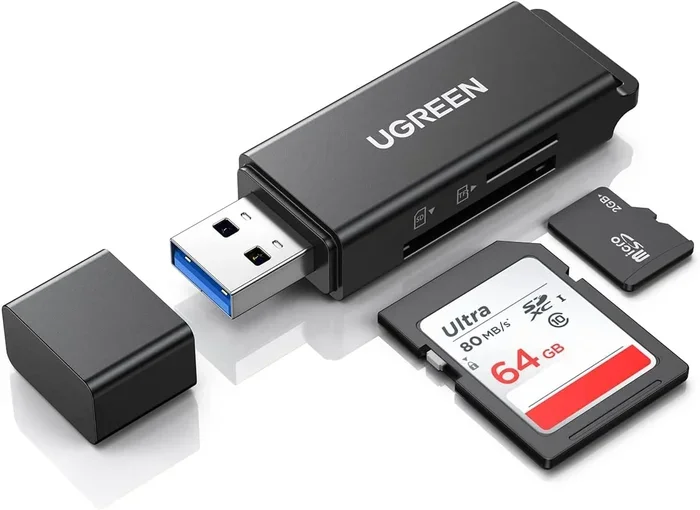
A USB SD card reader is the most popular and affordable option. These small devices plug into a USB port on one end and accept an SD card on the other. They are compact, portable, and work with almost any computer.
Most USB card readers cost between $5 and $15. You can find them at any electronics store or online. They support standard SD cards, microSD cards (with an adapter), and sometimes even CompactFlash or miniSD formats.
How it works:
- Plug the card reader into a USB port.
- Insert your SD card into the slot on the reader.
- Your computer will recognize it as a removable drive.
- Open the drive and access your files.
This method is the fastest and simplest. No software installation is needed. Most operating systems, including Windows, macOS, and Linux, recognize card readers instantly.
Method 2: Use a USB SD Adapter
A USB SD adapter is a slim device that fits directly into the SD card slot. It has a USB plug on one end and an SD slot on the other. These adapters are slightly bulkier than card readers but very convenient for occasional use.
USB SD adapters are great because they are single-purpose and compact. You can keep one in your laptop bag or camera kit. They work well for people who do not need a multi-card reader.
Some adapters also include a microSD slot, so you can use one device for both card types. Look for adapters that support USB 3.0 for faster transfer speeds.
Method 3: Use a Multi-Card Reader
If you work with multiple types of memory cards, a multi-card reader is the best choice. These devices support SD, microSD, CompactFlash, Memory Stick, and more. They connect via USB and let you swap between cards easily.
Multi-card readers are slightly larger but very versatile. Professionals who handle different camera systems often prefer them. They eliminate the need to carry multiple adapters.
Method 4: Use a Phone or Tablet as a Bridge
If you have a smartphone with a microSD card slot, you can use it as a bridge. Insert the SD card into your phone, then connect the phone to your computer via USB cable. Your computer will see the SD card as a removable drive.
This method is not as fast as a direct card reader, but it works in a pinch. It is especially useful if you do not have a card reader available. Just make sure your phone supports USB mass storage or file transfer mode.
Step-by-Step Guide to Converting SD Card to USB
Now that you know the methods, let us walk through the process step by step. This guide uses a USB SD card reader, which is the most common and easiest approach.
Step 1: Gather Your Tools
Before you start, make sure you have everything you need:
- Your SD card (standard, microSD, SDHC, or SDXC)
- A USB card reader or USB SD adapter
- A computer with an available USB port
- The correct USB cable (if your adapter requires one)
Most card readers do not need a separate cable. They plug directly into the USB port. However, some adapters may include a short cable. Check your device before you begin.
Step 2: Insert the SD Card into the Reader
Plug your USB card reader into an available USB port on your computer. Wait a few seconds for the computer to recognize the device. Then, gently insert your SD card into the card slot on the reader.
Make sure the card is oriented correctly. The metal contacts should face down or toward the reader, depending on the design. You should feel a slight click when the card is seated properly.
If you are using a microSD card, you will need a microSD-to-SD adapter first. Insert the microSD into the adapter, then put the adapter into the card reader.
Step 3: Access Your Files
Once the SD card is inserted, your computer should display a notification. On Windows, look for a pop-up that says “Removable drive detected.” On macOS, the drive should appear on your desktop or in Finder.
Open the drive to see your files. You can now copy, move, delete, or organize them just like any USB drive. The process is the same as transferring files between two USB flash drives.
Step 4: Safely Remove the SD Card
When you are done, do not just pull the card out. Always eject the drive first. On Windows, right-click the drive icon and select “Eject.” On macOS, drag the drive icon to the trash bin (which changes to an eject button).
Once the drive is safely removed, you can unplug the card reader and take out your SD card. This prevents data corruption and keeps your files safe.
Choosing the Right SD to USB Adapter
Not all adapters are created equal. Choosing the right one depends on your SD card type, your computer, and your speed needs. Here are the key factors to consider.
Check Your SD Card Type
SD cards come in several sizes and formats. Make sure your adapter supports your specific card type:
- Standard SD: The most common size, used in cameras and older devices.
- MicroSD: The tiny card used in phones and action cameras. Requires an adapter.
- SDHC: High Capacity cards, typically 4GB to 32GB. Most modern adapters support these.
- SDXC: Extended Capacity cards, 64GB and above. Make sure your adapter and card reader support SDXC.
Using an incompatible adapter can cause errors or prevent the card from being recognized. Always check the adapter specifications before purchasing.
USB 2.0 vs USB 3.0
The USB version on your adapter makes a big difference in speed. Here is a quick comparison:
| Feature | USB 2.0 | USB 3.0 |
|---|---|---|
| Max Transfer Speed | 480 Mbps | 5 Gbps |
| Real-World Speed | Slow for large files | Fast, ideal for video |
| Price | Very affordable | Slightly more expensive |
| Backward Compatible | Yes | Yes (with USB 2.0 ports) |
If you transfer large files like 4K video or high-resolution photos, USB 3.0 is the way to go. The speed difference is dramatic. A 32GB file that takes 10 minutes on USB 2.0 might take under 2 minutes on USB 3.0.
Build Quality and Portability
Look for adapters made from durable materials. Metal-bodied card readers tend to last longer and dissipate heat better. If you travel often, choose a compact design that fits in your wallet or laptop bag.
Some adapters come with a keychain loop or a built-in USB plug that retracts. These small features add convenience and protect the connector from damage.
Common Problems When Converting SD Card to USB
Even with the right tools, you may run into issues. Here are the most common problems and how to fix them.
Computer Does Not Recognize the SD Card
This is the most frequent issue. Try these steps first:
- Try a different USB port on your computer.
- Test the card reader with another SD card to rule out a defective card.
- Restart your computer and try again.
- Check your device manager (Windows) or system report (macOS) for hardware errors.
If the card reader works with other cards but not yours, your SD card may be damaged or improperly formatted.
Slow Transfer Speeds
Slow transfers are frustrating. They usually happen for these reasons:
- You are using a USB 2.0 port or adapter instead of USB 3.0.
- Your SD card is a slower Class 4 or Class 6 card.
- Your computer has too many programs running in the background.
- The SD card is nearly full, which slows down write speeds.
To fix this, close unnecessary programs and try a USB 3.0 port. If your card is old, consider upgrading to a faster SD card.
SD Card Shows as RAW or Unformatted
Sometimes the computer prompts you to format the SD card. Do not format it immediately if you have important files on it. Instead, try data recovery software first.
If the card is empty or you have backed up your files, formatting is safe. Use the built-in format tool in Windows or macOS. Choose the FAT32 or exFAT file system for best compatibility.
Adapter Feels Loose or Unstable
A loose connection can cause disconnects or file errors. Try these fixes:
- Clean the SD card contacts with a soft, dry cloth.
- Blow out dust from the card reader slot.
- Try a different adapter or card reader.
- Make sure the SD card is fully inserted and seated properly.
Benefits of Converting SD Card to USB
Converting your SD card to USB offers several advantages. Here are the biggest benefits you will enjoy.
Portable and Convenient
Once converted, your SD card works just like a USB flash drive. You can carry it in your pocket, plug it into any computer, and access your files instantly. This portability is invaluable for professionals on the go.
No Special Software Needed
Most SD to USB adapters work plug-and-play. You do not need to download drivers or install special software. This makes the process accessible to everyone, regardless of technical skill level.
Cost Effective
A basic USB card reader costs less than $10. Compare that to buying a new laptop with a built-in card slot or purchasing cloud storage for your files. The adapter is the cheapest and most practical solution.
Versatile Compatibility
USB card readers work with virtually every computer and operating system. Whether you use Windows, macOS, or Linux, you can access your SD card files with ease. Some readers even work with smart TVs and gaming consoles.
Expert Tips for the Best Results
Here are some quick tips from experienced users and professionals to get the most out of your SD to USB setup.
- Always use high-quality adapters: Cheap adapters can cause data loss or slow transfers. Invest in a reputable brand.
- Label your cards: Use colored stickers or labels to distinguish between different SD cards.
- Keep firmware updated: Some card readers benefit from firmware updates that improve compatibility and speed.
- Backup your files: Never rely on a single SD card for important data. Always keep backups on your computer or in the cloud.
- Format cards in-camera: Formatting your SD card in the device that uses it ensures the best compatibility and performance.
These small habits make a big difference over time. They protect your data and keep your workflow smooth and efficient.
Frequently Asked Questions
Can I use any USB card reader for my SD card?
Most USB card readers work with standard SD cards and microSD cards. However, you should check that the reader supports your specific card type. SDHC and SDXC cards need readers that explicitly list support for these formats. A basic reader may not recognize high-capacity cards properly.
Do I need to install drivers to use an SD card reader?
In most cases, no. Modern operating systems like Windows 10, Windows 11, macOS, and Linux recognize SD card readers automatically. You should not need to download any drivers. If your computer does not recognize the reader, try a different USB port or restart your computer.
Is it safe to remove the SD card without ejecting it first?
No, you should always eject the drive before removing the SD card. Removing it without ejecting can cause data corruption or file errors. The eject process ensures that all read and write operations are complete before the connection is broken.
Can I convert a microSD card to USB without an adapter?
You will need either a microSD-to-SD adapter or a card reader that has a built-in microSD slot. Most multi-card readers include microSD support. If your reader only has standard SD slots, use a cheap microSD adapter to make it work.
How fast is data transfer with a USB SD adapter?
Speed depends on the USB version and the SD card class. USB 3.0 adapters can transfer data at up to 5 Gbps, while USB 2.0 adapters max out at 480 Mbps. A fast SD card (Class 10 or UHS-I) paired with a USB 3.0 reader will give you the best results.
Can I use an SD to USB adapter with a smart TV or gaming console?
Yes, many smart TVs and gaming consoles have USB ports that support SD card readers. Simply plug in the adapter, insert your SD card, and navigate to the media or storage section on your TV or console. This is a great way to view photos or play media files directly from your SD card.
Conclusion
Converting an SD card to USB is one of the simplest and most useful tech tricks you can learn. With a basic card reader or USB adapter, you can turn any SD card into a portable USB drive in seconds. The process works with all SD card types, from standard SD to microSD, and requires no special software or technical knowledge.
Whether you are a photographer moving photos from a camera, a gamer expanding console storage, or a professional backing up important files, this method saves time and effort. The tools are affordable, the steps are simple, and the results are reliable.
Remember to choose the right adapter for your card type, use USB 3.0 for faster speeds, and always eject your drive safely. Follow the tips in this guide, and you will never struggle with SD card access again. Start converting your SD cards to USB today and enjoy the convenience of seamless, portable file access.