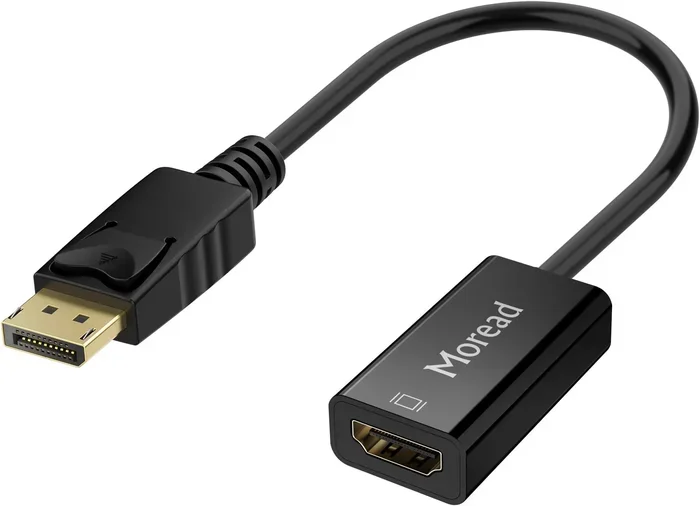
Can You Convert Dp To Hdmi With These Simple Steps
Yes, you can convert DP to HDMI with the right adapter or converter. Whether you have a DisplayPort output on your PC or laptop and need to connect it to an HDMI monitor or TV, a simple adapter does the job. This guide walks you through every step, from choosing the right converter to troubleshooting common problems. You will learn about active vs passive adapters, compatibility tips, and quick fixes for no-signal issues.
Key Takeaways
- Simple Conversion: You can convert DP to HDMI using an adapter or active converter cable.
- Two Main Types: Active adapters handle signal conversion, while passive adapters work only with DP++ ports.
- Step-by-Step Process: Plug in the adapter, connect the HDMI cable, and switch your display input.
- Common Issues Are Fixable: No signal, no audio, and resolution problems usually have easy solutions.
- Check Compatibility First: Make sure your graphics card and monitor support the conversion you need.
- Audio Follows Video: Most modern adapters carry both audio and video signals through HDMI.
📑 Table of Contents
- Can You Convert DP to HDMI? Yes, Here Is How
- Understanding DisplayPort and HDMI Connections
- Types of DP to HDMI Adapters and Converters
- Step-by-Step Guide to Converting DP to HDMI
- Common Issues When Converting DP to HDMI and How to Fix Them
- How to Choose the Best DP to HDMI Adapter
- When to Consider Alternative Display Solutions
- Expert Tips for a Flawless DP to HDMI Setup
- Key Takeaways
- Conclusion
Can You Convert DP to HDMI? Yes, Here Is How
You have a DisplayPort output on your computer. Your monitor or TV only has HDMI inputs. What do you do? The answer is simple. You can convert DP to HDMI with an adapter or a converter cable. It is one of the most common display connections people make today. Whether you are setting up a home office, a gaming rig, or a home entertainment system, this conversion opens up a world of flexibility.
The process is easier than most people think. You do not need to be a tech expert. A few minutes and the right gear is all it takes. This guide covers everything you need to know. From the types of adapters available to step-by-step setup instructions, you will find clear answers here. Let us dive in and make your display connection work perfectly.
Understanding DisplayPort and HDMI Connections
Before you buy any adapter, it helps to understand what these two connections are. DisplayPort is a digital display interface developed by VESA. It is commonly found on PCs, laptops, and graphics cards. HDMI stands for High-Definition Multimedia Interface. It is the standard connection for TVs, monitors, and projectors. Both carry digital video and audio signals. But they use different connectors and sometimes different protocols.
What Makes DP and HDMI Different?
The main difference is the connector shape and the signal protocol. DisplayPort uses a rectangular connector with a small latch clip. HDMI uses a smaller, trapezoid-shaped connector. Both deliver high-quality digital signals. But the way they send data differs slightly. This is why you need a converter to bridge the gap between them.
Another key difference is how they handle audio. HDMI carries both audio and video in one cable. DisplayPort also carries audio, but not all devices handle it the same way. When you convert DP to HDMI, you want to make sure your adapter supports audio transmission too. Most modern adapters do. But it is always worth checking before you buy.
DP Versions and HDMI Versions Matter
Not all DisplayPort and HDMI ports are the same. DisplayPort has gone through several versions. DP 1.2 supports up to 4K at 60Hz. DP 1.4 adds support for HDR and higher bandwidth. HDMI has also evolved. HDMI 2.0 supports 4K at 60Hz. HDMI 2.1 supports 4K at 120Hz and even 8K.
When choosing a converter, make sure it matches or exceeds the resolution you need. A cheap adapter that only supports DP 1.1 will not give you 4K quality. Always check the specs of both your source device and your display. This small step saves a lot of frustration later.
Types of DP to HDMI Adapters and Converters
Not all adapters are created equal. There are two main types you should know about. Understanding the difference helps you pick the right one for your setup.
Active DP to HDMI Adapters
Active adapters do the heavy lifting. They contain a chip that converts the DisplayPort signal into an HDMI signal. This is important because DisplayPort uses a different signaling method than HDMI. Active adapters work with most DisplayPort outputs, including those on dedicated graphics cards. They are the most reliable option for converting DP to HDMI.
Active adapters usually cost a bit more. But they offer better compatibility. If your computer has a standard DisplayPort output, go with an active adapter. It will work with almost any setup. This is the safest choice for most users.
Passive DP to HDMI Adapters
Passive adapters are simpler and cheaper. They do not have a conversion chip. Instead, they rely on the DisplayPort output supporting HDMI protocol natively. This only works with DP++ ports, which are found on some modern graphics cards and laptops.
Passive adapters work well in some cases. But they fail in others. If your GPU does not support DP++, you will get no signal. This is the most common mistake people make. They buy a passive adapter and wonder why it does not work. Always check if your port is DP++ before buying a passive adapter.
DP to HDMI Converter Cables
There is also a third option. Converter cables combine the adapter and the HDMI cable into one unit. You plug the DisplayPort end into your PC. You plug the HDMI end into your monitor. No separate cables needed. These are great for clean setups. They are especially useful when your PC is mounted behind a desk or a TV wall mount.
Step-by-Step Guide to Converting DP to HDMI
Now that you know which adapter to buy, let us walk through the setup process. It is straightforward and takes less than five minutes.
Step 1: Check Your Ports
Look at the back of your computer or laptop. Find the DisplayPort output. It looks like a rectangular slot with a small clip on top. Next, check your monitor or TV. Find the HDMI input. It is a smaller, trapezoid-shaped slot. Make sure both ports are available and accessible.
If you are not sure whether your DisplayPort is DP or DP++, check your device manual or look up the model online. This small check prevents buying the wrong adapter.
Step 2: Choose and Buy the Right Adapter
Based on what you learned above, pick an active or passive adapter. For most people, an active DP to HDMI adapter is the best choice. Look for one that supports your desired resolution. If you want 4K, make sure the adapter supports 4K at 60Hz or higher.
Buy from a reputable brand. Cheap no-name adapters can cause signal drops and audio issues. Spending a little extra on quality saves you time and headaches.
Step 3: Connect the Adapter
Plug the DisplayPort end of the adapter into your PC or laptop. Push it in firmly until it clicks. The small latch clip will hold it in place. Then, take your HDMI cable and plug it into the HDMI output on the adapter. Connect the other end of the HDMI cable to your monitor or TV.
Make sure all connections are snug. A loose cable is the number one cause of no-signal problems. A gentle push until you feel the click is all it takes.
Step 4: Switch Your Display Input
Turn on your monitor or TV. Use the remote or the buttons on the device to switch the input source. Select the HDMI port you plugged the cable into. Your screen should light up with your computer display.
If you see nothing, do not panic. Move on to the troubleshooting section below. Most issues have simple fixes.
Step 5: Configure Display Settings
Once you have a signal, go to your computer display settings. On Windows, right-click the desktop and select Display Settings. On a Mac, go to System Preferences and then Displays. Make sure your external monitor is detected. You can choose to extend or mirror your display from here.
Adjust the resolution to match your monitor’s native resolution. This gives you the sharpest picture. If audio is not working, check your sound output settings. Make sure HDMI is selected as the audio output device.
Common Issues When Converting DP to HDMI and How to Fix Them
Even with the right adapter, you might run into problems. Here are the most common issues and their solutions.
No Signal on the Monitor
This is the most common complaint. The first thing to do is check all cable connections. Unplug everything and plug it back in. Make sure the adapter is fully seated in the DisplayPort. Also, try a different HDMI port on your monitor if available.
If that does not work, try a different HDMI cable. Sometimes the cable itself is the problem. A damaged or low-quality HDMI cable can prevent signal transmission. Swap it out and test again.
No Audio Through HDMI
Video works but there is no sound? This happens more often than you think. The fix is usually in your sound settings. On Windows, right-click the speaker icon in your taskbar. Select Open Sound Settings. Under Output, choose your HDMI display. This routes the audio through the HDMI connection.
On a Mac, go to System Preferences, then Sound, and select the HDMI output. Sometimes you need to restart your computer after changing this setting. Give it a try before you assume the adapter is broken.
Low Resolution or Flickering Screen
If your display looks blurry or flickers, your adapter or cable might not support the resolution you are trying. Drop the resolution in your display settings and see if the problem goes away. Also, make sure your adapter supports the refresh rate of your monitor.
Updating your graphics drivers can also fix flickering issues. Outdated drivers sometimes do not communicate well with adapters. Visit your GPU manufacturer’s website and download the latest drivers. This simple step solves many display problems.
Adapter Not Recognized by the Computer
Sometimes your PC does not detect the adapter at all. Try plugging it into a different USB port if it is a USB-powered adapter. Some active adapters need power from a USB port to work correctly. Also, try restarting your computer. A fresh boot often resolves detection issues.
If none of these steps work, the adapter itself might be defective. Contact the manufacturer for a replacement. Most reputable brands offer a warranty. Keep your receipt just in case.
How to Choose the Best DP to HDMI Adapter
With so many options on the market, picking the right one can feel overwhelming. Here are the key factors to consider.
Resolution and Refresh Rate Support
Think about what resolution you need. For everyday office work, 1080p is usually fine. For gaming or video editing, you want 4K support at 60Hz or higher. Check the adapter specs carefully. The box or product page should list the maximum supported resolution and refresh rate.
Do not assume all adapters are the same. A $10 adapter might only support 1080p. A $30 adapter might handle 4K. Pay for the features you actually need. There is no point in paying for 8K support if your monitor is only 1080p.
Build Quality and Brand Reputation
Cheap adapters often use poor components. They overheat, drop signals, or break after a few weeks. Stick with well-known brands like Cable Matters, Uni, StarTech, or Sabrent. These brands test their products and offer reliable performance.
Reading customer reviews also helps. Look for adapters with at least a 4-star rating and a decent number of reviews. Real user experiences tell you a lot about build quality and long-term reliability.
Cable Length and Portability
Consider where you will use the adapter. If it is a permanent desktop setup, a converter cable with built-in cables works great. If you travel or move between setups often, a small portable adapter is better. Some adapters come with short cables. Others let you use your own longer HDMI cable for more flexibility.
Audio Support
If you need sound along with video, make sure your adapter supports audio passthrough. Most active adapters do. But some cheaper models skip the audio chip to save cost. Check the product description for audio support before you buy. This is especially important if you are connecting to a TV or soundbar.
When to Consider Alternative Display Solutions
Converting DP to HDMI works great for most setups. But sometimes, a different approach makes more sense. If you are setting up a home entertainment system, you might want to explore other display options. For instance, many modern streaming devices and smart TVs offer wireless casting. This eliminates the need for cables and adapters altogether.
If you are tired of dealing with cable subscriptions and want to explore what else is out there, you can look into alternatives to Dish Network and DirecTV that pair well with HDMI setups. Many streaming services and devices work seamlessly with HDMI connections, giving you more flexibility in how you watch content.
Also consider whether you really need to convert at all. Some monitors come with both DP and HDMI inputs. If your monitor has both, you can skip the adapter entirely. Just use an HDMI cable directly from your source device. It is the simplest solution when it is available.
Expert Tips for a Flawless DP to HDMI Setup
Here are some quick tips from people who set up display connections every day. These small habits make a big difference.
- Always use a high-quality HDMI cable. A cheap cable can limit your resolution and cause signal drops, even with a great adapter.
- Update your graphics drivers before setup. Fresh drivers ensure your GPU communicates properly with the adapter.
- Test with a known-working setup first. If you have another device that works via HDMI, test that monitor and cable first. This rules out monitor or cable problems.
- Keep your adapter ventilated. Active adapters can get warm. Do not bury them behind a desk with no airflow. Heat can cause intermittent signal issues.
- Label your cables. If you have multiple display connections, label them. It saves time when troubleshooting later.
- Buy a backup adapter. Adapters are small and easy to lose or damage. Having a spare saves you from scrambling when one fails.
Key Takeaways
- Simple Conversion: You can convert DP to HDMI using an adapter or active converter cable.
- Two Main Types: Active adapters handle signal conversion, while passive adapters work only with DP++ ports.
- Step-by-Step Process: Plug in the adapter, connect the HDMI cable, and switch your display input.
- Common Issues Are Fixable: No signal, no audio, and resolution problems usually have easy solutions.
- Check Compatibility First: Make sure your graphics card and monitor support the conversion you need.
- Audio Follows Video: Most modern adapters carry both audio and video signals through HDMI.
Conclusion
Converting DP to HDMI is straightforward and doable for anyone. You just need the right adapter, a few minutes, and this guide to walk you through it. Whether you are connecting a laptop to a TV for movie night or setting up a second monitor for work, the process is the same. Plug in, switch the input, and you are good to go.
Remember to choose an active adapter for the best compatibility. Check your resolution needs before you buy. And do not skip the simple troubleshooting steps if something goes wrong. Most problems have quick and easy fixes. With the right gear and a little patience, your DP to HDMI setup will work flawlessly every time.
Now you have all the knowledge you need. Go ahead, grab an adapter, and make your display connection work. You will wonder why you did not do it sooner.
Frequently Asked Questions
Can I convert DisplayPort to HDMI without an adapter?
No, you need an adapter or converter cable because DisplayPort and HDMI use different connectors and signal protocols. A direct cable connection will not work. The adapter bridges the gap between the two interfaces and converts the signal properly.
Do I need an active or passive DP to HDMI adapter?
For most users, an active adapter is the safest choice. It works with virtually all DisplayPort outputs. Passive adapters only work with DP++ ports, which are not common on all graphics cards. Check your GPU specifications before buying a passive adapter.
Can I get 4K resolution through a DP to HDMI adapter?
Yes, but only if your adapter supports 4K. Look for adapters that explicitly list 4K resolution support at 60Hz or higher. Cheaper adapters may only support 1080p or 4K at 30Hz, which can cause a sluggish display experience.
Will my audio work when converting DP to HDMI?
Most modern active adapters support audio passthrough. However, you need to set your computer’s audio output to the HDMI device in your sound settings. If audio still does not work, update your graphics drivers and check your cable connections.
Why does my converted display flicker or show a low resolution?
Flickering or low resolution usually means your adapter or cable does not support the resolution or refresh rate you are using. Try lowering the resolution in your display settings. Also, make sure you are using a high-quality HDMI cable and that your adapter is properly seated.
Are DP to HDMI adapters compatible with all computers?
Most active adapters work with all computers that have a DisplayPort output. However, some laptops with USB-C or Thunderbolt ports use a different signaling method. If your computer uses USB-C, you may need a USB-C to HDMI adapter instead of a standard DP to HDMI adapter.