Can You Connect Multiple Usb Ports And Why It Matters
Yes, you can connect multiple USB ports using hubs, splitters, adapters, or daisy-chaining. This lets you plug in several devices at once without slowing down your computer. Understanding how USB connectivity works helps you avoid common issues like power shortages and data transfer slowdowns.
Have you ever sat at your desk and thought, “I need more USB ports”? You are not alone. Whether you are a student, a remote worker, or a creative professional, the demand for USB connectivity keeps growing. Laptops and desktops often come with just a handful of ports, and that rarely feels like enough.
The good news is that you absolutely can connect multiple USB ports to expand your setup. With the right tools, you can plug in external hard drives, webcams, keyboards, mice, phone chargers, and much more — all at the same time. Understanding how this works saves you from frustration, slow speeds, and even damaged devices.
This guide walks you through everything you need to know. From choosing the right USB hub to avoiding common mistakes, we cover it all. By the end, you will feel confident setting up a multi-device USB station that actually works well.
Key Takeaways
- USB hubs expand your port count so you can connect multiple devices to one computer.
- Powered hubs provide extra electricity for demanding devices like external hard drives.
- USB 3.0 and USB-C offer faster speeds when connecting multiple peripherals at once.
- Signal degradation can happen if you daisy-chain too many devices without a powered hub.
- Device compatibility matters when choosing the right USB adapter or splitter.
- Bandwidth gets shared among all connected devices, which affects performance.
- Following best practices keeps your USB setup fast, safe, and reliable.
📑 Table of Contents
What Are USB Ports and Why Do We Need Multiple?
A USB port is a connection point on your computer or laptop that lets you attach peripheral devices. USB stands for Universal Serial Bus, and it has been the standard for connecting accessories since the mid-1990s. Over the years, USB technology has evolved significantly, giving us faster speeds and more power.
So why do you need multiple USB ports? Think about your daily routine. You might use a keyboard, a mouse, a printer, a flash drive, a webcam, and a phone charger — sometimes all at once. Most computers only have two to four ports. That is not nearly enough for most people’s needs.
The Growing Need for More Ports
Our digital lives keep expanding. More devices now rely on USB connectivity to function. Here are some common reasons people need extra ports:
- Work setups: Monitors, docking stations, keyboards, and mice all need connections.
- Creative work: External hard drives, drawing tablets, and audio interfaces take up ports.
- Charging multiple devices: Phones, tablets, and earbuds all need power through USB.
- Gaming: Controllers, headsets, and storage devices compete for port space.
- Data transfer: Moving files between devices requires reliable and fast connections.
USB port expansion solves all of these problems. Instead of unplugging one device to plug in another, you can keep everything connected at the same time.
How to Connect Multiple USB Devices
There are several ways to connect multiple devices through your USB ports. Each method has its own strengths. Let us look at the most popular options.
USB Hubs
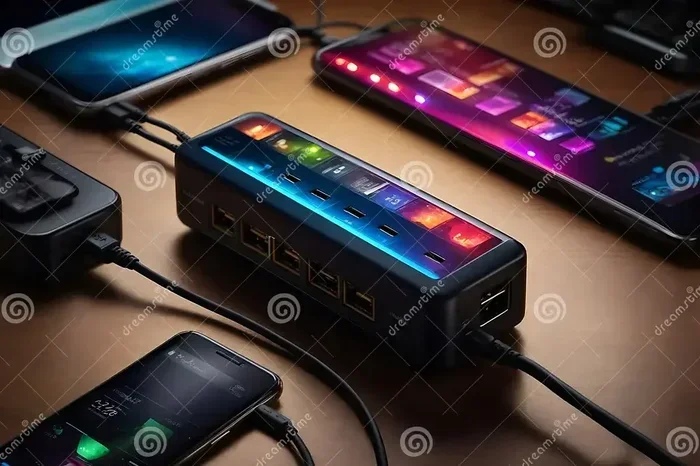
A USB hub is the most common way to expand your port count. It plugs into one port on your computer and gives you several new ones. Think of it like a power strip, but for data and charging connections.
Most hubs today support USB 3.0 or USB 3.1 speeds. Some even use the newer USB-C standard. A good hub will let you connect anywhere from four to ten devices at once.
USB Splitters and Adapters
A USB splitter divides one port into two or more. These are simpler than hubs but come with limitations. They do not add extra power or bandwidth. A USB adapter changes one port type into another, like turning a USB-A port into a USB-C port.
Daisy Chaining
Daisy chaining means connecting multiple devices in a line, one after another. Some devices support this natively, especially certain audio interfaces and external storage drives. However, daisy chaining can slow down your data transfer speeds if you are not careful.
Comparison Table: Hub vs Splitter vs Adapter
| Feature | USB Hub | USB Splitter | USB Adapter |
|---|---|---|---|
| Port Count | 4 to 10+ ports | 2 to 4 ports | 1 to 1 port (type change) |
| Extra Power | Yes (powered models) | No | No |
| Speed | USB 3.0 or USB-C | Same as host port | Same as host port |
| Best For | Multiple devices | Simple sharing | Port type conversion |
| Price Range | $15 to $80 | $5 to $20 | $5 to $25 |
Quick Tip: Always check your computer’s port type before buying a hub. If your laptop has USB-C ports, get a USB-C hub for the best results.
Powered vs Unpowered USB Hubs
This is one of the most important decisions you will make. Powered hubs and unpowered hubs work very differently, and choosing the wrong one can cause real problems.
Powered USB Hubs
A powered hub connects to an electrical outlet. It draws its own power and supplies it to your devices. This means your computer does not have to provide extra electricity. Powered hubs are ideal for devices that need a lot of power, like external hard drives or monitors.
When you connect multiple USB devices that all need power, a powered hub keeps everything running smoothly. You will not get random disconnections or slow charging speeds.
Unpowered USB Hubs
An unpowered hub gets all its power from the computer’s single USB port. It works fine for low-power devices like keyboards, mice, and flash drives. But if you try to plug in power-hungry devices, you may run into trouble.
Common issues with unpowered hubs include devices not being recognized, slow charging speeds, and frequent disconnections. They are fine for basic setups but fall short for heavy use.
Which One Should You Choose?
Here is a simple way to decide:
- Choose a powered hub if you connect external drives, monitors, or multiple charging devices.
- Choose an unpowered hub if you only connect keyboards, mice, and flash drives.
- Choose a USB-C hub if your laptop or desktop has USB-C ports for the fastest speeds.
Expert Insight: Many people buy an unpowered hub because it is cheaper. They then wonder why their external drive keeps disconnecting. Spending a little more on a powered hub saves a lot of headaches later.
Common Problems When Connecting Multiple USB Devices
Even with the right hub, you can run into issues when connecting multiple USB devices. Knowing what goes wrong helps you prevent it.
Power Shortages
Every USB port has a limited amount of power it can deliver. When you connect too many devices, the power gets split. Some devices may not get enough electricity to work properly. This is the most common problem people face with USB port expansion.
The fix is simple: use a powered USB hub. It takes the power load off your computer and gives each device the electricity it needs.
Bandwidth Sharing
All devices connected to the same USB hub share the same bandwidth. If you plug in a fast external SSD and a slow webcam, they both share the same data pipe. The fast drive will slow down, and the webcam will be fine.
Quick Tip: Connect high-speed devices like external drives to their own separate hub if possible. This keeps data transfer speeds high.
Signal Degradation
When you daisy-chain too many devices or use long cables, the signal can weaken. This leads to slower speeds, dropped connections, and data errors. Signal degradation is more common with older USB standards like USB 2.0.
Use short, high-quality cables. Choose USB 3.0 or USB-C hubs whenever possible. These standards handle multiple device connections much better.
Device Compatibility Issues
Not all devices play nicely together. Some older peripherals only work with USB 2.0 speeds. Some modern devices need USB-C. And some devices simply will not work through a hub at all. Always check device compatibility before buying a hub or adapter.
Best Practices for Managing Multiple USB Connections
Setting up multiple USB devices the right way makes a huge difference. Follow these tips to keep your setup fast and reliable.
1. Know Your Port Types
Before buying any hub or adapter, check what ports your computer has. Most modern laptops use USB-C, while older desktops often have USB-A ports. Matching your hub to your port type ensures the best USB connectivity.
2. Use a Powered Hub for Heavy Setups
If you connect more than four or five devices, go with a powered hub. It keeps everything stable and prevents power-related disconnections. Powered hubs are especially important if you use external storage devices.
3. Keep Cables Short and Organized
Long cables cause signal loss. Keep your USB cables as short as practical. Use cable ties or a cable management box to keep your desk tidy and your connections clean.
4. Update Your Drivers
Sometimes USB connectivity issues come from outdated drivers. Make sure your computer’s USB drivers are up to date. This fixes many mysterious disconnections and slow speeds.
5. Avoid Cheap, Unbranded Hubs
A cheap USB hub might seem like a great deal, but it can cause real problems. Low-quality hubs often have poor power delivery, slow chips, and unreliable connections. Spend a little more on a reputable brand and your devices will thank you.
Common Mistakes to Avoid:
- Plugging too many power-hungry devices into an unpowered hub.
- Using damaged or frayed cables with your hub.
- Ignoring driver updates that fix USB connectivity bugs.
- Buying a hub with the wrong port type for your computer.
- Daisy-chaining too many devices without a powered hub in between.
Key Takeaway: A little planning goes a long way. Choose the right hub, use good cables, and keep your drivers updated. Your multi-device USB setup will run smoothly for years.
Expert Insights and Final Thoughts
Connecting multiple USB ports is not just possible — it is essential for modern computing. Whether you are a student juggling a laptop, charger, and flash drive, or a professional running an entire workstation, you need more than what your computer comes with.
The right USB hub or adapter transforms a limited setup into a powerful workstation. Powered hubs give you stability. USB 3.0 and USB-C give you speed. And a little bit of planning keeps everything running without a hitch.
Remember that bandwidth gets shared among all connected devices. If speed matters, give your fastest devices their own connection when you can. And always match your hub to your computer’s port type for the best results.
You do not need to be a tech expert to set up a great multi-device USB station. Start with a quality hub, follow the tips in this guide, and you will have a setup that works like a dream. USB connectivity should make your life easier, not harder. With the right approach, it absolutely does.
So go ahead — plug in all your devices. With the knowledge you have now, you can do it safely, efficiently, and without any guesswork. Can you connect multiple USB ports? Absolutely, and now you know exactly how to do it right.
Frequently Asked Questions
Can I connect too many USB devices at once?
Yes, you can overload a USB hub if you connect too many power-hungry devices. This causes power shortages and disconnections. Use a powered hub and avoid daisy-chaining more than five or six devices to stay safe.
Does connecting multiple USB devices slow down data transfer?
It can. All devices on the same hub share bandwidth. If you plug in a fast external drive and a slow webcam together, the fast drive may slow down. Give high-speed devices their own hub for the best performance.
Do I need a powered USB hub for my setup?
You need a powered hub if you connect external hard drives, monitors, or multiple charging devices. Unpowered hubs work fine for keyboards, mice, and flash drives. Check what devices you plan to connect before deciding.
Can I use a USB-C hub with a laptop that only has USB-A ports?
No, a USB-C hub needs a USB-C port on your laptop. If your laptop only has USB-A ports, buy a USB-A hub instead. You can also use a USB-A to USB-C adapter to change port types safely.
Will using a USB hub damage my computer?
A quality USB hub will not damage your computer. Cheap, unbranded hubs can cause power surges or deliver unstable electricity. Always buy from reputable brands and check for safety certifications before purchasing.
How many devices can I realistically connect through one USB hub?
Most USB hubs support four to ten devices. However, your computer’s total bandwidth and power limit how many will work well. For heavy setups, use two or three smaller hubs connected to different ports on your computer.