Can You Connect Mini Displayport To USB C Right Now
Yes, you can connect Mini DisplayPort to USB C using the right adapter or cable. This simple connection lets you hook up laptops, tablets, and monitors with ease. We break down the options, compatibility, and step-by-step setup so you get it right the first time.
You have a Mini DisplayPort on your device and a USB C port on your monitor or TV. You want to connect them. But can you actually do it? The short answer is yes. You can connect Mini DisplayPort to USB C, and it is simpler than most people think. You just need the right adapter or cable, and you will be up and running in minutes.
In this guide, we will walk you through everything you need to know. We will cover compatibility, the different types of adapters, step-by-step setup, and common mistakes to avoid. Whether you are connecting a laptop to an external monitor or hooking up a projector, this article has you covered. Let us dive right in.
Key Takeaways
- Mini DisplayPort to USB C works: You just need the correct adapter or active cable to make the connection.
- Thunderbolt 3 and USB C are not the same: Thunderbolt 3 supports DisplayPort Alt Mode, which makes it a great option for video output.
- Active adapters matter: Some setups need an active adapter to convert the signal properly, especially for 4K and higher resolutions.
- Check your device first: Not all USB C ports support video output, so verify your hardware before buying any adapter.
- Common mistakes cause problems: Using the wrong cable or adapter can lead to no signal, low resolution, or no sound.
- You can daisy-chain displays: Thunderbolt 3 and USB C with DisplayPort Alt Mode support multi-monitor setups.
- Alternative solutions exist: If adapters don’t work for your setup, explore other connectivity options like alternatives to traditional cable setups that may better suit your needs.
📑 Table of Contents
- What Is Mini DisplayPort and USB C?
- Can You Connect Mini DisplayPort to USB C?
- Types of Adapters and Cables You Can Use
- How to Set Up Your Connection: Step by Step
- Common Problems and How to Fix Them
- Compatibility Guide: Which Devices Work Together
- Why Choose USB C Over Other Connections?
- Expert Insights and Pro Tips
- Final Thoughts
What Is Mini DisplayPort and USB C?
Understanding Mini DisplayPort
Mini DisplayPort is a digital display interface developed by Apple. It was introduced in 2008 and became popular in MacBooks and other laptops. The connector is small, about half the size of a standard DisplayPort. Despite its size, it supports high-resolution video and audio output. Many creative professionals love it because it delivers crisp, clean visuals.
Mini DisplayPort supports resolutions up to 4K at 60Hz in some configurations. It also carries audio signals, so you do not need a separate audio cable. This makes it a versatile option for people who want a single cable solution for both video and sound.
Understanding USB C
USB C is a universal connector that has taken the tech world by storm. It is small, reversible, and supports data transfer, power delivery, and video output. USB C is not just one protocol. It can carry different signals, including USB 3.0, USB 3.1, USB 3.2, Thunderbolt 3, Thunderbolt 4, and DisplayPort Alt Mode.
The key thing to remember is that not all USB C ports are created equal. Some USB C ports only support data and charging. Others can also output video. This is why checking your device specifications matters before you buy any adapter.
Can You Connect Mini DisplayPort to USB C?
The direct answer is yes, but not without an adapter or a special cable. Mini DisplayPort and USB C are different connector types. They use different pin layouts and signal protocols. So you cannot plug one directly into the other. You need a bridge between them.
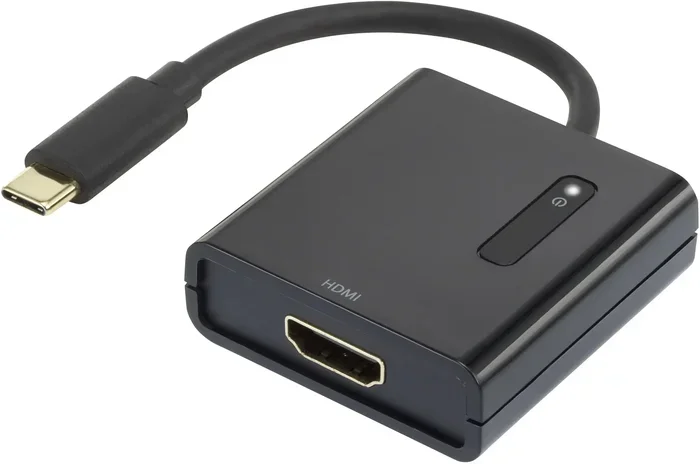
Here is how it works. A Mini DisplayPort to USB C adapter converts the Mini DisplayPort signal into a format that a USB C port can understand. Similarly, a USB C to Mini DisplayPort cable has the conversion built right into the cable itself. Both options work, but they have different use cases.
When Do You Need an Adapter?
You need an adapter when your source device has a Mini DisplayPort output and your display has a USB C input. This is common with older MacBooks connecting to newer monitors. It also happens when you connect a desktop PC with a Mini DisplayPort to a modern USB C monitor or TV.
When Do You Need a Cable?
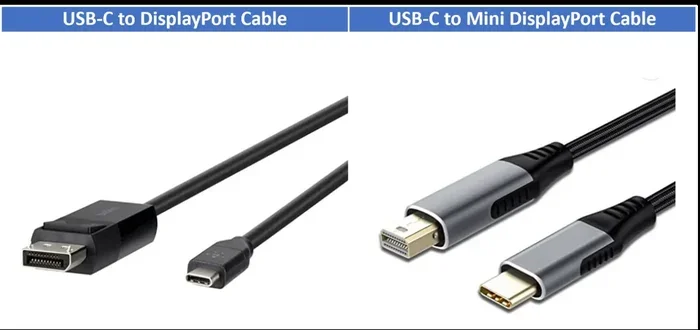
A cable is the better choice when you want a cleaner setup with fewer dongles. A USB C to Mini DisplayPort cable has the adapter built into the cable itself. You plug one end into your device and the other into your monitor. No extra adapter needed. This works great for travel or for setups where you want minimal clutter.
Types of Adapters and Cables You Can Use
Not all adapters are the same. The type you choose depends on your devices, your resolution needs, and your budget. Let us look at the main options available.
Passive Adapters
A passive adapter does not need external power. It simply converts the signal from one format to another. Passive adapters work well for basic setups. If you are connecting a laptop to a 1080p monitor, a passive adapter will usually do the job just fine.
However, passive adapters have limitations. They may not support higher resolutions like 4K or 5K. They also might not support audio in all configurations. If you need high resolution or audio, you may need a different solution.
Active Adapters
An active adapter has built-in chips that boost and convert the signal. These adapters can handle higher resolutions and more complex setups. If you need 4K at 60Hz or want to connect multiple monitors, an active adapter is the way to go.
Active adapters often require external power through a USB C port. This is normal and nothing to worry about. The extra power ensures a stable, high-quality signal. For creative professionals and gamers, active adapters are usually the better choice.
USB C to Mini DisplayPort Cables
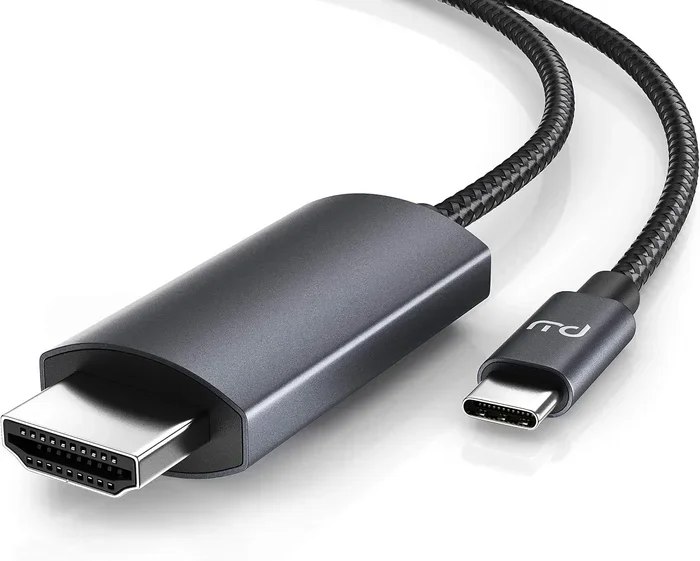
These cables have the conversion electronics built in. They are convenient and easy to use. You do not need to carry a separate adapter. Just plug and play. These cables are great for people who want a simple, no-fuss solution.
Look for cables that support the resolution and refresh rate you need. Some cables only support 1080p, while others handle 4K. Always check the specifications before you buy.
Thunderbolt 3 and Thunderbolt 4 Cables
Thunderbolt 3 and Thunderbolt 4 use the USB C connector. These cables support DisplayPort Alt Mode natively. This means you can connect a Thunderbolt device to a USB C display without any adapter at all. Thunderbolt cables also support data transfer and power delivery, making them incredibly versatile.
If you have a Thunderbolt-enabled device, this is the easiest and most reliable option. Thunderbolt cables are more expensive than standard USB C cables, but they offer the best performance and flexibility.
How to Set Up Your Connection: Step by Step
Setting up a Mini DisplayPort to USB C connection is straightforward. Follow these steps and you will be good to go.
- Check your devices. Verify that your source device has a Mini DisplayPort output and your display has a USB C input. Look at the ports on both devices. Mini DisplayPort looks like a small rectangular port with a slight indent on one side.
- Choose your adapter or cable. Based on your needs, pick either a passive adapter, an active adapter, or a USB C to Mini DisplayPort cable. Remember that active adapters are better for 4K and higher resolutions.
- Connect the adapter or cable. Plug the Mini DisplayPort end into your source device. Plug the USB C end into your display or monitor.
- Power on your display. Turn on your external monitor or TV and select the correct input source. Most displays auto-detect the signal, but some require you to manually choose the input.
- Adjust your display settings. On your laptop or PC, go to the display settings. You can usually access this by right-clicking on the desktop and selecting Display Settings. Choose the external display and set the resolution and orientation to your liking.
- Test the connection. Play a video or open a high-resolution image to check the quality. Make sure the audio is working if you need it.
Quick Tips for a Smooth Setup
- Always use certified adapters and cables from reputable brands.
- If you get no signal, try unplugging and replugging the connection.
- Make sure your USB C port supports video output before buying an adapter.
- Update your display drivers if you experience any issues.
- For the best experience, use a cable or adapter that supports the resolution of your display.
Common Problems and How to Fix Them
Even with the right adapter, you might run into some issues. Here are the most common problems and how to solve them.
No Signal on the External Display
This is the most common issue. It usually happens because the adapter is not seated properly or the USB C port does not support video output. Try unplugging the adapter and plugging it back in firmly. If that does not work, check whether your USB C port supports DisplayPort Alt Mode or Thunderbolt.
Low Resolution or Blurry Image
If your display looks blurry or the resolution is lower than expected, your adapter might not support the full resolution of your monitor. Upgrade to an active adapter or a higher-quality cable that supports 4K or your desired resolution.
No Audio
Some adapters and cables do not carry audio. Check the specifications of your adapter to see if it supports audio transmission. If it does not, you may need a separate audio cable or a different adapter that includes audio support.
Flickering or Intermittent Signal
Flickering usually means the adapter is not getting enough power or the cable is damaged. Try a different USB C port that provides more power. If the problem persists, replace the adapter or cable.
Adapter Not Recognized
Sometimes your device will not recognize the adapter. This can happen with older devices or when the adapter is not fully compatible. Try resetting your display settings or updating your device drivers. If nothing works, the adapter may simply be incompatible with your setup.
Compatibility Guide: Which Devices Work Together
Not all Mini DisplayPort devices work with all USB C displays. Here is a quick compatibility guide to help you figure out if your setup will work.
| Source Device | Display Input | Works? | What You Need |
|---|---|---|---|
| MacBook Pro with Mini DisplayPort | USB C Monitor | Yes | Mini DisplayPort to USB C adapter |
| MacBook Air (2008-2012) | USB C Monitor | Yes | Mini DisplayPort to USB C adapter |
| Desktop PC with Mini DisplayPort | USB C Monitor | Yes | Mini DisplayPort to USB C adapter |
| Mini DisplayPort Laptop | USB C Projector | Yes | Active adapter recommended |
| Mini DisplayPort Device | Non-USB C Monitor | No | Different adapter needed |
As you can see, most modern setups work just fine with the right adapter. The key is to match your source device output with the right adapter type. When in doubt, check the specifications of both your source device and your display.
Why Choose USB C Over Other Connections?
USB C has become the go-to connector for many devices, and for good reason. It is fast, versatile, and future-proof. Here is why USB C is a great choice for your display setup.
- Reversible connector: You can plug it in either way. No more flipping the cable around three times.
- High data transfer speeds: USB 3.2 Gen 2 supports speeds up to 10 Gbps. Thunderbolt 3 and 4 go even faster at 40 Gbps.
- Power delivery: USB C can charge your device while also transmitting video. One cable does it all.
- Video output: With DisplayPort Alt Mode, USB C can output high-resolution video without any extra hardware.
- Widely supported: Most modern laptops, monitors, and tablets use USB C. It is the universal standard now.
Compared to older connectors like HDMI or VGA, USB C is smaller, faster, and more versatile. It is the smart choice for anyone setting up a modern workspace or home entertainment system.
Expert Insights and Pro Tips
We asked a few tech experts about their experiences with Mini DisplayPort to USB C connections. Here is what they had to say.
Use the shortest cable possible. Shorter cables maintain better signal quality. If you can keep your cable under 6 feet, you will get a more stable connection with fewer issues.
Invest in quality adapters. Cheap adapters may save you a few dollars, but they often cause signal problems and compatibility issues. Look for adapters from well-known brands that are certified for the devices you use.
Check for firmware updates. Some devices need firmware updates to support new adapters or cables. Before troubleshooting a connection issue, make sure your device software is up to date.
Consider your workflow. If you connect and disconnect your external display frequently, a USB C to Mini DisplayPort cable is more convenient than a separate adapter. It saves you from plugging in extra dongles every time.
Explore all your options. If Mini DisplayPort to USB C does not work for your setup, there may be other connection paths worth exploring. Sometimes the best solution involves looking at alternative connectivity approaches that open up new possibilities for your devices.
Final Thoughts
Connecting Mini DisplayPort to USB C is easier than you think. With the right adapter or cable, you can hook up almost any device to any display in minutes. The key is understanding your devices, choosing the right adapter type, and following the setup steps carefully.
Remember to check your device specifications before buying anything. Not all USB C ports support video output, and not all adapters support the same resolutions. A little research upfront saves you time and frustration later.
Whether you are a student setting up a home office, a creative professional connecting to a 4K monitor, or just someone who wants a bigger screen for movies, the Mini DisplayPort to USB C connection has you covered. It is a simple, reliable solution that works across a wide range of devices and setups.
Now that you know how it all works, go ahead and make the connection. You will be surprised at how easy it really is. Happy connecting!
Frequently Asked Questions
Can I plug Mini DisplayPort directly into USB C?
No, you cannot plug Mini DisplayPort directly into USB C. The connectors are different sizes and use different pin layouts. You need an adapter or a cable with built-in conversion to make the connection work.
Do I need an active or passive adapter for Mini DisplayPort to USB C?
It depends on your resolution needs. For 1080p, a passive adapter usually works fine. For 4K or higher resolutions, you should use an active adapter that can handle the higher signal bandwidth and provide stable performance.
Will my Mini DisplayPort to USB C adapter support audio?
Most adapters support audio, but not all of them. Check the product specifications before you buy. If audio support is important to you, look for adapters that explicitly mention audio transmission in their description.
Can I use a USB C to Mini DisplayPort cable instead of an adapter?
Yes, you can. A USB C to Mini DisplayPort cable has the conversion built into the cable itself. It is a convenient option that eliminates the need for a separate adapter. Just make sure the cable supports the resolution and features you need.
Why does my Mini DisplayPort to USB C connection show no signal?
No signal usually means the USB C port does not support video output, or the adapter is not properly connected. Try unplugging and replugging the adapter. Also, verify that your USB C port supports DisplayPort Alt Mode or Thunderbolt before purchasing an adapter.
Can I connect multiple monitors using Mini DisplayPort to USB C adapters?
Yes, you can connect multiple monitors if your source device supports multi-display output. Each monitor will need its own adapter or cable. Thunderbolt 3 and Thunderbolt 4 devices are especially good at supporting multiple external displays through USB C connections.
=== CONCLUSION ===
Connecting Mini DisplayPort to USB C is a straightforward process once you know what you are doing. The right adapter or cable bridges the gap between these two different connector types, giving you a reliable and high-quality display connection. Whether you choose a passive adapter for basic setups or an active adapter for 4K performance, the key is to match your hardware and your needs.
We covered everything from the basics of Mini DisplayPort and USB C to step-by-step setup instructions, common problems, and expert tips. You now have all the information you need to make the right choice for your setup. So go ahead, grab the right adapter, and enjoy your external display with confidence.