Can You Block A USB Drive And Keep Your Data Protected
Yes, you can block a USB drive using software settings, hardware devices, or group policies. Whether you want to stop USB data theft or prevent USB malware from infecting your computer, there are proven methods that work. This guide walks you through every option so you can choose the best USB blocking strategy for your needs.
You leave your computer unattended for just a few minutes. Someone plugs in a USB flash drive and copies your files in seconds. This scenario is more common than you think. USB data theft happens in offices, schools, and even at home every single day.
The good news? You can stop this from happening. Blocking a USB drive is one of the simplest and most effective ways to protect your data. In this guide, we will show you exactly how to do it. You will learn about software options, hardware solutions, and expert tips that keep your removable storage risks under control.
Whether you are a home user or managing a business network, this article has something for you. Let us dive in and explore every way you can lock down your USB ports and boost your data protection game.
Key Takeaways
- Software blocking: Use built-in OS settings or third-party tools to disable USB ports easily.
- Hardware blocking: Physical USB blockers offer a hands-on, tamper-proof way to secure your ports.
- Group Policy: Windows users can leverage Group Policy Editor for advanced USB device management.
- Data protection: Blocking USB drives significantly reduces the risk of USB data theft and unauthorized access.
- Endpoint security: USB blocking is a key part of any solid cybersecurity plan for businesses and home users alike.
📑 Table of Contents
- Why USB Drive Blocking Matters
- How to Block USB Drives Using Software
- How to Block USB Drives Using Hardware
- Blocking USB Drives on Mac and Linux
- Benefits of Blocking USB Drives
- Common Mistakes to Avoid When Blocking USB Drives
- Expert Tips for Keeping Your Data Protected
- Final Thoughts on USB Drive Blocking
Why USB Drive Blocking Matters
USB drives are small, cheap, and incredibly convenient. You can carry thousands of files on a device that fits in your pocket. But that same convenience makes them a major security risk. USB malware can spread through infected drives in moments. A single unauthorized device can compromise your entire system.
The Hidden Dangers of Unrestricted USB Access
Most people do not think about USB port security until something goes wrong. Here are some real risks you face every day:
- Data theft: Someone can copy sensitive files to a USB drive in under a minute.
- Malware injection: Infected USB drives can install viruses the moment they connect.
- Accidental data loss: Employees or family members might delete important files by mistake.
- Unauthorized software installation: People can run programs directly from a USB drive without permission.
- Compliance violations: Businesses that fail to control removable storage may violate data protection regulations.
These threats are not just theoretical. Studies show that over 60 percent of data breaches involve some form of removable media. USB device management is no longer optional. It is essential for anyone who values their digital security.
Who Should Block USB Drives?
Almost everyone benefits from USB blocking. Here is a quick look at who should take action:
- Business owners: Protect company data from being stolen by employees or visitors.
- Parents: Keep kids from plugging in unknown devices that could harm your computer.
- Students: Prevent unauthorized file transfers on school or university computers.
- IT administrators: Enforce endpoint security policies across all company machines.
- Home users: Safeguard personal photos, documents, and financial records.
Blocking a USB drive is not about being paranoid. It is about being prepared. A little prevention goes a long way in keeping your information safe.
How to Block USB Drives Using Software
Software-based blocking is the most popular method. It is free, flexible, and easy to set up. You can choose from built-in operating system features or dedicated third-party tools. Let us explore each option.
Using Windows Group Policy Editor
If you use Windows, the Group Policy Editor gives you powerful control over USB permissions. Here is how to set it up:
- Press Windows Key + R to open the Run dialog.
- Type
gpedit.mscand press Enter. - Navigate to User Configuration, then Administrative Templates.
- Click on System, then Removable Storage Access.
- Find the policy for removable disks and set it to Disabled.
This method blocks write access to USB drives while still allowing read access. If you want full blocking, you can set the policy to Not Configured and use a third-party tool instead. Group policy settings are ideal for businesses because they can be applied across multiple computers at once.
Using Registry Editor for Advanced Control
For more advanced users, the Windows Registry Editor offers deeper control. You can modify specific registry keys to completely disable USB storage devices. However, be careful when editing the registry. Always back up your system before making changes.
Third-Party USB Blocking Software
Several excellent tools make USB port security simple. These programs offer user-friendly interfaces and extra features:
- USB Block: A dedicated tool that blocks all unauthorized removable devices with a password.
- Device Control Plus: Offers detailed USB device management and audit logging.
- Trend Micro USB Blocker: Combines USB blocking with antivirus protection for full cybersecurity coverage.
- Sophos Intercept X: Blocks malicious USB devices while allowing approved ones through whitelist mode.
Most of these tools let you create whitelists and blacklists. You can allow trusted devices while blocking everything else. This level of control is perfect for offices and families alike.
How to Block USB Drives Using Hardware
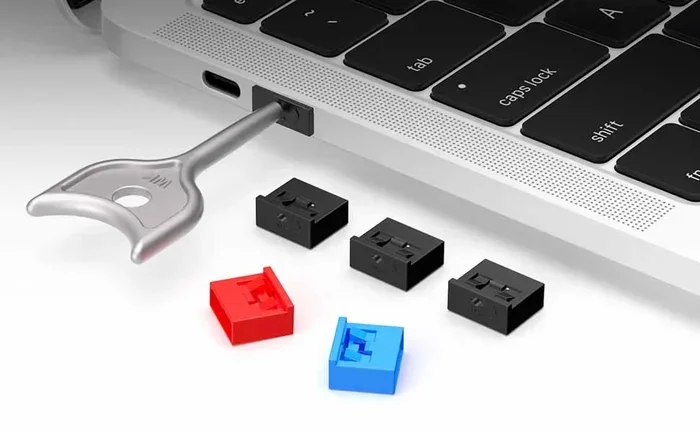
Software is great, but hardware solutions add a physical layer of protection. Hardware USB blockers are small devices that plug into your USB port and prevent anything else from connecting. They are tamper-proof and do not require any software installation.
What Are Hardware USB Blockers?
A hardware USB blocker is a small plastic or metal cap that fits snugly into your USB port. It physically blocks the port so no other device can be inserted. You can remove it only with a special key or by unscrewing it.
These devices are incredibly simple but very effective. They work on desktop computers, laptops, and even some servers. Here are some popular options:
- Lindy USB Port Blockers: Affordable and available in multiple colors for easy identification.
- Kensington USB Blockers: Premium quality with keyed locks for high-security environments.
- Generic USB port covers: Budget-friendly options that work well for basic needs.
Pros and Cons of Hardware vs Software Blocking
Both methods have strengths. Let us compare them side by side:
| Feature | Hardware Blockers | Software Blocking |
|---|---|---|
| Ease of Setup | Plug and play | Requires configuration |
| Tamper Resistance | Very high | Low (can be bypassed) |
| Cost | Low to moderate | Often free |
| Flexibility | Limited | Highly customizable |
| Remote Management | Not possible | Yes, in most cases |
| Best For | Single computers | Networks and businesses |
The best approach often combines both methods. Use hardware blockers on machines that need physical protection and software tools for network-wide data breach prevention.
Blocking USB Drives on Mac and Linux
Not everyone uses Windows. If you are on a Mac or Linux system, you still have solid options for USB blocking. Let us look at what each platform offers.
Mac USB Restrictions
macOS does not have a built-in Group Policy equivalent, but you can still control USB access. Use the Terminal to create kernel extension policies that block specific device types. You can also use third-party apps like USB Manager to restrict removable storage access on your Mac.
Linux USB Control
Linux gives you the most control out of the box. You can use udev rules to block USB storage devices at the kernel level. This method is very effective and does not require any additional software. Simply create a rule file in /etc/udev/rules.d/ and set the appropriate parameters to disable USB mass storage.
For businesses running Linux servers, tools like USBGuard provide a framework for managing USB device management policies. They allow whitelisting and blacklisting of devices based on vendor ID and product ID.
Benefits of Blocking USB Drives
Blocking USB drives offers many advantages beyond just stopping data theft. Here are some key benefits you will enjoy:
- Stronger data protection: Your files stay safe from unauthorized copying or deletion.
- Reduced malware risk: You eliminate one of the most common infection vectors for USB malware.
- Better compliance: Many industry regulations require control over removable storage devices.
- Improved system performance: Fewer unknown devices connecting means fewer driver conflicts and system slowdowns.
- Peace of mind: You know your external storage devices cannot compromise your system.
- Audit trail: Software solutions often log every connection attempt, giving you visibility into who tried to plug in a USB drive.
These benefits apply to both personal and business use. Even if you think your data is not valuable, it still matters to you. USB port security is a small effort that delivers big rewards.
Common Mistakes to Avoid When Blocking USB Drives
Even with the best intentions, people make mistakes when setting up USB blocking. Here are some common pitfalls to watch out for:
Forgetting to Whitelist Essential Devices
Not all USB devices are a threat. Keyboards, mice, and printers use USB connections too. If you block all USB traffic, you might lock yourself out of your own computer. Always create a whitelist for trusted devices before applying broad restrictions.
Relying Only on One Method
Software alone can be bypassed by savvy users. Hardware alone does not offer remote management. The smartest approach uses both layers of protection together. Think of it as endpoint security best practice.
Ignoring Mobile Devices
Many modern smartphones connect via USB and act as removable storage. If your blocking method only targets USB flash drives, you might miss this vector. Make sure your solution covers all types of removable storage devices.
Not Testing Your Setup
After you configure blocking, always test it. Plug in a USB drive and verify that it is blocked. Check that allowed devices still work. A quick test saves headaches later.
Expert Tips for Keeping Your Data Protected
Want to take your data protection to the next level? Here are some expert-backed tips:
- Use strong passwords: If your USB blocking software requires a master password, make it long and complex.
- Update regularly: Keep your operating system and security software up to date to patch known vulnerabilities.
- Educate your team: Security awareness training helps people understand why USB blocking matters.
- Monitor logs: Review connection logs regularly to spot suspicious activity.
- Combine with encryption: Even if data is somehow accessed, encryption ensures it stays unreadable without the key.
- Disable unused ports: If you have USB ports you never use, physically block them with hardware covers.
These tips work together to create a layered defense. No single method is perfect, but combining several approaches gives you excellent protection against USB data theft and USB malware.
Final Thoughts on USB Drive Blocking
So, can you block a USB drive? Absolutely. You have more options than ever before. From built-in Windows Group Policy to physical hardware blockers, there is a solution for every need and budget. The key is to act now before a security incident happens.
Blocking a USB drive is one of the easiest and most impactful steps you can take for data protection. It takes just a few minutes to set up and can save you hours of trouble down the road. Whether you are protecting personal files or sensitive business data, USB port security should be part of your standard routine.
Start with the method that fits your situation best. If you are a casual home user, a simple software setting might be all you need. If you manage a business network, consider combining software tools with hardware blockers for maximum protection. Whatever you choose, the important thing is to take action today.
Your data is valuable. Treat it that way by controlling who and what can access your computer through USB ports. USB blocking is not just a technical task. It is a smart habit that keeps your digital life safe and secure.
Frequently Asked Questions
Can you permanently block a USB drive on Windows?
Yes, you can permanently block a USB drive on Windows using Group Policy Editor or Registry Editor. These built-in tools let you disable USB storage devices completely. You can also use third-party software for more flexible control over which devices are allowed or blocked.
Will blocking USB drives affect my keyboard or mouse?
Not if you configure the blocking correctly. Most blocking methods target USB mass storage devices specifically. Keyboards, mice, and other input devices use different USB classes and will continue to work normally. Always test your settings to confirm.
Are hardware USB blockers safe to use?
Yes, hardware USB blockers are completely safe. They are passive devices that simply fill the USB port physically. They do not interfere with your computer’s electronics or software. They are one of the most reliable ways to enforce USB port security.
Can I block USB drives on a Mac computer?
Yes, you can block USB drives on a Mac using Terminal commands or third-party applications. macOS does not have a built-in toggle for USB blocking, but tools like USB Manager and custom kernel extensions give you full control over removable device access.
How do I know if someone tried to plug in a USB drive?
If you use software-based USB blocking tools, they usually maintain logs of all connection attempts. These logs show the date, time, and device details for each attempt. Reviewing these logs regularly is a great practice for maintaining strong endpoint security.
Is USB blocking enough to protect my data?
USB blocking is a strong layer of protection, but it works best as part of a broader security strategy. Combine it with data encryption, antivirus software, and regular backups for comprehensive data protection. No single tool catches every threat, but layers of defense make you much harder to compromise.
=== CONCLUSION ===
Blocking a USB drive is a simple yet powerful way to keep your data safe. Whether you choose software settings, hardware blockers, or a combination of both, the important thing is to take action. Your personal files, business data, and digital identity deserve that protection. Start implementing these USB blocking strategies today and enjoy the peace of mind that comes with knowing your information is secure.