Can Regular Printers Print Labels Without Any Hassle
Yes, a regular printer can print labels — and it is easier than most people think. Whether you own an inkjet or laser machine, you can create adhesive labels for shipping, addresses, or products at home. This guide walks you through everything you need to know about regular printer label printing with zero hassle.
Have you ever stared at a stack of blank envelopes and thought, “There has to be an easier way”? The good news is, there is. Can regular printers print labels without sending you crazy? Absolutely. You do not need a fancy machine or a professional setup to create sharp, clean labels for your packages, office folders, or craft projects.
Many people assume they need a dedicated label printer to get the job done. That is not always true. A standard home or office printer, whether it is an inkjet printer or a laser printer, can handle label printing with the right approach. In this guide, we will walk you through every step so you can print labels confidently and avoid the headaches that trip up most beginners.
We will cover the types of labels you can print, the paper you need, common mistakes to dodge, and even when it makes sense to upgrade. By the end, you will know exactly how to print labels on your regular printer — no hassle involved.
Key Takeaways
- Regular printers handle labels well: Both inkjet and laser printers can produce quality labels with the right paper and settings.
- Label paper matters: Choosing the correct adhesive label sheets prevents smudging and ensures clean prints.
- Software makes it simple: Free and paid tools let you design and print professional-looking labels quickly.
- Common mistakes are avoidable: Printer settings, paper alignment, and ink choice all affect label print quality.
- Dedicated label printers exist for heavy use: If you print labels daily, a thermal printer may be worth the investment.
- Home label printing saves money: You skip the cost of outsourced printing and enjoy full creative control.
- Inkjet vs. laser each has pros: Understanding the differences helps you pick the best method for your needs.
📑 Table of Contents
- What Is a Regular Printer and Can It Handle Labels?
- Types of Labels You Can Print at Home
- How to Choose the Right Label Paper
- Step-by-Step Guide to Printing Labels
- Common Problems and How to Fix Them
- When Should You Upgrade to a Dedicated Label Printer?
- Expert Tips to Get the Best Label Print Quality
- Conclusion
What Is a Regular Printer and Can It Handle Labels?
Understanding Your Printer Type
Before you start, it helps to know what kind of printer you have. Most households run either an inkjet printer or a laser printer. Both can print labels, but they work differently and each has its own strengths.
An inkjet printer sprays tiny droplets of liquid ink onto paper. It produces vibrant colors and works great for colorful labels with logos or images. A laser printer uses heat to fuse toner powder onto paper. It excels at sharp text and is faster for bulk printing jobs.
So, can regular printers print labels effectively? Yes. The key is matching your printer type with the right label paper and settings. Using the wrong combination leads to smudging, peeling, or blurry results.
Inkjet vs. Laser for Label Printing
Let us break this down simply. If you want to print address labels or shipping labels with images and color, an inkjet printer usually gives you richer results. If you are printing large batches of text-heavy labels like product labels or office labels, a laser printer tends to be more efficient and smudge-resistant.
Here is a quick comparison to help you decide:
- Inkjet printers: Best for color labels, photos on labels, and small batches. Slower for high volume.
- Laser printers: Best for text-heavy labels, bulk printing, and water-resistant results. Limited color vibrancy.
- Both types: Work with standard adhesive label sheets available at most office supply stores.
Keep in mind that print quality depends heavily on the label paper you choose and the printer settings you select. We will dive into that next.
Types of Labels You Can Print at Home
Address and Shipping Labels
The most common use for home label printing is address labels and shipping labels. Whether you are sending birthday cards to grandma or packing boxes for an online sale, printable adhesive labels make the process quick and tidy. Most label templates for these are free and easy to find online.
Product and Business Labels
If you run a small business or sell crafts online, you can print product labels right from your regular printer. Think jar labels, soap tags, or stickers for handmade goods. Many small business owners use their home printers for this because it saves money compared to hiring a professional printing service.
Organizational and Office Labels
Not all label printing is about shipping or selling. Office labels help you organize files, binders, storage bins, and inboxes. Sticker printing for internal use — like name tags or conference badges — is another popular application. These labels do not need to be fancy, but they do need to look clean and professional.
Craft and Personal Use Labels
Hobbyists love printing labels for scrapbooking, gift wrapping, and DIY projects. Custom sticker printing at home lets you create anything from wine bottle labels to pet tag stickers. The creative possibilities are nearly endless when you have a regular printer and some imagination.
How to Choose the Right Label Paper
Understanding Adhesive Label Sheets
The secret to successful label printing starts with the paper. Label paper — sometimes called adhesive label sheets — comes in many sizes, shapes, and materials. You cannot just feed regular paper with a sticker backing through your printer. You need sheets specifically designed for home printers.
Most label paper is made from either paper stock or synthetic materials like vinyl. Paper-based sheets work great for indoor use and short-term applications. Synthetic sheets resist water and tearing, making them ideal for shipping labels and product labels that need to last.
Matching Label Paper to Your Printer
Here is where things can go wrong if you are not careful. Not all label sheets work with all printers. Inkjet label sheets have a special coating that absorbs ink without bleeding. Laser label sheets are designed to withstand the heat of a laser printer without curling or warping.
Always check the packaging. It will tell you clearly whether the sheets are for inkjet, laser, or both. Using inkjet sheets in a laser printer — or vice versa — can cause jams, poor adhesion, and ruined prints.
Popular Label Paper Sizes and Brands
Not sure where to start? Here are some common options:
- Avery labels: The most popular brand for home label printing. They offer hundreds of templates and their sheets work with both inkjet and laser printers.
- Online Labels: A great alternative with competitive pricing and a wide range of sizes.
- Staples and generic brands: Budget-friendly options that work well for everyday printing needs.
- Round labels: Perfect for product packaging and craft projects.
- Full-sheet labels: Ideal for large designs or covering entire packages.
Quick tip: Buy a small pack first to test compatibility with your printer before committing to a bulk order. This saves money and prevents wasted sheets.
Step-by-Step Guide to Printing Labels
Step 1: Choose and Download a Template
You do not need to design labels from scratch. Most label paper brands offer free templates on their websites. Avery, for example, has a huge library of templates for every label size imaginable. Simply enter your label product number, pick a template, and start customizing.
Step 2: Design Your Labels
You can use free tools like Canva, Microsoft Word, or Google Docs to design your labels. For more advanced designs, programs like Adobe Illustrator or Photoshop give you full creative control. Keep your text clean and leave enough white space so the labels do not look cluttered.
Step 3: Load the Label Paper Correctly
This step matters more than people realize. Always load your label sheets into the paper tray according to the printer’s guidelines. Make sure the sheets are flat and not curled. Fan the sheets before loading to prevent multiple sheets from feeding at once.
Step 4: Adjust Printer Settings
Go to your printer settings and select the correct paper type. Most printers have a setting for “labels” or “sticky paper.” Choosing this option adjusts the ink output and print speed to match the label material. If you skip this step, your labels may come out smeared or misaligned.
Step 5: Print a Test Page
Before you print your final batch, always do a test run on regular paper first. This lets you check alignment, text placement, and design fit without wasting expensive label sheets. Once the test looks perfect, feed in your label paper and print the real thing.
Step 6: Let the Ink Dry
If you are using an inkjet printer, give the ink a minute or two to dry before peeling off the labels. Touching wet ink can smear your design and ruin the adhesive. Laser prints dry instantly, so you can handle them right away.
Common Problems and How to Fix Them
Labels Are Smudging After Printing
Smudging is the number one complaint among home label printers. If you are using an inkjet printer, the ink may not be drying fast enough. Try reducing the print quality slightly or using a faster print speed setting. You can also purchase waterproof inkjet label sheets designed to resist smearing.
For laser printers, smudging usually means the toner is not fusing properly to the label paper. Make sure you are using laser-specific label sheets and that your printer’s fuser temperature is set correctly.
Labels Are Misaligned or Crooked
Nothing is more frustrating than printing a perfect design only to find it is off-center. Misalignment usually happens because the label sheets are not loaded straight into the tray. Fan the sheets, align them evenly, and slide them all the way to the back of the tray.
Also, check your template margins. Some templates have built-in offsets that account for printer feeding variations. Using the correct template for your specific label product solves most alignment issues.
Labels Are Peeling or Not Sticking
If your adhesive labels are not staying put, the adhesive might be low quality or the surface might be too smooth or dirty. Wipe the surface clean before applying labels. Also, store your label sheets in a cool, dry place. Heat and humidity can weaken the adhesive over time.
Printer Jams with Label Sheets
Label sheets can jam if they are curled, damp, or loaded incorrectly. Always use fresh, flat sheets and avoid overfilling the paper tray. If your printer frequently jams with labels, try reducing the stack size and fanning the sheets more thoroughly before loading.
Quick Tips for Hassle-Free Label Printing
- Always print a test page on regular paper first.
- Match your label paper to your printer type (inkjet or laser).
- Let inkjet prints dry for a minute or two before handling.
- Store label sheets flat in their original packaging.
- Use free online templates instead of designing from scratch.
- Clean your printer rollers regularly for smooth feeding.
When Should You Upgrade to a Dedicated Label Printer?
Signs You Need a Specialized Printer
So, can regular printers print labels for every situation? Not always. If you find yourself printing labels every single day for your business, a regular printer might start holding you back. Here are signs it is time to consider a dedicated label printer:
- You are printing more than 50 labels per day.
- Your labels need to withstand harsh conditions like moisture, heat, or friction.
- You need continuous roll labels instead of sheet labels.
- You are spending too much time adjusting alignment and fixing jams.
- You want thermal printing for a cleaner, more professional finish.
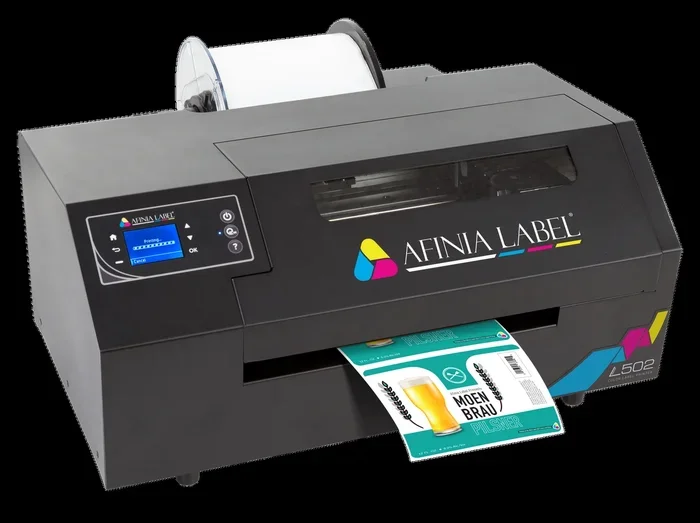
Thermal Printers vs. Regular Printers
A thermal printer uses heat to transfer ink or emboss the design directly onto the label. There is no ink or toner involved, which means no smudging, no drying time, and no wasted supplies. These printers are the go-to choice for warehouses, retail stores, and high-volume shipping operations.
However, thermal printers are more expensive upfront than a standard home printer. For occasional label printing, your regular printer is still the better choice. For daily commercial use, the investment pays for itself quickly.
Cost Comparison: Home Printer vs. Dedicated Label Printer
A standard inkjet or laser printer costs between 50 and 200 dollars. Label paper runs about 10 to 25 dollars per hundred sheets. A dedicated thermal label printer costs between 100 and 500 dollars, but label rolls are inexpensive and last much longer than sheets.
If you are a casual user or a small hobbyist, stick with your regular printer. If labels are a core part of your daily workflow, a dedicated printer will save you time and frustration in the long run.
Expert Tips to Get the Best Label Print Quality
Use High-Quality Designs
The quality of your label design directly affects how professional the final product looks. Use high-resolution images (at least 300 DPI) and clean fonts. Avoid stretching low-quality logos or using pixelated graphics. The better your source design, the sharper your printed labels will be.
Calibrate Your Printer Regularly
Printers drift out of alignment over time, especially when printing different paper sizes and types. Run your printer’s alignment and calibration tools regularly. This keeps your text and images positioned correctly on every label sheet.
Experiment With Different Papers
Not all label papers are created equal. Some brands print more vibrantly than others. Some adhesives are stronger or more removable. Do not be afraid to experiment with a few different options to find the one that works best for your specific needs.
Keep Your Printer Maintained
A well-maintained printer produces better labels. Clean the print heads regularly, replace old ink cartridges, and keep the rollers free of dust and debris. A little maintenance goes a long way toward consistent, high-quality sticker printing at home.
Conclusion
The answer to the question can regular printers print labels is a clear and confident yes. Whether you use an inkjet or laser machine, you can create professional-quality adhesive labels for shipping, business, crafts, and organization — all from the comfort of your home or office. The key is using the right label paper, selecting the correct printer settings, and following a few simple best practices.
Do not let the fear of messy prints or alignment issues stop you. With the tips and guidance in this article, you are fully equipped to print labels without any hassle. Start with a small test batch, refine your process, and soon you will be printing labels like a pro.
Remember, your regular printer is more versatile than you might think. It handles documents, photos, and now labels — all in one convenient machine. So go ahead, grab some label sheets, fire up your design software, and start printing. You will be amazed at how simple and satisfying home label printing can be.
Frequently Asked Questions
Can any regular printer print labels?
Most regular printers can print labels as long as you use the correct label paper designed for either inkjet or laser printers. Always check the label sheet packaging for compatibility before purchasing.
Will printing labels damage my regular printer?
No, printing labels will not damage your printer when done correctly. Just make sure you use label sheets that are compatible with your printer type and that you load them properly into the paper tray.
What is the best type of label paper for home printers?
Avery label sheets are widely regarded as the best option for home printers. They offer excellent adhesion, work with both inkjet and laser printers, and come with free templates for easy design.
Can I print waterproof labels with a regular printer?
Yes, you can print waterproof labels using synthetic label sheets designed for inkjet or laser printers. These sheets resist water, tearing, and fading, making them ideal for shipping and product labels.
How do I prevent ink from smearing on my printed labels?
To prevent smearing, let inkjet prints dry for one to two minutes before handling them. You can also reduce the print quality slightly, use a faster print speed, or switch to laser label sheets which do not have this issue.
Is it cheaper to print labels at home or buy them pre-printed?
Printing labels at home is significantly cheaper, especially if you print in small to medium quantities. A pack of adhesive label sheets costs just a few dollars and gives you dozens of custom labels without any recurring fees.