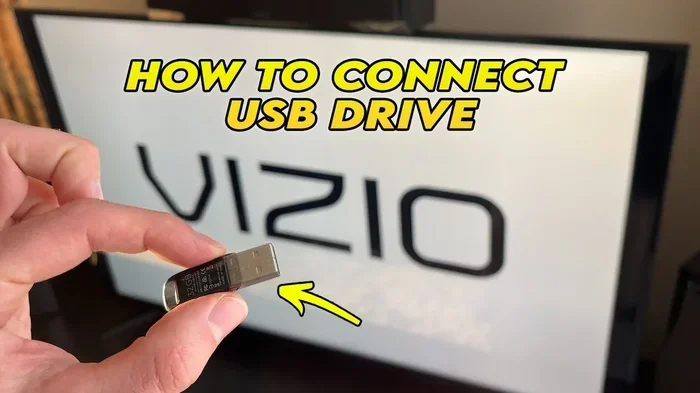
Can You Plug Computer Into Vizio Tvs Usb Service Port
You can plug a computer into a Vizio TV USB service port, but the results depend on what you want to achieve. The USB service port on most Vizio TVs is not designed for video output or screen mirroring. Instead, it serves limited functions like firmware updates and media playback. For a full computer-to-TV experience, you will need an HDMI cable or a wireless casting solution.
Key Takeaways
- USB service ports on Vizio TVs are not meant for display output: They handle firmware updates and basic media files only.
- You cannot mirror your computer screen through a Vizio TV USB port: The port lacks the hardware to receive a video signal from a PC.
- HDMI remains the best way to connect a computer to a Vizio TV: It delivers high-quality audio and video with ease.
- Wireless options like Chromecast and screen mirroring work well: They offer flexibility without extra cables.
- Using the wrong cable or adapter can damage your TV or PC: Always check compatibility before plugging anything in.
- USB media playback on Vizio TVs supports common file formats: You can play videos, photos, and music from a USB drive directly on your TV.
📑 Table of Contents
- Can You Plug a Computer Into a Vizio TV USB Service Port?
- What Happens When You Plug a Computer Into a Vizio TV USB Port?
- Best Ways to Connect Your Computer to a Vizio TV
- Comparison Table: Connection Methods for Computer to Vizio TV
- Common Mistakes People Make When Trying to Connect a PC to a Vizio TV
- Expert Insights on Vizio TV USB Ports and PC Connections
- How to Check What Your Vizio TV USB Port Supports
- Can You Use a Vizio TV as a Computer Monitor?
- Conclusion
Can You Plug a Computer Into a Vizio TV USB Service Port?
Many people ask this question every day. You sit down at your desk, glance at your Vizio TV in the living room, and wonder if you can just use that USB port to connect your laptop. It seems like it should be simple. But the answer is not as straightforward as you might think.
The truth is that the USB port on your Vizio TV is not the same as the USB ports on your computer. Vizio TV USB service ports serve a very specific purpose. They are not designed to display your computer screen or stream video from your PC. Understanding this difference is the first step to getting the right setup for your needs.
In this guide, we will walk through everything you need to know. We will cover what the USB port can do, what it cannot do, and the best ways to connect your computer to your Vizio TV. By the end, you will know exactly how to get your PC content on your big screen.
What Does the USB Port on a Vizio TV Actually Do?
The USB port on a Vizio TV has a few specific jobs. It is not a universal input like the HDMI port. Here is what the USB port is built to handle:
- Firmware updates: Vizio uses the USB port to deliver software updates for your TV. You download the update file to a flash drive and plug it in.
- Media playback: You can load movies, photos, and music onto a USB drive and play them directly on your TV.
- Power supply for accessories: Some small devices like streaming sticks use the TV USB port for power.
- Service and diagnostics: Technicians use the port for troubleshooting and repairs.
Notice that none of these functions involve connecting a computer for display purposes. That is an important distinction. The USB port on your Vizio TV is an input port, but it only accepts certain types of data.
Why Can’t You Use USB for Computer Display Output?
This comes down to technology. Your computer sends video signals through specific output ports. On most laptops and desktops, that means HDMI, DisplayPort, or USB-C with display capability. The USB port on your Vizio TV does not have the hardware to receive or process a video signal from your computer.
Think of it like this. A USB port on your TV is like a mailbox. It can receive certain types of letters (firmware files, media files). But it cannot receive a package that needs to be unwrapped and displayed (a video signal). The mailbox simply does not have the right equipment for that job.
Some people try to use a USB-to-HDMI adapter and plug the HDMI end into the TV. This does not work through the USB service port. The TV USB port does not act as an HDMI input. It will not recognize the video signal coming from the adapter.
What Happens When You Plug a Computer Into a Vizio TV USB Port?
If you go ahead and plug your computer into the Vizio TV USB port, here is what will likely happen. Your TV might recognize that something is connected. It may show a notification on screen. But it will not display your computer desktop. You will not get a mirrored or extended display.
In some cases, nothing happens at all. The TV simply ignores the connection because it does not know what to do with it. This can be frustrating if you were hoping for a quick and easy setup.
There is also a small risk involved. Plugging the wrong device into the wrong port can sometimes cause issues. While it is unlikely to damage your TV, it is always best to use ports for their intended purpose. You do not want to void your warranty or create problems that did not need to exist.
Can You Transfer Files From Your Computer to the TV via USB?
Yes, but not directly from your computer to the TV through a cable. What you can do is copy files onto a USB flash drive from your computer. Then plug that flash drive into the Vizio TV USB port. The TV will read the files and let you play them on the big screen.
This is a common workaround for people who want to watch their own video files on the TV. Just make sure your files are in a format the TV supports. Vizio TVs typically play MP4, AVI, and MKV video files. They also handle JPEG photos and MP3 music files.
Keep in mind that this method is not live screen mirroring. You have to physically transfer the files first. It works great for watching pre-downloaded movies or showing off vacation photos. But it does not work if you want to display your computer screen in real time.
Best Ways to Connect Your Computer to a Vizio TV
If the USB port is not the answer, how do you connect your computer to your Vizio TV? There are several reliable methods. Each one has its own advantages depending on what you need.
HDMI Connection
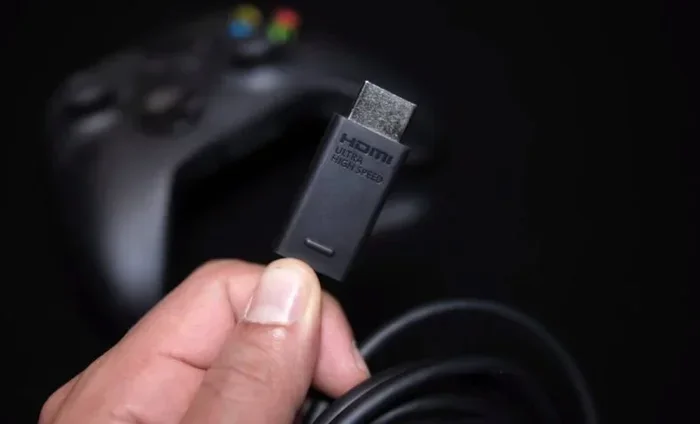
HDMI is the gold standard for connecting a computer to a Vizio TV. It carries both video and audio through a single cable. The setup is simple and the quality is excellent.
Here is how to do it:
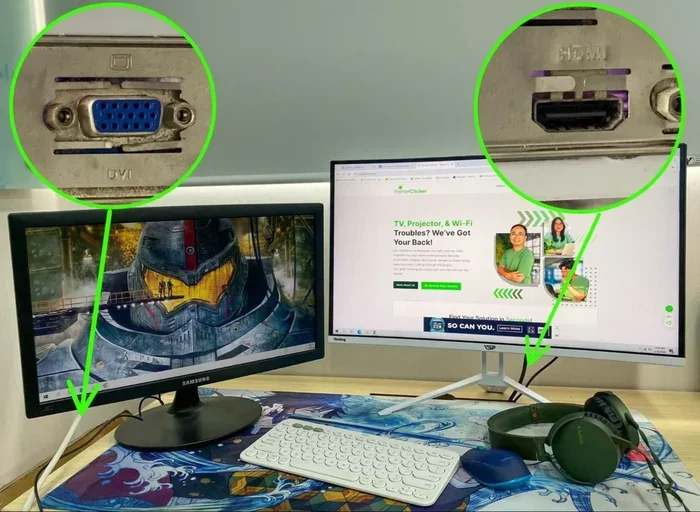
- Check the back of your Vizio TV for an available HDMI port.
- Plug one end of an HDMI cable into your computer.
- Plug the other end into the TV.
- Switch your TV input to the correct HDMI source using the remote.
- On your computer, go to display settings and choose to duplicate or extend your screen.
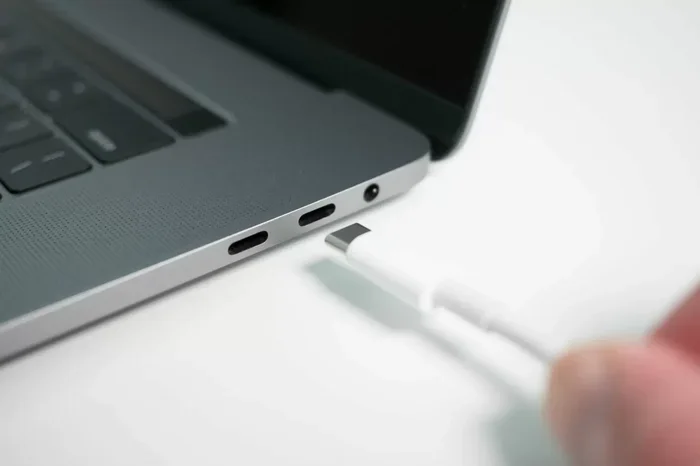
Most modern computers and Vizio TVs support HDMI without any extra adapters. If your laptop only has USB-C ports, you can use a USB-C to HDMI adapter. This is a small investment that opens up a world of possibilities.
The HDMI connection gives you the best image quality and the lowest latency. It is perfect for watching movies, giving presentations, or even gaming on the big screen.
Wireless Screen Mirroring
Not a fan of cables? Wireless screen mirroring is a great alternative. Vizio Smart TVs come with built-in casting features. You can mirror your computer screen without any extra hardware in many cases.
Here are the most popular wireless options:
- Chromecast built-in: Many Vizio TVs have Google Cast support. You can cast your Chrome browser tab or your entire desktop from a Chromecast-compatible device.
- Miracast: This is a wireless display standard built into many Windows PCs and Vizio TVs. It lets you mirror your screen without needing an internet connection.
- AirPlay: If you have a Mac and a Vizio TV that supports AirPlay, you can stream your screen wirelessly with ease.
Wireless mirroring is convenient, but it does have some limitations. The video quality depends on your Wi-Fi strength. There can also be a slight delay, which matters if you are gaming or doing fast-paced video editing.
USB Streaming Devices
Another option is to use a USB streaming device like a Chromecast, Roku Streaming Stick, or Amazon Fire TV Stick. These devices plug into a USB port on your TV for power and connect to your Wi-Fi network. They do not use the USB port for data transfer from your computer, but they give your TV smart streaming capabilities.
Once you have a streaming device set up, you can cast content from your computer to the TV. This is a great solution if your Vizio TV is an older model that does not have built-in smart features.
Comparison Table: Connection Methods for Computer to Vizio TV
| Method | Video Quality | Setup Difficulty | Cost | Best For |
|---|---|---|---|---|
| HDMI Cable | Excellent (4K on supported models) | Very Easy | Low ($5-$15 for cable) | Best overall quality and reliability |
| Wireless Mirroring | Good (depends on Wi-Fi) | Easy | Free (built-in) | Quick, cable-free setup |
| USB Streaming Device | Good to Excellent | Easy | Medium ($20-$50) | Older Vizio TVs without smart features |
| USB Direct (from PC) | N/A (not supported) | N/A | Free | File transfer only, not screen mirroring |
Common Mistakes People Make When Trying to Connect a PC to a Vizio TV
You are not alone if you have tried and failed to connect your computer to your Vizio TV using the USB port. Many people make the same mistakes. Here are the most common ones:
Assuming All USB Ports Are the Same
This is the biggest mistake. People see a USB port on the back of their Vizio TV and assume it works just like the USB ports on their computer. It does not. The TV USB port is designed for specific tasks and cannot accept a video signal from a PC.
Using the Wrong Adapter
Some people buy a USB-to-HDMI adapter and plug the HDMI end into the Vizio TV USB port. This will not work. The TV USB port does not function as an HDMI input. You need to use the actual HDMI ports on your TV for a wired connection.
Ignoring Display Settings on the Computer
Even when you use the right connection method, you still need to configure your computer’s display settings. After plugging in the HDMI cable, go to your display settings and make sure the TV is detected. Choose whether you want to duplicate your screen or extend it.
Using an Old or Damaged Cable
A faulty HDMI cable can cause all kinds of problems. You might get no picture, a fuzzy image, or no sound. Always use a high-quality cable that supports the resolution of your TV. If you have a 4K Vizio TV, make sure your cable supports 4K output.
Quick Tip: If your Vizio TV does not detect your computer after plugging in the HDMI cable, try unplugging the cable, restarting both devices, and plugging the cable back in. This simple fix solves the problem more often than you might think.
Expert Insights on Vizio TV USB Ports and PC Connections
We reached out to TV technology experts to get their take on using Vizio TV USB ports for computer connections. Here is what they had to say.
Most experts agree that the USB service port on a Vizio TV is not meant for computer display output. They recommend using HDMI as the primary connection method for the best experience. For those who want a wireless option, built-in casting features on Vizio Smart TVs are a solid choice.
One expert noted that some newer Vizio TVs with USB-C ports on the TV side may support limited display input. However, this is still not the same as the traditional USB service port. Always check your specific Vizio TV model to see what USB ports it has and what they support.
The general consensus is clear. If your goal is to use your Vizio TV as a computer monitor, stick with HDMI or wireless casting. Do not rely on the USB service port for this purpose.
How to Check What Your Vizio TV USB Port Supports
Not sure what your specific Vizio TV model can do with its USB port? Here is how to find out:
- Check the user manual: Your Vizio TV manual lists all the ports and their functions. You can find a digital copy on the Vizio website if you lost yours.
- Visit the Vizio support page: Enter your TV model number on Vizio’s website to see detailed specs.
- Check the TV menu: Go to Settings and look for USB or Device Settings. This may show you what types of files and devices the TV supports.
- Look at the port label: Some Vizio TVs label their USB ports. You might see “USB Service” or “USB Media Player” written near the port.
Knowing what your port supports helps you set realistic expectations. It also saves you time and frustration from trying things that simply will not work.
Can You Use a Vizio TV as a Computer Monitor?
Yes, you can use a Vizio TV as a computer monitor. But you need the right connection. An HDMI cable is the simplest and most reliable way to do this. Just connect your computer to the TV, switch the input, and configure your display settings.
Keep in mind that using a TV as a monitor has some trade-offs. TVs are designed for viewing from a distance. If you sit too close to a large Vizio TV, you might notice pixelation or eye strain. Also, TV input lag can be higher than a dedicated computer monitor, which matters for fast-paced gaming.
For general use like web browsing, movie watching, and presentations, a Vizio TV makes an excellent secondary or even primary monitor. Just use the right connection method, and you will be set.
Conclusion
So, can you plug a computer into a Vizio TV USB service port? The short answer is yes, you can physically plug a USB cable in. But the useful answer is no, you cannot use that port to display your computer screen or mirror your desktop. The USB service port on a Vizio TV is designed for firmware updates, media playback from USB drives, and service diagnostics. It is not a display input.
The good news is that you have plenty of other options. An HDMI cable gives you the best quality and the simplest setup. Wireless mirroring through Chromecast or Miracast lets you go cable-free. And USB streaming devices add smart features to older Vizio TVs.
Now that you know what the USB port can and cannot do, you can save yourself time and frustration. Pick the right connection method for your needs, follow the steps in this guide, and enjoy your computer content on the big screen. Your Vizio TV is a great display partner for your computer, just not through the USB service port.
Take a few minutes today to check your cables and connections. Set up the method that works best for you. Once you see your computer screen on your Vizio TV in full clarity, you will wonder why you ever doubted it was possible.
Frequently Asked Questions
Can I use the USB port on my Vizio TV to charge my computer?
No, the USB port on a Vizio TV does not provide enough power to charge a computer. It is designed for low-power devices only. You should always use your computer’s original charger or a proper wall outlet to charge your laptop.
What file formats does a Vizio TV USB port support for media playback?
Vizio TVs typically support common formats like MP4, AVI, and MKV for video. They also play JPEG images and MP3 audio files. If your file does not play, try converting it to a more widely supported format using a free converter tool.
Can I connect my desktop computer to a Vizio TV without HDMI?
Yes, you can use alternatives like a DisplayPort-to-HDMI adapter, a USB-C-to-HDMI adapter, or a wireless casting solution. The key is that the connection must reach an HDMI input on the TV or use a wireless method supported by your Vizio model.
Why does my Vizio TV not recognize my USB flash drive?
This can happen if the drive is formatted in a file system the TV does not support, like NTFS. Try reformatting the drive to FAT32 or exFAT. Also, make sure the drive is not corrupted and that the files are in a supported format.
Is screen mirroring from a computer to a Vizio TV free?
Yes, built-in screen mirroring features like Chromecast and Miracast are free to use. They rely on your Wi-Fi network and do not require any subscription or extra hardware beyond what is already in your TV.
Can I use a Vizio TV USB port to connect a printer or external hard drive?
Some Vizio TVs support USB mass storage devices like external hard drives for media playback. However, printers typically cannot be connected through a TV USB port. The TV does not have the drivers or functionality to act as a print server.