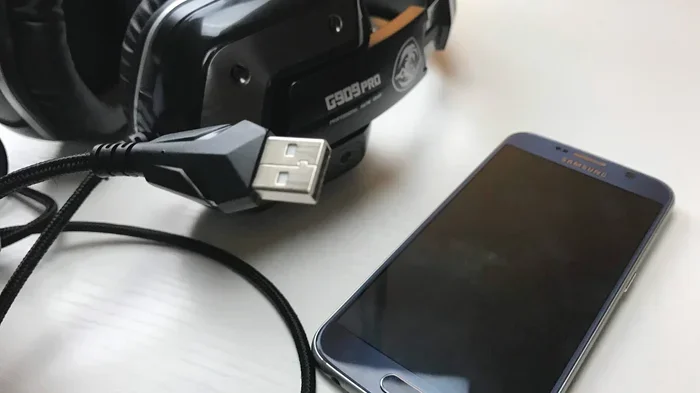
Can I Use USB Headphones On Android Without Any Hassle
Yes, you can use USB headphones on Android, but it depends on your phone’s port type and your setup. Most modern Android devices use USB-C, while older models may need a USB-A adapter. This guide walks you through every method, compatibility issue, and fix so you can enjoy great audio without any frustration.
This is a comprehensive guide about Can I Use Usb Headphones On Android.
Key Takeaways
- USB headphones work on Android: You can connect them via USB-C or USB-A with the right adapter.
- USB-C is the standard now: Most new Android phones use USB-C for both charging and audio.
- You may need an adapter: A USB audio adapter or USB-C to USB-A dongle solves most connection issues.
- Plug and play is common: Many USB headphones work instantly without installing extra software.
- Audio quality improves: USB headphones often deliver better sound than the 3.5mm jack option.
- Common issues are fixable: Problems like no sound or recognition errors have simple solutions.
- Gaming and music benefit: USB headphones offer lower audio latency and richer sound for Android users.
[FEATURED_IMAGE_PLACEHOLDER]
Can I use USB headphones on Android? It is a question many phone users ask every day. Maybe you just bought a pair of USB headphones and want to try them with your Android device. Or perhaps your old phone lost its headphone jack and you are looking for a better audio solution. Either way, you are in the right place.
The short answer is yes. You can absolutely use USB headphones on Android devices. But the full answer depends on a few things. What type of USB port does your phone have? Does your headphone need extra power? Are there any settings you need to change first? This guide covers all of that and more. By the end, you will know exactly how to connect USB headphones to your Android phone or tablet without any hassle.
Many people still think Android devices only support Bluetooth or the old 3.5mm headphone jack. That is not true anymore. USB headphones offer great sound quality, zero audio lag, and easy plug-and-play setup. They work with most Android phones, tablets, and even Chromebooks. Let us dive into everything you need to know.
What Are USB Headphones and How Do They Work on Android?
USB headphones are headphones that connect directly to a device using a USB cable instead of a 3.5mm audio jack or Bluetooth. They contain their own built-in digital-to-analog converter, also known as a DAC. This means the headphones handle the audio processing themselves. Your Android device just sends digital audio signals through the USB connection.
This is different from wired headphones that use the 3.5mm jack. Those rely on your phone’s internal DAC to convert digital sound into analog sound you can hear. USB headphones skip that step entirely. The result is often cleaner audio with less interference and noise.
Types of USB Headphones You Will Encounter
Not all USB headphones are the same. Here are the main types you might come across:
- USB-C headphones: These plug directly into the USB-C port on most modern Android phones. They are the most common type today.
- USB-A headphones: These have a standard USB-A plug. They work with computers, laptops, and some older Android devices. You may need an adapter to use them on newer phones.
- USB gaming headsets: These often come with extra features like built-in microphones, surround sound, and volume controls. They usually need a USB controller box.
- USB wired earbuds: Compact earphones with a USB connector. Great for on-the-go use with Android phones.
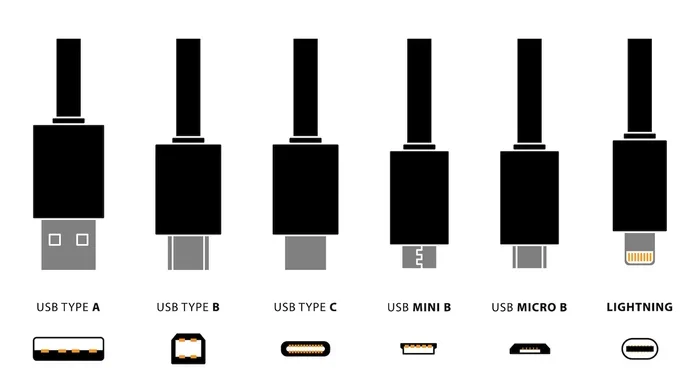
When you ask yourself, “Can I use USB headphones on Android?” the first thing to check is which USB type your phone supports. Almost all Android phones made after 2018 use USB-C. Some older budget phones still use Micro-USB. Very few new phones use USB-A natively. Knowing your port type makes everything easier.
Can I Use USB Headphones on Android? Step-by-Step Connection Guide
Connecting USB headphones to your Android device is usually very simple. But the exact steps depend on your phone model and headphone type. Here is a clear walkthrough for each scenario.
For USB-C Android Phones (Most Common)
If your Android phone has a USB-C port, you are in luck. Most USB-C headphones will work right out of the box. Just follow these steps:
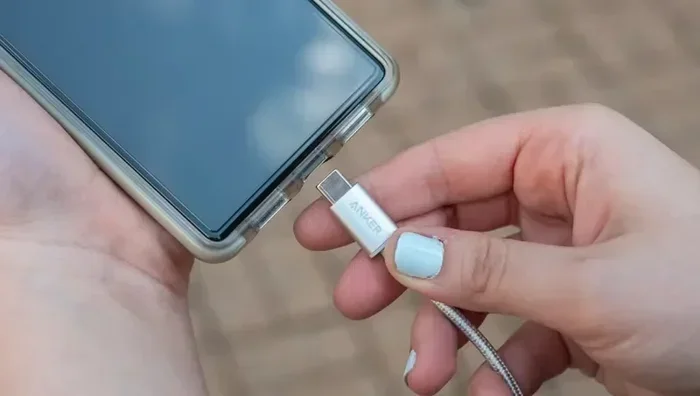
- Plug the USB-C connector into your phone’s charging port.
- Wait a few seconds for your phone to recognize the device.
- You should hear a sound or see a notification that audio is connected.
- Open your music app, video, or game and start playing.
- Adjust the volume using your phone’s volume buttons.
That is it. No apps to download. No settings to change. Most USB-C headphones are plug and play on Android. Your phone will automatically switch the audio output to the USB headphones.
For USB-A Headphones (Older or Computer-Style)
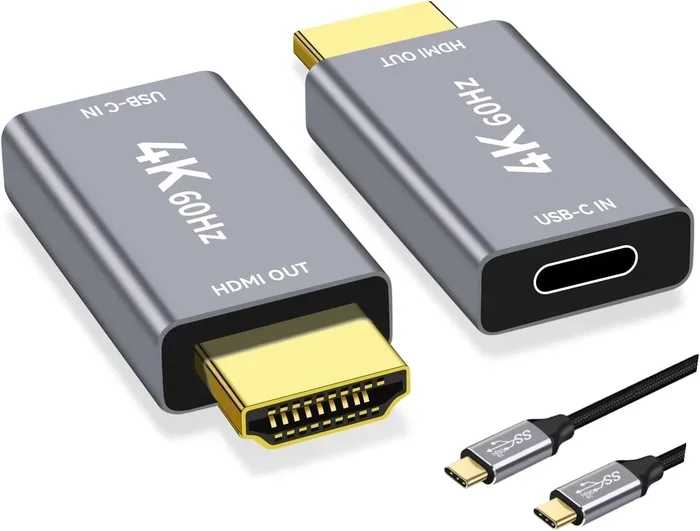
If your headphones have a USB-A plug, you cannot insert them directly into a modern Android phone. USB-A is the flat, rectangular port you find on computers and wall chargers. To use USB-A headphones with your Android device, you need a USB adapter.
Here is what to do:
- Get a USB-A to USB-C adapter or a USB OTG adapter.
- Plug the USB-A end of your headphones into the adapter.
- Connect the adapter to your Android phone’s USB-C port.
- Wait for your phone to detect the headphones.
- Go to your phone’s sound settings and select USB audio as the output.
USB OTG stands for On-The-Go. It is a feature built into most Android phones that allows you to connect USB devices like keyboards, flash drives, and headphones. You can check if your phone supports USB OTG by going to Settings and searching for “OTG” or “USB preferences.”
For USB Headphones with a Controller Box
Some USB headphones, especially gaming headsets, come with a small USB controller box. This box sits between the headphone cable and your phone. It handles things like microphone input, volume control, and surround sound processing.
To connect these:
- Plug the controller box into your Android phone using a USB-C cable or adapter.
- Connect the headphone cable to the controller box.
- Wait for your phone to recognize the device.
- Test the audio and microphone in your settings.
These controller boxes sometimes need a driver or app to work properly. Check the headphone manufacturer’s website for any Android-compatible software. Most of the time though, they work without extra steps.
Why Choose USB Headphones Over Bluetooth or 3.5mm Jack?
You might wonder why someone would pick USB headphones over Bluetooth or the traditional 3.5mm jack. There are some real advantages worth knowing about.
Better Audio Quality
USB headphones have their own DAC built in. This means they process the audio signal better than most phone internal audio chips. The sound is often cleaner, louder, and more detailed. If you care about audio quality, USB headphones are a great choice for Android devices.
Zero Audio Latency
Bluetooth headphones have a slight delay between the audio source and what you hear. This is called audio latency. It does not matter much for listening to music. But it becomes a real problem for gaming and video calls. USB headphones send audio digitally with almost no delay. This makes them perfect for mobile gaming on Android.
No Battery Drain
Bluetooth headphones need their own battery. They also drain your phone’s battery faster because of the constant wireless connection. USB headphones do not need any battery at all in most cases. They draw power directly from your phone’s USB port. This means longer listening sessions without worrying about charging.
No Pairing Hassle
Bluetooth headphones require pairing every time you use them. Sometimes they disconnect randomly. USB headphones just plug in and work. There is no pairing process, no connection drops, and no annoying setup steps. It is truly plug and play.
Common Problems When Using USB Headphones on Android (And How to Fix Them)
Even though USB headphones are simple to use, you might run into a few issues. Here are the most common problems and their fixes.
Phone Does Not Recognize the Headphones
This is the most common issue. If your Android phone does not detect your USB headphones, try these steps:
- Unplug the headphones and plug them back in firmly.
- Check that your USB cable or adapter is working properly.
- Make sure your phone supports USB OTG if you are using an adapter.
- Restart your phone and try again.
- Go to Settings > Connected Devices and look for the USB audio device.
Sometimes dust or lint gets stuck in your phone’s USB-C port. This can prevent a proper connection. Use a toothpick or compressed air to clean it out gently.
No Sound Comes Through the Headphones
If your phone recognizes the headphones but you hear nothing, try this:
- Check that your phone volume is turned up.
- Go to Settings > Sound and look for the audio output option.
- Select USB headphones as the audio output device.
- Make sure Bluetooth is turned off so the phone does not send audio to a Bluetooth device instead.
Microphone Does Not Work
Some USB headphones have a built-in microphone. If the mic is not working on your Android phone, try these fixes:
- Go to Settings > Apps > Default Apps and check your microphone settings.
- Make sure the headphone’s microphone is not muted.
- Try a different USB port or adapter.
- Check if your headphone brand has a specific Android app for mic support.
Not all USB headphones are fully compatible with every Android phone. The microphone feature depends on how the headphone’s USB controller communicates with your phone’s operating system. Most standard USB audio devices work fine, but some specialty headsets may need extra setup.
Audio Keeps Cutting Out
If your audio drops in and out, the problem is usually a loose connection. Try these solutions:
- Check that the USB connector is fully inserted.
- Try a different USB-C cable if your headphones use a detachable cable.
- Avoid using extension cables or cheap adapters. They can cause signal loss.
- Remove any phone case that might be putting pressure on the USB port.
Quick Tips for the Best USB Headphone Experience on Android
Here are some fast tips to get the most out of your USB headphones with your Android device:
- Use a short, high-quality USB cable. Long or cheap cables can cause signal loss and audio issues.
- Keep your Android software updated. Newer software versions often fix USB audio bugs and improve compatibility.
- Turn off Bluetooth when using USB headphones. This prevents your phone from trying to send audio to both devices at once.
- Buy a reliable USB audio adapter. If you need an adapter, spend a little extra on a good brand. Cheap adapters often cause connection problems.
- Check for driver updates. Some USB headphones need a driver app from the manufacturer. Visit their website and look for Android support.
- Test your headphones on another device. This helps you figure out if the problem is with the headphones or your phone.
Comparison: USB Headphones vs. Bluetooth vs. 3.5mm Jack on Android
Still not sure which audio option is best for your Android device? Here is a quick comparison.
| Feature | USB Headphones | Bluetooth Headphones | 3.5mm Jack Headphones |
|---|---|---|---|
| Connection Type | Wired USB | Wireless | Wired analog |
| Audio Quality | Excellent | Good to Great | Good |
| Latency | Almost zero | Slight delay | None |
| Battery Needed | No | Yes | No |
| Setup | Plug and play | Pairing required | Plug and play |
| Compatibility | Needs USB port | Works with all phones | Needs 3.5mm jack |
| Price Range | Budget to Premium | Budget to Premium | Budget to Mid-range |
As you can see, USB headphones offer a great balance of quality and convenience. They do not need batteries like Bluetooth headphones, and they do not need a 3.5mm jack like wired headphones. For most Android users, USB headphones are the best of both worlds.
Are USB Headphones Worth It for Android Users?
If you are still on the fence about using USB headphones with your Android device, let us break it down. USB headphones are worth it if you value audio quality, zero latency, and a simple connection. They are especially great for people who game on their phones, watch a lot of videos, or just want the best possible sound from their Android device.
They are also a smart choice if your phone has removed the 3.5mm headphone jack. Many modern Android phones, including popular models from Samsung, Google, and OnePlus, no longer include a headphone jack. USB headphones give you a reliable wired audio option without needing Bluetooth.
On the other hand, if you mostly listen to music casually and prefer the freedom of wireless, Bluetooth headphones might still be your best bet. USB headphones are tied to your phone by a cable. But for sound quality and reliability, they are hard to beat.
Bottom line: Can I use USB headphones on Android? Yes, and they work really well for most people. The setup is simple, the audio is great, and the connection is stable. Give them a try and you might be surprised at how much better your listening experience becomes.
Final Thoughts
Using USB headphones on your Android device is easier than you might think. Whether you have a USB-C phone or need an adapter for USB-A headphones, the process is straightforward. Most USB headphones are plug and play and require no extra software or setup. The audio quality is better, there is no latency, and you do not need to worry about battery life.
Just remember to check your phone’s port type, get the right adapter if needed, and keep your software updated. If you run into any issues, the fixes are usually simple and quick. USB headphones are a fantastic accessory for anyone who wants great sound from their Android phone or tablet.
So go ahead and plug in those USB headphones. Your ears will thank you. Whether you are listening to music, watching movies, gaming, or taking calls, USB headphones deliver a clean, reliable, and high-quality audio experience on your Android device. Enjoy the sound!
Frequently Asked Questions
Do USB headphones work on all Android phones?
Most Android phones support USB headphones, but it depends on the port type. USB-C headphones work on phones with USB-C ports, which is most modern Android devices. If your phone has a USB-A port or no port at all, you may need an adapter. Check your phone’s specifications to confirm compatibility before buying USB headphones.
Do I need to install any app to use USB headphones on Android?
In most cases, no. USB headphones are plug and play on Android. Your phone recognizes them automatically and switches the audio output. However, some gaming USB headsets with special features may need a companion app from the manufacturer. Check the product listing or the brand’s website for any Android app requirements.
Can I charge my Android phone and use USB headphones at the same time?
This depends on your phone and headphone setup. If your headphones use a USB-C connection directly, they will share the same port as your charger. You cannot charge and listen at the same time unless you use a USB-C hub or splitter. Some USB headphones come with a passthrough charging port that allows you to charge your phone while listening.
Why does my Android phone not recognize my USB headphones?
There are several reasons this can happen. Your USB cable or adapter might be faulty. The phone’s USB-C port could be dirty or damaged. Your phone might not support USB OTG, which is needed for connecting external USB devices. Try a different cable, clean the port, and check your USB settings in the phone’s connected devices menu.
Is audio quality better with USB headphones compared to Bluetooth on Android?
Yes, in most cases USB headphones deliver better audio quality than Bluetooth headphones. USB headphones use a digital connection that sends the audio signal without compression or interference. Bluetooth headphones compress the audio to transmit wirelessly, which can reduce sound quality. If you are an audiophile or just want the clearest sound, USB headphones are the better choice for Android.
Can I use USB headphones for phone calls on Android?
Yes, you can use USB headphones for phone calls as long as they have a built-in microphone. Make sure your phone recognizes the microphone as the default input device. Go to Settings > Sound and check the audio input options. Most USB headphones with a microphone work fine for calls, but some may need you to manually select them as the input source.
Frequently Asked Questions
What is Can I Use Usb Headphones On Android?
Can I Use Usb Headphones On Android is an important topic with many practical applications.