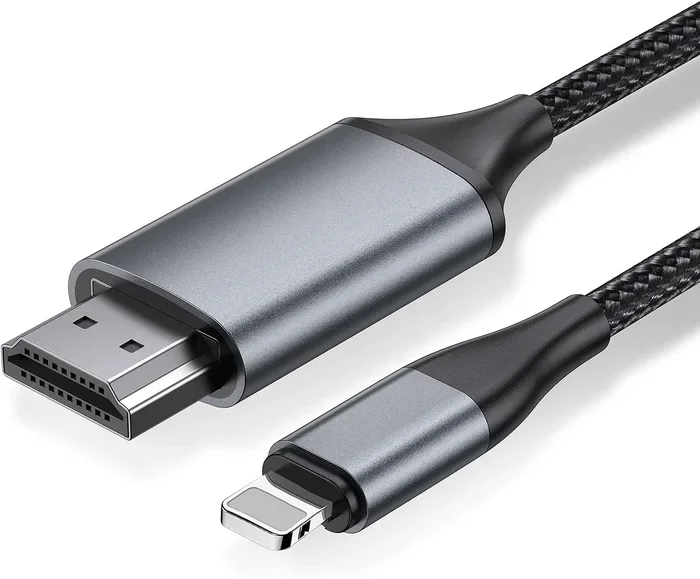
Can I Use Hdmi On My Iphone And What You Need To Know
Yes, you can use HDMI on your iPhone to mirror your screen or output video to a TV or monitor. You need the correct Lightning to HDMI adapter or a USB-C to HDMI cable depending on your iPhone model. This guide covers everything from supported devices to troubleshooting tips.
Have you ever wanted to show something on your phone but the screen felt too small? Maybe you wanted to watch a movie on a bigger TV or share photos at a family gathering. The good news is that you can use HDMI on your iPhone to do exactly that.
Connecting your iPhone to a TV or monitor through HDMI opens up a lot of possibilities. You can stream videos, play games, give presentations, or even use your phone as a secondary display. It is simpler than most people think, and this guide will walk you through every step.
In this article, we will cover which iPhones support HDMI output, what gear you need, how to set it up, and what to do when things go wrong. Whether you have an older iPhone or the latest model, you will find clear answers here.
Key Takeaways
- HDMI output is possible on most iPhones: You just need the right adapter or cable for your specific model.
- Lightning and USB-C are different: Newer iPhones use USB-C while older models use Lightning for wired connections.
- MFi certification matters: Always buy a certified adapter to avoid compatibility issues and poor performance.
- Screen mirroring works well: You can display photos, videos, presentations, and apps on a bigger screen with ease.
- Wireless alternatives exist: AirPlay offers a cable-free option if your TV supports it.
- Common issues have simple fixes: Most HDMI connection problems are solved by checking cables, adapters, or settings.
📑 Table of Contents
How HDMI Works with Your iPhone
HDMI stands for High-Definition Multimedia Interface. It is a standard cable connection that carries both video and audio through a single cable. When you connect your iPhone to a TV or monitor using HDMI, your phone sends its screen output directly to the display.
The process is straightforward. Your iPhone creates a digital signal, the adapter or cable converts it to HDMI format, and the TV receives and displays it. This is called wired display output, and it gives you a reliable, lag-free connection.
One of the best things about HDMI output is that it works in real time. There is no buffering or delay like you might experience with wireless streaming. You tap your phone, and the TV shows it instantly. This makes HDMI ideal for presentations, gaming, and watching content without interruptions.
Lightning vs USB-C: What Your iPhone Uses
Apple has used two different connectors over the years. Older iPhones from the iPhone 14 and earlier use a Lightning connector. The newer iPhones starting with the iPhone 15 use a USB-C connector. This difference matters because you need a different adapter for each one.
Lightning-based iPhones need a Lightning to HDMI adapter or a Lightning to HDMI cable. USB-C iPhones can use a USB-C to HDMI cable or a USB-C to HDMI adapter. The adapter is the small box that plugs into your phone on one end and has an HDMI port on the other end for your cable.
Apple also sells its own digital AV adapter, which is a popular choice. But there are many third-party options available too. The key is to make sure whatever you buy is MFi certified, which means it has been tested and approved by Apple for safe use.
Which iPhones Support HDMI Output
Most iPhones can output video through HDMI with the right adapter. Apple has supported this feature for many years, going all the way back to the iPhone 4s era. Here is a breakdown of what works and what you need.
Any iPhone that uses a Lightning connector can connect to HDMI using a Lightning to HDMI adapter. This includes the iPhone 5, iPhone 6, iPhone 7, iPhone 8, iPhone X, iPhone 11, iPhone 12, iPhone 13, and iPhone 14. All of these models can mirror their screens to a TV or monitor through a wired connection.
The iPhone 15 and iPhone 15 Pro models use USB-C, so they need a USB-C to HDMI cable or adapter. The iPhone 15 Pro Max and iPhone 16 models also fall into this category. All of these newer phones support HDMI output natively through the USB-C port.
Even older iPhones like the iPhone SE (first and second generation) can use HDMI output with the correct adapter. The bottom line is that if your iPhone has a charging port, it can likely connect to HDMI in some way.
Checking Your iPhone Model
Not sure which model you have? You can check by going to Settings, then General, then About, and looking at the Model Name. You can also look at the back of your phone for the model number. Once you know your model, you can buy the right iPhone HDMI adapter with confidence.
What You Need to Connect iPhone to HDMI
Setting up HDMI output on your iPhone requires just a few items. The exact items depend on your iPhone model, but the list is short and simple.
Here is what you typically need:
- An HDMI adapter: This is the bridge between your iPhone and the HDMI cable. Choose Lightning to HDMI for older phones or USB-C to HDMI for newer ones.
- An HDMI cable: This connects the adapter to your TV or monitor. Most TVs use standard HDMI cables, and you can find them in many lengths.
- A TV or monitor with an HDMI port: Nearly all modern TVs and computer monitors have at least one HDMI input port.
- A power source (optional but recommended): Some adapters draw power from your iPhone. If you plan to use HDMI output for long periods, plugging your phone into a charger can prevent battery drain.
When buying an adapter, look for MFi certification. This label means Apple has approved the product. Certified adapters are more likely to work smoothly and safely with your device. Cheap uncertified adapters can cause problems like flickering screens, no audio, or even damage to your phone.
Recommended Adapter Brands
Apple’s own Digital AV Adapter is a reliable option, but it can be pricey. Brands like Belkin, Anker, and AmazonBasics also make excellent HDMI adapters for iPhone. These third-party options often cost less while still delivering great performance. Just make sure they are MFi certified.
Step-by-Step Setup Guide
Getting your iPhone connected to a TV through HDMI is easy. Follow these steps and you will be watching your content on the big screen in just a few minutes.
- Plug the adapter into your iPhone: Insert the Lightning or USB-C end of the adapter into your phone’s charging port firmly.
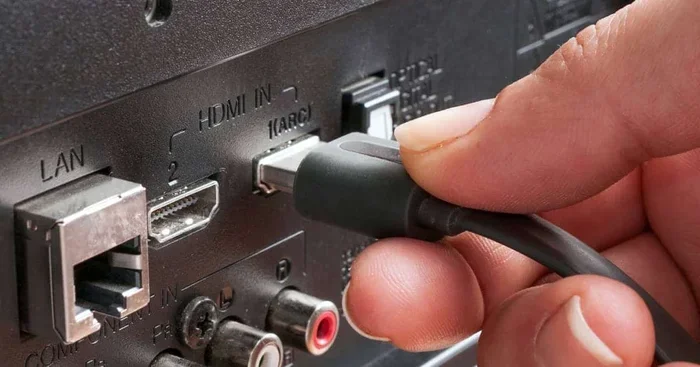
- Connect the HDMI cable to the adapter: Plug one end of the HDMI cable into the adapter’s HDMI port.
- Connect the other end of the HDMI cable to your TV: Plug the cable into any available HDMI input on your television or monitor.
- Switch your TV to the correct input: Use your TV remote to select the HDMI input that matches the port you used. Most TVs label these as HDMI 1, HDMI 2, and so on.
- Your iPhone screen should now appear on the TV: If it does not, try unplugging and replugging the adapter, or check that the cable is secure.
That is it. You do not need to install any apps or change any settings on your iPhone. The connection should work automatically. Your phone will mirror everything on its screen to the TV in real time.
Quick Tips for Best Results
Here are some tips that make a big difference when using HDMI output on iPhone:
- Use a high-quality HDMI cable rated for high speed to support full HD or 4K resolution.
- Keep your iPhone updated to the latest iOS version for the best compatibility.
- If the screen does not appear, try restarting your iPhone and reconnecting the cable.
- For presentations, turn off auto-lock so your screen stays on during the entire session.
- Use a short HDMI cable to reduce signal loss and keep your setup tidy.
Common Problems and How to Fix Them
Even with the right gear, you might run into issues now and then. Most HDMI connection problems have simple solutions. Here are the most common issues and how to solve them.
No picture on the TV. This is the most common problem. First, check that all cables are plugged in securely. Make sure your TV is on the correct HDMI input. Try unplugging the adapter from your iPhone and plugging it back in. Sometimes a simple reconnection fixes everything.
No audio through the TV. If you see the picture but hear no sound, go to your iPhone settings and check the volume. Also, make sure your TV is not muted. Some adapters need a small amount of time to sync audio and video. Wait a few seconds after connecting.
Flickering or distorted image. This often happens with cheap or damaged cables. Try a different HDMI cable or a different adapter. Also, make sure your TV supports the resolution your iPhone is sending. Most modern TVs handle 1080p and 4K without any issues.
Adapter gets hot. It is normal for adapters to feel slightly warm during use. If the adapter is too hot to touch, unplug it and let it cool down. Using a certified adapter reduces the chance of overheating. Also, plugging your iPhone into a charger during HDMI output can help manage heat.
When to Contact Support
If you have tried all the above steps and still cannot get HDMI output to work, it may be time to contact Apple Support or the adapter manufacturer. There could be a hardware issue with your iPhone or the adapter itself. Always keep your receipts and buy from reputable sellers to make returns or warranty claims easier.
iPhone HDMI vs Wireless Streaming
HDMI is not the only way to connect your iPhone to a TV. Wireless options like AirPlay and Chromecast offer a cable-free alternative. But each method has its strengths and weaknesses.
AirPlay lets you stream content wirelessly from your iPhone to an Apple TV or a smart TV that supports AirPlay. It is convenient because you do not need any cables. However, wireless streaming can have a slight delay, and the quality depends on your Wi-Fi connection.
HDMI output gives you a direct, wired connection with no lag and no reliance on Wi-Fi. The picture and sound quality are usually better because the signal is not compressed over the air. HDMI is also more reliable for long sessions or when you need a stable, uninterrupted connection.
Here is a quick comparison to help you decide:
| Feature | HDMI (Wired) | AirPlay (Wireless) |
|---|---|---|
| Connection type | Cable | Wi-Fi |
| Latency | None or near zero | Slight delay possible |
| Setup | Adapter and cable | Same Wi-Fi network |
| Reliability | Very high | Depends on Wi-Fi strength |
| Video quality | Full HD or 4K | Up to 4K, varies with network |
| Best for | Presentations, gaming, long sessions | Casual streaming, quick sharing |
For the best of both worlds, many people use both methods. They use HDMI for important presentations or gaming and AirPlay for casual movie nights. Both are great tools to have in your tech toolkit.
Expert Insights on iPhone HDMI Output
Tech experts agree that wired HDMI output is the most reliable way to connect an iPhone to a display. While wireless streaming has improved a lot over the years, a direct HDMI connection still wins for consistency and quality. If you need your iPhone to display on a TV for work or school, HDMI is the way to go.
Many professionals who give presentations prefer wired connections. They know they will not face unexpected disconnects or Wi-Fi drops. For educators, business owners, and content creators, iPhone HDMI output is a practical tool that just works.
Can I Use HDMI on My iPhone for Specific Tasks
People use HDMI output on their iPhones for many different reasons. Here are some of the most popular use cases and how well they work.
Watching movies and shows. This is probably the most common reason people connect their iPhone to a TV. Whether you are streaming from Netflix, YouTube, or playing a downloaded video, HDMI output delivers a crisp, clear picture on the big screen. Just make sure your adapter supports the resolution you need.
Gaming on a bigger screen. iPhone games look amazing on a TV. Whether you are playing casual games or demanding titles, the wired HDMI connection gives you smooth, responsive gameplay with no lag. Some gamers even use their iPhone as a portable game console connected to a hotel TV while traveling.
Work presentations. If you need to share your iPhone screen during a meeting, HDMI is a dependable choice. You can display slides, charts, and notes without worrying about Wi-Fi interference. Simply plug in and start presenting.
Photo and video sharing. Showing your vacation photos or family videos on a big TV is a wonderful experience. HDMI output lets you display your content in full resolution, making every detail pop. It is perfect for family gatherings and slide shows.
Using your iPhone as a second monitor. Some people use HDMI output to extend their iPhone screen to a TV or monitor. While this is not a native feature like on a computer, mirroring your screen works well for extending your digital workspace in a pinch.
What About iPhone 16 and Future Models
Apple continues to evolve its iPhone lineup, and HDMI support remains a key feature. The iPhone 16 and future models that use USB-C will continue to support HDMI output through USB-C to HDMI cables and adapters. As long as iPhones have a physical port, wired HDMI output will remain a practical option.
Some rumors suggest that future iPhones might rely entirely on wireless connections. But even if that happens, adapters and cables will keep working with current and past models. Investing in a quality iPhone HDMI adapter is a smart move that will serve you well for years.
Key Takeaways
- HDMI output works on most iPhones: You need the right adapter for your specific model, whether it uses Lightning or USB-C.
- MFi-certified adapters are the safest choice: They are tested by Apple and less likely to cause issues.
- Setup is simple and fast: Just plug in the adapter, connect the cable, and switch your TV input.
- HDMI gives you a reliable, lag-free connection: It is better than wireless for presentations, gaming, and long viewing sessions.
- Common problems have easy fixes: Most issues are solved by checking cables, restarting your device, or using a different adapter.
- HDMI pairs well with wireless options: Use both methods depending on your needs for maximum flexibility.
Connecting your iPhone to a TV or monitor through HDMI is one of the most useful things you can do with your device. It gives you a bigger screen, better sound, and a more immersive experience. Whether you are at home, at work, or on the go, wired HDMI output delivers a connection you can count on.
Now that you know how it works and what you need, you are ready to set up your own iPhone HDMI connection. Grab the right adapter, plug it in, and enjoy your content on the big screen. You will wonder how you ever managed without it.
Frequently Asked Questions
Can I use HDMI on any iPhone model?
Most iPhones can use HDMI output with the right adapter. Models from the iPhone 5s onward support HDMI through a Lightning to HDMI adapter. iPhone 15 and newer models use USB-C to HDMI cables. Check your specific model to confirm compatibility.
Do I need an Apple-branded adapter for HDMI output?
No, you do not need an Apple-branded adapter. Many third-party adapters work just as well. The most important thing is to choose an adapter that is MFi certified. Certified adapters meet Apple’s safety and performance standards.
Can I watch Netflix on my TV through HDMI from my iPhone?
Yes, you can watch Netflix and other streaming apps on your TV through HDMI. The HDMI connection mirrors your iPhone screen, so everything you see on your phone will appear on your TV. Some apps may have DRM protections, but most streaming content works fine through wired HDMI output.
Why does my HDMI connection have no sound?
No sound is usually caused by a loose connection or incorrect TV input settings. Check that all cables are firmly plugged in. Make sure your TV is set to the right HDMI input. Also, check that your iPhone is not muted and the volume is turned up.
Can I charge my iPhone while using HDMI output?
Yes, you can charge your iPhone while using HDMI output. Some adapters have a built-in pass-through charging port. If your adapter does not have this feature, you can use a Lightning or USB-C splitter to charge your phone and output HDMI at the same time.
Is HDMI output better than AirPlay for iPhone?
HDMI output is generally more reliable and has no lag compared to AirPlay. AirPlay depends on Wi-Fi quality and can experience delays or disconnections. HDMI is a wired connection that delivers consistent, high-quality video and audio every time.
=== CONCLUSION ===
Can I use HDMI on my iPhone? Absolutely. With the right adapter and cable, you can connect your iPhone to any TV or monitor with an HDMI port. The process is simple, the connection is reliable, and the results are impressive. Whether you want to watch movies, give presentations, play games, or share photos, HDMI output gives you a bigger and better viewing experience.
Remember to choose an MFi-certified adapter, check your iPhone model for compatibility, and follow the setup steps outlined in this guide. If you run into any issues, the troubleshooting tips will help you get back on track quickly. HDMI on iPhone is a powerful feature that many people overlook, and now you know exactly how to make it work for you.