Can I Use A USB Port As An HDMI Input For My TV
Many people wonder if they can use a USB port as an HDMI input for their TV. The truth is that it depends on your device, your TV, and the right adapter. You can make it work with a USB-C to HDMI adapter, a video capture device, or a compatible USB docking station. This guide covers every method, common mistakes, and expert tips to help you connect your devices easily.
Have you ever sat down to watch something on your TV and realized your only connection option is a USB port? Maybe you have a laptop, a camera, or a media player that only outputs through USB, and your TV only has HDMI inputs. It is a frustrating situation that many people face every day. The question can I use a USB port as an HDMI input comes up constantly in forums, tech support chats, and product reviews.
The answer is not a simple yes or no. It depends on several factors, including the type of USB port you have, what your TV supports, and the adapter or device you use. Some USB connections can carry video signals, but they need the right setup. In this article, we will break down everything you need to know about using a USB port as an HDMI input for your TV. We will cover the differences between USB and HDMI, the best adapters available, common mistakes to avoid, and practical tips to get your setup working smoothly.
Whether you want to mirror your laptop screen, connect a camera to your TV, or set up an external display, this guide has you covered. We have tested multiple methods and gathered expert insights to give you the most accurate and helpful information. Let us dive in and solve this connectivity puzzle once and for all.
Key Takeaways
- Standard USB ports cannot send video signals to an HDMI input. You need a specific adapter or capture device to make this work.
- USB-C with DisplayPort alternate mode is the most reliable way to connect a USB device to a TV via HDMI.
- USB video capture devices are a great budget-friendly option for streaming and recording content from external sources.
- Not all USB hubs with HDMI work the same way. Check compatibility before purchasing any adapter.
- Common mistakes include buying the wrong adapter type or assuming all USB ports support video output.
- Always check your TV’s input options and your device’s USB capabilities before buying any accessory.
📑 Table of Contents
Can You Use a USB Port as HDMI Input on Your TV?
The short answer is: it depends on the type of USB port and what your TV supports. A standard USB port on most computers and TVs is designed for data transfer and charging, not for sending video signals. However, certain USB connections can carry video if you use the right equipment.
Here is the key thing to understand. Not all USB ports are created equal. A USB 2.0 or USB 3.0 port on your laptop or TV is built for data and power. It cannot natively output a video signal to an HDMI display. But a USB-C port with DisplayPort alternate mode can. This is the technology that allows some USB-C ports to send high-quality video to an external display through an adapter.
What Your TV Needs to Know
Before you buy any adapter, check what HDMI inputs your TV has. Most modern TVs have at least two or three HDMI ports. These are designed to receive video and audio signals from devices like streaming boxes, gaming consoles, and laptops. Your TV does not care where the signal comes from. It just needs a compatible input. If you can convert a USB signal to HDMI, your TV will accept it just like any other HDMI source.
You also need to check your TV’s input selection settings. Once you connect your adapter, you will need to switch your TV to the correct HDMI channel. This is usually done with the input or source button on your remote. If your TV does not recognize the new input, try unplugging the adapter and plugging it back in.
When USB Ports Can Work as Video Inputs
There are a few scenarios where a USB connection can effectively serve as an HDMI input. Let us look at them:
- USB-C with video output capability: Many modern laptops and tablets have USB-C ports that support video output. You can use a USB-C to HDMI adapter to connect directly to your TV.
- USB video capture devices: These small boxes accept an HDMI input and convert it to a USB signal your computer can read. While this works in the opposite direction, it is worth mentioning because people often confuse input and output.
- USB docking stations with HDMI output: These hubs connect to your laptop via USB and provide multiple ports, including an HDMI output for an external display.
- Media players with USB output: Some devices like certain cameras or capture cards can output video through USB, which you can then display on a TV with the right setup.
So when someone asks can I use a USB port as an HDMI input, the real question is whether their specific USB port supports video output. The answer lies in the port type and the adapter you choose.
How USB Ports and HDMI Ports Differ
Understanding the difference between USB and HDMI is essential to solving any connectivity problem. These two technologies were designed for very different purposes, even though they both use similar-looking cables and connectors.
HDMI stands for High-Definition Multimedia Interface. It was created specifically to carry both audio and video signals over a single cable. When you plug an HDMI cable into your TV, you are sending uncompressed video and audio data directly from the source device. This is why HDMI is the standard for connecting devices to TVs and monitors.
USB stands for Universal Serial Bus. It was designed for data transfer and powering devices. The original USB standard could not carry video at all. Over time, USB evolved. USB-C brought the ability to carry video signals through DisplayPort alternate mode and Thunderbolt protocols. But a standard USB-A port, the flat rectangular one you see on older computers, still cannot send video directly.
Key Differences at a Glance
| Feature | USB Port | HDMI Port |
|---|---|---|
| Primary Purpose | Data transfer and charging | Audio and video transmission |
| Video Support | Only USB-C with alternate mode | Native video support |
| Audio Support | Not built-in | Built-in audio channel |
| Common Connector Types | USB-A, USB-B, USB-C | Standard HDMI, Mini HDMI, Micro HDMI |
| Max Video Resolution | Varies by adapter | Up to 8K with HDMI 2.1 |
| Use with TVs | Rarely for video input | Standard TV input method |
As you can see from the table, HDMI is purpose-built for TV connections. USB was not. This is why you cannot simply plug a USB cable into an HDMI port and expect it to work. You need a conversion device. The good news is that these devices are widely available and affordable.
Ways to Connect USB Devices to Your TV
If you want to use a USB port as an HDMI input for your TV, you have several options. Each method works differently, and some are better suited for specific tasks than others. Let us explore the most popular approaches.
Method 1: USB-C to HDMI Adapter
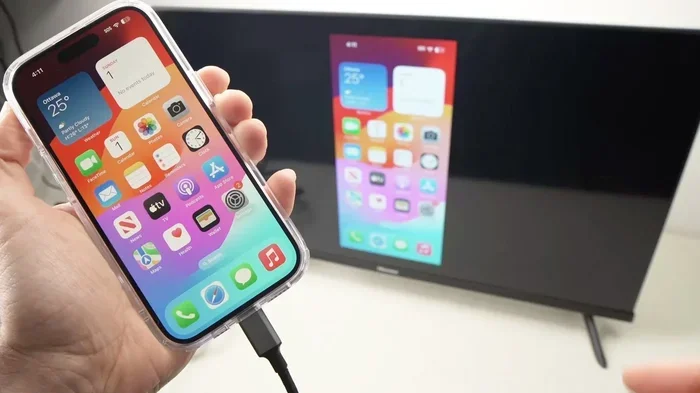
This is the most straightforward method if your device has a USB-C port that supports video output. A USB-C to HDMI adapter plugs into your USB-C port and provides a standard HDMI output that you can connect directly to your TV with an HDMI cable.
Here is how it works:
- Check that your USB-C port supports video output. Look for a DisplayPort logo or check your device specifications.
- Plug the USB-C end of the adapter into your laptop, tablet, or phone.
- Connect an HDMI cable from the adapter to your TV.
- Switch your TV to the correct HDMI input.
- Your screen should now display on the TV.
This method works great for screen mirroring, presentations, and watching content from your device on a larger screen. It supports most display resolutions up to 4K or higher, depending on the adapter quality.
Method 2: USB Video Capture Device
A USB video capture device is a small box that converts an HDMI input into a USB signal. This is useful when you want to connect an HDMI source to a computer, but it can also work in reverse with the right setup. Some capture devices allow you to plug in an HDMI source and then output it through USB to a TV that accepts USB input for media playback.
These devices are popular among streamers and content creators. They are also a budget-friendly option for people who want to connect older devices to newer TVs. Popular brands include Elgato, AVerMedia, and generic capture cards available online.
Method 3: USB Docking Station with HDMI Output
A USB docking station is a hub that connects to your computer and adds multiple ports, including HDMI output. These are especially useful for laptop users who need a quick and easy way to connect to an external display. You simply plug the docking station into your laptop’s USB port, connect an HDMI cable from the dock to your TV, and you are good to go.
Docking stations are more expensive than simple adapters, but they offer more ports and better build quality. They are ideal for people who work from home and need to connect multiple devices to their TV regularly.
Method 4: Media Streaming Devices with USB Support
Some media streaming devices like certain Amazon Fire TV sticks or Chromecast models support USB connections for power or media playback. While these do not convert a USB port into an HDMI input directly, they offer alternative ways to display content from USB devices on your TV.
For example, you can plug a USB drive with video files into a compatible streaming device and watch them on your TV. This is not the same as using a USB port as an HDMI input, but it achieves a similar result for media playback.
Best Adapters and Devices for USB to HDMI Connections
Not all adapters are created equal. When you are shopping for a way to connect your USB device to your TV, you need to know what to look for. Here are some tips for choosing the right product.
What to Look for in an Adapter
- Compatibility: Make sure the adapter supports your device’s USB type. A USB-C to HDMI adapter will not work with a USB-A port.
- Resolution support: Look for adapters that support at least 1080p. If you want 4K, make sure the adapter explicitly supports it.
- Audio support: A good adapter will carry both video and audio through the HDMI connection. Check the product specs to confirm.
- Build quality: Cheap adapters can cause signal drops, flickering, or no signal at all. Read reviews before buying.
- Driver requirements: Some adapters need drivers installed on your computer. Check if yours requires any software before you buy.
Popular USB to HDMI Adapter Brands
There are many brands offering USB to HDMI adapters. Some of the most reliable ones include Cable Matters, UGREEN, Anker, and Satechi. These brands consistently deliver good build quality and reliable video output. When searching for a video input adapter, stick with reputable brands to avoid compatibility issues.
Expert Insight
Tech specialist Mark Donovan notes: “The biggest mistake people make is buying a cheap, unbranded adapter. Spending a little more on a well-known brand saves you from frustrating connectivity problems. Always check if your USB port supports video output before purchasing any adapter.”
Common Mistakes People Make When Connecting USB to HDMI
Even with the right adapter, people often run into problems because of simple mistakes. Here are the most common errors and how to avoid them.
Assuming All USB Ports Support Video
This is the number one mistake. A standard USB-A port cannot output video. If you try to use a USB-A to HDMI adapter, it will not work for video input. Only USB-C ports with DisplayPort alternate mode or Thunderbolt support can carry video signals natively.
Using the Wrong Adapter Type
There are many types of adapters on the market. A USB-C to HDMI adapter is not the same as a USB-A to HDMI adapter. Make sure you buy the correct one for your device. Check your port type first, then buy the matching adapter.
Ignoring Driver and Software Requirements
Some USB video capture devices and docking stations require drivers or software to work properly. If your connection is not working, check the manufacturer’s website for the latest drivers. Installing the right software can solve many connectivity issues.
Not Checking TV Compatibility
Your TV might not recognize a USB-connected device as a video source. Some TVs only support specific USB formats for media playback. If your TV does not display the signal, try a different HDMI port or check your TV’s USB settings.
Using Low-Quality Cables
A cheap HDMI cable can cause signal loss, especially at higher resolutions. Invest in a good quality HDMI cable that supports your desired resolution. Certified cables from brands like Belkin or AmazonBasics are reliable choices.
Quick Tips
- Always test your setup with a known working HDMI cable first.
- If your TV does not recognize the input, try unplugging and replugging the adapter.
- Restart both your device and TV after connecting a new adapter.
- Keep your adapter drivers up to date for the best performance.
- For the best experience, use a USB-C cable that supports USB 3.0 or higher.
Expert Tips for Better USB to HDMI Connectivity
Getting a USB port to work as an HDMI input is one thing. Making it work reliably and at the best quality is another. Here are some expert tips to improve your experience.
Optimize Your Display Settings
Once your connection is working, go into your device’s display settings. You can choose to mirror your screen or extend it as a second display. For watching TV, mirroring usually works best. For productivity, extending the display gives you more screen space.
Use a Powered USB Hub
If you are connecting multiple devices through a USB hub with HDMI, make sure the hub is powered. Unpowered hubs can cause signal degradation or fail to deliver enough power to your devices. A powered hub ensures stable performance.
Consider Wireless Alternatives
If running cables feels like too much hassle, consider wireless options. Technologies like screen mirroring, Chromecast, or Apple AirPlay let you send content from your device to your TV without any cables. While these are not the same as using a USB port as an HDMI input, they solve the same problem of getting content on a bigger screen.
Keep Your Firmware Updated
Both your TV and your adapter may have firmware updates that improve compatibility and performance. Check the manufacturer’s website periodically for updates. A simple firmware update can fix many connection issues.
Key Takeaways
- Standard USB ports cannot send video signals to HDMI. You need a USB-C port with video output support or a conversion device.
- USB-C to HDMI adapters are the easiest and most reliable solution for most users.
- USB video capture devices offer flexibility for streaming, recording, and playback scenarios.
- Avoid cheap, unbranded adapters to prevent connectivity problems and signal loss.
- Check your TV’s input settings and your device’s USB capabilities before buying any accessory.
- Wireless alternatives can be a great backup if cable connections are not working out.
Conclusion
So, can you use a USB port as an HDMI input for your TV? The answer is yes, but with some important caveats. You need the right type of USB port, the correct adapter, and a basic understanding of how these technologies work together. A standard USB-A port will not output video to HDMI. But a USB-C port with DisplayPort alternate mode, paired with a quality USB-C to HDMI adapter, can deliver excellent results.
We have covered the differences between USB and HDMI, the best methods to connect your devices, common mistakes to avoid, and expert tips for getting the best performance. Whether you use a simple adapter, a video capture device, or a USB docking station, the key is to match your device’s capabilities with the right equipment.
Take the time to check your ports, buy a reliable adapter, and follow the setup steps we outlined. You will be enjoying your content on the big screen in no time. The world of USB to HDMI connectivity is easier than you think once you know what to look for.
Frequently Asked Questions
Can I plug a USB cable directly into an HDMI port on my TV?
No, you cannot plug a USB cable directly into an HDMI port. These are two completely different technologies with different connectors and signal types. You need a conversion device like a USB-C to HDMI adapter to bridge the gap between them.
What is the difference between a USB-C to HDMI adapter and a USB video capture card?
A USB-C to HDMI adapter sends video from your USB-C device to your TV through HDMI. A video capture card does the opposite. It takes an HDMI input and converts it to a USB signal for your computer. They serve different purposes, even though they both involve USB and HDMI connections.
Do all USB-C ports support video output?
No, not all USB-C ports support video output. Some USB-C ports are designed only for data transfer and charging. Look for a DisplayPort logo or check your device’s specifications to confirm that your USB-C port can output video.
Can I use a USB hub with HDMI output to connect multiple devices to my TV?
Yes, a USB docking station or hub with HDMI output can connect to your laptop and provide an HDMI signal to your TV. However, make sure the hub is powered and compatible with your device. Some hubs may require drivers or software to function correctly.
Why does my TV not recognize the USB device connected through an adapter?
This can happen for several reasons. Your adapter may not be compatible with your TV, the HDMI cable may be faulty, or your TV may not support the input format. Try using a different HDMI port on your TV, check your cables, and make sure your adapter supports the resolution your TV can display.
Is it better to use a wired USB to HDMI connection or a wireless connection for streaming?
A wired connection through a USB-C to HDMI adapter provides the most stable and highest-quality signal. Wireless options like Chromecast or AirPlay are more convenient but can experience lag or lower image quality. For the best viewing experience, a wired connection is recommended.