Can I Use 2 HDMI At The Same Time On My Television
Yes, you can use 2 HDMI ports at the same time on your television. Most modern TVs come with multiple HDMI inputs designed for exactly this purpose. Whether you want to connect a gaming console and a streaming device, or a laptop and a Blu-ray player, using multiple HDMI sources simultaneously is simple and works great.
Have you ever wanted to plug in two devices to your TV at the same time and wondered if it would even work? Maybe you have a gaming console and a streaming stick, or a Blu-ray player and a laptop. The good news is that using 2 HDMI at the same time on my television is not only possible but also very common.
Most modern TVs come with three, four, or even five HDMI ports built right in. This means you can connect several devices and switch between them whenever you want. In this guide, we will walk through everything you need to know about running multiple HDMI sources on a single TV. We will cover how it works, what you need, common mistakes, and expert tips to get the best setup.
Whether you are a casual viewer or a serious home theater fan, this article will help you make the most of your TV’s HDMI ports. Let us dive in.
Key Takeaways
- Multiple HDMI ports work together: Your TV can handle several HDMI devices at once without any extra hardware.
- HDMI splitters and switches help when ports run out: These affordable tools let you expand your connection options.
- Resolution and refresh rate matter: Using two devices at the same time does not reduce picture quality on most TVs.
- HDMI ARC and eARC ports serve a special role: They handle audio output to soundbars and receivers alongside video input.
- Switching between sources is instant: You can jump between HDMI inputs with your remote or TV menu.
- Common mistakes are easy to avoid: Using the wrong cable or port type causes most HDMI issues.
📑 Table of Contents
- How HDMI Ports Work on Your TV
- Can You Run Two HDMI Devices at the Same Time
- When You Need Extra Hardware: HDMI Splitters and Switches
- HDMI Port Types and What They Mean
- Setting Up Two HDMI Devices on Your TV
- Common Mistakes People Make With Multiple HDMI Setups
- Expert Insights on Dual HDMI Setups
- Frequently Asked Questions
- Conclusion
How HDMI Ports Work on Your TV
HDMI stands for High-Definition Multimedia Interface. It is the standard cable used to carry both video and audio from a device to your screen. Every HDMI port on your TV acts as an independent input channel. This means each port can receive a separate signal from a different device at the same time.
When you connect two devices to two different HDMI ports, your TV treats them as separate sources. You do not need any special equipment to make this work. The TV simply waits for you to select which input you want to view.
What Each HDMI Port Can Do
Each HDMI port on your television can handle a full HD or 4K video signal along with multi-channel audio. Here is what you should know about individual ports:
- Video and audio in one cable: HDMI carries both signals together, so you only need one cord per device.
- Dedicated bandwidth: Each port has its own data path, so using one port does not slow down another.
- Hot-swapping supported: You can plug in or unplug a device while the TV is on on most models.
- Version differences matter: HDMI 2.0 and HDMI 2.1 ports support higher resolutions and refresh rates than older versions.
The key takeaway is that every HDMI port works independently. Your TV does not share bandwidth between ports. So connecting two devices does not reduce the quality of either signal.
Can You Run Two HDMI Devices at the Same Time
The short answer is yes. You absolutely can run two HDMI devices at the same time on your television. But what does that actually look like in real life? Let us break it down.
Scenario 1: Gaming Console and Streaming Stick
This is one of the most popular setups. You plug your gaming console into HDMI port 1 and your streaming stick into HDMI port 2. Your TV can display either one at a time. When you want to switch, you simply change the input source using your remote.
Here is a quick example of how this works:
- You finish playing a game on your console.
- You press the Input or Source button on your remote.
- You select the HDMI port where your streaming stick is connected.
- Your TV instantly switches to the streaming app.
The whole process takes just a few seconds. You do not need to unplug or reconnect any cables.
Scenario 2: Laptop and Cable Box
Many people connect a laptop and a cable box to their TV. This is great for working from home and watching live TV. Your laptop uses one HDMI port, and your cable box uses another. Both devices stay connected all the time. You switch between them based on what you need at the moment.
Scenario 3: Soundbar with HDMI ARC and a Game Console
Some TVs have a special HDMI port labeled ARC or eARC. This port is designed to send audio to an external sound system while still receiving video input. You can use the ARC port for your soundbar and a regular HDMI port for your game console. Both work at the same time without any conflict.
When You Need Extra Hardware: HDMI Splitters and Switches
What happens when your TV does not have enough HDMI ports for all your devices? This is where HDMI splitters and HDMI switches come in handy. These small devices expand your connection options and make managing multiple devices much easier.
What Is an HDMI Splitter
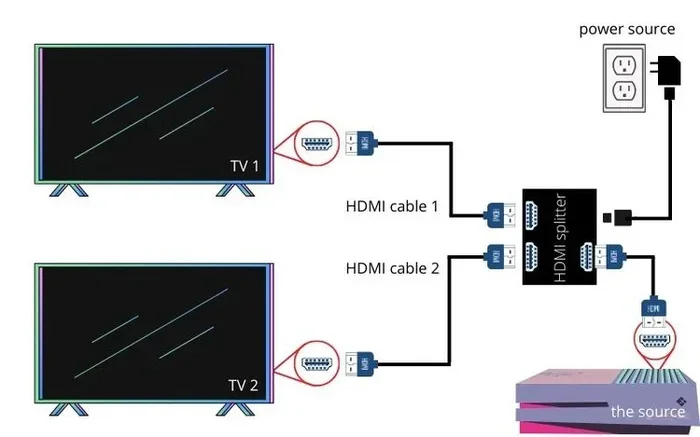
An HDMI splitter takes one HDMI signal and copies it to multiple outputs. This is useful when you want to display the same content on two screens. For example, you might split the signal from a cable box to send it to your TV and a second monitor in another room.
However, an HDMI splitter does not let you connect two different devices to one HDMI port on your TV. It only duplicates a single signal. Make sure you understand this difference before buying one.
What Is an HDMI Switch
An HDMI switch is the opposite of a splitter. It lets you connect multiple devices to a single HDMI port on your TV. The switch has several input ports and one output port. You press a button or use a remote to select which device you want to display.
HDMI switches are perfect when you have run out of ports on your TV. They are affordable and easy to set up. A good 3-port or 5-port HDMI switch costs between 20 and 50 dollars.
Quick Tips for Choosing the Right HDMI Switch
- Check the HDMI version: Make sure the switch supports HDMI 2.0 or higher for 4K content.
- Look for auto-switching: Some switches detect which device is turned on and switch automatically.
- Consider Ethernet and ARC support: These features keep your setup future-proof.
- Read reviews before buying: Cheap switches sometimes cause signal drops or resolution problems.
HDMI Port Types and What They Mean
Not all HDMI ports are the same. Your TV may have a mix of standard HDMI ports and special-purpose ports. Understanding the differences helps you get the most out of your setup.
Standard HDMI Ports
These are the regular ports you will find on most TVs. They support video and audio input from any HDMI device. Standard ports work with gaming consoles, streaming sticks, Blu-ray players, and laptops.
HDMI ARC and eARC Ports
ARC stands for Audio Return Channel. eARC stands for Enhanced Audio Return Channel. These ports are designed to send audio from your TV to an external sound system or receiver. You can also use them to receive video input, but their main job is audio output.
If you have a soundbar or home theater system, plug it into the HDMI ARC port on your TV. Then use a regular HDMI port for your video devices. This keeps your audio and video paths clean and separate.
HDMI USB Ports
Some TVs include ports that combine HDMI and USB functionality. These are less common but can be useful for specific setups. Check your TV manual to see if you have any of these hybrid ports.
Setting Up Two HDMI Devices on Your TV
Setting up two HDMI devices on your television is straightforward. Follow these steps to get everything working quickly.
Step-by-Step Setup Guide
- Identify your available HDMI ports: Look at the back or side of your TV. Note which ports are labeled and which are available.
- Choose the right cables: Use high-quality HDMI cables that match your devices. For 4K content, use HDMI 2.0 or HDMI 2.1 cables.
- Connect your first device: Plug one end of the HDMI cable into your device and the other end into an available HDMI port on your TV.
- Connect your second device: Repeat the process with your second device on a different HDMI port.
- Power on both devices: Turn on both devices and your TV.
- Switch between inputs: Press the Input or Source button on your TV remote to toggle between the two HDMI ports.
Adjusting Display Settings
Once both devices are connected, you may want to adjust your TV display settings. Go to your TV settings menu and look for the resolution and picture mode options. Make sure each device is set to output the correct resolution for your TV. Most devices auto-detect, but it is good to double-check.
Managing Audio Output
If you have a soundbar or external speakers, you need to manage audio output carefully. Go to your TV audio settings and select the correct output source. If you are using HDMI ARC, make sure the CEC setting is enabled on your TV. This allows devices to control audio routing automatically.
Common Mistakes People Make With Multiple HDMI Setups
Even though using two HDMI ports at the same time is simple, people still run into problems. Here are the most common mistakes and how to avoid them.
Using the Wrong HDMI Cable
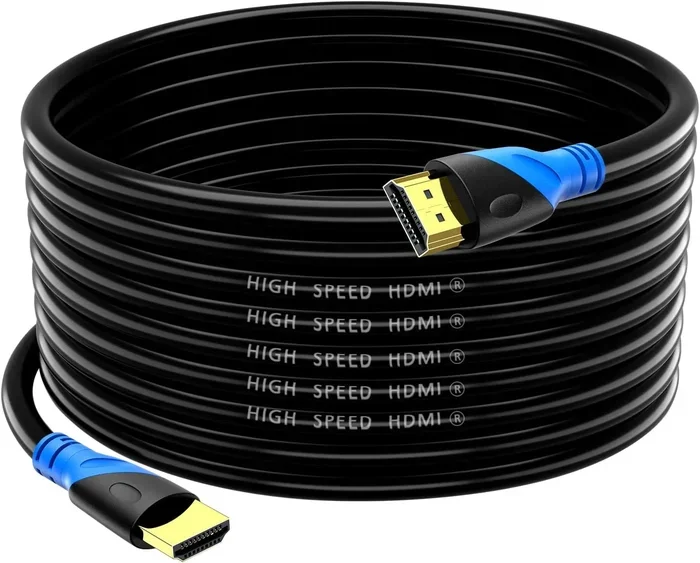
Not all HDMI cables are created equal. An older cable may not support 4K resolution or high refresh rates. If you notice poor picture quality, try a newer high-speed HDMI cable. Look for cables labeled Premium High Speed or Ultra High Speed.
Plugging Devices Into the Wrong Port
Some people plug their 4K devices into a standard HDMI port that only supports 1080p. Always check which ports on your TV support the resolution you need. If your TV has a mix of HDMI 2.0 and HDMI 2.1 ports, use the newer ones for the best experience.
Ignoring Firmware Updates
TV manufacturers release firmware updates that fix HDMI compatibility issues. If your HDMI ports are acting up, check for a software update. This simple step often solves mysterious connection problems.
Overloading a Single HDMI Port
Never try to split a single HDMI cable to connect two devices to one port without a proper splitter. This can cause signal loss and damage your equipment. Always use the correct hardware for expanding your setup.
Expert Insights on Dual HDMI Setups
Home theater experts agree that using multiple HDMI ports is one of the easiest ways to enhance your TV experience. According to industry professionals, the key is to plan your setup before you start plugging things in.
Here are a few expert tips to keep in mind:
- Label your HDMI ports: Use small stickers or tape to label each port with the device connected to it. This saves time when switching inputs.
- Use a universal remote: A smart remote that controls all your devices makes switching between HDMI sources seamless.
- Keep cables organized: Use cable ties or a cable management box to keep your setup clean and prevent accidental disconnections.
- Test each port individually: If you are having issues, test each HDMI port with a single device first to isolate the problem.
Experts also recommend investing in a good quality HDMI switch if you have more devices than ports. A reliable switch preserves signal quality and adds convenience to your daily use.
Frequently Asked Questions
Can I use 2 HDMI at the same time on my television without any extra equipment?
Yes, you can. Most modern TVs have multiple HDMI ports that work independently. You simply plug each device into a separate port and switch between them using your TV remote. No extra hardware is needed.
Does using two HDMI devices reduce picture quality?
No, it does not. Each HDMI port has its own dedicated connection to your TV’s processing chip. Using two devices at the same time does not affect the resolution or quality of either signal.
Can I connect a soundbar and a gaming console using HDMI at the same time?
Absolutely. Use the HDMI ARC port for your soundbar and a standard HDMI port for your gaming console. Both devices will work together without any conflicts. Your TV handles audio and video routing automatically.
What is the difference between an HDMI splitter and an HDMI switch?
An HDMI splitter copies one signal to multiple screens. An HDMI switch lets you connect multiple devices to one TV port. They serve opposite purposes, so make sure you buy the right one for your needs.
Do I need HDMI 2.1 cables for a dual setup?
It depends on your devices and TV. If you are using 4K at 120Hz or gaming features like VRR, HDMI 2.1 cables are recommended. For standard 4K or 1080p setups, HDMI 2.0 cables work perfectly fine.
Can I leave both HDMI devices connected all the time?
Yes, you can. Modern TVs are designed to keep multiple HDMI ports active at all times. You can leave both devices plugged in and switch between them whenever you like. Just make sure your TV firmware is up to date for the best compatibility.
Conclusion
Using 2 HDMI at the same time on my television is simple, practical, and something most TV owners do every day. Your TV’s multiple HDMI ports are designed to handle several devices at once, whether you are gaming, streaming, or watching cable TV. With the right cables and a basic understanding of how your ports work, you can create a seamless multi-device setup in minutes.
Remember to use standard HDMI ports for your video devices and the ARC port for your audio equipment. If you run out of ports, an HDMI switch is an affordable and effective solution. Avoid common mistakes like using the wrong cable type or ignoring firmware updates, and your setup will run smoothly for years.
Now that you know how to make the most of your TV’s HDMI capabilities, go ahead and connect all your favorite devices. You will be amazed at how much more versatile your television becomes when you use all the tools at your disposal. Happy viewing.