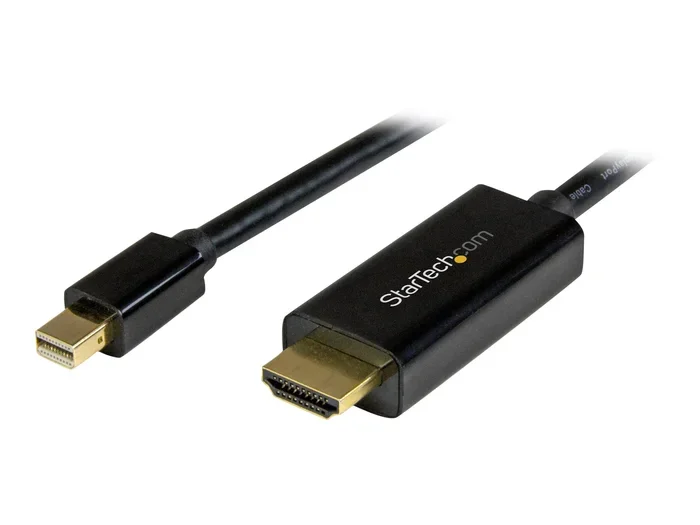
Can I Plug Mini Displayport Into Thunderbolt Ports
Yes, you can plug a Mini DisplayPort into a Thunderbolt port. The Thunderbolt connector is backward compatible with Mini DisplayPort signals, making it easy to connect your display to modern computers. This guide covers everything you need to know about adapters, cables, compatibility, and setup for Mac and PC users.
Have you ever sat down at your desk, ready to connect your monitor, only to realize you are not sure if your cables will work? That moment of confusion is more common than you might think. Many people own devices with Thunderbolt ports and monitors with Mini DisplayPort connectors. The good news is that these two technologies work together in most cases. Can I Plug Mini Displayport Into Thunderbolt ports? The answer is yes, and this guide will walk you through everything you need to know.
Whether you use a MacBook, a Dell laptop, or a Windows PC, understanding how these ports interact saves you time and money. You will learn about adapters, cables, compatibility, and common mistakes to avoid. By the end of this article, you will feel confident connecting your display to any Thunderbolt port. Let us dive right in and make sense of it all.
Key Takeaways
- Thunderbolt ports accept Mini DisplayPort signals: The Thunderbolt connector was designed to be backward compatible with Mini DisplayPort.
- You may need an adapter or cable: Depending on your device, you might need a passive or active adapter to make the connection work.
- Mac and MacBook users benefit most: Apple devices have long supported this connection method natively.
- 4K resolution is possible: You can achieve high-quality video output with the right setup and equipment.
- Check your device specs first: Not all Thunderbolt ports support video output, so always verify before buying adapters.
- Active vs passive adapters matter: Understanding the difference can save you money and frustration.
📑 Table of Contents
What Is Mini DisplayPort and What Is Thunderbolt?
Before we answer the big question, it helps to understand what each of these ports actually is. Both Mini DisplayPort and Thunderbolt carry video signals, but they have different histories and capabilities. Knowing the basics makes the rest much easier to follow.
Understanding Mini DisplayPort
Mini DisplayPort is a compact video output connector. Apple first introduced it in 2008 for their MacBook lineup. It replaced the older mini-DVI port and offered a smaller, more efficient way to connect displays. The connector sends both audio and video signals through a single cable. Many desktop monitors and projectors still use this connection today. It supports high resolutions, including 4K and beyond, depending on the version you are using.
The Mini DisplayPort connector is small and rectangular with a slightly tapered end. It is different from the larger DisplayPort connector you might see on desktop GPUs. Despite its size, Mini DisplayPort delivers excellent video output quality. It has been a staple in the Apple ecosystem for many years and remains widely used in professional display setups.
Understanding Thunderbolt Technology
Thunderbolt is a more advanced connectivity standard developed by Intel and Apple together. It combines data transfer, video output, and power delivery into one port. Thunderbolt 3 uses the USB-C connector shape, which is now very common on modern laptops. Thunderbolt 4 builds on that foundation with faster speeds and more features. The key thing to know is that Thunderbolt was designed to be backward compatible with Mini DisplayPort. This backward compatibility is exactly why you can plug a Mini DisplayPort cable into a Thunderbolt port.
Here is a quick comparison of the Thunderbolt versions and their capabilities:
- Thunderbolt 1 and 2: Use the Mini DisplayPort connector shape. They support up to 4K resolution and data transfer speeds of up to 10 Gbps.
- Thunderbolt 3: Uses the USB-C connector. Supports up to 40 Gbps data transfer, 4K at 60Hz, and power delivery up to 100W.
- Thunderbolt 4: Also uses USB-C. Guarantees 40 Gbps data transfer, supports two 4K displays or one 8K display, and includes improved security features.
Each version builds on the last, but all of them share the same core feature: they can carry DisplayPort signals. This is the reason Can I Plug Mini Displayport Into Thunderbolt is such a common question. The answer has always been yes, thanks to this shared design foundation.
Can You Plug Mini DisplayPort Into Thunderbolt Ports?
The Short Answer
Yes, you can. Can I Plug Mini Displayport Into Thunderbolt ports? Absolutely. The Thunderbolt connector carries a DisplayPort signal inside it. This means a Mini DisplayPort cable fits directly into a Thunderbolt port on most devices. You do not always need an adapter. However, there are some exceptions and details you should know about before you plug anything in.
The physical connector on Thunderbolt 1 and Thunderbolt 2 devices is actually the same shape as Mini DisplayPort. So on those older devices, the connection is direct and seamless. On Thunderbolt 3 and Thunderbolt 4 devices, the port looks like USB-C, but it still carries the same DisplayPort signal inside. A Mini DisplayPort cable with the right adapter will work perfectly.
How the Connection Works
The Thunderbolt standard uses a protocol called DisplayPort Alt Mode. This allows video signals to travel through the Thunderbolt cable or port. When you connect a Mini DisplayPort cable to a Thunderbolt port, the video signal passes through seamlessly. Your monitor receives the same quality picture it would from a dedicated DisplayPort connection. The data path is built into the Thunderbolt design from the ground up.
Here is a simple way to think about it. Imagine a highway that carries multiple types of traffic. Thunderbolt is that highway. Mini DisplayPort is one lane on that highway. When you plug in a Mini DisplayPort cable, you are simply using one lane of the Thunderbolt highway. Everything else stays open and functional. Your data transfers, your video plays, and your power charges all happen at the same time if your setup supports it.
What You Need to Make It Work
While the connection works in many cases, you might need the right adapter or cable depending on your setup. Let us look at the different options available to you.
Adapter Options
Sometimes a direct cable connection is not enough. You may need an adapter to bridge the gap between your devices. Here are the most common adapter types you will come across:
- Mini DisplayPort to Thunderbolt adapter: This lets you connect a Mini DisplayPort cable to a Thunderbolt port. It is often a passive adapter, meaning it does not need extra power.
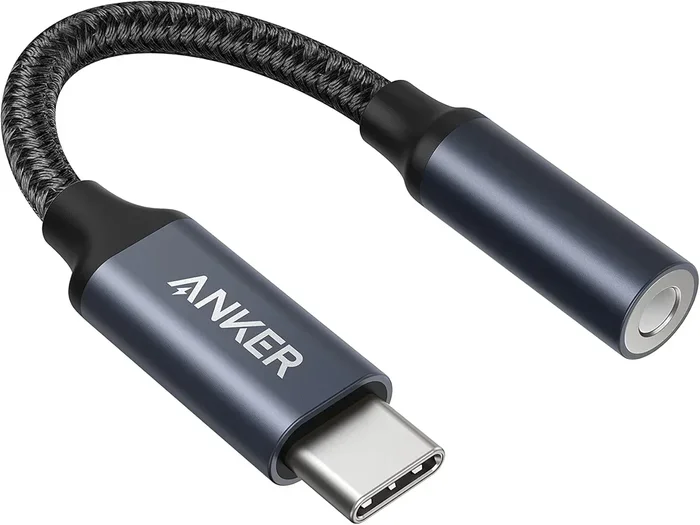
- USB-C to Mini DisplayPort adapter: If your Thunderbolt port is USB-C shaped, this adapter helps you connect your Mini DisplayPort monitor.
- Active adapters: These require external power and are useful when you need to convert signals between different display protocols.
- Docking stations: A docking station with Thunderbolt support can connect multiple displays, including ones with Mini DisplayPort inputs.
When shopping for adapters, look for ones that are certified by the Thunderbolt program. Certified adapters have been tested to work reliably with Thunderbolt devices. Cheap, uncertified adapters may cause flickering, signal loss, or no display at all. Spending a little more on a quality adapter saves you from headaches down the road.
Cable Choices
Choosing the right cable matters just as much as choosing the right adapter. Not all cables are created equal. Here are some tips for picking the best one:
- Check the cable rating: Look for cables rated for the resolution you need. A cable that supports 4K at 60Hz is ideal for most modern monitors.
- Go for shorter cables when possible: Shorter cables maintain better signal quality over longer distances. Try to keep your cable runs under six feet for best results.
- Buy from reputable brands: Brands like Cable Matters, Belkin, and CalDigit are known for reliable Thunderbolt and DisplayPort cables.
- Consider a Thunderbolt cable: A Thunderbolt cable can carry both data and video, giving you more flexibility in your setup.
- Check the connector type: Make sure the cable ends match your port types. A USB-C to Mini DisplayPort cable is different from a Thunderbolt to Mini DisplayPort cable.
The right cable ensures you get the best possible resolution and refresh rate from your display. Do not underestimate the importance of a good cable. It is the link between your computer and your monitor, and a poor cable can ruin an otherwise perfect setup.
Compatibility Across Devices
Not all devices behave the same way when you plug in a Mini DisplayPort cable. Compatibility depends on your specific hardware and operating system. Let us break this down by device type so you know exactly what to expect.
Mac and MacBook Compatibility
Apple has long been a leader in display connectivity. Most MacBooks from 2016 onward use Thunderbolt 3 or Thunderbolt 4 ports. These ports accept Mini DisplayPort signals directly. If you own a MacBook Pro or MacBook Air with a Thunderbolt port, you can plug in a Mini DisplayPort monitor without any fuss. Apple even includes Mini DisplayPort compatibility in their technical specifications. This makes the Mac ecosystem one of the easiest environments for this type of connection.
Older Macs with Mini DisplayPort outputs can also connect to Thunderbolt displays. The compatibility goes both ways. Apple designed these ports to work together, so you rarely run into issues within the Apple ecosystem. Whether you are using a 2015 MacBook Pro with a Thunderbolt 2 port or a 2023 MacBook Pro with Thunderbolt 4, the Mini DisplayPort connection works reliably.
Windows PC Compatibility
Windows PCs from brands like Dell, HP, and Lenovo also use Thunderbolt ports. The compatibility with Mini DisplayPort works the same way on these machines. However, there are a few things to watch out for:
- Check your GPU: Some budget laptops use integrated graphics that may have limited display output capabilities. Make sure your GPU supports the number of displays you want to connect.
- Verify the Thunderbolt version: Thunderbolt 3 and Thunderbolt 4 both support Mini DisplayPort signals. Older Thunderbolt versions may have different limitations.
- Driver issues: Sometimes you need to update your graphics drivers before the display works properly. Visit your GPU manufacturer’s website for the latest drivers.
- BIOS settings: A few PCs require you to enable Thunderbolt support in the BIOS before it will work with external displays. Check your motherboard or laptop manual for details.
If you own a Dell XPS or an HP Spectre with Thunderbolt ports, you should have no trouble connecting a Mini DisplayPort monitor. These premium laptops have excellent Thunderbolt support and work seamlessly with a wide range of display accessories.
Common Mistakes and How to Avoid Them
Even when the connection should work, people often run into problems. Most of these issues come from simple mistakes that are easy to avoid. Here are the most common pitfalls and how to steer clear of them.
Using the Wrong Adapter
Not all adapters are the same. A passive adapter works in most cases when connecting Mini DisplayPort to Thunderbolt. But if you are converting between different signal types, you need an active adapter. Buying the wrong type is the most common mistake people make. Always check what kind of signal conversion your setup requires before you purchase an adapter. When in doubt, check the product description or contact the manufacturer for clarification.
Ignoring Resolution Limits
Your cable and adapter combination determines the maximum resolution you can achieve. A cheap adapter might only support 1080p, even if your monitor can handle 4K. Always check the specifications of your adapter and cable to make sure they support the resolution you need. This is especially important for creative professionals who need high resolution displays for photo and video editing. A mismatch here can lead to blurry text and poor color accuracy.
Forgetting to Update Drivers
On Windows PCs, outdated graphics drivers can prevent your display from working correctly. After connecting your Mini DisplayPort monitor to a Thunderbolt port, check for driver updates. This simple step fixes many display issues that people otherwise struggle with for hours. Both NVIDIA and AMD release regular driver updates that improve compatible device support. Make it a habit to check for updates once a month.
Overlooking Cable Length
Longer cables can weaken the video signal, especially at higher resolutions. If you need a cable longer than six feet, consider using a powered adapter or a higher-quality cable designed for long runs. Signal degradation is a real issue, and it can cause flickering, artifacts, or a complete loss of display.
Quick Tips for Best Performance
Want to get the most out of your Mini DisplayPort to Thunderbolt connection? Follow these quick tips to ensure a smooth and reliable experience:
- Use certified cables and adapters: Look for products that carry the Thunderbolt certification mark. Certified products have been tested for reliability and performance.
- Keep your firmware updated: Both your computer and your monitor may have firmware updates that improve compatibility. Check the manufacturer’s website regularly.
- Test with a known working setup first: If you are having trouble, try connecting a different monitor or cable to isolate the problem. This helps you identify whether the issue is with the cable, the adapter, or the device.
- Avoid long cable runs without amplification: Signals degrade over long distances. Use a powered adapter or shorter cable for best results.
- Restart your devices after connecting: A simple restart can help your computer recognize the new display properly. This is especially helpful on Windows PCs.
- Check your display settings: After connecting, go to your display settings and make sure the monitor is detected. You may need to extend or mirror your display manually.
Expert Insights on Thunderbolt and Display Connectivity
Industry experts agree that Thunderbolt and Mini DisplayPort compatibility is one of the best-designed features in modern computing. The backward compatible nature of Thunderbolt means you are rarely stuck with a useless port or cable. According to hardware engineers, the Thunderbolt standard was built from the start to carry DisplayPort signals alongside data and power.
This design choice has made Thunderbolt one of the most versatile ports available today. Whether you are connecting a single monitor or running a multi-display setup through a docking station, the Thunderbolt ecosystem gives you flexibility. The video output capabilities of Thunderbolt rival dedicated DisplayPort connections in most scenarios. Many professionals in video editing, graphic design, and software development rely on Thunderbolt docks to connect multiple high-resolution displays to their laptops.
For users wondering if they can mix and match cables and adapters, the answer is generally yes. The Thunderbolt standard ensures that compatible devices communicate seamlessly. You just need to pay attention to the specific adapter or cable you are using. The key is to buy quality products from trusted brands and to verify the specifications match your needs.
Hardware reviewers also point out that Thunderbolt 4 has made this connection even more reliable. Thunderbolt 4 guarantees support for at least one 4K display and offers improved compatibility across a wider range of devices. If you are shopping for a new laptop or dock, Thunderbolt 4 is the best choice for future-proofing your display setup.
Conclusion
So, can I plug Mini Displayport Into Thunderbolt ports? The answer is a clear yes. Thunderbolt ports are designed to accept Mini DisplayPort signals thanks to their backward compatible architecture. Whether you use a Mac, a Dell laptop, or any other Thunderbolt-equipped device, you can connect your Mini DisplayPort monitor with confidence.
Remember to choose the right adapter and cable for your specific setup. Check your device specs, update your drivers, and always buy from trusted brands. With the right equipment, you will enjoy crisp video output and a reliable connection every time. The world of display connectivity is more flexible than most people realize, and Thunderbolt is at the heart of that flexibility. Now that you know the answer to “Can I Plug Mini Displayport Into Thunderbolt,” you can set up your workspace with confidence and enjoy a seamless display experience.
Frequently Asked Questions
Do I need an adapter to connect Mini DisplayPort to a Thunderbolt port?
It depends on your devices. On Thunderbolt 1 and Thunderbolt 2 devices, the port shape is the same as Mini DisplayPort, so no adapter is needed. On Thunderbolt 3 and Thunderbolt 4 devices, the port is USB-C shaped, so you will need a USB-C to Mini DisplayPort adapter or a cable with the right connectors on each end.
Can I use a Mini DisplayPort cable with a Thunderbolt docking station?
Yes, you can. Most Thunderbolt docking stations support Mini DisplayPort connections through their Thunderbolt or USB-C ports. Just make sure the docking station supports video output and that your cable or adapter is compatible with the dock’s specifications.
Will I lose video quality when using an adapter?
Not necessarily. A quality passive adapter will maintain the same video quality as a direct connection. However, cheap or low-quality adapters may limit your resolution or cause signal issues. Always buy certified adapters from reputable brands to preserve your display quality.
Can I connect multiple Mini DisplayPort monitors to one Thunderbolt port?
This depends on your device and graphics capabilities. Thunderbolt 3 and Thunderbolt 4 support daisy-chaining, which lets you connect multiple displays through a single port. You may need a docking station or a display with Thunderbolt pass-through to make this work.
Are Thunderbolt and USB-C the same thing?
No, they are not the same, but they share the same connector shape. Thunderbolt 3 and Thunderbolt 4 use the USB-C connector but offer faster data transfer speeds and video output capabilities. A USB-C port without Thunderbolt support may not carry a Mini DisplayPort signal.
What resolution can I expect with a Mini DisplayPort to Thunderbolt connection?
You can expect up to 4K resolution at 60Hz with Thunderbolt 3 and Thunderbolt 4. Thunderbolt 1 and Thunderbolt 2 support up to 4K at 30Hz or 2560 x 1600 at 60Hz. Your actual resolution depends on your cable, adapter, and device capabilities.