Can I Plug Hdmi Into Dvi Port And How To Make It Work
Yes, you can plug HDMI into a DVI port using the right adapter or cable. This guide explains how the two connections work together, which DVI types support video, and the exact steps to get your display running. You will also learn about audio limitations, resolution support, and common mistakes to avoid.
Have you ever stared at your TV or monitor and wondered, can I plug HDMI into DVI port? It is a very common question, especially when you have an older display and a newer device like a laptop or gaming console. The good news is that yes, it is possible to make this connection work. You just need the right adapter or cable and a basic understanding of how these two ports differ.
This article will walk you through everything you need to know. We will cover the differences between HDMI and DVI, the types of DVI ports, and the exact steps to get your setup running. By the end, you will know exactly what to buy, what to expect, and how to avoid common mistakes. Let us dive in.
Key Takeaways
- HDMI and DVI can work together: You can connect an HDMI source to a DVI display using an adapter or a hybrid cable.
- DVI-D and DVI-I ports support digital video: These are the best options for plugging in an HDMI cable.
- Audio does not carry over DVI: You will need a separate audio connection if your setup requires sound.
- Passive adapters work for most setups: Active adapters are only needed in specific dual-link or older scenarios.
- Resolution depends on your hardware: HDMI to DVI may limit your maximum resolution depending on the cable and port type.
- Check your port type first: Knowing whether you have DVI-D, DVI-A, or DVI-I saves time and prevents buying the wrong adapter.
- Keep your cables short and high-quality: This reduces signal loss and ensures a stable high-definition connection.
📑 Table of Contents
Understanding HDMI and DVI Connections
Before you grab any adapter, it helps to understand what HDMI and DVI actually are. Both are video connection standards used to send visual data from a source to a display. However, they were designed in different eras and have different capabilities.
HDMI stands for High-Definition Multimedia Interface. It carries both digital video and audio through a single cable. This is why your TV remote can control volume when connected to a streaming stick. HDMI is the modern standard for most devices today.
DVI stands for Digital Visual Interface. It was introduced in the late 1990s and became popular on desktop computers and older monitors. DVI was designed to carry digital video signals but does not support audio. Over time, DVI has been largely replaced by HDMI and DisplayPort in newer devices.
Why Do People Still Use DVI?
Many people still have DVI ports on their monitors or projectors. Some older graphics cards only offer DVI outputs. In other cases, a monitor works perfectly fine, and replacing it just to get HDMI seems wasteful. That is where the question of HDMI to DVI compatibility becomes very practical.
The good thing is that both HDMI and DVI use digital signaling for video. This means the picture quality can be nearly identical when you use the right connection method. You are not losing quality just because the ports look different.
Can You Plug HDMI Directly Into a DVI Port?
The short answer is no, not directly. The physical shape of an HDMI connector is different from a DVI connector. They do not fit into each other without an adapter. But the good news is that making them work together is simple and affordable.
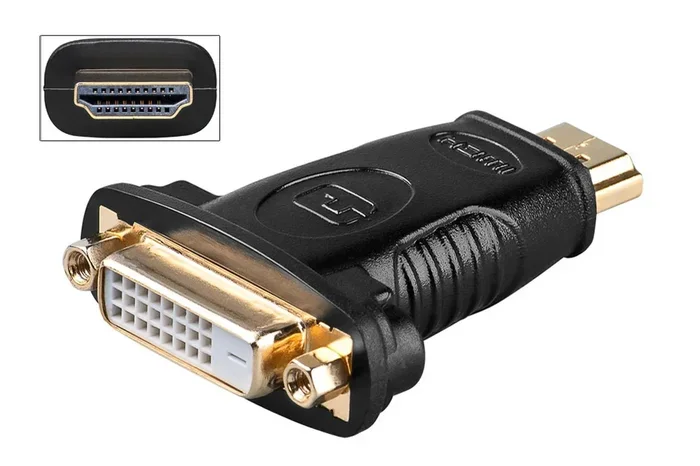
When you ask, can I plug HDMI into DVI port, the real answer involves using an HDMI to DVI adapter or a cable that has HDMI on one end and DVI on the other. These adapters convert the physical connection so your devices can communicate properly.
Passive vs Active Adapters
There are two main types of adapters you will come across. A passive adapter simply changes the shape of the connector. It does not change the signal. Most modern HDMI to DVI setups work perfectly with a passive adapter. This is the cheaper and more common option.
An active adapter contains chip circuitry to convert the signal. You might need an active adapter in rare cases where your graphics card outputs a specific type of signal that a passive adapter cannot handle. For most home users, a passive adapter will do the job just fine.
Here are some quick tips when choosing your adapter:
- Buy a reputable brand: Cheap adapters can cause signal drops or flickering.
- Check the DVI type on your monitor: This determines whether you need a DVI-D or DVI-I adapter.
- Go for gold-plated connectors: These resist corrosion and provide a more stable connection.
- Match your cable length to your setup: Longer cables can weaken the signal, so keep it as short as possible.
Types of DVI Ports and What They Mean
Not all DVI ports are the same. This is the most important thing to understand before buying an adapter. There are three main types of DVI connectors, and each one handles signals differently.
DVI-D (Digital Only)
DVI-D carries only a digital signal. This is the most common type you will find on modern monitors. When you plug an HDMI to DVI-D adapter into a DVI-D port, you get a clean digital video connection. This setup works great for most people.
If your monitor has a DVI-D port, you can use a simple HDMI to DVI-D cable or adapter. There is no signal conversion needed, which means the best possible picture quality for this setup.
DVI-A (Analog Only)
DVI-A carries only an analog signal. These ports are rare today and are mostly found on very old equipment. You cannot use a standard HDMI to DVI-A adapter because HDMI is entirely digital. You would need a digital-to-analog converter box, which is expensive and usually not worth it.
In most cases, if your monitor only has a DVI-A port, it is better to upgrade to a newer display that supports digital connections. The picture quality on DVI-A will not match what you get from HDMI or DVI-D.
DVI-I (Integrated Digital and Analog)
DVI-I supports both digital and analog signals. This is the most versatile type of DVI port. If your monitor has a DVI-I port, you can use either a DVI-D or DVI-A cable with it. For HDMI connections, a DVI-I port works perfectly with an HDMI to DVI adapter.
DVI-I ports are great because they give you flexibility. You can connect older analog devices or modern digital sources using the same port. If you are unsure which DVI type you have, look at the port shape. DVI-I has a flat pin surrounded by pins on both sides.
| DVI Type | Signal Type | Works with HDMI? | Common Use |
|---|---|---|---|
| DVI-D | Digital Only | Yes, with passive adapter | Modern monitors and graphics cards |
| DVI-A | Analog Only | No, needs converter | Very old displays |
| DVI-I | Digital and Analog | Yes, with passive adapter | Flexible setups and older hardware |
How to Connect HDMI to DVI Step by Step
Now that you know the basics, let us walk through the actual setup process. Connecting HDMI to DVI is straightforward and takes only a few minutes.
Step 1: Check Your Ports
Look at the back of your monitor or TV. Identify the type of DVI port you have. Is it DVI-D, DVI-A, or DVI-I? Take a photo or write it down. This tells you exactly which adapter you need to buy.
Next, check the HDMI output on your source device. Most laptops, desktops, and gaming consoles have standard HDMI ports. Make sure the port is not damaged or blocked by dust.
Step 2: Choose the Right Adapter or Cable
Based on your port type, select the appropriate HDMI to DVI adapter. For DVI-D and DVI-I ports, a simple passive adapter works. You can buy an HDMI to DVI cable which has HDMI on one end and DVI on the other. This saves you from using a separate adapter.
Here are some popular options:
- HDMI to DVI-D adapter: Best for most modern monitors with digital-only DVI ports.
- HDMI to DVI-I adapter: Works with DVI-I ports and gives you flexibility.
- Hybrid HDMI to DVI cable: All-in-one solution that avoids extra adapters.
Step 3: Connect the Cable
Plug the HDMI end into your source device. Plug the DVI end into the adapter, and then connect the adapter to your monitor. Make sure each connection is firm and secure. A loose connection is the most common reason for no signal or flickering.
Step 4: Configure Your Display Settings
Turn on your devices. On your computer, go to display settings and detect the second monitor. You can choose to extend or duplicate your screen. Adjust the resolution to match your monitor’s native resolution for the sharpest image.
Quick Tip: If the image looks blurry, go to your display settings and set the resolution to the recommended value for your monitor. This ensures the best possible picture quality.
Step 5: Handle Audio Separately
Remember that DVI does not carry audio. If you need sound, you have a few options. You can use your device’s headphone jack connected to external speakers. Or you can run a separate 3.5mm cable from your source to your speakers. Some soundbars also accept HDMI input directly.
This is the biggest limitation of HDMI to DVI connections. You get excellent video but no audio through the DVI cable. Plan your audio setup before you finalize your connection.
Common Problems and How to Fix Them
Even with the right adapter, you might run into issues. Here are the most common problems people face when connecting HDMI to DVI and how to solve them.
No Signal on the Monitor
This is the most frequent issue. First, check that all cables are firmly plugged in. A loose connection will cause a no-signal error. Next, make sure your monitor is set to the correct input source. Most monitors have a button or menu to switch between inputs.
If the problem continues, try a different adapter or cable. Sometimes the adapter itself is faulty. Also, restart both your source device and your monitor. A simple reboot often fixes detection issues.
Flickering or Intermittent Display
A flickering screen usually points to a loose or low-quality cable. Make sure the DVI connector is fully seated in the port. Try shortening your cable if it is very long. Cables over 6 feet can lose signal strength, especially at higher resolutions.
Another cause is an incompatible adapter. Make sure you are using the correct DVI type for your port. A DVI-D adapter will not work properly in a DVI-I port if the pin configuration does not match.
Low Resolution or Blurry Image
If your picture is not sharp, your resolution setting might be wrong. Go to your display settings and select the native resolution of your monitor. Also, check that your HDMI cable supports the resolution you want. Older HDMI cables may not handle 4K or even 1080p at higher refresh rates.
Some adapters only support single-link DVI, which limits resolution to 1920×1200. If you need higher resolution, make sure your adapter and cable support dual-link DVI.
Expert Tips for the Best HDMI to DVI Setup
Getting a good connection is about more than just plugging in cables. Here are some expert insights that will help you get the best results from your setup.
Match Your Hardware Capabilities
Check the specifications of both your graphics card and your monitor. Some older graphics cards may not support the full resolution that HDMI can deliver. Similarly, older monitors may cap out at 1080p even if you are using an HDMI source. Knowing your hardware limits helps you set realistic expectations.
Use High-Speed Cables
Not all cables are created equal. Look for cables labeled High Speed HDMI or Premium High Speed. These cables support higher resolutions and refresh rates. A cheap or old cable might work for basic use but could cause problems with demanding content like gaming or 4K video.
Keep Your Drivers Updated
Your graphics card drivers play a big role in display compatibility. Outdated drivers can cause detection problems or limit your resolution options. Always keep your drivers up to date, especially when setting up a new connection. Visit your GPU manufacturer’s website for the latest drivers.
Consider a Newer Display if Possible
If you find yourself struggling with adapters and cables, it might be time to upgrade. Modern monitors come with multiple HDMI and DisplayPort inputs. You get better picture quality, higher refresh rates, and built-in speakers. Sometimes the simplest solution is to invest in a newer display that eliminates the need for adapters altogether.
Label Your Cables
This might sound like a small thing, but it helps a lot. If you have multiple devices and cables, label them. You will save yourself time and frustration when troubleshooting. A simple piece of tape with “HDMI to DVI – Monitor 1” can make a big difference.
Key Takeaways
- HDMI and DVI can work together: You can connect an HDMI source to a DVI display using an adapter or a cable. The connection is simple and affordable.
- DVI-D and DVI-I ports support digital video: These are the best options for plugging in an HDMI cable. DVI-A does not work with HDMI without extra conversion.
- Audio does not carry over DVI: You will need a separate audio connection if your setup requires sound. Plan for this before finalizing your setup.
- Passive adapters work for most setups: Active adapters are only needed in specific scenarios. Check your port type to choose the right adapter.
- Resolution depends on your hardware: HDMI to DVI may limit your maximum resolution depending on the cable type and port capabilities.
- Check your port type first: Knowing whether you have DVI-D, DVI-A, or DVI-I saves time and prevents buying the wrong adapter.
- Use high-quality cables and adapters: This reduces signal loss, prevents flickering, and ensures a stable high-definition connection.
Conclusion
So, can I plug HDMI into DVI port? Absolutely yes, with the right adapter or cable. The process is simple, affordable, and works well for most setups. Whether you are connecting an older monitor to a new laptop or using a DVI projector with a modern streaming device, the HDMI to DVI connection gets the job done.
The key is to know your DVI port type, choose the right adapter, and handle audio separately if needed. Avoid the common mistakes we covered, and your setup should work smoothly from day one. If you run into any issues, go back through the troubleshooting tips and check your connections first.
With the right approach, you do not need to replace your monitor or graphics card just to get a better connection. A simple HDMI to DVI adapter bridges the gap between old and new technology. Now you have all the knowledge you need to make it work. Enjoy your display setup and happy connecting.
Frequently Asked Questions
Do I need an active or passive adapter for HDMI to DVI?
In most cases, a passive adapter is all you need. Passive adapters simply change the physical connector shape without converting the signal. You only need an active adapter if your graphics card outputs a specific signal that a passive adapter cannot handle, which is rare for typical home setups.
Will I lose video quality when using an HDMI to DVI adapter?
No, you should not lose any noticeable quality. Both HDMI and DVI-D carry digital signals, so the picture quality remains the same through a passive adapter. The only time quality might be affected is if you use a very long or low-quality cable, which can weaken the signal over distance.
Can I get audio through an HDMI to DVI connection?
No, DVI does not support audio. You will need to connect audio separately using a 3.5mm cable, Bluetooth speakers, or external speakers connected to your source device. This is the main limitation of using DVI instead of HDMI.
What is the maximum resolution I can get with HDMI to DVI?
It depends on your cable and adapter type. Single-link DVI supports up to 1920×1200, while dual-link DVI supports up to 2560×1600. Your HDMI source must also support the resolution you want. Most modern setups work well at 1080p and 1440p.
Can I use an HDMI to DVI adapter with a gaming console?
Yes, you can. Most gaming consoles like the PlayStation and Xbox output HDMI. You can connect them to a DVI monitor using an HDMI to DVI adapter. Just remember that you will not get audio through the DVI connection, so you need separate speakers or a sound system.
Are HDMI to DVI adapters expensive?
No, they are very affordable. A basic passive HDMI to DVI adapter or cable costs between $5 and $15. You do not need to spend a lot of money to get a reliable connection. Just avoid the cheapest no-name brands, as they may have poor build quality and cause signal issues.