Can I Plug A USB Camera Into My Phone For Streaming
Yes, you can plug a USB camera into your phone for streaming, but you need the right adapter and a compatible device. Whether you use an Android or iPhone, connecting an external camera can seriously upgrade your live streaming quality. This guide walks you through every step, from choosing the right OTG adapter to setting up your mobile streaming rig like a pro.
Have you ever wondered, can I plug a USB camera into my phone? Maybe you want to stream a gaming session, go live on social media, or just record better video content. Your phone’s built-in camera works fine for casual clips. But when you need pro-level quality, an external USB camera changes everything.
The good news is that it is absolutely possible. You can connect a USB camera to your phone and use it for streaming. But it is not always plug-and-play. You need the right adapter, the right app, and a little patience. This guide covers everything you need to know about plugging a USB camera into your phone for streaming.
Whether you are an Android user or an iPhone owner, this article has you covered. We will walk through the methods, the gear you need, and common pitfalls to avoid. By the end, you will know exactly how to set up your own USB camera phone streaming rig at home.
Key Takeaways
- USB cameras can connect to phones: You need an OTG adapter or a USB-C/Lightning adapter to make it work.
- Android offers more flexibility: Most Android phones support USB cameras directly with minimal setup.
- iPhone requires specific adapters: Apple’s Lightning or USB-C cameras need certified adapters for compatibility.
- Streaming apps matter: Apps like OBS, Camera Fi, and EpocCam help you use an external USB camera on your phone.
- Video quality improves dramatically: A USB camera gives you better resolution, low-light performance, and manual controls compared to your phone’s built-in camera.
- Pick the right adapter: Not all adapters are equal. Choose one that supports video input and matches your phone’s port.
- Power management is key: Some USB cameras draw too much power, so use a powered hub or a camera with its own power source.
📑 Table of Contents
- Why Plug a USB Camera Into Your Phone
- How to Connect a USB Camera to Your Phone
- Best Apps for Using a USB Camera on Your Phone
- Setting Up Your USB Camera for Phone Streaming
- Common Problems and How to Fix Them
- USB Camera vs. Phone Camera for Streaming
- Expert Tips for Better USB Camera Phone Streaming
- Is It Worth It
Why Plug a USB Camera Into Your Phone
Your phone camera is convenient. It is always with you. But convenience does not always mean quality. When you are streaming or recording content, the built-in camera often falls short. A USB camera gives you several advantages that make the effort worth it.
First, external cameras offer better image quality. A DSLR or mirrorless camera connected to your phone can produce stunning video. The colors are richer. The details are sharper. The low-light performance is miles ahead of most phone cameras.
Second, you get more control. With a USB camera, you can adjust settings manually. You control the aperture, shutter speed, and ISO. This level of control helps you create professional-looking streams. Your viewers will notice the difference immediately.
Third, it frees up your phone. When you use your phone camera for streaming, the phone handles everything. It gets hot. The battery drains fast. An external USB camera for phone streaming takes that load off your device.
Better Video Quality
Most phone cameras max out at 1080p or 4K. But the sensors inside phones are tiny. They struggle in low light. They produce grainy footage when the lighting is not perfect. A USB camera has a much larger sensor. This means cleaner images, even in dim rooms.
If you stream on platforms like YouTube, Twitch, or TikTok, video quality matters. Viewers expect crisp, clear footage. A USB camera helps you deliver that. It makes your stream look polished and professional.
More Creative Flexibility
With a USB camera, you can use different lenses. You can switch between wide-angle and telephoto. You can add filters or use special lenses for creative effects. This flexibility is hard to achieve with a phone camera alone.
You can also position the camera anywhere. Mount it on a tripod. Place it on a shelf. Angle it from above. The possibilities are endless when you are not tied to your phone’s fixed lens.
How to Connect a USB Camera to Your Phone
Now that you know why you should do it, let us talk about how. Connecting a USB camera to your phone involves a few steps. The exact process depends on your phone type and the camera you are using.
The most important piece of gear is the OTG adapter. OTG stands for On-The-Go. This small adapter lets your phone read data from USB devices. Without it, your phone cannot communicate with an external camera.
For Android Users
Android phones are the easiest to work with for USB camera phone streaming. Most modern Android devices support USB On-The-Go (OTG) natively. This means you can plug in a USB camera with minimal fuss.
Here is what you need to do. First, check if your phone supports OTG. Most phones made after 2018 do. You can verify this in your phone settings under the “Connected Devices” or “OTG” section.
Next, get the right adapter. If your camera uses a USB-A cable, you need a USB-A to USB-C adapter. If your phone has USB-C, that is the port you will use. Some cameras use micro-USB or mini-USB cables. You may need a different adapter for those.
Plug the adapter into your phone. Connect the camera to the adapter. Your phone should recognize the camera. You may see a notification asking you to allow USB access. Tap “Allow” or “OK” to proceed.
Now you need an app to use the camera as a video source. We will cover the best apps in the next section. But once you have the app open, your USB camera should appear as an available camera. Select it, and you are ready to stream.
For iPhone Users
iPhone users have a slightly different path. Apple uses Lightning ports on older models and USB-C on newer ones. The adapter situation is a bit more specific.
If you have a Lightning iPhone, you need a Lightning to USB 3 Camera Adapter. Apple makes this adapter, and it works well with most USB cameras. You can also use third-party adapters, but make sure they are MFi certified. MFi stands for Made for iPhone. Non-certified adapters may not work or could damage your phone.
If you have a USB-C iPhone, the process is similar to Android. You need a USB-C to USB-A adapter or a USB-C hub with a USB port. Plug in the camera, and your iPhone should detect it.
iPhone users also need a compatible app. Some apps work better on iOS than others. We will review the top options below.
What Adapter Do You Need
Choosing the right adapter is critical. A wrong adapter means a wasted effort. Here is a quick guide to help you pick the right one.
If your camera has a USB-A plug and your phone has USB-C, get a USB-A to USB-C adapter. If your phone has a Lightning port, get a Lightning to USB 3 Camera Adapter. For cameras that use micro-USB, you may need a micro-USB to USB-C adapter.
Some cameras, especially DSLRs, use HDMI output instead of USB. In that case, you need an HDMI capture card that connects to your phone. These capture cards plug into your phone’s USB-C port and accept an HDMI cable from the camera. They convert the HDMI signal into a digital video input your phone can use.
Quick Tip: Always check the adapter’s specifications before buying. Make sure it supports video input. Not all USB adapters handle video. Some are only for charging or data transfer.
Best Apps for Using a USB Camera on Your Phone
Once your camera is connected, you need an app to access it. Your phone’s default camera app usually does not recognize USB cameras. You need a specialized app that accepts external video sources.
Here are some of the best apps for mobile streaming with a USB camera.
Camera Fi Pro (Android)
Camera Fi Pro is one of the most popular apps for using USB cameras on Android. It supports a wide range of cameras, including DSLRs, mirrorless cameras, and webcams. The app gives you manual controls for focus, exposure, and white balance.
You can use Camera Fi Pro with streaming apps like Streamlabs or OBS Mobile. The app creates a virtual camera that your streaming software can access. This makes the setup process smooth and straightforward.
EpocCam (iOS and Android)
EpocCam is a great option if you want to use your DSLR or mirrorless camera as a webcam for your phone. It works over Wi-Fi or USB. The USB connection gives you lower latency and better stability.
EpocCam is available on both iOS and Android. It is especially popular among content creators who want a quick and easy setup. The free version works well for basic streaming. The paid version unlocks higher resolutions and more features.
OBS Studio and OBS Mobile
OBS Studio is the gold standard for streaming software. OBS Mobile brings this power to your phone. Both versions support external camera inputs, including USB cameras.
If you use OBS Mobile on Android, you can add your USB camera as a video source directly. On iOS, OBS Mobile works with camera apps that create virtual camera outputs. The setup takes a few extra steps, but the result is worth it.
Pro Camera Apps with USB Support
Some camera manufacturers make apps that support USB connectivity. Canon has Camera Connect. Sony has Imaging Edge. Nikon has SnapBridge. These apps let you control your camera from your phone and sometimes use the camera as a video source.
Check if your camera brand has an official app. This can simplify the setup process and give you access to camera-specific features.
Setting Up Your USB Camera for Phone Streaming
Now that you have the right gear and apps, it is time to set everything up. A proper setup makes a big difference in your stream quality. Follow these steps to get the best results.
Step-by-Step Setup Process
Here is a simple workflow you can follow.
- Connect the OTG adapter to your phone.
- Plug the USB camera into the adapter.
- Open your camera app or streaming app.
- Allow USB access when prompted.
- Select the USB camera as your video source.
- Adjust the camera settings for your streaming platform.
- Start your stream and test the video quality.
That is the basic process. But there are a few extra steps that can improve your experience significantly.
Adjusting Camera Settings
Once your USB camera is connected, spend a few minutes adjusting the settings. Set the resolution to match your streaming platform. Most platforms support 1080p at 30fps or 60fps. Set your frame rate accordingly.
Adjust the exposure manually. Auto-exposure can cause flickering during streams. Lock your exposure to a consistent level. This keeps your video stable and professional-looking.
Set the white balance based on your lighting. If you are streaming in a room with warm lights, set the white balance to match. This prevents weird color casts in your video.
Powering Your USB Camera
Some USB cameras draw a lot of power. When you connect them to your phone, the phone may not provide enough power. This can cause the camera to disconnect or malfunction.
To avoid this, use a powered USB hub. A powered hub has its own power source. It supplies enough power to the camera without draining your phone’s battery. This is especially important for DSLR cameras that need more power than a simple webcam.
Quick Tip: If you are using a battery-powered camera, make sure the battery is fully charged before your stream. Nothing is worse than your camera dying mid-stream.
Mounting and Positioning
How you position your USB camera matters a lot for stream quality. Use a sturdy tripod or a phone mount that holds the camera in place. Position the camera at eye level for a natural, engaging look.
If you are streaming yourself, place the camera about two to three feet away. This gives a nice framing of your face and upper body. Make sure the background is clean and not distracting.
Use a phone tripod mount if you want to hold your phone in one spot while the USB camera handles the video. This lets you focus on your content while the camera does the work.
Common Problems and How to Fix Them
Connecting a USB camera to your phone is not always smooth sailing. You may run into a few issues along the way. Here are the most common problems and how to solve them.
Phone Does Not Recognize the Camera
This is the most common issue. If your phone does not detect the camera, check a few things first. Make sure the OTG adapter is firmly plugged in. Try a different USB cable. The cable that came with your camera may not work well with adapters.
Also, check if your phone supports USB OTG. Some budget phones do not. In that case, you may need a different connection method, like an HDMI capture card.
Video Is Laggy or Low Quality
If your video looks choppy or pixelated, the issue is usually bandwidth. USB 2.0 connections have limited data transfer speeds. This can cause lag, especially at higher resolutions.
Try using a USB 3.0 adapter or cable if your camera and phone support it. This dramatically improves data transfer speed and reduces lag. Also, lower your streaming resolution if the problem persists.
Camera Disconnects During Streaming
A camera that keeps disconnecting is frustrating. This usually happens because of power issues. Your phone cannot supply enough power to the camera through the adapter.
Use a powered USB hub to fix this. The hub provides consistent power to the camera. Alternatively, use a camera with its own battery and keep it plugged in during streaming.
App Does Not Detect the USB Camera
Sometimes the connection is fine, but the app does not see the camera. This is usually an app compatibility issue. Make sure your app supports external USB cameras. Update the app to the latest version. Try a different app if the problem continues.
Some apps work better with specific camera brands. Check the app’s supported device list before you buy. This saves you time and frustration.
USB Camera vs. Phone Camera for Streaming
You might wonder if it is really worth the effort. After all, phone cameras have improved a lot. Why not just use the phone camera for streaming? Let us compare the two approaches.
| Feature | USB Camera | Phone Camera |
|---|---|---|
| Video Quality | Excellent, larger sensor | Good, but limited by small sensor |
| Low Light Performance | Much better | Average |
| Manual Controls | Full manual control | Limited manual options |
| Mobility | Less portable | Highly portable |
| Setup Complexity | Moderate | Very simple |
| Cost | Higher (camera + adapter) | No extra cost |
| Battery Drain | Low on phone | High on phone |
The table makes it clear. A USB camera wins on quality and control. But it costs more and takes more setup time. If you are serious about streaming, the investment pays off. If you are just doing casual streams, your phone camera may be enough.
Many streamers use both. They use the phone camera for quick, casual streams. And they switch to the USB camera for professional or high-quality streams. This gives them the best of both worlds.
Expert Tips for Better USB Camera Phone Streaming
Here are some expert tips to help you get the most out of your setup. These small tweaks can make a big difference in your stream quality.
Use a fast memory card in your camera. If you are recording to the camera’s SD card while streaming, a slow card can cause dropped frames. Use a UHS-I or UHS-II card for reliable performance.
Clean your camera lens. It sounds simple, but a smudged lens ruins video quality. Wipe the lens with a microfiber cloth before every stream.
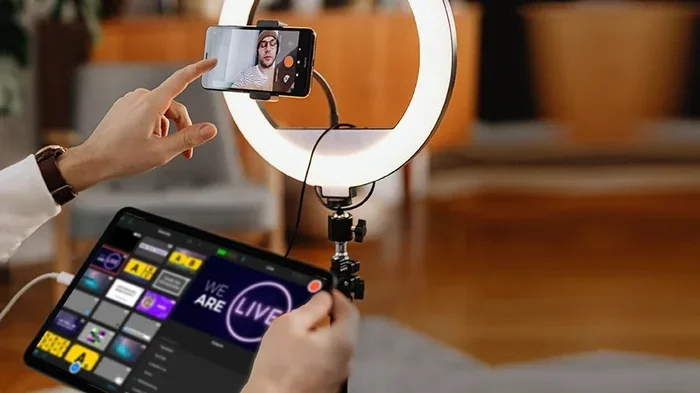
Use external lighting. Even the best camera struggles in poor lighting. A simple ring light or softbox can transform your video. Your USB camera will capture every detail when the lighting is right.
Test your setup before going live. Do a test stream or a test recording before your actual stream. This lets you catch any issues early. You can fix audio sync problems, adjust framing, and tweak settings.
Keep your phone cool. Streaming uses a lot of processing power. Phones can overheat during long streams. Use a phone cooling fan or keep your phone in a cool, ventilated spot.
Update your apps regularly. App updates often include bug fixes and performance improvements. Keeping your apps up to date ensures the smoothest possible experience.
Is It Worth It
So, can I plug a USB camera into my phone for streaming? Absolutely. The answer is a clear yes. You can connect a USB camera to your phone and use it for high-quality live streaming. The process requires an adapter, a compatible app, and a little setup time.
The question is whether it is worth the effort. For casual users, maybe not. But for content creators, streamers, and professionals, the upgrade is significant. Better video quality, more creative control, and less strain on your phone make it a worthwhile investment.
If you are just starting out, begin with a simple webcam and a basic OTG adapter. See how it works for you. Then upgrade to a DSLR or mirrorless camera if you want even better results. The beauty of this setup is that it is scalable. You can start small and build up as your needs grow.
Remember, the goal is to create content that looks great and engages your audience. A USB camera connected to your phone gives you the tools to do that. It levels up your streaming game without requiring a full studio setup.
Take action today. Pick up an OTG adapter, connect your USB camera, and start experimenting. You will be surprised at how easy it is and how much better your streams look. The world of mobile streaming is wide open when you bring an external camera into the mix.
Your phone is a powerful streaming device. But with a USB camera, it becomes something even more powerful. It becomes a portable production studio that fits in your bag. So go ahead, give it a try, and see what you can create.
Frequently Asked Questions
Can I plug any USB camera into my phone?
Not every USB camera works with every phone. Your phone needs to support USB On-The-Go (OTG). Most modern Android phones and newer iPhones do. You also need the right adapter. Check compatibility before buying a camera or adapter.
Do I need a special app to use a USB camera on my phone?
Yes, your phone’s default camera app usually does not support USB cameras. You need an app like Camera Fi Pro, EpocCam, or OBS Mobile. These apps recognize external USB cameras and let you use them as video sources for streaming.
Can I use a DSLR camera as a USB webcam for my phone?
You can, but it depends on your camera model. Some DSLRs support USB webcam mode natively. Others need a capture card or a third-party app. Check your camera’s manual or manufacturer website for USB streaming support.
Will plugging a USB camera drain my phone battery?
It can, but not as much as using your phone’s built-in camera for streaming. A USB camera takes the processing load off your phone. Using a powered USB hub helps reduce battery drain even further.
What is the best adapter for connecting a USB camera to a phone?
For Android phones, a USB-A to USB-C OTG adapter works well. For iPhones, use Apple’s Lightning to USB 3 Camera Adapter or a USB-C to USB-A adapter for newer models. Make sure the adapter supports video input.
Can I stream with a USB camera on both Android and iPhone?
Yes, you can stream with a USB camera on both platforms. Android phones generally offer easier setup. iPhones require specific certified adapters and compatible apps. Both platforms support USB camera streaming with the right gear.
=== CONCLUSION ===
Can I plug a USB camera into my phone for streaming? The answer is a resounding yes. You can transform your phone into a powerful streaming device with an external USB camera. The setup requires an OTG adapter, a compatible app, and a little patience. But the results are well worth the effort.
Your video quality improves dramatically. You gain manual controls that phone cameras simply cannot match. And your phone stays cooler and lasts longer during streams. Whether you are a beginner or an experienced streamer, a USB camera setup takes your content to the next level.
Start with the basics. Get the right adapter. Download a good app. Test your setup before going live. As you grow more comfortable, you can upgrade to better cameras and more advanced gear. The journey of USB camera phone streaming is one of constant improvement and creative exploration.
Now that you have all the information you need, it is time to take action. Plug in that USB camera, fire up your streaming app, and start creating. Your audience will thank you for the quality. And you will enjoy the process even more. Happy streaming.