Can I Really Leave USB Hub Plugged In All the Time
The short answer is yes, you can leave a USB hub plugged in all the time, but there are a few things to keep in mind. Leaving it connected 24/7 is generally safe for modern hubs and devices, though it may cause slight power drain or heat buildup. Following simple tips like using a quality hub and avoiding overloaded ports will keep your setup running smoothly.
Key Takeaways
- It’s generally safe: Modern USB hubs are built to handle continuous use without damage.
- Watch for heat: Keep the hub ventilated and avoid overloading it to prevent overheating.
- Self-powered hubs are better: They provide stable power and reduce strain on your computer.
- Unplug during storms: A surge protector adds an extra layer of safety.
- Check your devices: Some peripherals draw power even when idle, so be mindful of total wattage.
- Use quality cables: Good cables reduce resistance and help with efficient charging and data transfer.
📑 Table of Contents
- Can I Leave USB Hub Plugged In All The Time?
- What Happens When You Leave a USB Hub Plugged In?
- Understanding USB Hub Power: Self-Powered vs. Bus-Powered
- Is It Safe for Your Connected Devices?
- When Leaving It Plugged In Makes Sense
- Potential Risks and How to Avoid Them
- Best Practices for 24/7 USB Hub Use
- Conclusion
Can I Leave USB Hub Plugged In All The Time?
Can I Leave USB Hub Plugged In All The Time? That’s a question many people ask, especially with the growing number of USB devices in our homes and offices. The simple answer is yes, you can. Most modern USB hubs are built to handle continuous use. They won’t explode or catch fire if you leave them connected 24/7. However, there are a few things you should know to keep your setup safe and efficient. In this guide, I’ll walk you through what happens when a hub stays powered on, the risks involved, and the best practices to follow.
You might wonder why anyone would ask this question. After all, USB hubs sit quietly on your desk, often out of sight. They just sit there, humming along while you work, charge your phone, or connect external drives. It’s easy to forget they’re even there. But ignoring them can sometimes lead to problems. Heat buildup, power drain, and port overload are real issues. The good news is that with a little care, you can keep your hub running non-stop without worry. Let’s dive into the details.
What Happens When You Leave a USB Hub Plugged In?
Leaving a USB hub plugged in means it draws a small amount of power at all times. Even when no devices are connected, the hub uses electricity to maintain its internal circuitry. This is called standby power. It’s a tiny amount, but it adds up over weeks and months. You might see a slight increase in your electricity bill, though it’s usually negligible.
The Standby Power Draw
Most USB hubs draw between 0.5 watts and 2 watts when idle. That’s less than a night-light. Over a full year, that might cost you a few dollars. So the energy cost is not a big deal. But standby power isn’t the only thing to consider. The hub’s components stay active, which means they generate a small amount of heat. In a well-ventilated area, this heat dissipates easily. But if the hub is buried under papers or tucked in a tight space, that heat can build up.
Heat is the enemy of electronics. Prolonged exposure to high temperatures can shorten the lifespan of a USB hub. It can also cause the hub to throttle data speeds or drop connected devices. If you notice your hub getting warm to the touch, that’s a sign to check its surroundings. A quick tip: give your hub some breathing room. Don’t stack books or other objects on top of it.
Heat Buildup and Safety
When a USB hub stays plugged in, its internal power regulation circuits work continuously. This is normal. But if the hub is low-quality or overloaded, the heat can become excessive. Cheap hubs often lack proper thermal protection. They might shut down unexpectedly or, in rare cases, pose a fire risk. This is why buying a reputable brand matters. Look for hubs that have built-in over-current protection and heat dissipation features.
You might also notice a faint hum or smell from a hub that’s been on for a long time. A slight smell of plastic is normal when a hub is new. But if the smell gets stronger or you see discoloration, unplug it immediately. These are signs of a failing component. Safety should always come first.
Understanding USB Hub Power: Self-Powered vs. Bus-Powered
Not all USB hubs are the same. The way they get power makes a big difference when you leave them plugged in all the time. There are two main types: bus-powered and self-powered hubs. Knowing which one you have helps you understand the risks and benefits of 24/7 use.
Bus-Powered Hubs
A bus-powered hub draws all its power from the host device, usually your computer. It uses the USB port’s power to run the hub and charge connected devices. This is fine for simple setups with a keyboard, mouse, or flash drive. But bus-powered hubs have a limit. They can only supply a certain amount of wattage. If you plug in too many power-hungry devices, the hub might not work properly.
When a bus-powered hub is left plugged in, it constantly pulls power from your computer. Even when idle, it uses a small amount of your computer’s power budget. This can be a problem if you have many hubs or if your computer’s USB ports are already strained. For most people, this is not an issue. But if you notice your laptop battery draining faster, the hub might be a culprit.
Self-Powered Hubs
A self-powered hub has its own power adapter. It plugs into a wall outlet and provides its own electricity. This is the best choice for 24/7 use. Because it doesn’t rely on your computer’s power, it can deliver stable voltage to all connected devices. Self-powered hubs are ideal for external hard drives, printers, and charging stations. They run cooler and are less likely to cause issues with your computer.
If you plan to leave a USB hub plugged in all the time, a self-powered model is the way to go. It takes the load off your computer and ensures your devices get consistent power. The trade-off is that you need a wall outlet nearby. But that’s a small price for peace of mind.
| Feature | Bus-Powered Hub | Self-Powered Hub |
|---|---|---|
| Power Source | Draws power from computer USB port | Uses its own AC adapter |
| Best For | Light use (keyboard, mouse, flash drive) | Heavy use (hard drives, printers, multiple devices) |
| 24/7 Safety | Generally safe but may strain computer | Very safe and stable |
| Heat Output | Lower, but depends on connected devices | Higher, but better cooling design |
| Cost | Usually cheaper | Slightly more expensive |
Is It Safe for Your Connected Devices?
One of the biggest concerns people have is whether leaving a USB hub plugged in will damage their devices. The short answer is no. Modern USB devices are designed to handle constant power. When you plug a phone or an external drive into a hub that’s always on, the device simply draws the power it needs. It won’t overcharge or get fried.
How Hubs Handle Power Delivery
USB hubs regulate the power they send to each port. They follow the USB specification, which limits the voltage and current. A standard USB 3.0 port delivers up to 900 milliamps. A USB-C port can deliver much more, but the hub manages that safely. So even if you leave the hub on, your devices will only get the power they are designed to accept.
However, there is a nuance. Some devices, like certain external hard drives, draw more power when they spin up. If the hub can’t supply enough current, the drive might disconnect or fail to mount. This is more common with bus-powered hubs. A self-powered hub avoids this problem. It has the headroom to handle power spikes without dropping devices.
Device Charging and Data Transfer
Leaving a hub plugged in doesn’t interfere with data transfer. Your files will sync normally, whether the hub is on or off. In fact, keeping it always on means your devices are ready to connect instantly. You don’t have to wait for the hub to boot up. This is especially useful for peripherals like printers and scanners that you use throughout the day.
When it comes to charging, a constantly powered hub ensures your phones and tablets are always ready to charge. You can plug them in and walk away. Just make sure the hub supports the charging speed you need. Some hubs charge at 5 watts, while others support fast charging at 18 watts or more. Check the specs before you buy.
When Leaving It Plugged In Makes Sense
There are many situations where keeping a USB hub connected all the time is not just safe, but actually convenient. Let’s look at a few common setups.
Home Office Setups
If you work from home, a USB hub is often a permanent part of your desk. You might have a keyboard, mouse, webcam, headset, and a printer all connected through one hub. Unplugging and replugging all of these every day would be a hassle. Leaving the hub powered on saves time and keeps everything ready. As long as the hub is from a good brand, it will handle the constant load just fine.
In a home office, the hub often sits on a desk or a shelf with good airflow. This reduces the risk of heat buildup. You might also use a surge protector to guard against power spikes. A surge protector is a cheap and easy way to add safety. It absorbs voltage spikes from lightning or grid fluctuations, protecting your hub and all connected devices.
Entertainment Centers
Many people use USB hubs in their entertainment setups. You might have a hub connected to a TV or stereo, powering streaming sticks, soundbars, or game controllers. In this case, you want the hub to be always ready. You don’t want to wait for it to initialize every time you sit down to watch a movie. Leaving it plugged in makes perfect sense here.
Just be mindful of the devices you connect. A hub that stays on 24/7 might keep a game controller’s battery in a constant state of trickle charge. This is fine for most modern controllers, but it can slightly reduce battery lifespan over many years. If you’re concerned, you can unplug the controller when not in use for long periods.
Potential Risks and How to Avoid Them
While leaving a USB hub plugged in is generally safe, there are a few risks to be aware of. Understanding these risks helps you take simple steps to prevent problems.
Overloading Ports
The most common mistake is plugging too many devices into a single hub. Each port has a power limit. If you exceed that limit, the hub might shut down or reset. Over time, frequent overloads can damage the hub’s internal circuitry. To avoid this, check the total wattage of your connected devices. A quick way to do this is to add up the power requirements listed on each device’s charger or adapter.
If you need to connect many power-hungry devices, use a self-powered hub with a strong power adapter. A 100-watt self-powered hub can handle multiple hard drives and chargers without breaking a sweat. Never rely on a single bus-powered hub for a heavy workload.
Power Surges and Electrical Issues
Even though a USB hub uses very little power, a nearby lightning strike or power surge can fry it instantly. The surge travels through the wall outlet and into the hub’s power adapter. To protect your hub, always plug it into a surge protector. A surge protector is not the same as a power strip. A surge protector has built-in components that absorb excess voltage. Look for one with a joule rating of at least 1000.
Another risk is loose outlets. If your hub’s plug doesn’t fit snugly in the wall outlet, it can spark or overheat. Check the outlet and the plug for damage. If the plug is loose, don’t use that outlet. Replace it or use a different one. Safety is always worth the extra attention.
Best Practices for 24/7 USB Hub Use
Now that you know the risks and benefits, here are some best practices to follow if you plan to leave your USB hub plugged in all the time. These tips will keep your setup safe, cool, and reliable.
Choose the Right Hub
Not all hubs are created equal. When buying a hub for constant use, look for these features:
- Self-powered design: It comes with its own AC adapter.
- Over-current protection: The hub shuts down a port if it draws too much power.
- Heat dissipation: Metal housings or ventilation slots help keep the hub cool.
- Reputable brand: Stick with well-known brands that have good reviews and warranty support.
- USB 3.0 or newer: These hubs are more efficient and generate less heat than older USB 2.0 hubs.
Spending a little more on a quality hub pays off in the long run. A cheap hub might save you $10 now, but it could cost you $50 in damaged devices later. Invest in reliability.
Cable Management and Ventilation
Where you place your hub matters. Don’t shove it behind a monitor or under a stack of papers. Give it space to breathe. A clear area around the hub allows air to circulate and carry away heat. If your hub has a fan, make sure the fan vents are not blocked.
Use cable ties or velcro straps to keep the cables neat. Loose cables can snag and pull on the hub’s ports, which loosens the connection over time. A tidy setup also makes it easier to spot problems early. If you see a cable fraying or a port looking loose, address it right away.
Here’s a simple checklist you can follow every month:
- Unplug the hub and check for dust buildup. Use a can of compressed air to clean the vents.
- Inspect all cables for fraying or damage.
- Test each port with a known working device.
- Make sure the hub’s power adapter is firmly plugged in.
- Verify that the hub is not unusually hot to the touch.
Following these steps takes just a few minutes. It can extend the life of your hub by years. It also gives you peace of mind that your always-on setup is running safely.
Conclusion
So, can I leave a USB hub plugged in all the time? Yes, absolutely. For most people, keeping the hub connected 24/7 is perfectly safe and highly convenient. The key is to use a quality self-powered hub, avoid overloading the ports, and give the hub some breathing room. With these simple habits, your hub will run smoothly for years without any issues.
Remember that standby power draw is minimal, and modern devices are designed to handle constant connection. The real risks come from cheap hubs, poor ventilation, and electrical surges. By choosing the right equipment and following the best practices outlined above, you can enjoy the benefits of an always-ready USB setup without worry. Keep your hub cool, keep it clean, and it will keep your devices connected whenever you need them.
Frequently Asked Questions
Will leaving a USB hub plugged in all the time increase my electricity bill?
The standby power draw of a USB hub is very low, usually under 2 watts. Over a month, this costs less than a dollar. So it will not noticeably increase your electricity bill. If you want to save even that small amount, you can unplug the hub when you’re away for days.
Can a constantly powered USB hub damage my connected devices?
No, modern USB devices are designed to handle continuous power. The hub regulates voltage and current, so your devices only draw what they need. As long as the hub is from a reputable brand, it will not damage your devices. The risk comes from cheap, unregulated hubs that might deliver unstable power.
Is it better to unplug a USB hub when not in use?
For most people, it’s not necessary. Unplugging every day can wear out the port and the cable over time. If you live in an area with frequent lightning storms, unplugging during a storm is a good idea. Otherwise, leaving it plugged in is perfectly fine and more convenient.
How can I tell if my USB hub is overheating?
Touch the hub gently. If it’s just warm, that’s normal. If it’s too hot to touch comfortably, it’s overheating. Other signs include the hub shutting down randomly, a burning smell, or devices disconnecting frequently. Move the hub to a cooler, well-ventilated area and reduce the load on its ports.
Do USB hubs use power when no devices are connected?
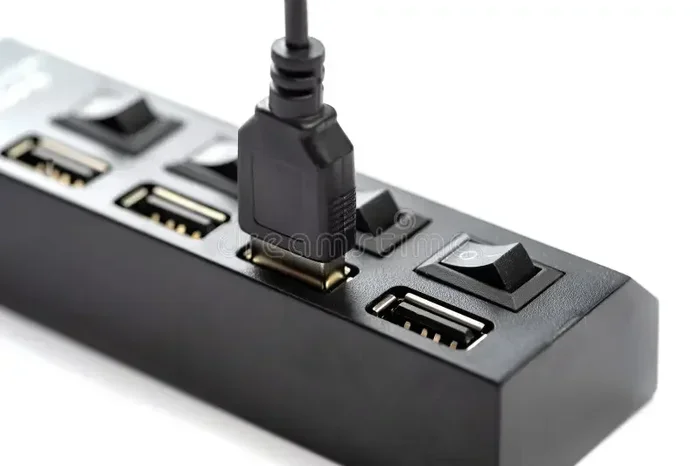
Yes, they do. Even with no devices attached, the hub’s internal circuitry uses a small amount of power to stay active. This is called idle power draw. It’s very small, but it’s not zero. If you want to eliminate this draw completely, you need to unplug the hub or use a hub with a physical power switch.
Can I leave a USB hub plugged in overnight?
Absolutely. Leaving a USB hub plugged in overnight is safe. In fact, many people use hubs to charge devices overnight. Just make sure the hub has over-current protection and is placed in a well-ventilated area. Avoid covering the hub with fabric or other materials that could trap heat.