Can I Daisy Chain With Hdmi And Vga For Multiple Displays
You can daisy chain with HDMI and VGA for multiple displays, but each method works very differently. HDMI supports daisy chaining through DisplayPort over HDMI or MST hubs, while VGA typically requires a splitter rather than a true daisy chain. Understanding these differences helps you set up multiple displays without signal loss or configuration headaches.
Key Takeaways
- HDMI daisy chaining is possible: Using MST-compatible devices or DisplayPort alternate mode, you can connect multiple monitors through a single HDMI port.
- VGA daisy chaining is limited: VGA does not natively support daisy chaining. You typically need a VGA splitter to extend your display.
- Signal quality matters: Each additional connection point can introduce signal degradation, especially with VGA cables over long distances.
- Your graphics card must support it: Not all GPUs handle multi-display setups the same way. Check your hardware before buying cables or adapters.
- Adapters and converters bridge the gap: HDMI-to-VGA adapters let you mix connection types, but they add complexity to your setup.
- DisplayPort MST hubs are the best solution: For reliable daisy chaining, a DisplayPort MST hub offers the most stable multi-monitor experience.
📑 Table of Contents
- Can You Daisy Chain With HDMI and VGA For Multiple Displays?
- What Does Daisy Chaining Mean for Monitors?
- How HDMI Daisy Chaining Works
- How VGA Daisy Chaining Works
- HDMI vs VGA Daisy Chaining: Key Differences
- Step-by-Step Guide to Setting Up Multiple Displays
- Common Mistakes When Daisy Chaining Displays
- Expert Tips for the Best Multi-Display Experience
- Key Takeaways
- Frequently Asked Questions
- Conclusion
Can You Daisy Chain With HDMI and VGA For Multiple Displays?
Setting up multiple displays can feel confusing. You plug in cables, stare at your screen, and wonder why nothing works. The question can I daisy chain with HDMI and VGA comes up all the time, and for good reason. Many people want to extend their workspace without buying extra ports or expensive hardware.
The short answer is yes, but with important caveats. HDMI and VGA handle multi-display setups in very different ways. HDMI offers more flexibility, while VGA has limitations that can frustrate even experienced users. This guide walks you through everything you need to know about daisy chaining with HDMI and VGA for multiple displays. You will learn how each connection type works, what gear you need, and how to avoid common setup mistakes.
What Does Daisy Chaining Mean for Monitors?
Before diving into cables and ports, let us clarify what daisy chaining actually means. Daisy chaining connects multiple devices in a sequence, where one device links to the next. Think of it like a chain of paper dolls. The first monitor receives a signal from your computer. It then passes that signal to the second monitor. The second monitor passes it to a third, and so on.
This is different from using a splitter. A splitter copies the same signal to multiple screens. Daisy chaining lets you extend your desktop across several displays. Each monitor shows a different part of your workspace. This matters a lot when you are comparing HDMI daisy chaining versus VGA daisy chaining approaches.
Why People Want Multiple Displays
Multiple screens boost productivity. You can have email open on one screen while working on a document on another. Gamers enjoy wider field views. Designers spread their tools across several canvases. Whatever your reason, understanding how to connect them properly saves time and money.
How HDMI Daisy Chaining Works
HDMI is one of the most common audio and video connections today. But HDMI itself does not natively support daisy chaining in the traditional sense. Instead, you need specific hardware or protocols to make it work. Let us break this down.
DisplayPort Over HDMI
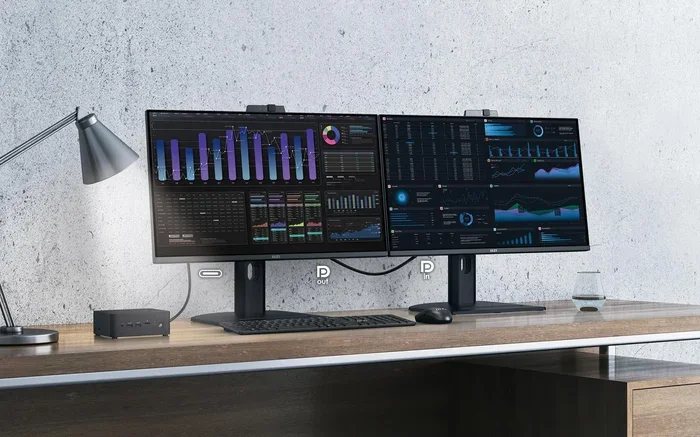
Some monitors use DisplayPort signaling through HDMI connectors. This is called DisplayPort Alternate Mode. When a monitor supports this, it can receive a signal and pass it along to the next monitor. This creates a true daisy chain. You connect your computer to Monitor A, then connect Monitor A to Monitor B with a single cable.
Not all HDMI ports support this. You need monitors and graphics cards that explicitly handle DisplayPort over HDMI. Check your device specifications before assuming it works. Look for terms like “MST capable” or “DisplayPort 1.2 compatible” in the product manual.
MST Hubs and HDMI
An MST hub is a small device that splits one display connection into multiple outputs. You plug the MST hub into your computer or laptop. Then you connect several monitors to the hub. This is not a pure daisy chain, but it achieves the same result. You get multiple screens from one port.
MST hubs work best with DisplayPort and USB-C connections. Some HDMI MST adapters exist, but they are less common. When shopping for an MST hub, make sure it matches your port type. A mismatch means you will need an adapter on top of the hub, which can cause signal issues.
HDMI Splitters Versus Daisy Chains
People often confuse HDMI splitters with daisy chains. A splitter duplicates the same image on all screens. A daisy chain extends your desktop across screens. If you want to extend your display, a splitter will not help. You need an MST hub or a monitor that supports HDMI daisy chaining natively.
| Feature | HDMI Daisy Chain | HDMI Splitter |
|---|---|---|
| Signal Type | Extended desktop | Mirrored display |
| Hardware Needed | MST hub or MST-capable monitor | HDMI splitter box |
| Port Usage | One output per monitor | One input, multiple outputs |
| Best For | Productivity and multitasking | Presentations and mirrored content |
How VGA Daisy Chaining Works
VGA is an older analog connection standard. It has been around since the 1980s. Many people still have VGA cables lying around, and older monitors and projectors use them. But VGA has significant limitations when it comes to daisy chaining with HDMI and VGA setups.
The VGA Limitation
VGA does not support daisy chaining natively. The analog signal it carries cannot be passed from one monitor to the next in a chain. Each VGA monitor needs a direct connection to the computer or a signal source. This means you need multiple ports on your graphics card, or you need a different solution.
What people sometimes call “VGA daisy chaining” is really a VGA splitter setup. A VGA splitter takes one signal and sends it to two or more monitors. But again, this mirrors the display. It does not extend it. If you want separate screens, VGA alone will not get you there.
Using VGA Splitters
A VGA splitter is a small box with one input and multiple outputs. You connect your computer to the splitter, then run VGA cables from the splitter to each monitor. All screens show the same image. This works fine for presentations or sharing content on a big screen. But it falls short for extended desktop use.
VGA splitters are cheap and widely available. You can find them for under twenty dollars online. They are easy to set up and require no software. But the image quality can degrade with each split, especially over long cable runs. Analog signals are more prone to interference than digital ones.
Converting VGA to HDMI for Better Results
One workaround is to convert VGA to HDMI using an adapter. This lets you connect a VGA monitor to an HDMI port on a modern device. Some adapters include built-in signal conversion that improves image quality. You can then use HDMI-based daisy chaining methods on the converted side.
However, this approach has trade-offs. The VGA side still carries an analog signal. You may notice color shifts or blurriness compared to a pure digital connection. Also, the adapter adds another point of potential failure in your setup. Keep your cables short and your adapters high quality for the best results.
HDMI vs VGA Daisy Chaining: Key Differences
Understanding the difference between HDMI and VGA for multi-display setups is crucial. They are fundamentally different technologies, and each has strengths and weaknesses.
Signal Type
HDMI carries a digital signal. This means crisp, clear images with no analog degradation. VGA carries an analog signal. Over long cable runs, VGA signals can lose quality, resulting in ghosting or blurry text. For daisy chaining multiple displays, digital signals hold up much better across connections.
Audio Support
HDMI carries both video and audio through a single cable. VGA carries video only. If you need sound to your monitors, HDMI is the clear winner. With VGA, you need a separate audio cable or connection. This adds clutter and complexity to your setup.
Resolution Capabilities
HDMI supports high resolutions including 4K and even 8K on newer versions. VGA maxes out at around 2048×1536 in practice, and that is with short, high-quality cables. If you want sharp text and vibrant colors on multiple screens, HDMI delivers a far superior experience.
Distance and Cable Length
HDMI signals can travel up to 50 feet without significant loss, especially with active cables. VGA signals degrade more quickly over distance. Beyond 15 feet, you may start noticing quality issues. For large offices or setups where monitors sit far from the computer, HDMI is the better choice for reliable display connectivity.
| Feature | HDMI | VGA |
|---|---|---|
| Signal Type | Digital | Analog |
| Max Resolution | Up to 8K (HDMI 2.1) | Up to 2048×1536 |
| Audio Support | Yes | No |
| Daisy Chain Support | Yes (with MST/DP Alt Mode) | No native support |
| Max Cable Length | ~50 feet | ~15 feet (reliable) |
| Cost | Moderate | Low |
| Best Use Case | Extended multi-monitor setups | Mirrored displays and legacy systems |
Step-by-Step Guide to Setting Up Multiple Displays
Now that you understand the differences, let us walk through setting up your multi-monitor display. Whether you are using HDMI, VGA, or a mix of both, the principles remain similar.
Step 1: Check Your Graphics Card
Before buying any cables, check your graphics card. Open your device manager or system settings. Look for the number of display outputs available. Most modern GPUs have at least two or three outputs. Some have four or more. If you are short on ports, you will need a hub or adapter.
Also check if your GPU supports MST (Multi-Stream Transport). This is essential for true daisy chaining. You can usually find this information on the manufacturer website or in the product specifications. Without MST support, your options for extending your desktop are more limited.
Step 2: Choose Your Connection Type
Decide whether you will use HDMI, VGA, or a combination. For the best experience, HDMI is strongly recommended. It supports higher resolutions, carries audio, and works with MST hubs for daisy chaining. If you must use VGA, plan for a splitter or adapter setup.
If your monitors have different port types, you will need adapters. For example, if your computer has HDMI outputs but one monitor only has VGA, grab an HDMI-to-VGA adapter. These are inexpensive and widely available. Just remember that the VGA side will always be limited by its analog nature.
Step 3: Connect Your Monitors
Start with your primary monitor. Connect it directly to your computer using the best available cable. If you are using an MST hub, connect the hub to your computer first, then connect each monitor to the hub.
For a true daisy chain with HDMI, connect Monitor A to your computer, then connect Monitor B to Monitor A’s output port. Repeat for any additional monitors. Make sure each cable is firmly seated. Loose connections are a common source of display problems.
Step 4: Configure Display Settings
Once everything is physically connected, configure your display settings. On Windows, right-click your desktop and select Display Settings. On macOS, go to System Preferences and click Displays. You should see all connected monitors listed.
Arrange the monitors to match their physical layout on your desk. Drag and drop the display icons to match left-to-right positioning. Choose whether to extend or mirror your desktop. For productivity, extending the desktop is almost always the better choice.
Step 5: Test and Adjust
Open a few windows and drag them across screens. Check for any flickering, color issues, or signal drops. If you notice problems, try shorter cables or different ports. Sometimes simply unplugging and replugging a cable fixes connection issues.
Update your graphics drivers if you experience any glitches. Outdated drivers are a surprisingly common cause of multi-monitor problems. A quick update can resolve many display issues instantly.
Common Mistakes When Daisy Chaining Displays
Even with the right gear, people make mistakes that cause frustration. Here are the most common pitfalls to avoid when setting up your daisy chain with HDMI and VGA configuration.
Using the Wrong Cable Type
Not all HDMI cables are created equal. A standard HDMI cable may not support the bandwidth needed for high resolutions or daisy chaining. Look for High Speed HDMI cables or Premium High Speed cables for best results. Using an old or cheap cable can cause signal drops and display errors.
Ignoring Adapter Quality
Cheap adapters are a leading cause of display problems. They may not properly convert the signal, leading to color distortion, low resolution, or no signal at all. Invest in quality adapters from reputable brands. A ten-dollar adapter from a trusted manufacturer is better than a two-dollar no-name product.
Overlooking Power Requirements
Some monitors in a daisy chain need external power. If a monitor does not have its own power supply, it may rely on the daisy chain for power. This can cause instability. Always check if your monitors need separate power connections, especially in larger setups.
Setting Up in a Noisy Electrical Environment
VGA cables are particularly sensitive to electromagnetic interference. Keep VGA cables away from power cords and large speakers. Use shielded cables whenever possible. For HDMI, keep cables away from strong magnetic sources as well.
Forgetting to Update Drivers
Your operating system and graphics drivers need to recognize all connected displays. Outdated drivers may not support multi-monitor configurations properly. After setting up, always check for driver updates from your GPU manufacturer’s website.
Expert Tips for the Best Multi-Display Experience
Here are some practical tips from experienced users and IT professionals who set up multi-monitor systems regularly.
First, keep your cable runs as short as possible. Shorter cables mean stronger signals and fewer points of failure. If you must run cables longer than 15 feet, consider active cables or signal boosters. These devices amplify the signal and prevent degradation.
Second, label your cables. In a multi-monitor setup, it is easy to lose track of which cable goes where. Use small labels or color-coded cable ties. This saves time when troubleshooting issues later.
Third, use the same type of connection for all monitors when possible. Mixing HDMI and VGA can create subtle differences in image quality and timing. Your eyes may not notice at first, but inconsistency can cause eye strain over long work sessions.
Fourth, consider a docking station. USB-C docking stations with DisplayPort outputs offer a clean, centralized way to connect multiple monitors. They eliminate cable clutter and make it easy to connect and disconnect your entire setup with one plug.
Finally, test one monitor at a time. When setting up a new multi-display configuration, connect and test each monitor individually before connecting them all together. This helps you isolate problems quickly and identify which cable or port is causing issues.
Key Takeaways
- HDMI supports daisy chaining through MST hubs and DisplayPort Alternate Mode: This is the most reliable way to connect multiple displays from a single port.
- VGA does not natively support daisy chaining: You need a splitter for mirrored displays or adapters to convert to HDMI for extended desktop use.
- Digital signals outperform analog signals for multi-monitor setups: HDMI delivers sharper images, better colors, and longer cable runs than VGA.
- Your graphics card must support multi-display output: Check for MST capability and sufficient ports before purchasing additional hardware.
- Quality adapters and cables make a big difference: Cheap accessories are the number one cause of display problems in multi-monitor setups.
- Mixing HDMI and VGA is possible but not ideal: Use adapters when necessary, but aim for a consistent connection type across all monitors.
Frequently Asked Questions
Can I daisy chain two monitors using only HDMI cables?
Yes, but only if your monitors and graphics card support DisplayPort Alternate Mode over HDMI or MST. Not all HDMI monitors have a downstream output for daisy chaining. Check your monitor’s manual for a term like “HDMI out” or “MST capability.” Without this feature, you will need a separate HDMI port on your computer for each monitor.
Can I connect a VGA monitor to an HDMI daisy chain setup?
Yes, you can mix VGA and HDMI monitors using an HDMI-to-VGA adapter. Connect the adapter between your HDMI output and the VGA monitor. Keep in mind that the VGA monitor will be limited by its analog signal quality. The adapter adds a conversion step that can slightly reduce image sharpness compared to a pure HDMI connection.
Do I need a special graphics card for daisy chaining?
Not necessarily, but it helps. Most modern graphics cards support multiple displays. For true daisy chaining, you need a GPU that supports MST (Multi-Stream Transport). Many NVIDIA and AMD cards from the last several years include this feature. Check your GPU specifications online to confirm before buying adapters or hubs.
Why does my VGA display look blurry when daisy chained?
VGA is an analog connection, and analog signals degrade over distance and through multiple connection points. Blurriness often comes from long cables, poor-quality adapters, or signal interference. Try shortening your cable runs, using shielded cables, or replacing your VGA adapter with an HDMI-to-VGA converter for better signal quality.
Can I use a USB-C to HDMI adapter for daisy chaining?
Yes, if your USB-C port supports DisplayPort Alt Mode. Many modern laptops and tablets have USB-C ports that can output display signals. A USB-C to HDMI adapter or hub can connect to an MST hub, allowing you to daisy chain multiple HDMI monitors from a single USB-C port. Check your device’s specifications to confirm DP Alt Mode support.
What is the maximum number of monitors I can daisy chain?
This depends on your graphics card and the MST standard you are using. Most MST hubs support between two and four monitors. Some high-end MST docks can handle six or more. Your GPU must also have enough processing power and memory to drive all displays at your desired resolution. Check both your hub and GPU specifications for the exact maximum.
Conclusion
Daisy chaining with HDMI and VGA for multiple displays is absolutely possible, but each technology has its own strengths and limitations. HDMI offers the most flexibility and the best image quality for modern setups. It supports true daisy chaining through MST hubs and DisplayPort Alternate Mode. VGA, while still useful for older equipment, lacks native daisy chaining and is best suited for mirrored displays or legacy systems.
If you are building a new multi-monitor workspace, prioritize HDMI connections wherever possible. Invest in quality cables, a reliable MST hub, and a graphics card that supports multi-display output. If you must use VGA, pair it with a good converter or adapter to get the best possible results.
Remember that every connection point is a potential weak link in your setup. Keep cables short, adapters high quality, and drivers up to date. With the right approach, you can enjoy a smooth, productive multi-monitor experience without the frustration of signal drops or configuration headaches. Start with these tips today, and you will be up and running with your multiple display setup in no time.