Can I Connect My Phone to My Epson Printer Wirelessly
Yes, you can connect your phone to your Epson printer wirelessly using several simple methods. This guide covers Epson iPrint, Wi-Fi Direct, Apple AirPrint, and more. You’ll learn step-by-step how to print photos, documents, and web pages straight from your smartphone or tablet.
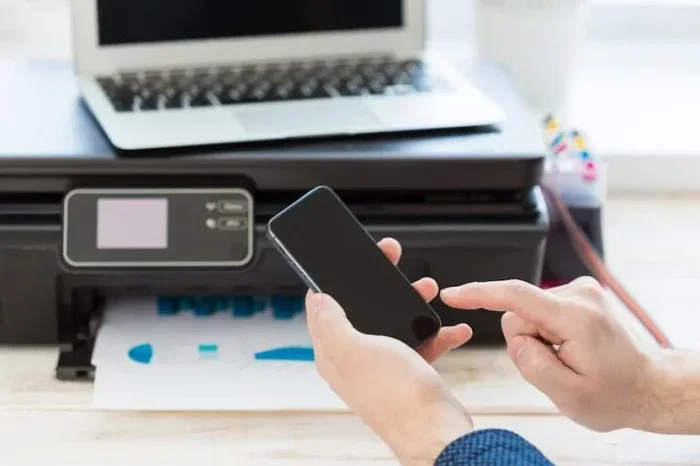
Can I connect my phone to my Epson printer wirelessly? The answer is a clear yes. You do not need any cables or special adapters. Most modern Epson printers come with built-in wireless features that let you print from your phone, tablet, or laptop. Whether you have an iPhone, Android device, or iPad, you can send print jobs in just a few taps.
Wireless printing saves time and keeps your desk clutter-free. You can print photos from a family outing, work documents from a coffee shop, or boarding passes right at home. This guide walks you through every method you can use. You will learn about the Epson iPrint app, Wi-Fi Direct, Apple AirPrint, and more. I will also share quick tips, common mistakes, and troubleshooting steps to make the process smooth.
Before you start, make sure your Epson printer is powered on and connected to the same Wi-Fi network as your phone. If your printer supports Wi-Fi Direct, you can skip the router and connect directly. I will show you exactly how to do each method step by step. Let us dive in and get your phone talking to your printer.
Key Takeaways
- Wireless printing is easy: You can print from your phone to an Epson printer without cables using Wi-Fi or Wi-Fi Direct.
- Epson iPrint app is the go-to tool: It works with most Epson printers and lets you print from iOS and Android.
- Wi-Fi Direct works without a router: You can connect your phone directly to the printer for quick printing.
- Apple AirPrint and Mopria cover most devices: Many newer Epson printers support these built-in protocols.
- Check compatibility first: Not all Epson models support every wireless method, so verify before you start.
- Troubleshooting is simple: Restarting devices, updating apps, and checking Wi-Fi usually fixes connection problems.
📑 Table of Contents
- How to Connect Your Phone to Your Epson Printer Wirelessly
- Step-by-Step Setup for Each Method
- Comparison: Which Wireless Connection Method Is Best?
- Common Mistakes to Avoid
- Troubleshooting Common Connection Issues
- How to Print Different Types of Content from Your Phone
- Is Wireless Printing Safe and Secure?
- Conclusion
How to Connect Your Phone to Your Epson Printer Wirelessly
There are several ways to achieve wireless printing with an Epson printer. The best method depends on your printer model and your phone type. Below I cover the most popular and reliable options. Each one uses a different technology, but all let you print without a single cable.
Using the Epson iPrint App
The Epson iPrint app is the official tool from Epson for mobile printing. It works with both iOS and Android devices. You can download it free from the App Store or Google Play. Once installed, the app automatically searches for Epson printers on your network.
With Epson iPrint, you can print photos, emails, web pages, and documents. The app also lets you scan from your phone to your printer. It supports many Epson models including WorkForce, EcoTank, and Expression series. If your printer is on Wi-Fi, the app will find it quickly.
Wi-Fi Direct Connection
Wi-Fi Direct lets your phone connect straight to the printer without a router. This is perfect when you are away from your home network or in a hurry. Your phone and printer create a direct wireless link. The printer acts as a Wi-Fi hotspot that your phone can join.
To use Wi-Fi Direct, you need to enable it on your Epson printer first. Most Epson printers have a Wi-Fi Direct button or setting in the menu. Once turned on, the printer broadcasts its own network name. You then go to your phone’s Wi-Fi settings and select that network. Enter the password shown on the printer screen, and you are connected.
Apple AirPrint for iPhone and iPad
If you use an iPhone or iPad, Apple AirPrint is a built-in feature. You do not need to download any extra app. AirPrint works with Epson printers that support it. Many Epson printers made in the last few years are AirPrint compatible. This includes most Epson WorkForce and EcoTank models.
To print with AirPrint, open the document or photo you want to print. Tap the Share button and choose Print. Select your Epson printer from the list. You can set the number of copies, page range, and color options. Then tap Print. The job sends directly to the printer over your Wi-Fi network.
Mopria Print Service for Android
Android users can take advantage of the Mopria Print Service. Mopria is a standard that many printer makers support. It allows your Android phone to discover and print to compatible Epson printers without a third-party app. The service comes built into most Android phones.
You may need to enable Mopria in your phone settings. Go to Settings, then Connected devices, and look for Print or Mopria. Once active, open a document and tap the Print option. Your Epson printer should appear in the list. Mopria works well for printing PDFs, photos, and web pages directly from your phone.
Step-by-Step Setup for Each Method
Here is a simple walkthrough for the three most common wireless methods. Follow the steps that match your situation. Each setup takes only a few minutes.
- Epson iPrint App Setup: Download the Epson iPrint app from your app store. Make sure your phone and printer are on the same Wi-Fi network. Open the app and let it scan for printers. Tap your printer name when it appears. Follow the on-screen prompts to complete pairing. You can now print from any supported app by choosing the Epson iPrint option.
- Wi-Fi Direct Setup: On your Epson printer, press the Wi-Fi Direct button or go to Settings, then Wi-Fi, and select Wi-Fi Direct. Note the network name and password displayed on the screen. On your phone, open Wi-Fi settings and find the printer’s network. Tap it and enter the password. Once connected, open your document and print as usual. The phone communicates directly with the printer.
- Apple AirPrint Setup: Ensure your Epson printer and iPhone or iPad are on the same Wi-Fi network. Open the document or photo you want to print. Tap the Share icon and choose Print. Select your Epson printer from the list of available printers. Adjust settings like copies and color. Tap Print to send the job. No app download is needed.
Quick Tips for a Smooth Setup
- Restart both your phone and printer before starting. This clears any temporary glitches.
- Update the Epson iPrint app to the latest version for the best compatibility.
- If the printer does not show up, make sure your phone’s Wi-Fi is turned on and you are not using a VPN.
- Keep your printer firmware updated. Epson releases updates that improve wireless performance.
- Place the printer within good range of your Wi-Fi router for a strong signal.
Comparison: Which Wireless Connection Method Is Best?
Not every method works the same for everyone. Your choice depends on your printer model, phone type, and how you plan to use it. The table below compares the main wireless options.
| Method | Works With | Needs App? | Needs Router? | Best For |
|---|---|---|---|---|
| Epson iPrint | iOS and Android | Yes | Yes (same network) | Full-featured printing and scanning from phone |
| Wi-Fi Direct | iOS and Android | No (uses built-in OS print) | No | Printing on the go without a Wi-Fi network |
| Apple AirPrint | iPhone and iPad | No | Yes (same network) | iPhone and iPad users who want simple printing |
| Mopria Print Service | Android | No (built into Android) | Yes (same network) | Android users who prefer native printing |
For most people, the Epson iPrint app offers the most features. It gives you control over print quality, paper size, and even scanning. If you only need to print a quick email or photo, AirPrint or Mopria are the fastest choices. Wi-Fi Direct is your best friend when you are away from your home network and need to print right away.
Common Mistakes to Avoid
Even with a simple setup, small mistakes can block your connection. Here are the most common ones and how to avoid them.
- Assuming all Epson printers support every method: Not all models have AirPrint or Wi-Fi Direct. Check your printer manual or the Epson website for a list of supported features before you start.
- Ignoring the Wi-Fi network mismatch: Your phone and printer must be on the same Wi-Fi network for most methods. If your phone uses mobile data or a different Wi-Fi band, the printer will not appear. Double-check that both devices are on the same network name.
- Forgetting to enable Wi-Fi Direct on the printer: Some users try to connect to Wi-Fi Direct but never turn it on first. The printer must be set to Wi-Fi Direct mode and broadcasting its network. Look for the Wi-Fi Direct button on the control panel or in the menu.
- Using an outdated app version: The Epson iPrint app receives updates that fix bugs and add support for new printers. If you cannot find your printer, update the app or reinstall it.
- Not restarting devices when stuck: A simple restart of your phone and printer can solve many connection issues. Power off both, wait 30 seconds, and turn them back on.
Expert Insight: Why Wi-Fi Direct Is a Game Changer
Many users do not realize that Wi-Fi Direct removes the need for a router entirely. This is a huge advantage for people who travel or work in spaces with limited network access. With Wi-Fi Direct, your Epson printer becomes a standalone wireless hub. You can print directly from your phone even in a hotel room or a friend’s house. This method is fast, secure, and very easy to set up once you know the steps.
Troubleshooting Common Connection Issues
If your phone cannot find the printer or the print job fails, do not worry. Most problems have simple fixes. Here is what to check.
- Check Wi-Fi signal strength: A weak signal causes slow printing or failed jobs. Move closer to the router or bring the printer closer to the Wi-Fi source. Walls and distance can weaken the signal.
- Verify the printer is online: On your phone, open the Epson iPrint app or go to Print settings. The printer should show as available. If it does not, power cycle the printer by turning it off and on again.
- Update printer firmware: Epson releases firmware updates that improve wireless stability. You can check for updates through the Epson iPrint app or the printer’s menu. Keeping firmware current prevents many connection bugs.
- Turn off VPN or proxy settings: If you use a VPN on your phone, it can block the printer discovery. Temporarily disable the VPN and try printing again.
- Reset network settings on the printer: If all else fails, you can reset the wireless settings on your Epson printer. This clears old network configurations and lets you set up a fresh connection. Refer to your printer manual for the exact steps.
Quick Tip: Use Epson Connect for Remote Printing
Epson Connect is a service that lets you print from anywhere with an internet connection. You do not need to be on the same Wi-Fi network. With Epson Connect, you can send an email with a photo attached to your printer’s unique email address, and it will print. This is perfect for printing documents while you are away from home. You can also use the Epson iPrint app to send print jobs over the internet. Setup is easy and free with an Epson account.
How to Print Different Types of Content from Your Phone
Once your phone is connected, you can print many types of content. Here are the most common scenarios and how to handle them.
Printing Photos: Open the photo in your gallery. Tap Share and choose Print. Select your Epson printer. You can adjust the print quality and paper size. For best results, use glossy photo paper loaded in the printer. The Epson iPrint app gives you extra options like resizing and cropping before you print.
Printing Documents and PDFs: Open the PDF or document in your phone’s file manager or app. Tap the Print icon. Choose your Epson printer. You can select black and white or color printing. If you need multiple copies, set the number in the print options. Most Epson printers handle documents crisply and quickly.
Printing Web Pages: In your mobile browser, tap the Share button and select Print. The browser renders the page and sends it to the printer. You can choose to print all pages or only the current page. This is handy for printing recipes, directions, or articles you want to read later.
Scanning to Your Phone: Many Epson printers let you scan documents and send them to your phone. Open the Epson iPrint app and select Scan. Place your document on the scanner glass. The app will show a preview on your phone. You can save it as a PDF or image file. This is a great way to digitize paperwork on the go.
Is Wireless Printing Safe and Secure?
You might wonder about the security of printing over Wi-Fi. Epson printers use standard wireless protocols that are encrypted. When you print from your phone over your home Wi-Fi, the data stays within your local network. It does not travel over the public internet unless you use Epson Connect. Even then, Epson Connect uses secure servers to route your print job. You can feel confident that your documents are safe. For extra peace of mind, always use a strong Wi-Fi password and keep your printer firmware updated.
Conclusion
Can I connect my phone to my Epson printer wirelessly? Absolutely. You now have all the tools and methods to do it. Whether you use the Epson iPrint app, Wi-Fi Direct, Apple AirPrint, or Mopria, the process is straightforward and fast. You can print photos, documents, and more without ever touching a cable. Keep your printer and phone updated, check your Wi-Fi network, and use the quick tips shared above. With a little practice, wireless printing becomes second nature. Enjoy the freedom of printing from anywhere in your home or office.
Frequently Asked Questions
Can I connect my phone to my Epson printer wirelessly without Wi-Fi?
Yes, you can use Wi-Fi Direct to connect your phone directly to the Epson printer without a router. This method works even when you are away from your home network. Simply enable Wi-Fi Direct on the printer and join that network from your phone.
Which Epson printers support Apple AirPrint?
Most Epson printers released in the last few years support Apple AirPrint. This includes many WorkForce, EcoTank, and Expression models. You can check the Epson website or your printer manual to confirm AirPrint compatibility for your specific model.
Do I need to download an app to print from my Android phone?
Not necessarily. Many Android phones support Mopria Print Service built-in, which lets you print without an extra app. However, the Epson iPrint app gives you more features like scanning and print quality settings. It is free and easy to install.
Why can my phone not find my Epson printer?
The most common reason is that the phone and printer are not on the same Wi-Fi network. Make sure both are connected to the same network. Also, check that Wi-Fi Direct is on if you are using that method. Restarting both devices often fixes the issue.
Can I print from my phone if I am not at home?
Yes, with Epson Connect you can print from anywhere using the internet. You can send an email with an attachment to your printer’s email address. The Epson iPrint app also allows remote printing over the internet when you set up Epson Connect.
Is wireless printing slower than USB printing?
Wireless printing is usually fast enough for most home and office tasks. Large photo prints or very large PDF files may take a bit longer over Wi-Fi. For everyday documents and photos, the speed difference is barely noticeable. A strong Wi-Fi signal helps keep wireless printing quick.