Can I Connect Hdmi To Displayport And Get It Working
Yes, you can connect HDMI to DisplayPort, but it requires the right adapter or converter. The process depends on your devices, the version of HDMI and DisplayPort you use, and whether you need an active or passive adapter. This guide covers everything you need to know to get a working connection, including tips on audio, resolution, and common mistakes to avoid.
You have an HDMI cable in your hand. Your monitor has a DisplayPort input. You plug them together. Nothing happens. Sound familiar?
This is one of the most common tech questions people ask. The short answer is yes, you can connect HDMI to DisplayPort. But the full answer takes a bit more explaining. You need the right adapter, the right type, and a few simple settings tweaks to make it work.
In this guide, I will walk you through everything you need to know. We will cover how the connection works, which adapters to buy, and how to avoid common mistakes. By the end, you will have a working setup and a clear understanding of why things work the way they do.
Key Takeaways
- You need an adapter or cable: HDMI and DisplayPort use different connectors and signals, so a direct plug will not work.
- Active adapters are usually better: They handle signal conversion more reliably than passive adapters.
- Check your resolution and refresh rate: Not all adapters support 4K or high refresh rates.
- Audio may need extra setup: HDMI carries audio, but DisplayPort may not pass it through automatically.
- Direction matters: Some adapters convert HDMI to DisplayPort, others go the other way. Make sure you buy the right one.
- Compatibility varies: Your graphics card, monitor, and adapter all need to work together.
📑 Table of Contents
Understanding HDMI and DisplayPort
Before you buy any adapter, it helps to understand what HDMI and DisplayPort actually are. Both are digital video standards. They carry picture and sound from a source to a display. But they are not the same thing.
What Is HDMI?
HDMI stands for High-Definition Multimedia Interface. It is one of the most widely used video connections in the world. You will find HDMI ports on TVs, laptops, gaming consoles, and Blu-ray players. HDMI cables carry both video and audio through a single cable. This makes them very convenient for home entertainment setups.
HDMI has gone through several versions over the years. HDMI 1.4 supports 4K at 30Hz. HDMI 2.0 supports 4K at 60Hz. HDMI 2.1 supports 4K at 120Hz and even 8K. The version matters when you are choosing an adapter because it affects the maximum quality you can get.
What Is DisplayPort?
DisplayPort is a digital display interface developed by VESA. It is very common on computer monitors and graphics cards. DisplayPort is known for supporting high resolutions and refresh rates. It is especially popular among PC gamers and professionals who need sharp, fast visuals.
DisplayPort also has gone through several versions. DisplayPort 1.2 supports 4K at 60Hz. DisplayPort 1.4 supports 4K at 120Hz with HDR. DisplayPort 2.0 supports even higher bandwidth. Like HDMI, the version you have affects what your adapter needs to support.
Key Differences Between HDMI and DisplayPort
Here are the main differences between these two standards. Understanding them will help you choose the right adapter.
- Connector shape: HDMI has a flat, rectangular plug. DisplayPort has a rectangular plug with a clip on one side.
- Audio support: HDMI always carries audio. DisplayPort can carry audio too, but it depends on the setup.
- Common use: HDMI is common in TVs and home devices. DisplayPort is common in PC monitors.
- Signal type: Both are digital, but they encode the signal differently. This is why you need an adapter or converter.
- Version compatibility: Older versions may not support the latest resolutions or refresh rates.
These differences are important. They explain why you cannot just plug one cable into the other and expect it to work. The signals are different, even though both carry video and audio.
Can You Connect HDMI to DisplayPort Directly?
Now for the big question. Can you just plug an HDMI cable into a DisplayPort port? The answer is no. The physical connectors are different. The electrical signals are different. You need an adapter or a converter cable to bridge the gap.
Why a Direct Connection Does Not Work
Think of it like trying to plug a US electrical plug into a European outlet. The shape is different. The voltage is different. You need a converter. The same idea applies here.
HDMI and DisplayPort use different pin layouts. They also use different signaling protocols. HDMI uses TMDS (Transition Minimized Differential Signaling). DisplayPort uses a packet-based protocol. These are fundamentally different ways of sending data. An adapter converts one protocol into the other.
What You Need Instead
You need either an HDMI to DisplayPort adapter or a DisplayPort to HDMI cable. The choice depends on which direction you need to convert the signal. If your source has HDMI and your display has DisplayPort, you need an HDMI to DisplayPort adapter. If it is the other way around, you need a DisplayPort to HDMI adapter.
There are also bi-directional adapters that can work in both directions. These are convenient but may cost a bit more. They are a good option if you are not sure which direction you will need.
Active vs Passive Adapters
This is one of the most important topics in this entire guide. The type of adapter you buy will make or break your setup. There are two main types: active adapters and passive adapters.
What Is a Passive Adapter?
A passive adapter simply changes the physical connector. It does not change the signal. It is like a plug adapter that lets you use a US plug in a European socket. The electricity stays the same.
Passive HDMI to DisplayPort adapters work in limited situations. They usually only work when the HDMI source is a DisplayPort-compatible signal. In practice, this means they often do not work with most TVs and gaming consoles. They are cheap, but they are not very useful for most people.
What Is an Active Adapter?
An active adapter has built-in electronics. It actually converts the HDMI signal into a DisplayPort signal. This is much more reliable. Active adapters work with most HDMI sources, including TVs, laptops, and gaming consoles.
Active adapters need power to work. Some draw power from the USB port. Others draw power from the HDMI or DisplayPort connection itself. Make sure your adapter has a power source if it needs one.
Which One Should You Buy?
For most users, an active adapter is the best choice. It will work with more devices and support higher resolutions. Passive adapters are fine only in very specific situations. If you are not sure, go with active.
| Feature | Passive Adapter | Active Adapter |
|---|---|---|
| Signal Conversion | No | Yes |
| Works with TVs | Rarely | Yes |
| Works with Consoles | Rarely | Yes |
| Price | Low | Medium to High |
| Power Needed | No | Sometimes |
| Reliability | Low | High |
How to Set Up Your HDMI to DisplayPort Connection
Now that you know what adapter to buy, let us walk through the setup process. It is simpler than you might think.
Step-by-Step Setup Guide
Follow these steps to get your HDMI to DisplayPort connection working.
- Check your ports: Look at your source device and your monitor. Identify which has HDMI and which has DisplayPort.
- Buy the right adapter: If your source is HDMI and your monitor is DisplayPort, buy an HDMI to DisplayPort active adapter.
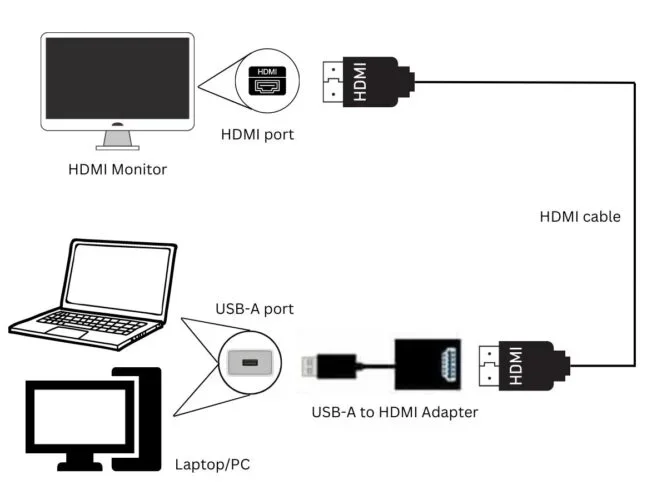
- Connect the adapter: Plug the HDMI cable into your source device. Plug the other end of the HDMI cable into the adapter.
- Connect to the monitor: Plug the DisplayPort end of the adapter into your monitor.
- Power on the adapter: If your adapter needs USB power, plug it into a USB port.
- Switch the monitor input: Use your monitor’s menu to select the DisplayPort input.
- Check the display: Your screen should now show the HDMI source.
Adjusting Display Settings
Sometimes the picture will not look right right away. You may need to adjust settings on your computer or source device. Go into your display settings and check the resolution. Set it to match your monitor’s native resolution. Also check the refresh rate. Set it to the highest rate your adapter and monitor support.
If you have no sound, check your audio output settings. On Windows, right-click the speaker icon and select your display audio output. On a Mac, go to Sound Preferences and choose the DisplayPort output.
Quick Tips for a Smooth Setup
- Always use a high-quality HDMI cable. Cheap cables can cause signal issues.
- Make sure your adapter supports your desired resolution. Check the product specs before buying.
- If you get no signal, try unplugging and replugging the adapter.
- Restart your source device after connecting everything.
- Update your graphics card drivers. Old drivers can cause compatibility issues.
Resolution and Refresh Rate Support
One of the biggest concerns people have is whether their setup will support 4K or high refresh rates. The answer depends on several factors.
What Resolutions Can You Get?
Most good HDMI to DisplayPort adapters support 1080p and 4K. Some support 1440p as well. The exact resolution depends on the adapter model and the versions of HDMI and DisplayPort you are using.
For 1080p at 60Hz, almost any adapter will work. For 4K at 60Hz, you need an adapter that supports HDMI 2.0 and DisplayPort 1.2 or higher. For 4K at 120Hz or higher, you need the latest adapter standards and compatible source devices.
Does HDR Work Through Adapters?
High Dynamic Range (HDR) can be tricky. Some adapters pass HDR signals through without issues. Others strip HDR metadata and display a standard dynamic range image. If HDR is important to you, check the adapter specifications carefully. Look for explicit HDR support in the product description.
Refresh Rate Considerations
If you are a gamer, refresh rate matters a lot. A 144Hz or 240Hz monitor will not reach its full potential if your adapter bottlenecks the signal. Make sure your adapter supports the refresh rate of your monitor. This information is usually listed in the product specs.
Common Problems and How to Fix Them
Even with the right adapter, you may run into issues. Here are the most common problems and their solutions.
No Signal at All
This is the most common issue. It usually means the adapter is not being recognized. Try these fixes:
- Unplug the adapter and plug it back in.
- Try a different USB port for power if your adapter needs it.
- Switch your monitor to the correct input source.
- Restart your source device.
- Try a different HDMI cable.
No Sound
HDMI carries audio, but it may not automatically route through the adapter. On most computers, you need to manually select the audio output device. Go to your sound settings and choose the DisplayPort or monitor audio output. On some setups, you may need to install the adapter drivers.
Low Resolution or Flickering
If your picture looks blurry or flickers, your adapter may not support the resolution or refresh rate you have set. Lower the resolution in your display settings and see if the problem goes away. If it does, your adapter may not support the higher settings. Consider upgrading to a better adapter.
Compatibility Issues with Specific Devices
Some devices have known compatibility issues with certain adapters. For example, some gaming consoles work only with specific adapter models. Always check online forums or the adapter manufacturer’s website for device-specific compatibility lists before purchasing.
Expert Tips for Choosing the Right Adapter
Not all adapters are created equal. Here are some expert tips to help you choose the best one for your needs.
First, always check the adapter specifications before buying. Look for the supported resolution, refresh rate, and version compatibility. A good adapter will clearly list these details on the product page.
Second, buy from reputable brands. Brands like Cable Matters, Club3D, and Uni are well-known for quality adapters. Cheap no-name adapters may seem like a good deal, but they often fail or deliver poor image quality.
Third, consider your future needs. If you plan to upgrade to 4K or 8K, buy an adapter that supports those resolutions now. It is better to spend a little more upfront than to buy a second adapter later.
Fourth, read user reviews. Real-world feedback can reveal problems that product descriptions do not mention. Look for reviews from people who used the adapter with the same devices you have.
Key Takeaways
- You need an adapter or converter: HDMI and DisplayPort use different connectors and signals, so a direct plug will not work.
- Active adapters are usually better: They handle signal conversion more reliably than passive adapters.
- Check your resolution and refresh rate: Not all adapters support 4K or high refresh rates.
- Audio may need extra setup: HDMI carries audio, but DisplayPort may not pass it through automatically.
- Direction matters: Some adapters convert HDMI to DisplayPort, others go the other way. Make sure you buy the right one.
- Compatibility varies: Your graphics card, monitor, and adapter all need to work together.
Conclusion
So, can you connect HDMI to DisplayPort and get it working? Absolutely yes. The key is using the right adapter. An active HDMI to DisplayPort adapter will handle the signal conversion for you and give you a reliable connection in most cases.
Remember to check your adapter’s specs for resolution and refresh rate support. Make sure your audio settings are configured correctly. And if you run into problems, the fixes are usually simple and quick.
With the right adapter and a little patience, you can connect any HDMI source to any DisplayPort monitor. It is a straightforward process once you understand how it works. Now you have all the knowledge you need to make it happen. Go ahead and set up your display with confidence.
Frequently Asked Questions
Can I use a passive adapter to connect HDMI to DisplayPort?
Passive adapters rarely work for HDMI to DisplayPort conversion. They do not convert the signal, they only change the connector shape. For most setups, you need an active adapter that converts the HDMI signal into a DisplayPort signal.
Will my 4K TV work with a DisplayPort monitor through an adapter?
Yes, but only with a quality active adapter that supports 4K resolution. Check the adapter specifications to make sure it supports 4K at your desired refresh rate. Cheap adapters often bottleneck the signal and limit you to 1080p.
Why is there no sound when I connect HDMI to DisplayPort?
HDMI carries audio, but DisplayPort audio output depends on your system settings. Go to your computer’s sound settings and select the DisplayPort or monitor as the audio output device. You may also need to install the adapter’s drivers.
Can I connect a PlayStation or Xbox to a DisplayPort monitor?
Yes, you can. You will need an active HDMI to DisplayPort adapter. Most gaming consoles output through HDMI, so the adapter converts that signal for your DisplayPort monitor. Make sure the adapter supports the resolution and refresh rate your console outputs.
Do I need a special cable or just an adapter?
You need an active adapter, not just a cable. A regular HDMI cable or DisplayPort cable will not convert the signal between the two standards. The adapter does the conversion work. You still use standard HDMI and DisplayPort cables to connect everything.
Can I go from DisplayPort to HDMI instead?
Yes, you can. You would need a DisplayPort to HDMI active adapter in that case. The process is similar, but the adapter goes in the opposite direction. Make sure you buy the correct adapter for your specific setup.