Can Any Usb Be A Bootable Usb Unlock The Possibilities
Yes, almost any USB flash drive can become a bootable USB drive. With the right USB creation tool and a simple ISO file, you can turn a basic USB stick into powerful bootable media for installing or recovering an operating system. This guide shows you exactly how to do it step by step.
Have you ever wondered if you can turn any ordinary USB flash drive into a bootable USB? The answer might surprise you. In this guide, we will walk you through everything you need to know about creating a bootable USB drive. Whether you want to install a new operating system, recover your system, or run a portable Linux environment, a bootable USB is your best friend. Let us dive in and explore the world of bootable USB creation together.
Creating a bootable USB is simpler than most people think. You do not need expensive equipment or advanced technical skills. With the right tools and a little patience, you can turn almost any USB stick into a powerful installation or recovery tool. This article covers everything from basic requirements to step-by-step instructions. By the end, you will feel confident creating your own bootable USB drive.
A bootable USB is a portable storage device that can start up a computer and load an operating system or recovery tools. Unlike a regular USB drive that stores files, a bootable USB contains a complete operating environment. This makes it incredibly useful for installing Windows, Linux, or troubleshooting computer problems. The possibilities are truly endless when you know how to make one.
Key Takeaways
- Any USB Can Work: Most USB flash drives can be formatted and used as a bootable USB with the right tools.
- Size Matters: A minimum of 8GB is recommended for most modern operating systems and recovery tools.
- Free Software Exists: Tools like Rufus and the Windows Media Creation Tool make creating a bootable USB simple and free.
- BIOS Setup Is Key: Changing the boot order in your BIOS settings ensures your computer starts from the USB drive.
- UEFI and Legacy Modes: Understanding your computer boot mode helps you choose the right partition scheme and file system.
- Common Mistakes Are Avoidable: Simple errors like skipping the format step or using a corrupted ISO file can cause problems.
📑 Table of Contents
What Is a Bootable USB and How Does It Work?
A bootable USB is a special USB flash drive that contains all the files needed to start a computer. When you plug it in and turn on your PC, the computer looks for a bootable device. The bootable USB becomes that device, loading the operating system or tools directly from the drive. This process is called booting, and it happens before your regular hard drive or SSD loads.
How Does a Bootable USB Work?
When your computer starts, it runs a basic check called POST, which stands for Power-On Self-Test. After that, it looks for a bootable device based on your BIOS settings. If your USB drive is set as the first boot device, the computer reads the files on the USB stick. These files include a bootloader, the kernel, and the operating system files. Together, they create a working environment right from the USB drive.
The bootloader is a small program that tells the computer how to start. It loads the kernel, which is the core of the operating system. From there, the full operating system takes over. This entire process happens from the USB stick, which is why it is so convenient. You can carry a complete operating system in your pocket.
Why Do You Need a Bootable USB?
There are many reasons to create a bootable USB drive. Here are the most common ones:
- Installing a New Operating System: Whether you are setting up a new PC or reinstalling Windows, a bootable USB makes the process easy.
- System Recovery: If your computer fails to start, a bootable USB with recovery tools can save the day.
- Trying Linux: You can run a Linux live USB without installing anything on your hard drive.
- Troubleshooting: Bootable USB drives come with diagnostic tools to find and fix problems.
- Installing Multiple Operating Systems: You can carry several ISO files on different USB drives for different needs.
Can Any USB Be Used as a Bootable USB?
The short answer is yes, most USB flash drives can be turned into a bootable USB. However, not all USB drives are created equal. Some work better than others, and certain factors can affect performance. Let us break down what you need to know.
USB Flash Drive Requirements
To create a reliable bootable USB, your USB stick should meet a few basic requirements. First, check the storage capacity. Most modern operating systems need at least 8GB of space. Windows 10 and 11 installation files are around 5 to 6GB, so a 16GB drive gives you comfortable room. Linux ISO files are usually smaller, often under 2GB.
Second, consider the USB version. USB 3.0 drives are much faster than USB 2.0 drives. A USB 3.0 bootable USB will install your operating system in minutes instead of waiting for an hour. If your computer supports USB 3.0, always choose a USB 3.0 flash drive for the best experience.
Third, the age and quality of the USB drive matter. Brand-name USB sticks from reliable manufacturers tend to work better. Cheap, no-name USB drives sometimes have errors that cause boot failures. Stick with trusted brands like SanDisk, Samsung, or Kingston for the best results when making your bootable drive.
USB Type and Port Compatibility
Not all USB ports are the same. You might have USB-A ports, USB-C ports, or both on your computer. A standard USB-A flash drive works with most desktop computers and older laptops. If you have a newer laptop with only USB-C ports, you may need a USB-C to USB-A adapter or a USB-C bootable USB drive.
Some modern computers support UEFI boot mode, while others use Legacy BIOS mode. Most USB flash drives work with both modes, but you need to set the correct partition scheme. For UEFI boot, use the GPT partition scheme. For Legacy BIOS, use the MBR partition scheme. Your bootable USB creation tool will usually handle this automatically.
| USB Version | Speed | Best For |
|---|---|---|
| USB 2.0 | Up to 480 Mbps | Basic bootable drives, older computers |
| USB 3.0 | Up to 5 Gbps | Fast OS installation, modern PCs |
| USB 3.1 | Up to 10 Gbps | Premium performance, large ISO files |
| USB-C | Up to 10 Gbps | Newer laptops, slim devices |
Tools You Need to Create a Bootable USB
Creating a bootable USB is straightforward once you have the right tools. You need three main things: a USB flash drive, an ISO file, and a USB creation tool. Let us look at each of these in detail.
Free Software Options
There are several free tools you can use to create a bootable USB. Each one has its strengths, so choose the one that fits your needs best.
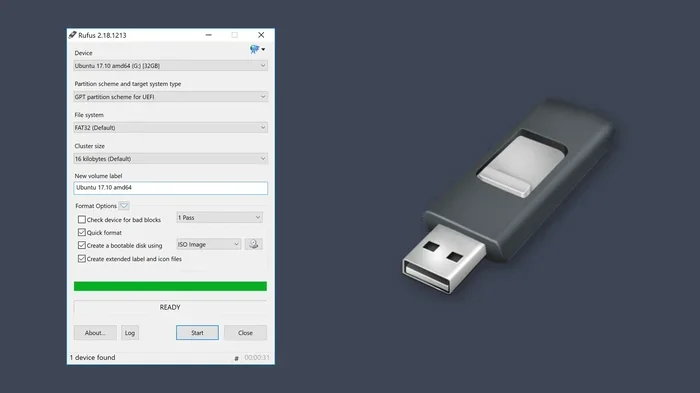
Rufus: This is the most popular USB creation tool for Windows. Rufus is a small, free program that works quickly. It supports almost all ISO files and gives you control over partition schemes and file systems. Rufus is the go-to choice for most people creating a bootable USB.
Windows Media Creation Tool: If you are installing Windows, Microsoft offers a free official tool. It downloads the latest Windows version and creates a bootable USB automatically. This is the easiest option for Windows installation and requires no third-party software.
Etcher: Etcher works on Windows, Mac, and Linux. It is simple and user-friendly. You just select your ISO file, choose your USB drive, and click Flash. Etcher is perfect for beginners who want a no-fuss experience creating bootable media.
BalenaEtcher: This is the same tool as Etcher but maintained by Balena. It works well for creating Linux live USB drives and other bootable media. It is a great option if you want cross-platform compatibility for your bootable drive.
Hardware Requirements
Beyond the software, you need a few hardware items. A working computer is essential. You need at least one free USB port. The USB flash drive should be at least 8GB for most operating systems. A stable internet connection helps if you need to download the ISO file first.
Some people also like to have a second computer available for testing. This is helpful if your main computer has trouble booting from the USB drive. You can test the bootable USB on another machine to make sure it works before relying on it for a critical task like system recovery.
Step-by-Step Guide to Making a Bootable USB
Now comes the fun part. Let us walk through the process of creating a bootable USB step by step. We will cover two popular methods: using Rufus and using the Windows Media Creation Tool. Both methods are free and straightforward.
Preparing Your USB Drive
Before you start, make sure your USB flash drive is empty. Creating a bootable USB will erase all existing data on the drive. Back up any important files to your computer or cloud storage first. Once the process starts, there is no going back.
Plug your USB drive into your computer. Wait a few seconds for Windows to recognize it. You should see the drive appear in File Explorer. Note the drive letter assigned to it, as you will need to select it during the creation process. A stable power source is also important, especially on laptops, so make sure your battery is charged or you are plugged in.
Method 1: Using Rufus to Create Bootable Media
Rufus is a fantastic free tool that makes creating a bootable USB easy. Here is how to use it:
- Download Rufus from the official website. It is a small, portable application with no installation needed.
- Open Rufus and select your USB drive from the Device dropdown menu.
- Click the SELECT button and choose your ISO file. This is the operating system or tool you want to install.
- Choose the partition scheme. Select GPT for UEFI systems or MBR for Legacy BIOS systems.
- Select the file system. FAT32 works for most bootable USB drives.
- Click START and wait for Rufus to finish writing the files to the USB drive.
- Once done, you will see a READY message. Your bootable USB is now ready to use.
The entire process usually takes between 5 and 15 minutes, depending on the size of the ISO file and the speed of your USB drive. A USB 3.0 drive will complete the process much faster than a USB 2.0 drive. Rufus also verifies the write process to ensure the bootable media is error-free.
Method 2: Using the Built-in Windows Tool
If you are installing Windows, you can skip third-party tools. Microsoft provides a free Media Creation Tool that does everything for you:
- Go to the Microsoft website and download the Media Creation Tool.
- Run the tool and accept the license terms.
- Choose Create installation media for another PC.
- Select the language, edition, and architecture, either 64-bit or 32-bit.
- Choose USB flash drive as the media type.
- Select your USB drive from the list.
- Wait for the tool to download Windows and create the bootable USB.
This method is the simplest way to create a Windows bootable USB. The tool handles everything, including downloading the latest Windows version and formatting the drive correctly. It is the best choice for beginners who want a hassle-free experience.
Common Problems and How to Fix Them
Sometimes things do not go as planned. Creating a bootable USB can occasionally come with challenges. Here are the most common problems and their solutions.
USB Not Showing Up in BIOS
If your computer does not recognize the USB drive during startup, try these steps. First, make sure the USB drive is plugged in before you turn on the computer. Some systems only detect USB drives during the initial POST phase. Second, check your BIOS settings. Enter the BIOS by pressing the designated key during startup, usually F2, F12, Del, or Esc.
Navigate to the Boot section and make sure USB devices are enabled. Look for the boot order and move USB to the top of the list. Save the changes and restart. If the USB still does not show up, try a different USB port. USB 3.0 ports on the back of the motherboard tend to work better than front panel ports. Also, try removing other USB devices that might be causing conflicts.
Boot Error Messages
You might see error messages like No bootable device found or Missing operating system. These errors usually mean the USB drive was not created correctly. Try recreating the bootable USB with a different tool. Make sure you selected the correct partition scheme and file system. Also, verify that your ISO file is not corrupted by downloading it again from the official source.
Another common issue is trying to boot a GPT-formatted USB on a Legacy BIOS system, or vice versa. Match the partition scheme to your computer boot mode. If you are unsure which mode your computer uses, check your BIOS settings or your computer manufacturer website. Using the wrong mode is one of the most frequent reasons a bootable USB fails to work.
Tips for Success with Your Bootable USB
A few simple tips can make the difference between a smooth installation and a frustrating experience. Follow these guidelines to get the best results from your bootable USB drive.
Quick Tips
- Always use a fresh USB drive: Format the drive before creating the bootable USB to avoid conflicts with old data.
- Download ISO files from official sources: Only download ISO files from the official operating system websites or trusted sources to avoid malware.
- Label your USB drives: Use a label or marker to identify which operating system or tool is on each bootable USB.
- Test your bootable USB before you need it: Do not wait until your computer crashes to test if the bootable USB works.
- Keep your USB drives safe: Store bootable USB drives in a protective case to prevent physical damage.
Common Mistakes to Avoid
Many people make avoidable mistakes when creating a bootable USB. Here are the ones to watch out for:
- Using a corrupted ISO file: Always verify the download checksum if the source provides one. A corrupted ISO file will create a non-functional bootable USB.
- Skipping the format step: Some tools format the drive automatically, but it never hurts to format it yourself first using the FAT32 file system.
- Choosing the wrong drive letter: Double-check that you selected the correct USB drive in the creation tool. Writing to the wrong drive can erase important data on your computer.
- Ignoring BIOS settings: Even with a perfect bootable USB, your computer will not boot from it if the boot order is not set correctly.
- Using a damaged USB drive: If your USB stick is old or has bad sectors, it may fail during the boot process. Use a reliable, new USB drive whenever possible.
Expert Insights
Professional IT technicians often recommend keeping at least two bootable USB drives on hand. One for Windows installation and one for Linux troubleshooting. This way, you are prepared for any situation. Labeling each drive clearly prevents confusion when you need them in a hurry.
Another expert tip is to keep your bootable USB drives updated. Operating system ISO files get updated regularly with security patches and bug fixes. Recreate your bootable USB every six months to ensure you have the latest version. This small habit can save you from many headaches down the road when you need system recovery the most.
Key Takeaways
- Any USB Can Work: Most USB flash drives can be formatted and used as a bootable USB with the right tools.
- Size Matters: A minimum of 8GB is recommended for most modern operating systems and recovery tools.
- Free Software Exists: Tools like Rufus and the Windows Media Creation Tool make creating a bootable USB simple and free.
- BIOS Setup Is Key: Changing the boot order in your BIOS settings ensures your computer starts from the USB drive.
- UEFI and Legacy Modes: Understanding your computer boot mode helps you choose the right partition scheme and file system.
- Common Mistakes Are Avoidable: Simple errors like skipping the format step or using a corrupted ISO file can cause problems.
Conclusion
So, can any USB be a bootable USB? The answer is a resounding yes. With the right USB flash drive, a free USB creation tool, and a valid ISO file, you can turn almost any USB stick into a powerful bootable USB. The process is easier than most people expect, and the benefits are enormous.
Whether you need to install a fresh operating system, recover a broken computer, or explore Linux, a bootable USB gives you the power to do it all. You are no longer dependent on optical discs or complex network installations. A simple USB drive becomes your most versatile tool for any computing task.
We covered the requirements, the tools, the step-by-step process, and common problems. Now it is your turn to try it yourself. Grab a USB flash drive, download an ISO file, and create your first bootable USB today. Once you see how easy it is, you will wonder why you did not do it sooner. The possibilities truly are unlocked when you know how to create a bootable USB drive.
Remember, practice makes perfect. Try creating a bootable USB with a spare drive first if you are new to this. Once you succeed a couple of times, the process becomes second nature. Share this knowledge with friends and family who might benefit from knowing how to create a bootable USB. It is a skill that everyone can use at some point.
Frequently Asked Questions
Can I use any USB flash drive to create a bootable USB?
Yes, most USB flash drives can be turned into a bootable USB. The key requirements are at least 8GB of storage, a working USB port, and a reliable USB creation tool like Rufus or Etcher. Even older USB 2.0 drives can work, though USB 3.0 drives offer much faster installation speeds for your bootable media.
Will creating a bootable USB erase my USB drive?
Yes, the process will completely erase all existing data on the USB flash drive. Always back up any important files before you start. Once the bootable USB creation process begins, the drive is reformatted and overwritten with the operating system files and boot loader data.
What is the difference between UEFI boot and Legacy BIOS boot on a bootable USB?
UEFI is the newer boot mode used by modern computers. It supports larger drives and faster boot times. Legacy BIOS is the older mode found on older computers. When creating a bootable USB, you need to match the partition scheme to your computer boot mode. GPT for UEFI and MBR for Legacy BIOS are the standard settings for a working bootable drive.
Can I use a bootable USB on multiple computers?
Yes, one of the great advantages of a bootable USB is portability. You can use the same bootable USB on any compatible computer. Just plug it in, change the boot order in BIOS, and the computer will start from the USB drive. This works across different brands and models with USB boot support.
How long does it take to create a bootable USB?
The creation process typically takes between 5 and 20 minutes. USB 3.0 drives complete the process faster than USB 2.0 drives. The size of the ISO file also affects the time. A Windows 10 ISO file usually takes about 10 to 15 minutes with a USB 3.0 drive and a reliable USB creation tool.
Can I create a bootable USB on a Mac computer?
Yes, you can create a bootable USB on a Mac using tools like Etcher or built-in Terminal commands for macOS. If you want to create a Windows bootable USB on a Mac, Etcher is the easiest option. For Linux bootable USB drives, Etcher works seamlessly on Mac computers and gives you a simple, user-friendly experience.
=== CONCLUSION ===
Creating a bootable USB is one of the most useful skills you can learn for your computer. It opens up a world of possibilities, from installing new operating systems to recovering a broken PC. The process is straightforward, the tools are free, and the results are reliable.
Remember, any USB flash drive can become a bootable USB with the right approach. You do not need special equipment or expensive software. Just a standard USB stick, a valid ISO file, and a free creation tool. That is all it takes to unlock the full potential of your USB drive.
Start experimenting today. Create your first bootable USB and discover how simple and powerful this tool can be. Once you have this skill in your toolkit, you will always be prepared for whatever computing challenge comes your way. The world of bootable USB drives is at your fingertips, waiting for you to explore it.


