Can You Connect a PS2 to a Smart TV Easy Steps Guide
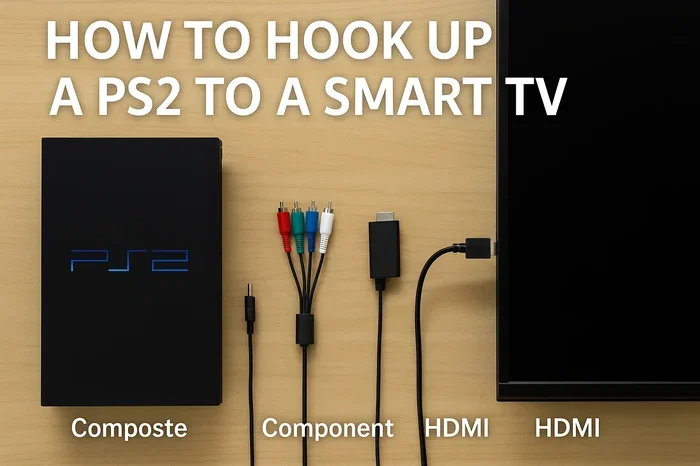
Yes, you can connect a PS2 to a Smart TV, and it is easier than most people think. Whether you use composite cables, component cables, or an HDMI adapter, this guide walks you through every method step by step. You will learn how to improve picture quality, fix common issues, and get your classic console gaming again in just minutes.
If you still have a PlayStation 2 sitting in a closet and a brand new Smart TV on your wall, you might wonder if the two can even work together. The good news is they absolutely can. Connecting a PS2 to a Smart TV is something many retro gamers do every day, and the process is simpler than you might expect.
In this guide, we will walk you through every connection method, share tips to boost your picture quality, and help you troubleshoot common problems. Whether you are a seasoned collector or just getting started with retro gaming, this article has everything you need. Let us get your PS2 hooked up to your Smart TV and back in action.
Key Takeaways
- Multiple Connection Options: You can use composite cables, component cables, SCART adapters, or HDMI converters to connect your PS2 to a Smart TV.
- HDMI Adapters Give the Best Picture: An HDMI converter provides the sharpest image and easiest setup on modern Smart TVs.
- Picture Quality Varies by Cable Type: Component cables offer better quality than composite, but HDMI adapters are the gold standard.
- Common Issues Are Easy to Fix: Problems like no signal, flickering, or no sound usually have simple solutions.
- Smart TVs Work with Retro Consoles: Most Smart TVs handle PS2 signals well, especially with the right cable or adapter.
- Setup Takes Only Minutes: Once you have the right cables, connecting your PS2 to a Smart TV is quick and straightforward.
📑 Table of Contents
Can You Connect a PS2 to a Smart TV
The short answer is yes. The longer answer is that it depends on the cables and adapters you use. Your PS2 was released in 2000, and back then, most TVs had RCA composite inputs or SCART ports. Modern Smart TVs, on the other hand, often rely on HDMI connections. This means you need the right bridge between the two.
The good thing is that several options exist. You can use the original cables that came with your console, buy a dedicated HDMI adapter, or even use a converter box. Each method has its pros and cons, which we will cover in detail below.
Why It Works Despite the Age Gap
Smart TVs are designed to accept a wide range of input signals. They can handle everything from modern 4K streams to older standard definition signals. Your PS2 outputs an analog signal, and most Smart TVs have inputs that can read that signal. This backward compatibility is what makes the whole thing possible.
The PlayStation 2 remains one of the most popular retro consoles ever made. Millions of units sold means plenty of support from accessory makers. You can find adapters and cables for it almost anywhere online or in electronics stores.
Connection Methods You Can Use
There are several ways to connect your PS2 to a Smart TV. Each method offers a different level of picture and sound quality. Let us go through them one by one so you can pick the best option for your setup.
Method 1: Composite RCA Cables (The Stock Option)
This is the most basic and common method. Every PS2 comes with composite cables in the box. These cables have red, white, and yellow connectors. The yellow cable carries the video signal, while the red and white cables handle audio.
To use this method:
- Plug the yellow, red, and white connectors into the matching ports on the back of your PS2.
- Find the AV input panel on your Smart TV. Many modern TVs still have at least one set of composite inputs.
- Plug the other ends into the matching colored ports on your TV.
- Switch your TV to the correct input source using the remote.
This method works, but the picture quality is standard definition. You will notice some blurriness and color bleeding on a large screen. It gets the job done, but it is not the best experience.
Method 2: Component Cables (Better Picture Quality)
Component cables offer a noticeable upgrade over composite. They split the video signal into three separate cables for better color accuracy and sharpness. The PS2 supports component output, but you need a separate set of component cables because they do not come in the box.
Here is how to set them up:
- Buy a PS2-compatible component cable set. Make sure it is specifically designed for the PlayStation 2.
- Connect the green, blue, and red video cables to the component ports on your PS2.
- Plug the red and white audio cables into the corresponding audio ports.
- Connect the other ends to the component inputs on your Smart TV.
- Switch your TV to the component input source.
Component cables give you a much cleaner image. Text is sharper, colors are more vibrant, and the overall picture looks significantly better than composite. This is a great option if you want decent quality without spending much money.
Method 3: SCART Adapter (Great for European TVs)
If you live in Europe or a region that uses SCART connections, this method is for you. SCART cables carry both audio and video through a single plug. You can use a SCART adapter to connect your PS2 to a TV with a SCART input.
The setup process is straightforward:
- Connect your PS2 composite cables to the SCART adapter.
- Plug the SCART cable into your TV’s SCART port.
- Select the SCART input on your Smart TV.
Some SCART adapters also support RGB output, which provides the best analog picture quality available for the PS2. If you want the clearest possible image using analog cables, look for an RGB SCART adapter.
Method 4: HDMI Adapter (The Best Quality)
This is the method we recommend most. An HDMI adapter or converter box takes the PS2’s analog signal and converts it to a digital HDMI signal. This means you plug the adapter into your PS2 and run a standard HDMI cable from the adapter to your Smart TV.
Here is why this is the best option:
- The picture quality is dramatically sharper than any other method.
- You get a clean digital signal with no interference or signal loss.
- Setup is simple and fast.
- Most HDMI adapters also upscale the image to near-HD resolutions.
Popular brands like RetroTINK and OSSC offer high-quality converters, but more affordable options work well too. Just make sure the adapter you buy is compatible with the PS2 specifically.
Step-by-Step Setup Guide
Now that you know your options, let us walk through a full setup. We will use the HDMI adapter method since it gives the best results, but the steps apply to any connection type.
Step 1: Gather Your Equipment
Before you start, make sure you have everything ready. You will need your PS2 console, the appropriate cables or adapter, your Smart TV, and the TV remote. If you are using an HDMI adapter, you will also need an HDMI cable.
Step 2: Position Your PS2
Place your PS2 near your TV with enough room for the cables to reach. Make sure the console is on a flat, stable surface. Good ventilation around the console helps prevent overheating during long gaming sessions.
Step 3: Connect the Cables
Plug the video and audio cables into the back of your PS2. If you are using an HDMI adapter, connect the adapter to the PS2’s AV multi-out port first, then attach the HDMI cable from the adapter to your TV.
Step 4: Connect to Your Smart TV
Run the cables to your TV and plug them into the correct inputs. On most Smart TVs, the inputs are labeled on the back or side panel. Match the cable colors to the port colors.
Step 5: Switch the TV Input
Turn on your TV and use the remote to switch to the correct input source. Look for labels like AV, Component, HDMI 1, or HDMI 2 depending on your connection type. You should see the PS2 startup screen once the input is correct.
Step 6: Adjust Display Settings
Go into your PS2 settings menu and adjust the display settings. You can usually change the resolution and screen format here. If you are using an HDMI adapter, you may have additional options for upscaling the image.
How to Improve Picture Quality on a Smart TV
Getting your PS2 connected is only half the battle. Making the image look good on a modern screen requires a few extra tweaks. Here are some practical tips to get the best results.
Enable Smoothing and Scaling Options
Many HDMI adapters and converter boxes have built-in scaling features. These can smooth out the jagged edges that are common with retro games. Check your adapter’s settings menu to see what options are available.
Adjust Your TV’s Picture Settings
Go into your Smart TV’s picture settings and make a few changes. Reduce sharpness to avoid exaggerated edges. Turn off any motion smoothing or interpolation features, as these can cause input lag and make games feel unresponsive.
Use the Right Cable Length
Shorter cables generally produce a cleaner signal. If you can keep your cable runs under six feet, you will likely see better image quality. Avoid running cables near power cords or other sources of interference.
Quick Tips for Best Results
- Always use the shortest cable length possible for the cleanest signal.
- Turn off motion smoothing on your Smart TV to reduce input lag.
- Clean your PS2’s AV port occasionally to prevent dust buildup.
- If you use an HDMI adapter, check for firmware updates from the manufacturer.
- Store your PS2 in a well-ventilated area to keep the hardware in good shape.
Common Problems and How to Fix Them
Even with the right setup, you might run into some issues. Here are the most common problems people face when connecting a PS2 to a Smart TV, along with simple fixes.
No Signal on the Screen
If your TV shows no signal, the first thing to check is the input source. Make sure your TV is set to the correct HDMI or AV input. Next, double-check all cable connections. A loose cable is the most common cause of this problem.
Also, try turning on your PS2 before switching the TV input. Some Smart TVs do not detect a signal until the console is already powered on. If this does not work, try a different cable or port on your TV.
Flickering or Rolling Screen
A flickering screen often means your TV and PS2 are not synced on the same refresh rate or resolution setting. Try changing the PS2 display settings to a lower resolution. If you are using composite cables, switching from progressive to interlaced output can also help.
No Sound or Poor Audio Quality
If you have video but no sound, check that your audio cables are plugged in correctly. The red and white cables must match the red and white ports on both the PS2 and the TV. If you are using an HDMI adapter, make sure the audio is set to pass through the HDMI connection in your TV settings.
Black Bars Around the Image
Black bars appear because your PS2 outputs a 4:3 standard definition image, and most Smart TVs are 16:9 widescreen. You can fix this by adjusting your TV’s aspect ratio setting to 4:3 or by enabling a stretch or zoom option in your PS2 display settings.
Comparison of Connection Methods
Not sure which method is right for you? Here is a quick comparison of the four main ways to connect your PS2 to a Smart TV.
| Method | Picture Quality | Ease of Setup | Cost | Best For |
|---|---|---|---|---|
| Composite RCA | Standard Definition | Very Easy | Free (included) | Quick and simple setup |
| Component Cables | Good SD with better colors | Easy | Low ($10-$20) | Better quality on a budget |
| SCART Adapter | Good with RGB support | Moderate | Low ($10-$25) | European TV setups |
| HDMI Adapter | Excellent, upscaled | Very Easy | Medium ($30-$80) | Best overall picture quality |
The HDMI adapter method wins for most people. It gives the clearest picture, the easiest setup, and the most reliable connection. If budget is your main concern, composite or component cables still work perfectly fine for casual gaming.
Expert Insights on Retro Console Gaming
Many retro gaming enthusiasts recommend investing in an HDMI adapter for the best experience. According to popular gaming forums and review sites, the difference between composite output and HDMI upscaling is night and day. Games that looked blurry on an old CRT TV can look surprisingly sharp on a modern Smart TV with the right adapter.
One thing to keep in mind is that not all adapters are created equal. Cheap knockoff adapters can introduce lag, noise, or compatibility issues. Stick with reputable brands and read reviews before purchasing. Popular choices among the retro gaming community include the RetroTINK series and the various PS2-to-HDMI converter boxes available on the market.
Another expert tip is to clean your PS2’s AV port before connecting anything. Over the years, dust and oxidation can build up on the connectors, leading to poor signal quality. A quick clean with a cotton swab and some contact cleaner can make a big difference.
Finally, if you plan to do a lot of retro gaming, consider investing in a dedicated upscaler. These devices are designed specifically to take old console signals and convert them to clean digital output. They offer the most control over image quality and are a favorite among serious collectors and enthusiasts.
Key Takeaways
- Multiple Connection Options: You can use composite cables, component cables, SCART adapters, or HDMI converters to connect your PS2 to a Smart TV.
- HDMI Adapters Give the Best Picture: An HDMI converter provides the sharpest image and easiest setup on modern Smart TVs.
- Picture Quality Varies by Cable Type: Component cables offer better quality than composite, but HDMI adapters are the gold standard.
- Common Issues Are Easy to Fix: Problems like no signal, flickering, or no sound usually have simple solutions.
- Smart TVs Work with Retro Consoles: Most Smart TVs handle PS2 signals well, especially with the right cable or adapter.
- Setup Takes Only Minutes: Once you have the right cables, connecting your PS2 to a Smart TV is quick and straightforward.
Conclusion
Can you connect a PS2 to a Smart TV? Absolutely yes, and it is much easier than most people assume. Whether you use the original composite cables, upgrade to component cables, or invest in an HDMI adapter, you have several reliable options to choose from. Each method has its strengths, but an HDMI adapter offers the best combination of picture quality and ease of use.
The process of setting up your PS2 on a modern Smart TV does not have to be complicated. With the right cables and a few minutes of your time, you can be playing your favorite classic games on a big, crisp screen. The retro gaming community has grown significantly in recent years, and the accessories available today make it easier than ever to enjoy old consoles on new televisions.
We hope this guide has given you everything you need to get started. Pick the connection method that fits your budget and setup, follow the steps carefully, and enjoy your PlayStation 2 games the way they were meant to be played. Happy gaming.
Frequently Asked Questions
Can I use the original PS2 cables with a Smart TV?
Yes, you can. Most Smart TVs still have composite AV inputs that work with the original yellow, red, and white cables. The picture will be standard definition, but it will work perfectly fine for casual gaming.
Do I need a special adapter to connect a PS2 to a Smart TV?
It depends on the connection method you choose. If you use the original composite cables, no special adapter is needed. However, if you want the best picture quality, an HDMI adapter or converter box is highly recommended.
Why does my PS2 look blurry on my Smart TV?
Blurriness usually happens with composite cables because they only carry standard definition signals. Upgrading to component cables or an HDMI adapter will dramatically improve the sharpness and clarity of the image on your TV.
Is there any input lag when playing PS2 games on a Smart TV?
Input lag can occur with some connection methods, especially if your TV has processing features turned on. Using an HDMI adapter and disabling motion smoothing and other processing features on your TV can minimize or eliminate input lag.
Can I play PS2 games in HD on a Smart TV?
The PS2 itself does not output in HD natively. However, an HDMI adapter with upscaling capabilities can enhance the image to near-HD quality, making games look much better on a modern screen than they would with standard cables.
Are HDMI adapters for PS2 expensive?
Prices vary widely. Basic models can be found for around $30, while higher-end adapters with better upscaling and features can cost $80 or more. The price is worth it if you want the best possible picture quality from your PS2 on a Smart TV.