How Do I Connect My Phone To My Tv Using A Dongle Guide
Learning how do I connect my phone to my tv using a dongle is easier than you think. This guide walks you through every step, from picking the right HDMI dongle to screen mirroring your favorite apps on a big screen. You will find clear instructions for Android and iPhone users, plus quick fixes for common problems.
Have you ever wanted to watch something on your phone but wished it was bigger? Maybe you are sharing photos with family or binge-watching your favorite show. A dongle makes this super easy. It is a small device that plugs into your TV and lets you cast your phone screen to a much larger display.
You might be wondering, how do I connect my phone to my tv using a dongle? The truth is, it is not as hard as it sounds. Whether you have an Android phone or an iPhone, there is a streaming dongle that fits your needs. This guide will show you exactly how to do it, step by step. You will learn about the different types of dongles, how to set them up, and how to fix common issues. By the end, you will be casting with confidence.
Key Takeaways
- Choose the right dongle: Pick between Chromecast, Miracast, Roku Streaming Stick, or Amazon Fire TV Stick based on your phone and TV.
- Setup is simple: Most wireless streaming dongles take under five minutes to connect and start casting.
- Troubleshoot with ease: Common issues like lag, no sound, or connection drops can be fixed with a few quick checks.
- Optimize your experience: Use a 5GHz Wi-Fi band, close background apps, and keep your dongle firmware updated for the best media playback quality.
- It works for both phones: Android and iPhone users can both cast to TV using the right adapter or streaming stick.
- No cables needed: A wireless display dongle lets you go cable-free and enjoy media streaming from anywhere in your room.
📑 Table of Contents
- What Is a Dongle and Why Use It to Connect Phone to TV
- Types of Dongles You Can Use for Screen Mirroring
- Step-by-Step Guide to Connect Phone to TV Using a Dongle
- Troubleshooting Common Dongle Connection Problems
- Tips for Getting the Best Quality When Casting Phone to TV
- Which Dongle Should You Choose for Your Phone and TV Setup
- Conclusion
What Is a Dongle and Why Use It to Connect Phone to TV
A dongle is a tiny adapter or streaming device that connects to your TV’s HDMI port. It receives a signal from your phone and displays it on your television screen. Think of it as a bridge between your mobile device and your big screen.
People use phone to TV dongles for many reasons. Maybe you want to watch YouTube videos on a larger screen. Perhaps you need to present slides at work. Or maybe you just want to share vacation photos with the whole family. Whatever the reason, a wireless display dongle gives you flexibility and convenience.
The best part? Most dongles for screen mirroring are affordable. You do not need an expensive smart TV to enjoy big-screen content. A simple HDMI adapter or streaming stick can transform any TV with an HDMI input into a smart display.
How Does Phone to TV Casting Work
When you cast your phone screen to a TV, you are sending video and audio signals wirelessly or through a cable. The dongle receives these signals and decodes them for your TV. This process is called screen mirroring or wireless display technology.
There are two main ways this works:
- Wireless casting: The dongle connects to your Wi-Fi network and receives data from your phone over the air. This is the most common method today.
- Wired connection: Some HDMI adapters use a cable to link your phone directly to the dongle. This can give you a more stable connection with less lag.
Both methods work well. Wireless is more convenient, while wired can offer better performance for gaming or media playback that requires a smooth experience.
Types of Dongles You Can Use for Screen Mirroring
Not all dongles are the same. Different streaming adapters work better with different phones and TVs. Here are the most popular options you will come across when you search for ways to connect phone to TV.
Chromecast by Google
Google Chromecast is one of the most popular casting dongles on the market. It plugs into your TV’s HDMI port and connects to your Wi-Fi network. You control it from your phone using the Google Home app or by casting directly from supported apps like YouTube, Netflix, and Spotify.
Chromecast works best with Android phones and iPhones alike. It supports 1080p and even 4K streaming on newer models. The setup is straightforward, and the price is very reasonable. If you want a simple, reliable way to mirror your phone to TV, Chromecast is a great choice.
Amazon Fire TV Stick
The Amazon Fire TV Stick is another excellent option for wireless streaming. It runs on Fire OS and gives you access to a huge app library. You can cast from your phone using the Amazon Fire TV app or use Miracast for direct screen mirroring.
This dongle is especially good if you are already in the Amazon ecosystem. It works with both Android and iOS devices. The remote control makes navigation easy, and the voice search feature is a nice bonus.
Roku Streaming Stick
Roku is a well-known name in the streaming world. The Roku Streaming Stick offers a clean, simple interface and access to hundreds of channels. It supports screen mirroring through Miracast technology on compatible models.
Roku works with most Android phones but has limited support for iPhone screen mirroring. If you have an Android device and want a polished streaming experience, the Roku Stick is worth considering.
Miracast Dongles
Miracast is a wireless display standard built into many Android phones. A Miracast dongle lets you mirror your screen without needing an app or a special ecosystem. It is a universal solution that works across many brands.
These dongles are often very affordable. They plug right into your HDMI port and connect to your phone over Wi-Fi Direct. If you want a simple, no-fuss way to cast phone to TV, a Miracast dongle is worth a look.
Lightning and USB-C HDMI Adapters
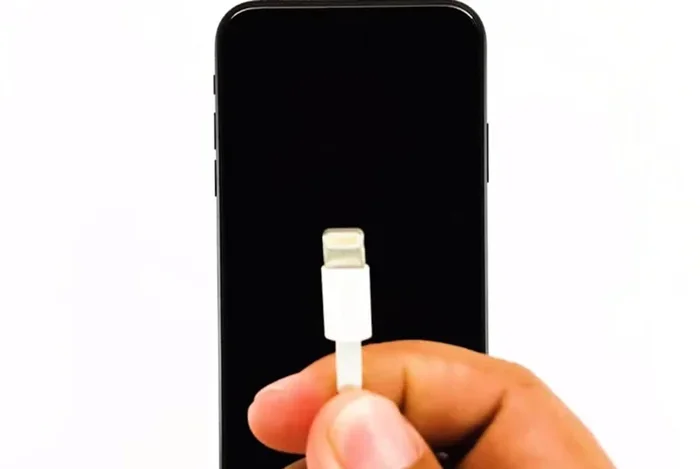
For those who prefer a wired connection, Lightning HDMI adapters (for iPhones) and USB-C HDMI adapters (for newer Androids) are great options. These are not true “dongles” in the wireless sense, but they serve the same purpose: connecting your phone to your TV.
Wired adapters give you a plug-and-play experience with no Wi-Fi dependency. They are ideal for situations where you need a stable, lag-free connection. They work great for presentations, gaming, and media playback where every second counts.
Step-by-Step Guide to Connect Phone to TV Using a Dongle
Now that you know the options, let us get into the actual setup. Follow these steps to connect your phone to your TV using a dongle. The process is similar for most devices, with small differences depending on your brand.
Step 1: Choose and Buy the Right Dongle
Before you do anything, make sure you have the right streaming dongle for your needs. Consider these factors:
- Your phone type: Android, iPhone, or both?
- Your TV inputs: Do you have an HDMI port available?
- Your budget: Dongles range from under $20 to over $100.
- Your needs: Do you need 4K support, voice control, or a wide app selection?
Take your time and pick the one that fits your situation best. A good HDMI dongle does not have to break the bank.
Step 2: Plug the Dongle into Your TV
Find an available HDMI port on your television. Plug the dongle in firmly. If your dongle came with an extender cable, use it. This helps with airflow and signal strength, especially if your TV is mounted flat on a wall.
Switch your TV input to the correct HDMI channel using your remote control. You should see a setup screen or home menu on your TV.
Step 3: Connect the Dongle to Wi-Fi
Most dongles need a Wi-Fi connection to work properly. Follow the on-screen prompts to connect to your home network. Use the remote control that came with the dongle or use your phone as a remote through the companion app.
For the best wireless display performance, connect to a 5GHz Wi-Fi band if your router supports it. This gives you faster speeds and less interference than the 2.4GHz band.
Step 4: Enable Screen Mirroring on Your Phone
Now it is time to connect your phone. The steps vary slightly depending on your device:
For Android phones:
- Open your phone’s Settings app.
- Look for Connected Devices, Cast, or Screen Mirroring.
- Toggle on Wireless Display or Smart View.
- Your phone will search for available devices. Tap on your dongle when it appears.
For iPhones:
- Open the Control Center by swiping down from the top-right corner.
- Tap the Screen Mirroring icon (two overlapping rectangles).
- Select your Chromecast or AirPlay-compatible dongle from the list.
- Enter the PIN if prompted.
Once connected, your phone screen should appear on your TV. You are now casting your phone display to the big screen!
Step 5: Start Streaming and Enjoy
Open any app on your phone. Videos, photos, and games will appear on your TV in real time. You can control playback from your phone or, on some dongles, use the TV remote. Sit back, relax, and enjoy your cable-free viewing experience.
Troubleshooting Common Dongle Connection Problems
Sometimes things do not go smoothly. If your phone to TV connection is not working, do not worry. Most issues have simple fixes. Here are the most common problems and how to solve them.
No Sound or Audio Issues
If you can see the video but hear no sound, try these steps:
- Check your TV volume and make sure it is not muted.
- Go to your phone’s sound settings and make sure the output is set to the dongle or TV.
- Restart both your phone and the dongle.
- Check if your HDMI cable (if using one) is fully seated in the port.
Lag or Delay in Screen Mirroring
A slight delay is normal, but heavy lag is frustrating. To fix this:
- Make sure your phone and dongle are on the same Wi-Fi network.
- Switch to a 5GHz Wi-Fi band for faster speeds.
- Close other apps running in the background on your phone.
- Move your router closer to the TV to improve signal strength.
Dongle Not Showing Up on Phone
If your phone cannot find the dongle, try this:
- Restart the dongle by unplugging it and plugging it back in.
- Make sure screen mirroring or cast is turned on in your phone settings.
- Update your phone’s software to the latest version.
- Check if your dongle firmware needs an update through the companion app.
Video Quality Is Poor or Pixelated
Blurry or choppy video usually means a weak connection:
- Check your Wi-Fi speed and make sure it is at least 10 Mbps for 1080p streaming.
- Reduce the distance between your router and the dongle.
- Lower the streaming resolution in your app settings.
- Avoid using the dongle in areas with many wireless interference sources.
Tips for Getting the Best Quality When Casting Phone to TV
Want to get the most out of your phone to TV setup? A few simple tips can make a huge difference in your viewing experience.
Use a Strong Wi-Fi Connection
Your wireless streaming quality depends heavily on your Wi-Fi signal. Place your router in a central location. If your TV is far from the router, consider a Wi-Fi extender or a mesh network system. A strong connection means smoother video and less buffering.
Keep Your Dongle Firmware Updated
Manufacturers release firmware updates that fix bugs and improve performance. Check for updates regularly through the companion app. An updated dongle will have better media playback and fewer connection issues.
Close Unnecessary Apps on Your Phone
When you are casting your screen, your phone is working hard. Close apps you are not using. This frees up memory and processing power, which leads to a smoother phone display on TV experience.
Use Original or High-Quality Cables
If you are using a wired HDMI adapter, invest in a good-quality cable. Cheap cables can cause signal loss, flickering, or no connection at all. A reliable cable ensures crisp video and clear audio every time.
Optimize Your Phone Settings
Turn on Do Not Disturb mode to avoid notifications interrupting your viewing. Lower your phone’s screen brightness to save battery while casting. You can also adjust the resolution settings in your casting app for the best balance of quality and performance.
Position Your Dongle Properly
If you are using a wireless dongle, keep it in a well-ventilated spot. Avoid placing it behind your TV where heat can build up. Good airflow helps the dongle run cool and perform consistently during long media streaming sessions.
Which Dongle Should You Choose for Your Phone and TV Setup
Choosing the right streaming dongle can feel overwhelming with so many options. Here is a quick comparison to help you decide.
| Dongle | Best For | Phone Compatibility | Price Range |
|---|---|---|---|
| Google Chromecast | Simple casting and app streaming | Android, iPhone | $20-$50 |
| Amazon Fire TV Stick | Full smart TV experience | Android, iPhone | $25-$55 |
| Roku Streaming Stick | Wide channel selection | Android (limited iOS) | $25-$50 |
| Miracast Dongle | Universal screen mirroring | Android (most models) | $15-$40 |
| Lightning/USB-C HDMI Adapter | Wired, lag-free connection | iPhone, Android | $10-$30 |
Think about what matters most to you. If you want simplicity, go with Chromecast. If you want a full smart TV experience, the Amazon Fire TV Stick is excellent. For a budget-friendly, no-fuss mirroring solution, a Miracast dongle works well. And if you need a rock-solid wired connection, a Lightning or USB-C HDMI adapter is your best bet.
The good news is that most of these devices are plug-and-play. You do not need any technical skills to get started. Just follow the setup steps outlined earlier in this guide, and you will be watching your favorite content on the big screen in no time.
One final thought: the world of media streaming is always evolving. New dongles with better features come out regularly. Whatever you choose today, you are making a smart move toward cable-free viewing and a more enjoyable entertainment setup. So go ahead, pick your dongle, and start casting your phone to TV today.
Conclusion
Connecting your phone to your TV using a dongle opens up a world of possibilities. You can watch videos, share photos, play games, and present content on a much larger screen. The process is simpler than most people think, and the right streaming dongle makes all the difference.
Whether you choose a Chromecast, Fire TV Stick, Roku, Miracast dongle, or a wired HDMI adapter, the key is to follow the steps carefully and enjoy the process. You now know exactly how do I connect my phone to my tv using a dongle, and you have the tools to troubleshoot any issues that come up.
Start with the basics. Pick a dongle that fits your phone and budget. Set it up in minutes. And soon you will be enjoying your favorite apps and content on the big screen. Happy casting!
Frequently Asked Questions
Can I connect any phone to any TV using a dongle?
Most modern phones can connect to TVs with an HDMI port using a compatible dongle. Android phones generally work with Chromecast, Miracast, and most streaming sticks. iPhones work best with Chromecast and AirPlay-compatible devices. Always check the dongle’s compatibility before purchasing.
Do I need Wi-Fi to connect my phone to TV with a dongle?
Most wireless dongles require a Wi-Fi connection for screen mirroring and app streaming. However, some wired HDMI adapters work without Wi-Fi. These plug directly into your phone and TV for a simple, cable-based connection with no network needed.
Is screen mirroring the same as casting?
They are similar but not exactly the same. Screen mirroring copies everything on your phone screen to the TV. Casting sends content from a specific app to the TV while you can still use your phone for other things. Both methods use a dongle or streaming device to work.
Why is my screen mirroring lagging or delayed?
Lag usually happens because of a weak Wi-Fi signal or network congestion. Try switching to a 5GHz band, moving closer to your router, or closing background apps on your phone. A wired HDMI adapter can also eliminate lag completely.
Can I use a dongle to play games on my TV from my phone?
Yes, you can cast games from your phone to your TV using a dongle. However, there may be a slight delay between your inputs and the on-screen action. For the best gaming experience, use a wired HDMI adapter to minimize latency and get a responsive connection.
Are expensive dongles worth the money?
Not always. Many affordable streaming dongles under $30 offer excellent media playback and reliable wireless display performance. Expensive models offer extras like 4K resolution, voice control, and more app options. Choose based on your actual needs rather than just the price tag.