Can Nest Wifi Router Be Used As A Point For Your Home
The Nest Wifi Router can indeed be used as a point to extend your home network, but it requires the right setup and a Google Wifi app. This guide covers everything you need to know about turning your router into a mesh point, including step-by-step instructions, pros and cons, and expert tips. You will learn how to boost your home network coverage without buying extra hardware.
Have you ever walked into a room and found your wifi signal dropping to nothing? It is one of the most frustrating things about home internet. You pay for fast service, but the signal just does not reach everywhere you need it. If you own a Nest Wifi Router, you might wonder if you can use it as a point to fix this problem. The short answer is yes, you can. But there are a few things you need to know before you set it up.
This guide walks you through everything step by step. You will learn what a Nest Wifi Router can do as a point, how to set it up, and what to watch out for. We also compare using a router as a point versus buying a dedicated Nest Wifi Point. By the end, you will know exactly what to do to get better home network coverage in your space.
Whether you live in a small apartment or a large house with thick walls, this article has you covered. Let us dive in and make your wifi work better for you.
Key Takeaways
- Yes, you can use a Nest Wifi Router as a point: It works with the Google Wifi app to extend your mesh network.
- Setup is simple: Just follow a few steps in the app and place the router in the right spot.
- There are trade-offs: Using a router as a point may limit some features compared to a dedicated point.
- Placement matters a lot: Put your router midway between your main router and the dead zone.
- You save money: Repurposing an old router can be a smart and budget-friendly choice.
- Check compatibility first: Make sure your Nest Wifi Router is on the latest firmware.
📑 Table of Contents
- What Is a Nest Wifi Router and How Does It Work
- Can a Nest Wifi Router Be Used As a Point
- How to Set Up Your Nest Wifi Router as a Point
- Pros and Cons of Using a Nest Wifi Router as a Point
- Nest Wifi Router vs. Dedicated Nest Wifi Points
- Tips for Optimizing Your Home Network
- Final Thoughts and Expert Recommendations
What Is a Nest Wifi Router and How Does It Work
Understanding the Nest Wifi System
The Nest Wifi Router is part of Google’s mesh wifi system. It combines a router and a smart speaker into one device. The router handles your internet connection, while the speaker adds convenience with Google Assistant built in. Together, they form the backbone of your home network.
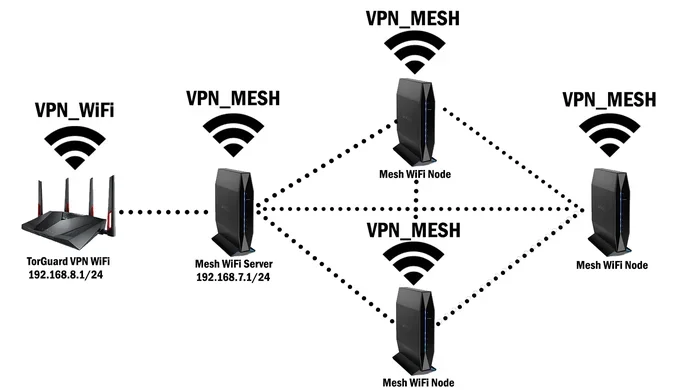
A mesh network uses multiple devices to spread wifi coverage across your home. Instead of one single router sending a signal from one spot, mesh devices talk to each other. They create a web of strong signals that reach every corner. This is why many people choose mesh systems over traditional routers.
The Nest Wifi Router works as the main hub in this setup. It connects directly to your modem and manages all the traffic. From there, it can talk to other Nest Wifi Points or routers to blanket your home in wifi. Understanding this basic setup helps you see how a router can also work as a point.
How Mesh Technology Powers Your Home Network
Mesh technology is not as complicated as it sounds. Think of it like a chain of helpers. Each device in the chain passes the signal along. If one device is too far from your modem, the next one picks it up and keeps the signal strong.
Your Nest Wifi Router uses dual band wifi to do this. That means it sends signals on two different frequencies. The 2.4 GHz band travels farther but is slower. The 5 GHz band is faster but does not go as far. The router and points automatically switch between these bands to give you the best internet speed possible.
This smart switching is what makes mesh systems so effective. You do not have to think about which band to use. The system handles it all behind the scenes. And that is exactly what makes it possible to use a Nest Wifi Router as a point.
Can a Nest Wifi Router Be Used As a Point
The Short Answer: Yes, With Conditions
So, can a Nest Wifi Router be used as a point? Yes, it can. Google designed the Nest Wifi Router and Nest Wifi Points to work together. They use the same hardware inside, which means they can communicate with each other seamlessly. When you add a router to your network as a point, it joins the mesh and helps spread the signal.
However, there is one big condition. You need to use the Google Wifi app to set it up. A Nest Wifi Router cannot simply be plugged in and expected to work as a point out of the box. You must put it into point mode through the app. This tells the router to stop acting as the main hub and start acting as a helper instead.
The router also needs to be on the latest firmware. Google regularly updates the software to fix bugs and improve performance. Before you try using it as a point, make sure your firmware is current. This small step can save you a lot of headaches later.
What You Need to Know Before Setting It Up
Before you start, there are a few things to keep in mind. First, your Nest Wifi Router must be compatible with the Google Wifi app. Most newer models are, but older ones may not support this feature. Check Google’s support page if you are unsure.
Second, you need an existing mesh network. You cannot use a Nest Wifi Router as a standalone point without a main router or hub already running. The router needs something to connect to. If you do not have a main Nest Wifi Router or Google Wifi point already set up, you will need to set one up first.
Third, consider your home layout. If your house is small, you may not need an extra point at all. But if you have dead zones or thick walls that block the signal, adding a router as a point can make a big difference. Wifi coverage dead zones are the number one reason people look for solutions like this.
How to Set Up Your Nest Wifi Router as a Point
Step-by-Step Setup Guide
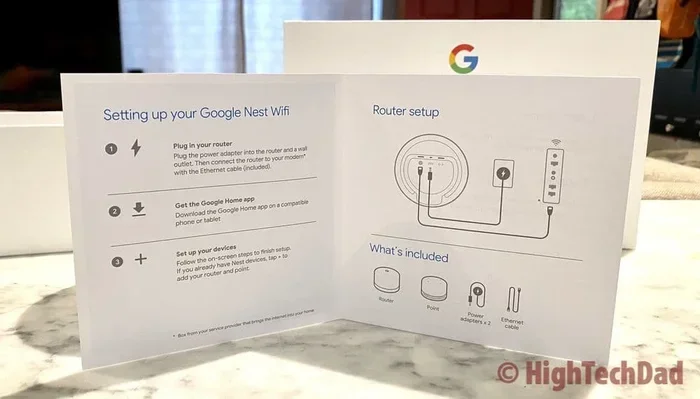
Setting up your Nest Wifi Router as a point is easier than you might think. Follow these steps and you will be up and running in no time.
- Plug in your Nest Wifi Router near the area where you need better coverage. Do not place it right next to your main router. Give it some space.
- Open the Google Wifi app on your phone or tablet. Make sure you are connected to your existing mesh network.
- Tap on the Network tab and select your main router from the list of devices.
- Choose Add Point or Add Device, depending on your app version.
- Follow the on-screen prompts to put your Nest Wifi Router into point mode. The app will guide you through the process.
- Wait for the setup to complete. The router will connect to your network and start extending the signal.
- Test your connection in the area that used to have weak signal. You should see a noticeable improvement.
That is it. The whole process takes about five to ten minutes. You do not need any special tools or technical skills. If you can use a smartphone app, you can do this.
Common Setup Mistakes to Avoid
Even though the setup is simple, people still make mistakes. Here are a few to watch out for.
- Placing the router too far from the main hub. If it is too far away, it will not connect properly. Keep it within range of your main router.
- Forgetting to update the firmware. Old software can cause connection issues. Always check for updates before setting up.
- Putting the router behind a wall or inside a cabinet. Walls and furniture block wifi signals. Place your router in an open area for the best results.
- Using an old modem. If your modem is outdated, it may bottleneck your speed no matter how good your router is.
- Not restarting the router after setup. A quick restart helps the new point integrate smoothly into your mesh network.
Quick Tips for a Smooth Setup
- Place your Nest Wifi Router midway between your main router and the weak signal area.
- Keep the router off the floor. A shelf or table works best.
- Avoid placing it near microwaves, baby monitors, or other electronic devices that cause interference.
- Restart your main router before adding a new point to your network.
- Use the Google Wifi app’s network test feature to check signal strength after setup.
Pros and Cons of Using a Nest Wifi Router as a Point
Benefits You Will Love
Using a Nest Wifi Router as a point has some real advantages. Here is why it can be a great idea.
- Save money. You do not need to buy a new Nest Wifi Point. Repurpose an old router you already own.
- Easy to set up. The Google Wifi app makes the process simple and fast.
- Same performance. A Nest Wifi Router uses the same hardware as a Nest Wifi Point, so the signal quality is identical.
- Built-in speaker. Unlike a dedicated point, the router also has Google Assistant. You get wifi coverage and a smart speaker in one device.
- Better coverage. Adding an extra point eliminates dead zones and improves your home wifi optimization overall.
- Scalable network. You can add multiple routers as points to cover a very large home.
Drawbacks to Consider
Of course, there are some downsides to think about too.
- Limited placement options. Because the router is larger than a point, it may not fit in small or tight spaces.
- Possible feature differences. Some advanced features available on a dedicated point may not work the same way when a router is in point mode.
- Aesthetic concerns. The Nest Wifi Router looks different from a point. It may not blend in as nicely with your home decor.
- One less router available. If you remove your router from its main position, you lose its routing capabilities elsewhere.
Expert Insights
Networking experts generally agree that using a Nest Wifi Router as a point is a smart move for most households. The key is proper placement. According to home network specialists, the router should be placed about halfway between your main router and the area with weak signal. This gives it the best chance to relay the signal effectively. Experts also recommend keeping the router on the same floor as the dead zone for optimal results.
Nest Wifi Router vs. Dedicated Nest Wifi Points
Key Differences at a Glance
You might be wondering how a Nest Wifi Router compares to a dedicated Nest Wifi Point. They share the same internal hardware, but there are some differences worth knowing about.
| Feature | Nest Wifi Router | Nest Wifi Point |
|---|---|---|
| Shape and Size | Larger, taller design | Smaller, disc-shaped |
| Built-in Speaker | Yes, with Google Assistant | Yes, with Google Assistant |
| Can Act as Main Router | Yes | No |
| Can Act as a Point | Yes | Yes |
| Price | Higher | Lower |
| Wifi Bands | Dual band | Dual band |
| Setup Method | Google Wifi app | Google Wifi app |
| Aesthetic Design | More prominent look | Subtle, blends in easily |
Which Option Should You Choose
If you already own a Nest Wifi Router, using it as a point is the most cost-effective choice. You get the same wifi coverage without spending extra money. This is especially true if you have an older router sitting around that you are not using.
On the other hand, if you are buying new hardware, a dedicated Nest Wifi Point might be the better option. It is smaller, cheaper, and easier to place in discreet spots around your home. It also blends in better with your furniture and decor.
For most people, the choice comes down to what you already have and how much you want to spend. If budget is a concern, repurposing your Nest Wifi Router as a point is a fantastic solution. If you want a cleaner look and do not mind the extra cost, a dedicated point works great too.
Tips for Optimizing Your Home Network
Best Placement Practices
Where you place your Nest Wifi Router as a point makes a huge difference. Here are some placement best practices to follow.
- Center it in the area that needs coverage. The closer the router is to the weak spot, the better the signal will be.
- Keep it elevated. Placing it on a shelf or table helps the signal spread more evenly.
- Avoid corners and closets. Enclosed spaces block wifi signals and reduce coverage.
- Stay away from water sources. Fish tanks and large mirrors can interfere with wifi signals.
- Do not stack it on top of other electronics. Other devices can cause interference and weaken the signal.
Quick Tips for Better Signal
Beyond placement, there are a few other things you can do to improve your network. These tips apply whether you are using a Nest Wifi Router as a point or a dedicated Nest Wifi Point.
- Restart your network regularly. A simple restart once a week can clear up minor connectivity issues.
- Use the Google Wifi app to run speed tests. This helps you identify which areas of your home have the weakest signal.
- Enable parental controls. The Nest Wifi system offers built-in parental controls that help manage screen time and filter content.
- Update your firmware. Google releases updates that improve performance and security. Keep your devices up to date.
- Limit the number of connected devices. Too many devices on one network can slow things down. Disconnect devices you are not using.
- Consider your wifi bands. For devices close to the router, use the 5 GHz band for faster speeds. For devices farther away, the 2.4 GHz band reaches farther.
Common Mistakes That Hurt Your Network
Many people make mistakes that hurt their wifi signal strength without even realizing it. Placing your router in a hidden corner is one of the biggest culprits. Another common mistake is setting up your router too far from the main hub. If the distance is too great, the point will not relay the signal properly. Also, avoid changing your wifi channel manually unless you know what you are doing. The Google Wifi app handles channel selection automatically for the best performance.
Final Thoughts and Expert Recommendations
Using a Nest Wifi Router as a point is a practical and affordable way to improve your home network. It works well, sets up easily, and saves you money compared to buying new hardware. As long as you follow the setup steps correctly and place the router in a good spot, you will notice a real difference in your home network coverage.
The key is to be thoughtful about placement and to keep your firmware updated. Small steps like these make a big impact on your daily wifi experience. You will get faster speeds in rooms that used to struggle, and your smart home devices will connect more reliably.
If you are still on the fence, remember that Google designed the Nest Wifi Router and Nest Wifi Points to work together. They are built to be flexible. Whether you use a router as a point or buy a dedicated point, you are investing in a better home network. The important thing is to take action and fix those weak spots once and for all.
Start with the setup guide above. Test your signal in a few different spots. Adjust the placement if needed. You will be surprised at how much of a difference a single extra point can make. Your wifi experience at home does not have to be a source of frustration anymore.
Take what you learned here and put it into practice today. A stronger, more reliable home network is just a few steps away.
Frequently Asked Questions
Can I use any Nest Wifi Router as a point?
Most Nest Wifi Routers can be used as a point, but you need to check compatibility with the Google Wifi app. Make sure your router is on the latest firmware before you try. Older models may not support this feature.
Do I need a Google Wifi account to set this up?
Yes, you need a Google Wifi account and the Google Wifi app installed on your phone. The app is free to download and guides you through the entire setup process. It also lets you manage your network from anywhere.
Will using a Nest Wifi Router as a point slow down my internet speed?
No, it should not slow down your speed. The router uses the same dual band wifi technology as a dedicated point. In fact, adding an extra point can improve speeds in areas that had weak signal before. Your internet speed depends more on your placement and your modem quality.
How many Nest Wifi Routers can I use as points?
You can add up to several points to a single mesh network. Google recommends a maximum of about 10 devices total, including both routers and points. For most homes, two to three extra points are more than enough to cover the entire space.
Can I switch a Nest Wifi Router back to main router mode after using it as a point?
Yes, you can. The Google Wifi app lets you switch between point mode and router mode at any time. Just go to your device settings and choose the option to switch. This gives you flexibility if your home setup changes.
Is a Nest Wifi Router as good as a dedicated Nest Wifi Point?
In terms of performance, they are nearly identical since they use the same internal hardware. The main differences are size, design, and price. A dedicated point is smaller and cheaper, while a router offers the added benefit of a built-in speaker and main routing capabilities.
=== CONCLUSION ===
The answer to whether a Nest Wifi Router can be used as a point is a clear yes. It is a simple, effective way to boost your home wifi coverage without spending extra money. By following the setup steps in this guide, you can turn an unused router into a valuable mesh point that extends your signal to every room.
Remember to place your router thoughtfully, keep your firmware updated, and test your signal after setup. Small adjustments can lead to big improvements in your daily wifi experience. Whether you live in a cozy apartment or a spacious house, these tips will help you get the most out of your Nest Wifi Router.
Take action today. Try the setup process, find the best spot for your router, and enjoy a stronger, more reliable home network. Your wifi should work as hard as you do, and with the right setup, it will.