Can I Have Wyze Cameras On Two Different Locations Easily
Yes, you can absolutely run Wyze cameras on two different locations using a single Wyze account. The Wyze app lets you organize cameras by location, so you can monitor your home and another property from one dashboard. This guide shows you exactly how to set up, manage, and get the most out of your Wyze cameras at two locations.
Have you ever wondered if you can watch over two places with just one set of Wyze cameras? Maybe you want to keep an eye on your home and your vacation property. Or perhaps you need to monitor a second home while you travel. The good news is that Wyze cameras on two different locations work perfectly fine with a single account.
Setting up Wyze cameras at multiple locations is easier than most people think. You do not need a second account or extra equipment. The Wyze app gives you the tools to split your cameras into different groups. This way, you can check on each place whenever you want. In this article, we will walk you through everything you need to know. We will cover setup steps, tips, and common mistakes to avoid.
By the end, you will feel confident about managing Wyze home security across more than one spot. Let us dive in and make it happen.
Key Takeaways
- One account works for multiple locations: You can add Wyze cameras to different spots using the Wyze app location feature.
- Setup is simple: Adding cameras to a second location takes just a few minutes.
- Wyze Cam Plus helps with storage: Cloud recordings work across all locations when you have a subscription.
- Motion detection stays smart: Each camera keeps its own detection zones no matter the location.
- Avoid common setup mistakes: Use strong Wi-Fi and keep firmware updated for the best experience.
📑 Table of Contents
- What Are Wyze Cameras and How Do They Work?
- Can You Use Wyze Cameras in Multiple Locations?
- Step-by-Step Guide to Setting Up Wyze Cameras at Two Locations
- Wyze Cam Plus and Cloud Storage Across Locations
- Best Practices for Managing Cameras in Two Places
- Common Mistakes to Avoid When Using Wyze Cameras at Multiple Locations
- Expert Insights: Getting the Most Out of Your Multi-Location Setup
- Key Takeaways
- Conclusion
What Are Wyze Cameras and How Do They Work?
Wyze cameras are affordable smart home security devices. They offer features like live view, motion detection, and night vision. Many people choose Wyze camera systems because they cost less than big-name brands. Yet they still deliver solid performance for everyday use.
The magic happens through the Wyze app. You connect each camera to your Wi-Fi network. Then the app streams live video right to your phone. You can talk through two-way audio, save clips, and get alerts. The whole setup takes just a few minutes per camera.
Understanding the Wyze Camera Lineup
Wyze makes several camera models that work great for multi-location setups:
- Wyze Cam v3: Works indoors and outdoors with color night vision.
- Wyze Cam Pan: Offers 360-degree tracking for wide coverage.
- Wyze Cam OG: A budget-friendly option with solid basics.
- Wyze Cam v2: An earlier model that still performs well.
No matter which model you pick, all of them support Wyze cameras on two different locations. The app treats them the same way, so you can mix and match models across spots.
How the Wyze App Connects Your Cameras
The Wyze app is the brain of your setup. It handles everything from camera pairing to live streaming. When you first set up a camera, the app walks you through each step. You scan a QR code, connect to Wi-Fi, and done.
One powerful feature is the location grouping tool. The app lets you create separate locations inside your account. So your home cameras stay separate from your office or second property cameras. This makes it easy to jump between places without confusion.
Can You Use Wyze Cameras in Multiple Locations?
The short answer is yes. You can absolutely run Wyze cameras at multiple locations with one account. Wyze designed its system to support this use case. Whether you want to watch two homes, a home and a garage, or even a business and a warehouse, the setup works.
Here is why this feature is so useful:
- One app to rule them all: You check all cameras from a single dashboard.
- No extra fees per location: The Wyze app does not charge more for adding locations.
- Easy switching: You can tap between locations in seconds.
- Shared access: You can invite family members to view cameras at either spot.
Using Wyze cameras two locations also means you get one place for your recordings. If you have Wyze Cam Plus, your clips from both locations store in the same cloud account. This saves you from juggling multiple apps or storage plans.
The Role of Your Wyze Account
Your Wyze account is the key to everything. When you sign up, you get one account that can hold many cameras. Each camera can belong to a different location group. The account keeps all of them organized and accessible.
To make this work, you simply log in to the Wyze app. Then you go to the location selector at the top of the screen. From there, you can add a new location and assign cameras to it. It is a clean, simple process that anyone can follow.
Step-by-Step Guide to Setting Up Wyze Cameras at Two Locations
Now let us get into the actual setup. Follow these steps to get your Wyze cameras on two different locations up and running. The process takes about 15 to 20 minutes total.
Preparing Your Equipment
Before you start, make sure you have everything ready:
- Your Wyze cameras (fully charged or plugged in).
- A stable Wi-Fi network at each location.
- The Wyze app installed on your phone or tablet.
- Your Wyze account login details.
Pro tip: Make sure your Wi-Fi signal is strong at both spots. Weak Wi-Fi is the number one reason cameras fail to connect. If needed, consider a Wi-Fi extender to boost the signal.
Adding Cameras to the First Location
Start with your primary location. This is usually your main home or the place you check most often.
- Open the Wyze app and tap the plus icon.
- Select “Add Product” and choose your camera model.
- Scan the QR code on the back of the camera.
- Follow the on-screen prompts to connect to Wi-Fi.
- Name the camera and assign it to your first location.
Once the first camera is live, repeat the process for any other cameras at that spot. You can add as many cameras as you want to one location.
Creating a Second Location
This is where the magic happens for Wyze cameras two locations setups:
- Tap the location name at the top of the app home screen.
- Select “Add a New Location.”
- Give it a name like “Vacation Home” or “Office.”
- Save and return to the main screen.
Now you have a fresh location slot. Tap on it and start adding cameras just like you did for the first spot. Each location keeps its own camera list, settings, and clips.
Switching Between Locations
To view cameras from a different spot, just tap the location dropdown at the top. You will see all your saved locations listed. Tap the one you want, and the camera list updates instantly. It feels seamless and fast.
Wyze Cam Plus and Cloud Storage Across Locations
If you want to save video clips, you need Wyze Cam Plus. This subscription service offers cloud storage for your recordings. The best part? It works across all locations and all cameras on your account.
How Storage Works for Multi-Location Setups
When you have Wyze cameras at multiple locations, your storage plan covers everything. You do not need separate subscriptions for each spot. One Wyze Cam Plus plan handles all your cameras, no matter where they sit.
Each camera gets its own 14 days of free event clips (with Cam Plus). You can also turn on continuous recording if you prefer. All clips save to the Wyze cloud and are accessible from any location in the app.
Subscription Plans Worth Considering
Wyze offers a few options for Wyze home monitoring storage:
- Wyze Cam Plus: $2.99/month per camera. Covers event clips and continuous recording.
- Wyze Cam Plus Lite: $1.33/month per camera. Covers event clips only.
- Wyze Cam Plus Pro: $3.99/month per camera. Offers higher resolution and advanced features.
For a two-location setup, you can mix and match plans. Some users put Cam Plus on their outdoor cameras and skip it for indoor ones. It all depends on your needs and budget.
Best Practices for Managing Cameras in Two Places
Running Wyze cameras on two different locations comes with a few best practices. Follow these tips to get the smoothest experience possible.
Camera Placement Tips
Where you place your cameras matters a lot. Here are some quick tips for each location:
- Cover entry points: Place cameras near doors, gates, and driveways.
- Avoid direct sunlight: Harsh light can wash out the image during the day.
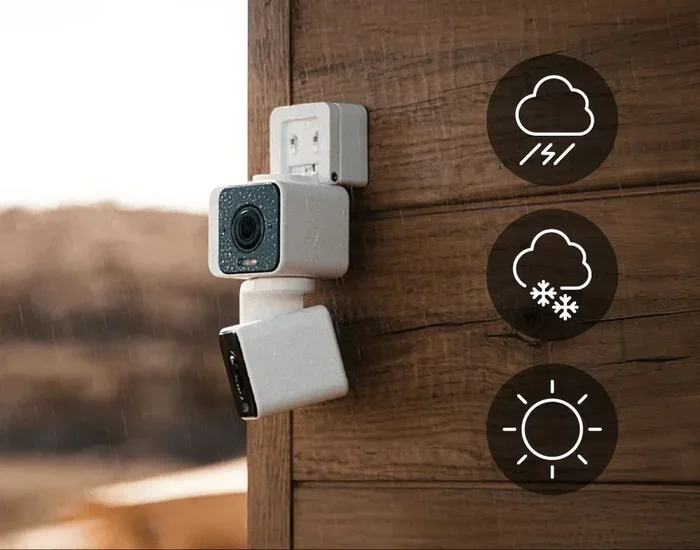
- Keep cameras dry: Use outdoor-rated models like the Wyze Cam v3 for exposed spots.
- Mount at the right height: About 8 to 10 feet off the ground works best.
- Stay within Wi-Fi range: If the signal is weak, move the camera closer to the router.
Network and Connectivity Considerations
Good Wi-Fi makes all the difference. Here is how to keep your connection strong:
- Use a dual-band router if possible. The 2.4 GHz band works best with Wyze cameras.
- Limit the number of devices on the same network to avoid congestion.
- Restart your router occasionally to keep speeds steady.
- If one location has poor internet, consider a mesh Wi-Fi system.
Strong connectivity ensures smooth live view and fast clip uploads. Nobody wants to wait forever for a video to load.
Common Mistakes to Avoid When Using Wyze Cameras at Multiple Locations
Even with a simple setup, people make avoidable errors. Here are the most common ones and how to dodge them.
Overlooking Firmware Updates
Wyze releases firmware updates regularly. These updates fix bugs, add features, and improve security. If you skip updates, your cameras may not work their best. Check for updates in the Wyze app at least once a month. The app will notify you when an update is ready for each camera.
Ignoring Motion Detection Settings
Every camera has its own motion detection settings. If you do not adjust them, you may get too many or too few alerts. Go into each camera’s settings and fine-tune the detection zone. This way, you only get notified about real activity, not a passing car or a tree swaying in the wind.
Using Weak Wi-Fi Passwords
It sounds basic, but weak passwords cause connection problems. Make sure your Wi-Fi password is strong and stable. Also, avoid changing your Wi-Fi password without updating it in the Wyze app. A mismatched password will kick your cameras offline.
Forgetting to Label Cameras Clearly
When you have cameras at two locations, things can get confusing. Name each camera clearly. Use names like “Front Door – Home” and “Back Gate – Office.” This small step saves a lot of frustration when you are checking feeds quickly.
Expert Insights: Getting the Most Out of Your Multi-Location Setup
We asked a few smart home enthusiasts who run Wyze cameras at multiple locations what tips they would share. Here is what they said:
- Use the Wyze app’s Favorites feature: Pin your most-watched cameras to the home screen for quick access.
- Set up activity zones: Draw custom detection zones so you ignore irrelevant motion.
- Check your storage regularly: Old clips take up space. Clear them out to keep things running smoothly.
- Share access wisely: Only invite trusted people to view cameras at each location.
- Use Wyze sensors too: Pair door sensors and motion detectors with your cameras for full coverage.
These small steps make a big difference. They turn a basic setup into a powerful Wyze home security system that covers every corner of your properties.
Key Takeaways
- One Wyze account handles multiple locations: You do not need separate accounts for each spot.
- Setting up is fast: Adding cameras to a second location takes just minutes in the app.
- Wyze Cam Plus works everywhere: One subscription covers storage for all cameras at all locations.
- Location grouping keeps things organized: You can switch between spots with a single tap.
- Strong Wi-Fi is essential: Invest in good connectivity for the best camera performance.
- Avoid common mistakes: Update firmware, label cameras, and fine-tune motion settings.
Conclusion
The answer to the question is a clear yes. You can absolutely run Wyze cameras on two different locations with ease. The Wyze app gives you all the tools you need to organize, monitor, and manage cameras across separate spots. From setup to daily use, the process is smooth and user-friendly.
Whether you are watching over a second home, a rental property, or a small business, Wyze cameras two locations setups deliver real value. You get peace of mind, live alerts, and cloud storage without breaking the bank. The affordable price of Wyze gear makes this kind of multi-property monitoring accessible to almost everyone.
Now that you know how it all works, it is time to take action. Set up your cameras, organize them by location, and enjoy the confidence that comes with full coverage. Your Wyze home security system is ready to grow with you.
Frequently Asked Questions
Can I use one Wyze account for cameras at home and at work?
Yes, you can. The Wyze app supports multiple locations within one account. You just create a separate location group for each place and assign cameras accordingly. This works perfectly for home and office setups.
Do I need a separate Wyze Cam Plus plan for each location?
No, you do not. One Wyze Cam Plus subscription covers all cameras across all locations. The storage applies per camera, not per location, so you can manage clips from both spots in one place.
What happens if my Wi-Fi goes down at one location?
If the Wi-Fi drops, cameras at that location will temporarily lose their live feed and stop uploading clips. Once the connection returns, they reconnect automatically. Using a reliable internet service provider helps avoid this issue.
Can I share camera access with someone at the other location?
Yes, you can invite other users to your Wyze account or share specific camera access. They will see the cameras based on the location groups you have set up. This is great for family members or property managers.
Is there a limit to how many cameras I can add across two locations?
Wyze does not impose a strict limit on the number of cameras per account. You can add dozens of cameras across multiple locations. Just make sure your Wi-Fi network can handle the total number of connected devices.
Can I use different Wyze camera models at each location?
Absolutely. You can mix Wyze Cam v3, Wyze Cam Pan, and other models across locations. The Wyze app supports all models and treats them the same way, so you get a consistent experience everywhere.