Can You Add Bluetooth To A PC Heres Everything You Need
Yes, you can add Bluetooth to a PC easily and affordably. Whether your computer lacks built-in wireless support or you need an upgrade, a USB Bluetooth adapter or internal card solves the problem fast. This guide walks you through every option, from choosing the right Bluetooth adapter to pairing wireless peripherals like headphones, keyboards, and mice. You will learn how to check if your PC already has Bluetooth, set up Bluetooth drivers, troubleshoot common issues, and boost your wireless connectivity in minutes.
Let us start with the big question. Can you add Bluetooth to a PC? The short answer is absolutely yes. Whether you own a sleek modern laptop or a bulky desktop tower from a few years back, you can get Bluetooth wireless connectivity running in no time. It is one of the easiest and most affordable PC upgrades you can make.
Think about how many devices you use every day. Wireless headphones, a Bluetooth keyboard, a wireless mouse, maybe a speaker for music. Without Bluetooth on your computer, you are stuck with cables everywhere. Adding this feature opens up a whole world of wireless peripherals and makes your workspace cleaner and more flexible.
In this guide, we will cover everything you need to know. You will learn how to check if your PC already has Bluetooth, the different ways to add it, which Bluetooth adapter to choose, and how to set things up step by step. We will also tackle common problems so you are never stuck with a device that refuses to connect.
The goal here is simple. Give you the confidence and knowledge to add Bluetooth to any PC without frustration. No tech degree required. Just clear, practical advice you can use right away.
Key Takeaways
- Adding Bluetooth to a PC is simple and affordable — a USB dongle is the fastest solution for most users.
- Check your PC first before buying anything, because many modern computers already have Bluetooth built in.
- Bluetooth versions matter — Bluetooth 5.0 offers better range and speed than older versions like Bluetooth 4.0.
- USB Bluetooth adapters work with desktops and laptops and require minimal setup.
- Driver software is essential for proper Bluetooth pairing and stable wireless connectivity.
- Common issues like interference or outdated drivers can usually be fixed with simple troubleshooting steps.
- Bluetooth low energy technology helps save battery life on wireless peripherals.
📑 Table of Contents
- What Is Bluetooth And Why Do You Need It On Your PC
- How To Check If Your PC Already Has Bluetooth
- Ways To Add Bluetooth To Your PC
- Best Bluetooth Adapters For PC
- How To Set Up And Pair Bluetooth Devices
- Troubleshooting Common Bluetooth Problems On PC
- Expert Tips For Getting The Most Out Of Bluetooth On Your PC
- Key Takeaways
- Conclusion
What Is Bluetooth And Why Do You Need It On Your PC
Bluetooth is a short-range wireless technology that lets devices talk to each other without cables. It uses radio waves to send data over short distances, usually within 30 feet or so. The technology has been around for decades and is built into almost every modern phone, tablet, and laptop.
So why do you need Bluetooth on your PC? The reasons are pretty obvious once you think about them.
- Wireless headphones and earbuds — listen to music or take calls without tangled wires.
- Wireless mouse and keyboard — move freely and keep your desk tidy.
- Bluetooth speakers — play audio anywhere in the room.
- File transfer — send photos or documents between devices without USB cables.
- Game controllers — connect wireless Xbox or PlayStation controllers for gaming.
Without Bluetooth, you are limited to wired connections or Wi-Fi-based alternatives. And while Wi-Fi works for some things, it is not always the best fit for peripherals like mice and keyboards. Bluetooth low energy technology uses very little power, which is why wireless accessories last so long on a single charge.
Bluetooth vs Wi-Fi — What Is The Difference
People often confuse Bluetooth with Wi-Fi, but they serve different purposes. Wi-Fi is designed for high-speed internet connections and streaming large amounts of data. Bluetooth is built for short-range device-to-device communication with low power usage.
Here is a quick comparison to make it crystal clear.
| Feature | Bluetooth | Wi-Fi |
|---|---|---|
| Range | Up to 30 feet | Up to 150+ feet |
| Power Use | Very low | Moderate to high |
| Best For | Peripherals and accessories | Internet and streaming |
| Connection Type | Device-to-device | Device-to-router |
| Setup Complexity | Very simple | Moderate |
Both technologies are important. But when it comes to connecting a wireless mouse or a pair of headphones to your computer, Bluetooth is the way to go. It is simple, fast, and uses almost no battery power.
How To Check If Your PC Already Has Bluetooth
Before you rush out to buy anything, check whether your computer already supports Bluetooth. Many modern PCs come with it built in, and you might not even know it. This step saves you money and time.
Checking On Windows
On Windows 10 or Windows 11, follow these steps.
- Click the Start menu and open Settings.
- Go to Devices or Bluetooth & devices.
- Look for a toggle switch for Bluetooth.
- If you see the option, your PC has Bluetooth support.
You can also check your Device Manager. Right-click the Start button, select Device Manager, and look for a section called Bluetooth. If you see entries there, your computer has a Bluetooth adapter installed. If you do not see a Bluetooth section at all, your PC likely does not have it built in.
Checking On Mac
Mac computers almost always have Bluetooth built in. Click the Apple menu, choose System Preferences, and look for Bluetooth. If it is there, you are good to go. Every Mac made in the last 15 years or so includes wireless connectivity as a standard feature.
Checking On Linux
On Linux systems, open your system settings and look for Bluetooth. You can also check by running the command hciconfig in the terminal. Most modern Linux distributions include Bluetooth support, but older or minimal installations may not.
Ways To Add Bluetooth To Your PC
If your PC does not have Bluetooth, do not worry. There are several reliable ways to add it. Each method has its own advantages depending on your budget, PC type, and how you plan to use wireless devices.
Option 1: USB Bluetooth Adapter (Dongle)
This is by far the most popular and easiest method. A USB Bluetooth dongle is a small plug-in device that adds Bluetooth wireless connectivity to any computer with a free USB port. You simply plug it in, install the driver software, and you are ready to pair devices.
Why choose a USB dongle?
- Super easy to set up — no opening your computer case.
- Works with both desktops and laptops.
- Portable — you can unplug it and take it with you.
- Affordable — most options cost between $10 and $30.
- No technical skills needed.
A USB Bluetooth adapter is the best choice for most people. It is plug-and-play in almost every case. You do not need to be a tech expert to get it working.
Option 2: Internal Bluetooth Card
For desktop PC users who want a cleaner setup without a dangling USB device, an internal Bluetooth card is a great option. These cards plug into a PCIe slot on your motherboard, just like a graphics card or sound card.
Pros of an internal card
- No external dongle cluttering your USB ports.
- Often better performance and stronger signal.
- Stays hidden inside the case for a clean look.
Cons of an internal card
- Requires opening your PC case and some basic installation knowledge.
- Not portable — it stays with your desktop.
- Slightly more expensive than a USB dongle.
If you have a desktop tower and want a permanent Bluetooth solution, an internal card is worth considering. Just make sure your motherboard has a free PCIe slot before buying one.
Option 3: Bluetooth USB Hub With Built-In Adapter
Another option is a USB hub that has a Bluetooth adapter built right into it. This is perfect if you need extra USB ports anyway. You get the wireless connectivity you need plus additional ports for other devices. These hubs usually cost a bit more but serve double duty.
Best Bluetooth Adapters For PC
Not all Bluetooth adapters are created equal. The version of Bluetooth matters a lot for performance, range, and speed. Here is what you need to know when shopping for one.
Understanding Bluetooth Versions
Bluetooth versions have improved dramatically over the years. Each new version brings better speed, longer range, and lower power consumption. Here is a quick breakdown.
- Bluetooth 4.0 — older but still works fine for basic tasks like keyboards and mice.
- Bluetooth 4.2 — a solid middle ground with decent speed and range.
- Bluetooth 5.0 — double the speed and four times the range of Bluetooth 4.0. This is the sweet spot for most users.
- Bluetooth 5.2 and 5.3 — the latest versions with Bluetooth low energy improvements and better audio quality.
For most people, a Bluetooth 5.0 or newer adapter is the best choice. It handles everything from wireless headphones to file transfers with ease. If you plan to stream audio or connect multiple devices at once, go for the latest version you can afford.
Top Picks For Bluetooth Adapters
Here are some reliable options across different price ranges.
- Budget pick: Basic USB Bluetooth 4.0 adapter for around $8 to $12. Great for simple tasks like connecting a mouse or keyboard.
- Mid-range pick: Bluetooth 5.0 USB adapter for $15 to $25. Offers better range, faster speeds, and support for audio streaming.
- Premium pick: Bluetooth 5.2 or 5.3 adapter with advanced features for $25 to $40. Ideal for audiophiles and power users who want the best wireless connectivity.
When choosing, make sure the adapter is compatible with your operating system. Most adapters work with Windows 10 and Windows 11 right out of the box. Always check the product description for Mac or Linux support if you use those systems.
How To Set Up And Pair Bluetooth Devices
Once you have your Bluetooth adapter installed, the next step is pairing your devices. The process is straightforward, but there are a few things that make it go smoothly.
Step-by-Step Setup Process
Here is how to get your Bluetooth pairing done right.
- Plug in your Bluetooth adapter and wait for Windows to recognize it. You may need to install drivers — many adapters include a CD or download link.
- Turn on the device you want to pair. This could be headphones, a keyboard, a mouse, or a speaker.
- Put the device in pairing mode. Most devices have a button or switch for this. Check the manual if you are not sure.
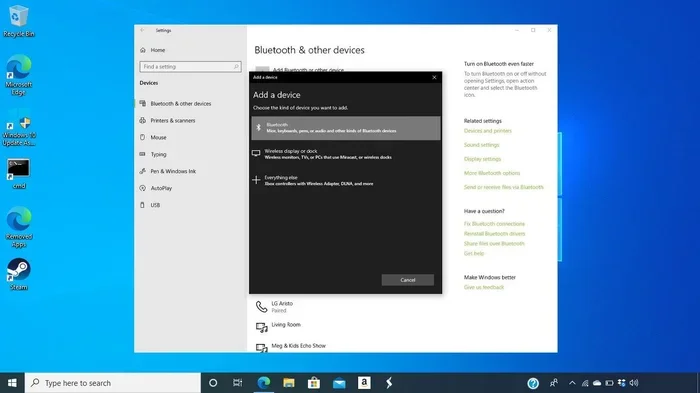
- Open Bluetooth settings on your PC. Go to Settings, then Bluetooth & devices.
- Click Add device and select Bluetooth from the list.
- Select your device from the list of available devices and follow any on-screen prompts.
- Test the connection — play some audio, move your mouse, or type a few keys to make sure everything works.
That is it. Your wireless peripherals should now be connected and ready to use. The whole process usually takes less than five minutes.
Quick Tips For Smooth Pairing
- Keep your devices close together during pairing — within 3 feet is ideal.
- Make sure your Bluetooth adapter has the latest driver updates.
- If a device does not show up, try turning Bluetooth off and on again.
- Restart your PC if you run into issues during setup.
- Only pair one device at a time for the best results.
Troubleshooting Common Bluetooth Problems On PC
Bluetooth troubleshooting is something every PC user should know. Even after a successful setup, you may run into connection drops, audio glitches, or devices that refuse to pair. Most issues are easy to fix.
Device Not Showing Up In The Bluetooth List
This is the most common problem. First, make sure the device is in pairing mode. Then check that your Bluetooth adapter is properly recognized by Windows. Go to Device Manager and look for any yellow warning icons. If you see one, right-click and select Update Driver.
Audio Cutting Out Or Lagging
If your wireless headphones keep disconnecting or the audio sounds choppy, try these fixes.
- Move closer to your PC. Bluetooth range is usually 30 feet indoors, but walls and obstacles reduce it.
- Remove other wireless devices from the area. Wi-Fi interference can sometimes affect Bluetooth signals.
- Update your Bluetooth drivers through Device Manager or the adapter manufacturer’s website.
- Switch to a different USB port — USB 3.0 ports can sometimes cause interference.
Frequent Disconnections
If your devices keep disconnecting randomly, the issue is often related to power management settings. Go to Device Manager, find your Bluetooth adapter, right-click, go to Properties, and uncheck the box that says “Allow the computer to turn off this device to save power.”
Also, make sure your Bluetooth software is up to date. Many adapters come with a companion app that manages updates and settings. Running the latest version can solve a surprising number of connection issues.
When To Consider Replacing Your Adapter
If you have tried everything and Bluetooth still does not work properly, it might be time for a new adapter. Older Bluetooth 4.0 adapters can struggle with newer devices that use Bluetooth 5.0 or later. Upgrading to a newer version is usually inexpensive and solves most compatibility problems.
Expert Tips For Getting The Most Out Of Bluetooth On Your PC
Here are some insider tips that will help you get the best experience with Bluetooth on your PC.
- Keep your adapter away from metal objects and other electronic devices that can cause interference.
- Use Bluetooth low energy devices whenever possible. They connect faster and use less battery.
- Update your Bluetooth drivers regularly — new updates often fix bugs and improve performance.
- Limit the number of connected devices if you notice slowdowns. Too many devices can strain the adapter.
- Place your USB adapter on the top or back of your PC for better signal reception, not buried inside a desk.
These small changes can make a big difference in your daily experience. You will notice fewer disconnections, faster pairing, and smoother audio playback.
Key Takeaways
- Adding Bluetooth to a PC is simple and affordable — a USB dongle is the fastest solution for most users.
- Check your PC first before buying anything, because many modern computers already have Bluetooth built in.
- Bluetooth versions matter — Bluetooth 5.0 offers better range and speed than older versions like Bluetooth 4.0.
- USB Bluetooth adapters work with desktops and laptops and require minimal setup.
- Driver software is essential for proper Bluetooth pairing and stable wireless connectivity.
- Common issues like interference or outdated drivers can usually be fixed with simple troubleshooting steps.
- Bluetooth low energy technology helps save battery life on wireless peripherals.
Conclusion
The answer to can you add Bluetooth to a PC is a resounding yes. It does not matter if you have a brand new laptop or an older desktop tower. A simple USB Bluetooth adapter can bring wireless connectivity to any computer in just a few minutes.
You now know how to check if your PC already has Bluetooth, which adapter to choose, how to set things up, and how to fix common problems. You also understand the difference between Bluetooth versions and why Bluetooth 5.0 is the best choice for most users.
Wireless peripherals like keyboards, mice, headphones, and speakers make your computing experience so much better. No more cables, no more clutter, just clean and simple wireless connectivity right at your fingertips.
So go ahead and make the upgrade. A Bluetooth adapter costs very little and transforms how you use your PC every single day. Your wireless devices are waiting to connect.
Frequently Asked Questions
Can I add Bluetooth to any desktop PC?
Yes, you can add Bluetooth to virtually any desktop PC. You just need a USB Bluetooth adapter or an internal PCIe Bluetooth card. Both options work with all desktops regardless of age or brand. The USB dongle is the easiest option for most users.
Do I need to install drivers for a Bluetooth adapter?
Most modern Bluetooth adapters install drivers automatically on Windows 10 and Windows 11. However, some adapters come with a CD or a download link for the latest drivers. Installing the official driver from the manufacturer’s website ensures the best performance and stability.
What is the difference between Bluetooth 4.0 and Bluetooth 5.0?
Bluetooth 5.0 offers twice the speed and four times the range of Bluetooth 4.0. It also uses less power, which is great for wireless peripherals. If you are buying a new adapter, always go for Bluetooth 5.0 or newer for the best wireless connectivity experience.
Can I connect multiple Bluetooth devices at once?
Yes, you can connect multiple wireless peripherals to your PC at the same time. Most Bluetooth adapters support connecting several devices simultaneously. Just keep in mind that having too many devices connected can sometimes cause slight delays or interference.
Why does my Bluetooth keep disconnecting?
Frequent disconnections are usually caused by outdated drivers, power management settings, or interference from other wireless devices. Try updating your Bluetooth drivers, disabling USB power saving mode, and moving your adapter closer to the connected device. These steps fix the problem in most cases.
Is Bluetooth safe to use on a PC?
Yes, Bluetooth is completely safe to use on a PC. It uses low-power radio waves that are well within safety standards. Bluetooth low energy technology is especially safe, as it emits very minimal radiation. Millions of people use Bluetooth devices every day without any health concerns.