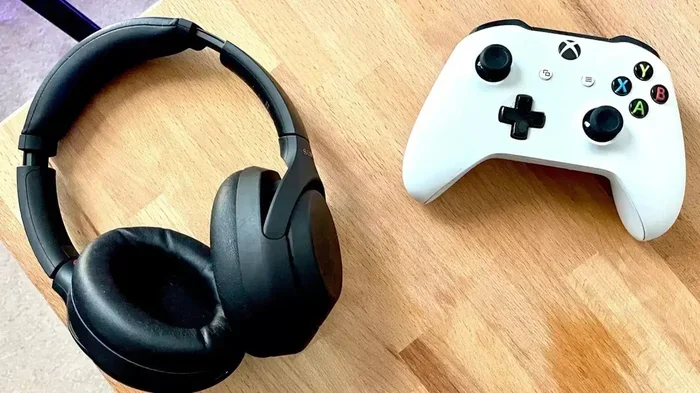
Can Xbox One Do Bluetooth Audio Heres How You Do It
Can Xbox One Do Bluetooth Audio? The short answer is no, not directly. Xbox One lacks built-in Bluetooth support for audio devices, but you can still get wireless sound through workarounds like a Bluetooth adapter or the Xbox Wireless protocol. This guide walks you through every method so you can enjoy wireless gaming audio without frustration. Whether you want to use wireless headphones or connect a speaker, we have you covered.
If you have ever asked yourself, “Can Xbox One Do Bluetooth Audio,” you are not alone. Thousands of gamers search for this every single day. The desire to go wireless and ditch the tangled cables is completely understandable. You want to kick back on the couch, grab your favorite wireless headphones, and dive into your game without any hassle.
Here is the truth. Xbox One does not have native Bluetooth audio support. Microsoft made a deliberate choice here, and it frustrates a lot of people. But do not worry. There are several simple workarounds that let you enjoy wireless gaming audio on your Xbox One. You just need the right tool or method. This guide covers everything you need to know in plain, easy-to-follow steps.
We will look at Bluetooth adapters, Xbox Wireless headsets, the controller audio jack, and much more. By the end of this article, you will know exactly how to get wireless sound working on your Xbox One. No confusion. No guesswork. Just clear, practical advice that actually works.
Key Takeaways
- No Direct Bluetooth: Xbox One does not support Bluetooth audio natively, but there are reliable workarounds.
- Bluetooth Adapter Is the Best Fix: A USB Bluetooth transmitter lets you connect any Bluetooth headphones or speakers easily.
- Xbox Wireless Headsets Work Great: Official and third-party Xbox Wireless headsets connect seamlessly without extra hardware.
- Controller Audio Jack Works Too: You can plug in wired headsets using the 3.5mm jack on your Xbox One controller.
- Setup Is Simple: Most methods take under five minutes and require no technical skills.
- Avoid Common Mistakes: Don’t try to pair Bluetooth devices directly through Xbox settings, as it will not work.
📑 Table of Contents
- Why Xbox One Does Not Support Bluetooth Audio
- Can Xbox One Do Bluetooth Audio Using a Bluetooth Adapter
- Using Xbox Wireless Headsets Instead of Bluetooth
- Using the Xbox One Controller Headphone Jack
- Connecting Bluetooth Speakers to Xbox One
- Common Mistakes People Make With Xbox One Audio
- Comparing Audio Methods for Xbox One
- Expert Tips for the Best Xbox One Audio Experience
- Final Thoughts
Why Xbox One Does Not Support Bluetooth Audio
It helps to understand why Xbox One Bluetooth support is missing in the first place. Microsoft uses a custom wireless protocol called Xbox Wireless for its ecosystem. This protocol is designed for low latency and high reliability. It keeps your audio and controller signals stable during intense gaming sessions.
Standard Bluetooth, on the other hand, has higher latency. It also shares bandwidth with other wireless devices in your home. This can cause audio drops, interference, and lag. Microsoft wanted to avoid these problems for console gaming. That is why they chose their own wireless technology instead of using Bluetooth.
Now, this does not mean you are stuck with wires forever. There are smart solutions that bridge the gap between Bluetooth devices and your Xbox One. Let us explore them one by one.
The Reason Behind the Decision
Microsoft built the Xbox One with a focus on performance. Using a proprietary wireless protocol gives them more control over the audio experience. It also ensures that Xbox One audio output remains consistent across all devices. While Bluetooth is great for phones and PCs, it was not designed for the demands of console gaming.
Think of it this way. Bluetooth is like a busy highway. Lots of devices share the same road. This can cause traffic jams, which in tech terms means interference and lag. Xbox Wireless is more like a private express lane. It gives your audio a clear, dedicated path to your console.
Can Xbox One Do Bluetooth Audio Using a Bluetooth Adapter
This is the most popular solution for people who want Xbox One Bluetooth audio. A Bluetooth adapter plugs into your Xbox One’s USB port. It acts as a bridge between your Bluetooth headphones and the console. The adapter receives the Bluetooth signal and sends it to your Xbox One through USB.
Setting this up is straightforward. You just plug the adapter into the Xbox One’s USB port. Put your Bluetooth headphones in pairing mode. Then pair them with the adapter. It is really that simple. Most Bluetooth adapters support the latest Bluetooth 5.0 or 5.3 standards, which means better range and lower latency.
Best Bluetooth Adapters for Xbox One
Not all Bluetooth adapters are created equal. Some work better than others for gaming. Here are a few reliable options you can consider:
- Kinivo BTD-400: This is a budget-friendly option that works well for basic audio needs. It supports Bluetooth 4.0 and is easy to set up.
- TP-Link UB500: This adapter offers Bluetooth 5.0 with a stable connection. It is a great middle-ground choice for most gamers.
- Avantree DG40S: This is a premium option with Bluetooth 5.0 and aptX Low Latency support. It is ideal if you want the best audio quality and minimal delay.
- 1Mii B06TX: Another solid Bluetooth 5.0 adapter with good range and reliable performance.
Step-by-Step Setup Guide
Here is how you set up a Bluetooth adapter with your Xbox One:
- Plug the Bluetooth adapter into a free USB port on your Xbox One.
- Wait for the Xbox to recognize the adapter. You should see a notification on screen.
- Put your Bluetooth headphones into pairing mode. Check your headphone manual if you are not sure how to do this.
- On the Xbox One, go to “All Devices” in the Bluetooth settings.
- Select your headphones from the list of available devices.
- Once paired, you should hear audio through your headphones.
That is it. You are now enjoying wireless audio on your Xbox One. Keep in mind that some adapters may require a firmware update for the best performance. Always check the manufacturer’s website for the latest updates.
Using Xbox Wireless Headsets Instead of Bluetooth
If you do not want to deal with a Bluetooth adapter, Xbox Wireless headsets are the way to go. These headsets connect directly to your Xbox One using the Xbox Wireless protocol. This means no extra hardware, no adapters, and no latency issues. The connection is clean and stable.
Xbox One wireless headset options are plentiful these days. Both Microsoft and third-party manufacturers make excellent choices. Let us look at what is available.
Official Xbox Wireless Headsets
Microsoft makes its own line of wireless headsets designed specifically for Xbox. The Xbox Wireless Headset is the most popular option. It connects directly to your Xbox One without any additional accessories. It offers great sound quality, comfortable ear cushions, and a built-in mic for chat.
The official headset also supports spatial sound, which makes your gaming audio more immersive. You can hear footsteps behind you, explosions from a distance, and subtle environmental details. This feature really elevates your gaming experience.
Third-Party Xbox Wireless Headsets
You are not limited to Microsoft’s official options. Several third-party headsets also support Xbox Wireless. Brands like SteelSeries, HyperX, and Turtle Beach make excellent headsets that connect directly to your Xbox One. Here are a few popular choices:
- SteelSeries Arctis Nova 7X: This headset offers multi-platform support and excellent sound quality. It connects via Xbox Wireless and Bluetooth simultaneously, so you can chat on your phone while gaming.
- HyperX Cloud III Xbox: A comfortable, durable headset with solid audio performance. It connects through Xbox Wireless for a hassle-free experience.
- Turtle Beach Stealth 700 Gen 2: This headset features Xbox Wireless connectivity, great battery life, and adjustable EQ settings through the Turtle Beach app.
Using the Xbox One Controller Headphone Jack
Another simple way to get audio on your Xbox One is through the controller’s headphone jack. Every Xbox One controller has a 3.5mm audio jack built into the bottom. You can plug in any wired headset or earphones directly into the controller.
This method works great if you already own a good wired headset. You do not need to buy any extra equipment. Just plug it in and go. The audio comes through the controller and feeds into your Xbox One seamlessly.
How to Set Up Audio Through the Controller
Setting up audio through the controller is super easy. Here are the steps:
- Plug your wired headset into the 3.5mm jack on the bottom of your Xbox One controller.
- Press the Xbox button on your controller to open the guide menu.
- Go to “Profile & System” and then select “Settings.”
- Navigate to “General” and then “Volume & Audio Output.”
- Under “Headset Audio,” make sure the output is set to “Headset.”
- Adjust the volume sliders to your preference.
This method gives you full control over game audio and chat audio separately. You can adjust the volume for each independently, which is really handy. If you share a controller with someone, you can even set different audio levels for each person.
Limitations of the Controller Jack
While the controller headphone jack works well, it does have some limitations. First, you are limited by the length of your headset cable. You need to stay within range of your controller. Second, not all wired headsets work perfectly with Xbox One controllers. Some headsets may have compatibility issues, especially ones designed for mobile phones. Always check compatibility before buying.
Connecting Bluetooth Speakers to Xbox One
Want to use Bluetooth speakers with your Xbox One? The same Bluetooth adapter method applies here. You can connect any Bluetooth speaker to your Xbox One through a USB Bluetooth transmitter. This lets you enjoy game audio through a bigger speaker setup without any wires running across your room.
Keep in mind that Bluetooth speakers may introduce a slight audio delay compared to wired options. For casual gaming, this is usually not noticeable. For competitive or fast-paced games, the delay might be distracting. If you are a serious competitive gamer, you may want to stick with wired headsets or Xbox Wireless headsets for the lowest possible latency.
Tips for the Best Speaker Experience
- Place the Bluetooth speaker close to the Xbox One for a stronger signal.
- Avoid placing the speaker near other wireless devices that might cause interference.
- Use a Bluetooth adapter with aptX or aptX Low Latency support for better audio sync.
- Adjust the Xbox One audio settings to optimize for external speakers.
- Keep the speaker firmware updated for the best performance.
Common Mistakes People Make With Xbox One Audio
There are a few mistakes that people make frequently when trying to get Xbox One Bluetooth audio working. Avoiding these will save you a lot of frustration.
Trying to Pair Bluetooth Directly Through Xbox Settings
The biggest mistake is trying to pair a Bluetooth device directly through the Xbox One settings menu. Xbox One does not have a built-in Bluetooth settings page for audio devices. If you go looking for it, you will not find it. This is because the console simply does not support Bluetooth audio natively. Trying to force it will only lead to confusion.
Buying the Wrong Bluetooth Adapter
Not all Bluetooth adapters work well with Xbox One. Some cheap adapters have poor range, high latency, or compatibility issues. Always buy a reputable brand and check reviews before purchasing. A good Bluetooth adapter makes all the difference in your audio experience.
Ignoring Firmware Updates
Both your Bluetooth adapter and your headphones may need firmware updates for optimal performance. Manufacturers regularly release updates that fix bugs and improve connectivity. Always check for updates after setting up a new device.
Not Checking Audio Settings After Connecting
Even after successfully connecting a wireless headset or speaker, you still need to configure the Xbox One audio settings. Go to “Volume & Audio Output” and make sure the correct audio output is selected. If you skip this step, you might not hear any sound even though the device is connected.
Comparing Audio Methods for Xbox One
Let us compare the different methods for getting wireless and wired audio on your Xbox One. This table makes it easy to see which option fits your needs best.
| Method | Wireless? | Latency | Extra Hardware Needed? | Ease of Setup |
|---|---|---|---|---|
| Bluetooth Adapter | Yes | Low to Medium | Yes (Bluetooth adapter) | Easy |
| Xbox Wireless Headset | Yes | Very Low | No | Very Easy |
| Controller Headphone Jack | No | None | No | Very Easy |
| Bluetooth Speaker via Adapter | Yes | Low to Medium | Yes (Bluetooth adapter) | Easy |
| HDMI ARC to Soundbar | No | None | Yes (HDMI cable) | Moderate |
As you can see, each method has its pros and cons. The best choice depends on your gaming style, budget, and what kind of audio setup you already have. If you want the simplest wireless experience, an Xbox Wireless headset is hard to beat. If you want to use your existing Bluetooth headphones, a Bluetooth adapter is the way to go.
Expert Tips for the Best Xbox One Audio Experience
Here are some expert tips to help you get the most out of your Xbox One audio setup:
- Use a USB Hub with Power: If you are using a Bluetooth adapter, plug it into a powered USB hub. This ensures a stable connection and prevents power-related issues.
- Keep Your Firmware Updated: Regularly update your headset, adapter, and controller firmware. Updates often include audio improvements and bug fixes.
- Experiment with EQ Settings: Many headsets and adapters come with companion apps that let you adjust the equalizer. Spend some time tuning the sound to your preferences.
- Position Your Adapter Properly: If using a Bluetooth adapter, keep it in a clear line of sight with your wireless headphones. Walls and obstacles can weaken the signal.
- Check for Interference: Other wireless devices like Wi-Fi routers and microwaves can interfere with your Bluetooth signal. Keep your setup away from these sources if you notice audio issues.
- Use Optical Audio for Your TV Setup: If you are using a soundbar or AV receiver with your Xbox One, an optical cable provides the best audio quality. Combine this with a Bluetooth adapter for wireless headset use.
Final Thoughts
So, can Xbox One do Bluetooth audio? The answer is yes, but not directly. You need a workaround to get wireless audio on your Xbox One. Whether you choose a Bluetooth adapter, an Xbox Wireless headset, or the trusty controller headphone jack, you have plenty of options. Each method has its strengths, and the right choice depends on your personal preferences and gaming setup.
The Bluetooth adapter method is the most flexible option. It lets you use almost any Bluetooth headphones or speaker you already own. Xbox Wireless headsets offer the best performance and the easiest setup. And the controller headphone jack remains a reliable fallback that never fails.
No matter which method you choose, the goal is the same: to make your gaming experience more immersive and enjoyable. Wireless audio frees you from cables, lets you move around comfortably, and delivers high-quality sound that pulls you deeper into your games. You deserve that kind of experience, and now you know exactly how to get it.
Take some time to try out the different methods we have covered. Start with the one that seems easiest for your setup. Once you hear the difference that wireless audio makes, you will wonder how you ever gamed with wires. Xbox One Bluetooth audio is absolutely achievable, and now you have everything you need to make it happen.
Frequently Asked Questions
Can Xbox One connect to Bluetooth headphones directly?
No, Xbox One cannot connect to Bluetooth headphones directly. The console does not have built-in Bluetooth audio support. You will need a Bluetooth adapter or an Xbox Wireless headset to get wireless audio working on your Xbox One.
What is the easiest way to get Bluetooth audio on Xbox One?
The easiest way is to use a USB Bluetooth adapter. Simply plug it into your Xbox One’s USB port, put your Bluetooth headphones in pairing mode, and connect them through the Xbox settings menu. Most adapters work right out of the box with no extra software needed.
Do Xbox Wireless headsets work with Xbox One?
Yes, Xbox Wireless headsets work perfectly with Xbox One. They connect directly to the console using the Xbox Wireless protocol, which provides low latency and a stable connection. Both official Microsoft headsets and third-party options are available.
Can I use a Bluetooth speaker with my Xbox One?
Yes, you can use a Bluetooth speaker with your Xbox One through a USB Bluetooth adapter. Just pair the speaker with the adapter, and you will hear game audio through the speaker. Keep in mind that Bluetooth speakers may have slightly higher latency than wired options.
Why does my Bluetooth audio lag on Xbox One?
Bluetooth audio lag, also known as latency, is common with Bluetooth connections. It happens because Bluetooth transmits data wirelessly, which takes slightly longer than a wired connection. Using a Bluetooth adapter with aptX Low Latency support can significantly reduce this lag. For the lowest latency, consider an Xbox Wireless headset instead.
Is it better to use a wired headset or wireless on Xbox One?
It depends on your preference. Wired headsets offer zero latency and no charging, but they limit your movement. Wireless headsets give you freedom to move around, but they need to be charged and may have slight latency. For most gamers, a wireless headset provides the best balance of convenience and performance.
=== CONCLUSION ===
Can Xbox One Do Bluetooth Audio? Yes, it can, just not the way you might expect. Xbox One does not support Bluetooth audio natively, but with the right tools and methods, you can absolutely enjoy wireless sound while gaming. A Bluetooth adapter is your best friend if you want to use existing Bluetooth headphones or speakers. An Xbox Wireless headset gives you the smoothest, most reliable wireless experience. And the controller headphone jack is always there as a dependable wired option.
The key is to pick the method that fits your setup and budget. Try out the different options we discussed, and you will find the perfect audio solution for your Xbox One. Wireless gaming audio is more accessible than ever, and you do not need to be a tech expert to set it up. Start today, and elevate your gaming experience to the next level.