Can Iphones Read Wi Fi Nfc Tags And NFC Tags Today
Yes, iPhones can read Wi-Fi NFC tags, and this feature has become increasingly useful for everyday users. NFC tags allow you to share network credentials, automate tasks, and simplify wireless pairing with just a tap. Apple has steadily improved iPhone NFC capabilities since the iPhone 7, making tag reading faster and more reliable. Whether you want to share your home Wi-Fi with guests or set up a smart home routine, Wi-Fi NFC tags offer a simple solution. This guide covers everything you need to know about using NFC tags with your iPhone.
You have probably seen those small sticker-like objects called NFC tags. Maybe a friend showed you how they tap their phone on a tag to connect to Wi-Fi instantly. Or perhaps you saw an NFC tag on a restaurant table that opens the menu. The question on your mind might be simple: can iPhones read Wi-Fi NFC tags? The short answer is yes. But there is a lot more to know about how this works, what you can do with it, and where the limits are.
NFC technology has been around for years, but Apple was slow to open it up for everyday users. Today, iPhones from the iPhone 7 onward can read NFC tags with ease. You do not need any special accessory or expensive gadget. A simple tap connects your phone to a tag, and the tag can do amazing things like share your Wi-Fi password or launch a website. In this article, we will explore everything about iPhone NFC reading, how Wi-Fi NFC tags work, and how you can use them in your daily life.
Whether you are a tech enthusiast or someone who just wants a smarter way to share your home network, this guide has you covered. We will walk through setup steps, creative uses, common mistakes, and expert tips. By the end, you will know exactly how to get the most out of NFC tags on iPhone.
Key Takeaways
- iPhones can read Wi-Fi NFC tags natively: No extra hardware is needed. Modern iPhones support NFC reading right out of the box.
- Setup is simple: You can use the native NFC reader or third-party apps to read and write Wi-Fi NFC tags.
- Creative uses abound: From sharing guest Wi-Fi to automating smart home tasks, NFC tags make life easier.
- Limitations exist: iPhones cannot write to NFC tags natively without third-party apps, and some tag types may not be fully supported.
- Future looks bright: Apple continues to expand NFC functionality with each iOS update, opening new possibilities for tag users.
📑 Table of Contents
- How NFC Technology Works on iPhones
- Can iPhones Read Wi-Fi NFC Tags Specifically
- Step-by-Step Guide to Reading NFC Tags on iPhone
- Creative Uses for Wi-Fi NFC Tags with iPhone
- Limitations and Common Issues with iPhone NFC
- Expert Insights and the Future of NFC on iPhone
- How to Write Wi-Fi Data to NFC Tags for iPhone
- Security Considerations for NFC Tags on iPhone
- Conclusion
How NFC Technology Works on iPhones
Near Field Communication is the technology behind NFC tags. It allows two devices to exchange data when they are very close together, usually within a few centimeters. Think of it as a very short-range wireless conversation between your phone and a tag. No internet connection is needed for the initial tap. The tag itself is a small chip embedded in a sticker, card, or keychain.
The Evolution of NFC in Apple Devices
Apple first introduced NFC in the iPhone 6 back in 2014. But at that time, it was only used for Apple Pay. Regular users could not read or write NFC tags. Apple kept the technology locked down for years. Then in 2018, with iOS 13 and the iPhone 7, Apple opened up the NFC reader for third-party apps. This was a game-changer. Suddenly, users could scan NFC tags and do useful things with them.
Each new iPhone model brought improvements. The iPhone XS and later models support NFC tag reading even when the screen is off. This background reading makes the experience feel seamless. You do not need to open an app anymore. You just tap your iPhone on a tag, and it responds instantly.
How iPhone NFC Reader Functions
Your iPhone has an NFC antenna built into the top edge. When you bring your phone close to an NFC tag, the antenna sends out a tiny electromagnetic field. This field powers the tag, which is a passive device with no battery. The tag then sends its stored data back to your phone. The whole process takes less than a second.
The data on an NFC tag can be many things. It can be a URL, a text string, a Wi-Fi network name and password, or even a set of commands. When your iPhone reads this data, it triggers an action. For example, if the tag contains Wi-Fi credentials, your phone may prompt you to connect to that network. This is the magic of Wi-Fi NFC tags.
Can iPhones Read Wi-Fi NFC Tags Specifically
The direct answer is yes. iPhones can read Wi-Fi NFC tags without any problems. When you tap your iPhone on a tag that has been encoded with Wi-Fi network details, your phone recognizes the format. It then offers to join that network. This works on all iPhones running iOS 13 or later.
What Are Wi-Fi NFC Tags
A Wi-Fi NFC tag is simply a regular NFC tag that has been pre-loaded with Wi-Fi network information. The tag stores the network name (SSID), the password, and the security type (WPA, WPA2, or WEP). When your iPhone reads this tag, it uses that stored data to attempt a connection. You do not need to type in any passwords or search for networks manually.
These tags come in many forms. You can buy pre-made Wi-Fi NFC tags online. You can also program your own using an NFC writer app and another NFC-enabled phone. The most common types are NTAG213, NTAG215, and NTAG216 chips. These are affordable and widely compatible with iPhones.
How iPhone Reads Wi-Fi Configuration Tags
When you tap your iPhone on a Wi-Fi NFC tag, the following happens in seconds:
- Your iPhone detects the NFC tag through its antenna.
- The tag sends the stored Wi-Fi credentials to your phone.
- iOS recognizes the data format as a Wi-Fi configuration.
- A prompt appears asking if you want to connect.
- You tap “Connect,” and your iPhone joins the network.
It is that simple. No apps are required for this basic function on modern iPhones. Apple has built native NFC tag reading for Wi-Fi credentials directly into iOS. This makes the experience smooth and user-friendly.
Step-by-Step Guide to Reading NFC Tags on iPhone
Getting started with NFC tag reading on iPhone is straightforward. You do not need to be tech-savvy. Here is a simple walkthrough for beginners.
Using the Native NFC Reader
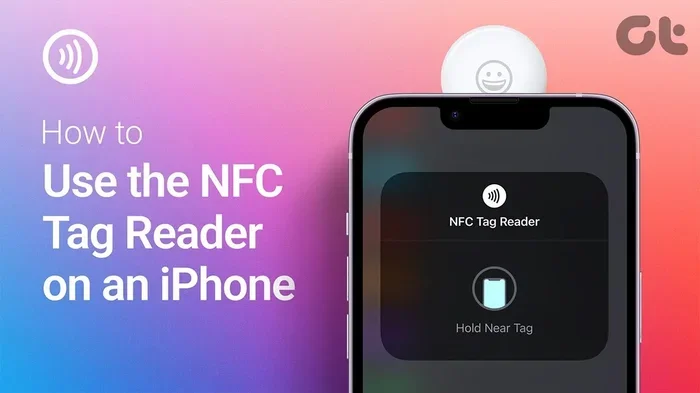
Apple has made reading NFC tags easier than ever. On iPhone XS, XR, and later models, your phone can read tags in the background. You do not even need to open an app. Just hold the top of your iPhone near the tag and wait for a notification. On older models like iPhone 7 through iPhone X, you may need to open the Wallet app or bring the screen close to the tag manually.
Here is the basic process:
- Wake up your iPhone.
- Hold the top edge of your phone near the NFC tag.
- Wait for a notification or prompt to appear.
- Tap the notification to see the tag content.
- If it is a Wi-Fi tag, tap “Connect” to join the network.
Third-Party NFC Apps for iPhone
While the native reader works great for basic tasks, third-party NFC apps unlock more features. Apps like NFC Tools, TagInfo, and SimplyNFC let you read detailed tag information, write new data to tags, and create custom tag actions. These apps are free or low-cost and work well with iOS NFC features.
If you want to do more than just read Wi-Fi credentials, a dedicated app is a good idea. For example, you can use an app to program a tag that opens a specific website, launches a shortcut, or triggers an automation in the Shortcuts app.
Creative Uses for Wi-Fi NFC Tags with iPhone
Once you understand how iPhone NFC reading works, the possibilities become exciting. People use Wi-Fi NFC tags in creative ways every day. Here are some of the most popular and practical applications.
Home Network Quick Connect
One of the most common uses is placing a Wi-Fi NFC tag near your router. Guests who visit your home can simply tap their iPhone on the tag to join your network. No need to ask for the password or type in a long string of characters. This is especially helpful during parties or family gatherings.
You can also use a tag for your own convenience. Place one on your desk or nightstand. When you come home, tap your phone to connect to your home network instantly. It saves time and removes the hassle of searching for networks in your list.
Guest Wi-Fi Sharing
If you run a small business, a cafe, or a rental property, Wi-Fi NFC tags are a lifesaver. Print a sign that says “Tap to connect to Wi-Fi” and place an NFC tag next to it. Visitors will love the ease of access. It also reduces the number of times you need to share your password verbally.
You can even create separate tags for different networks. For example, one tag for your guest network and another for your private network. This keeps your main network secure while still offering convenience to visitors.
Smart Home Automation
NFC tags can do much more than share Wi-Fi passwords. You can program a tag to trigger a series of automations on your iPhone. For instance, a tag on your nightstand could turn off all lights, set your alarm, and enable Do Not Disturb mode with a single tap. A tag by your front door could turn on your porch light and open your smart home dashboard.
This is where iPhone NFC automation really shines. Using the Shortcuts app, you can create powerful workflows that respond to NFC tag scans. The combination of NFC tags and iOS automation opens up a world of smart living possibilities.
Office and Workspace Productivity
In a work setting, NFC tags can streamline your daily routine. Place a tag on your office desk that switches your phone to work mode, opens your calendar, and connects to the office Wi-Fi. Another tag near your conference room can join the meeting room network and start a recording app. These small touches add up to big productivity gains.
| Use Case | What the Tag Does | Setup Difficulty |
|---|---|---|
| Guest Wi-Fi Sharing | Connects visitors to your network | Easy |
| Smart Home Automation | Triggers lights, alarms, and modes | Medium |
| Office Productivity | Switches modes and opens apps | Medium |
| Home Network Access | Connects your own phone to Wi-Fi | Very Easy |
| Contact Information Sharing | Shares phone number or email | Easy |
Limitations and Common Issues with iPhone NFC
While iPhone NFC reading is impressive, it is not perfect. Understanding the limitations helps you set realistic expectations and avoid frustration.
iPhone NFC Restrictions You Should Know
Apple has been gradually opening up NFC capabilities, but some restrictions remain. For one, iPhones cannot natively write data to NFC tags without a third-party app. You need an app like NFC Tools or TagWriter to encode a tag with Wi-Fi credentials. The native iOS NFC reader is read-only for most tag types.
Another limitation is tag compatibility. Not all NFC tags work equally well with iPhones. Some older or specialty tags may not be recognized. The safest bet is to buy NTAG213, NTAG215, or NTAG216 tags, as these are widely supported and reliable.
Also, iPhones cannot read NFC tags from a locked screen on older models. On iPhone XS and later, background reading works even with a locked screen, but on older devices, you may need to wake the screen first. This is a small detail that can catch people off guard.
Common Mistakes When Using NFC Tags
Here are some mistakes that many people make when starting with Wi-Fi NFC tags on iPhone:
- Placing the tag in the wrong spot: The NFC antenna is at the top edge of your iPhone. Tapping the middle or bottom of your phone on a tag will not work. Always aim for the top edge.
- Using low-quality tags: Cheap, unbranded tags may not hold their data well or may not be compatible with iPhone. Invest in reputable brands.
- Not testing the tag after writing: Always scan a tag after programming it to make sure it works. It is much easier to fix a problem right away than to discover it later.
- Writing the wrong Wi-Fi security type: If you select WEP instead of WPA2 when encoding a tag, your iPhone will fail to connect. Double-check your network settings before writing.
- Ignoring tag memory limits: NTAG213 tags hold 144 bytes of data, which is enough for most Wi-Fi credentials. But if you add too much extra data, you may run out of space.
Expert Insights and the Future of NFC on iPhone
iPhone NFC technology has come a long way in a short time. Apple continues to invest in this area, and each iOS update brings new features. Let us look at what experts think and where things are headed.
What Apple Has Announced About NFC
Apple has been steadily expanding NFC functionality. The introduction of background tag reading in iOS 13 was a major milestone. It made NFC tag interaction feel natural and effortless. With iOS 14 and later, Apple improved tag detection speed and added support for more tag formats.
Industry analysts expect Apple to continue this trend. Rumors suggest that future iPhones may support even more advanced NFC features, including enhanced NFC tag writing capabilities and deeper integration with the Shortcuts app. As contactless technology becomes more mainstream, Apple is well-positioned to lead the way.
How NFC Tags Compare to Other Wireless Methods
You might wonder how NFC tags compare to other ways of sharing Wi-Fi or connecting devices. Here is a quick look at the alternatives:
- QR Codes: QR codes can also share Wi-Fi credentials, but they require a camera and a scanning app. NFC tags are faster and more reliable since they do not depend on camera focus or lighting conditions.
- AirDrop: AirDrop is great for sharing files and data between Apple devices, but it cannot share Wi-Fi credentials. NFC tags fill this gap perfectly.
- Bluetooth Pairing: Bluetooth requires manual pairing and discovery. NFC tags can automate this process, making pairing faster and more convenient.
- Manual Entry: Typing Wi-Fi passwords manually is the most common method, but it is also the most tedious. NFC tags eliminate this friction entirely.
Each method has its place, but for simplicity and speed, NFC tags stand out. They require no app installation (for basic reading), no internet connection, and no manual data entry. Just a tap, and you are connected.
How to Write Wi-Fi Data to NFC Tags for iPhone
Reading tags is only half the story. To get the full benefit of Wi-Fi NFC tags, you need to know how to write data to them. As mentioned, iPhones cannot write to tags natively. You need a third-party app for this task.
Here is the basic process for writing Wi-Fi credentials to an NFC tag:
- Download an NFC writing app from the App Store. NFC Tools is a popular free option.
- Open the app and select “Write.”
- Choose “Wi-Fi” as the data type.
- Enter your network name, password, and security type.
- Hold the NFC tag against the top edge of your iPhone.
- The app will encode the tag. You will hear a confirmation sound or see a success message.
- Test the tag by tapping it with your iPhone to make sure it connects properly.
Once your tag is written and tested, you can place it wherever it makes sense. A small sticker near your router, a discreet tag on a shelf, or even a tag embedded in a picture frame all work well.
Security Considerations for NFC Tags on iPhone
Using NFC tags is generally safe, but it is wise to be aware of security considerations. Since NFC tags are passive devices, they cannot transmit malware or harmful code on their own. However, a malicious tag could be programmed to redirect you to a phishing website or open an unwanted link.
To stay safe, only scan tags from trusted sources. If you find an unknown NFC tag in a public place, it is best not to tap your phone on it. Also, when writing tags, make sure the data you encode is accurate and does not contain sensitive information beyond what is necessary for its intended purpose.
For home use, NFC tags are very secure. You control what data is on the tag, and your iPhone only acts on it when you approve the action. This gives you full control over your NFC tag security.
Conclusion
Can iPhones read Wi-Fi NFC tags? Absolutely. Your iPhone is fully capable of reading and interacting with Wi-Fi NFC tags in seconds. From sharing your home network with guests to automating your smart home routine, NFC tags add a layer of convenience that is hard to beat. The technology is simple, affordable, and becoming more powerful with every iOS update.
Start small. Buy a few NTAG213 tags, use a free app to write your Wi-Fi credentials, and place them in convenient spots. Once you experience the ease of a single-tap connection, you will wonder how you ever lived without it. iPhone NFC technology is a quiet powerhouse that deserves more attention. Explore it, experiment with it, and enjoy the smarter, more connected lifestyle it enables.
The future of NFC tag use on iPhone is bright. As Apple continues to refine and expand this technology, we can expect even more innovative applications in the years ahead. For now, the tools you need are already in your pocket. Start using them today.
Frequently Asked Questions
Do I need an app to read Wi-Fi NFC tags on iPhone?
No, you do not need an app for basic reading. Modern iPhones can read Wi-Fi NFC tags natively and will prompt you to connect to the network automatically. However, if you want to write tags or read detailed tag information, a third-party app like NFC Tools is helpful.
Which iPhone models support NFC tag reading?
All iPhones from the iPhone 7 onward support NFC tag reading. The iPhone 7, 8, X, and later models can read NFC tags. Newer models like iPhone XS, XR, and beyond offer background tag reading, which works even when your screen is locked.
Can I write Wi-Fi data to an NFC tag using my iPhone?
No, iPhones cannot write to NFC tags natively. You need a third-party app such as NFC Tools, TagInfo, or SimplyNFC to encode Wi-Fi credentials onto a tag. These apps are widely available on the App Store and are easy to use.
Are Wi-Fi NFC tags secure to use?
Yes, Wi-Fi NFC tags are generally safe. They are passive devices that can only store and transmit the data you put on them. However, always scan tags from trusted sources, and avoid tapping unknown tags found in public places to stay safe from potential phishing attempts.
What types of NFC tags work best with iPhones?
NTAG213, NTAG215, and NTAG216 are the most compatible NFC chip types for iPhones. These tags are affordable, widely available, and work reliably with both native iPhone reading and third-party NFC apps. Avoid generic or unbranded tags for the best experience.
Can NFC tags work if my iPhone is in a case?
Most thin cases do not interfere with NFC reading. However, thick cases, cases with metal plates, or magnetic car mounts can block the NFC signal. If you have trouble reading tags, try removing your case or moving the tag to a different spot on the phone.
=== CONCLUSION ===
Can iPhones read Wi-Fi NFC tags and NFC tags today? Yes, and the experience is smoother than ever. Apple has made significant strides in iPhone NFC technology, turning a once-limited feature into a practical everyday tool. Whether you are sharing your Wi-Fi with guests, automating your smart home, or boosting office productivity, NFC tags offer a simple and effective solution. The key is to start experimenting. Buy a few tags, try different setups, and discover what works best for your lifestyle. With the tips and insights in this guide, you are well-equipped to make the most of Wi-Fi NFC tags on your iPhone today.