Can I Use A Bluetooth Printer Without Wi Fi Right Now
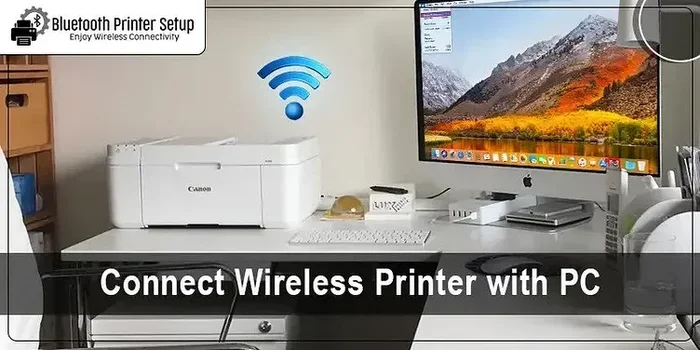
Yes, you can absolutely use a Bluetooth printer without Wi-Fi. A Bluetooth printer connects directly to your phone, tablet, or laptop, letting you print wireless documents even when there is no internet. This guide shows you exactly how Bluetooth printing works, what you need, and how to troubleshoot common issues.
Have you ever been in a situation where you needed to print something but there was no Wi-Fi? Maybe you are at a coffee shop, a friend’s house, or just somewhere without a router. The good news is that a Bluetooth printer can save you in these moments. You do not need an internet connection to get your documents on paper. In this guide, we will answer the big question: Can I use a Bluetooth printer without Wi-Fi right now?
The short answer is yes. A Bluetooth enabled printer uses a direct wireless connection to talk to your phone, tablet, or computer. It does not need a Wi-Fi network to function. This makes Bluetooth printing incredibly convenient for people who are always on the go or who work in places with weak or no internet.
In this article, we will cover everything you need to know. We will explain how Bluetooth connectivity works with printers, walk you through setup, compare Bluetooth vs Wi-Fi printing, and share tips to avoid common problems. By the end, you will know exactly how to print without Wi-Fi using Bluetooth technology.
Key Takeaways
- Bluetooth printers work independently of Wi-Fi: You can print directly from your device using a Bluetooth connection without needing an internet router.
- Setup is simple and fast: Pairing a Bluetooth enabled printer with your phone or laptop takes just a few minutes.
- Range is limited but practical: Most Bluetooth printers work within 30 feet, which is enough for home and office use.
- Mobile printing is a big advantage: You can print from your phone or tablet anywhere within range, no network required.
- Common issues are easy to fix: Most Bluetooth printing problems come from pairing errors, low battery, or distance.
- Not all printers support Bluetooth: Always check if your device is Bluetooth compatible before buying.
- Bluetooth and Wi-Fi serve different needs: Wi-Fi printing is better for multiple users, while Bluetooth is ideal for one-on-one or on-the-go printing.
📑 Table of Contents
- What Is a Bluetooth Printer and How Does It Work
- Can I Use a Bluetooth Printer Without Wi-Fi
- Setting Up Your Bluetooth Printer
- Bluetooth vs Wi-Fi Printing: Which Is Better
- Common Bluetooth Printer Problems and Fixes
- Best Bluetooth Printers That Work Without Wi-Fi
- Quick Tips for Smooth Bluetooth Printing
- Final Thoughts
What Is a Bluetooth Printer and How Does It Work
A Bluetooth printer is a wireless printer that uses Bluetooth technology to connect to your devices. Instead of plugging in a cable or connecting to a Wi-Fi network, it sends and receives data through short-range radio waves. Think of it like a phone call between your device and the printer. They talk directly to each other without needing a middleman like a router.
Here is how Bluetooth printing works in simple terms:
- Your device (phone, tablet, or laptop) has a Bluetooth chip built in.
- The printer also has a Bluetooth module inside it.
- When you turn on Bluetooth on both devices, they find each other.
- You pair them by confirming a code or PIN on both devices.
- Once paired, your device sends print jobs directly to the printer.
That is it. No internet. No router. No extra setup. The connection is point-to-point, which means it goes straight from your device to the printer. This is why Bluetooth printing is so reliable when you are away from home or in a place with no network coverage.
How Far Can Bluetooth Reach
Most Bluetooth printers have a range of about 30 feet (10 meters). This is called Class 2 Bluetooth, and it is the most common type. Some newer printers use Class 1 Bluetooth, which can reach up to 300 feet in open spaces. For most home and office use, 30 feet is more than enough.
Keep in mind that walls, furniture, and other objects can reduce the range. If you are in a different room from your printer, the signal might weaken. So it is best to stay within a reasonable distance when you are printing without Wi-Fi.
Can I Use a Bluetooth Printer Without Wi-Fi
This is the question we are here to answer, and the answer is a clear yes. A Bluetooth printer does not need Wi-Fi to work. The whole point of Bluetooth is to create a direct connection between two devices without relying on a network. So whether you are at home, in a hotel room, or at a park, you can still print as long as your printer and device are paired.
Here are some real-life situations where Bluetooth printing without Wi-Fi shines:
- Traveling: You are in a hotel room with no Wi-Fi but need to print a boarding pass or hotel reservation.
- Outdoor events: You are at a picnic or camping trip and want to print photos directly from your phone.
- Small offices: Your office has no Wi-Fi router, but you still need to print documents from your laptop.
- Guest rooms: You are visiting a friend and need to print something quickly without asking for their Wi-Fi password.
- Remote work: You work in a location with poor internet but have a Bluetooth printer nearby.
In all of these cases, a Bluetooth enabled printer gives you the freedom to print without internet. You are not stuck waiting for Wi-Fi to come back or searching for a public network.
What Devices Can You Print From
Most modern smartphones and tablets support Bluetooth. Both Android and iOS devices can connect to Bluetooth printers. You just need to make sure your device is Bluetooth compatible and running a reasonably recent operating system. Laptops and desktop computers with built-in Bluetooth can also connect, though some older PCs might need a Bluetooth adapter.
Here is a quick list of devices that work with Bluetooth printing:
- Android phones and tablets
- iPhones and iPads
- Windows laptops with Bluetooth
- MacBooks with built-in Bluetooth
- Some Chromebooks with Bluetooth support
Before you try to print from your phone or any other device, check that Bluetooth is turned on and your device is discoverable. This allows the printer to find your device during the pairing process.
Setting Up Your Bluetooth Printer
Setting up a Bluetooth printer is straightforward. You do not need any special software or an internet connection. Just follow these steps, and you will be printing in no time.
Step-by-Step Setup Guide
- Turn on your printer: Make sure the printer is powered on and has enough ink or toner.
- Enable Bluetooth on the printer: Most printers have a Bluetooth button or a setting in their menu. Turn it on and set the printer to pairing mode.
- Turn on Bluetooth on your device: Go to your phone, tablet, or laptop settings and switch Bluetooth on.
- Search for devices: On your device, look for available Bluetooth devices. Your printer should appear in the list.
- Pair the devices: Tap on the printer name. If a PIN appears, enter it on both the printer and your device.
- Test the connection: Print a test page to make sure everything is working.
That is all there is to it. The entire printer setup process usually takes less than five minutes. Once paired, your device will remember the printer, so you will not need to pair it again every time.
Quick Tips for a Smooth Setup
- Keep your printer and device close together during pairing. Within 10 feet is ideal.
- Make sure your printer battery is charged. A low battery can cause pairing failures.
- Restart both devices if the printer does not show up in the list.
- Check that no other device is already connected to the printer.
- Update your printer firmware if a newer version is available.
Troubleshooting Common Setup Issues
Sometimes things do not go smoothly during setup. Here are a few common Bluetooth printer problems and how to fix them:
- Printer not showing up: Make sure Bluetooth is on and the printer is in pairing mode. Move closer to the printer.
- Pairing fails: Restart both devices and try again. Check if the printer is already connected to another device.
- Print jobs stuck: Cancel any pending print jobs and try sending the document again.
- Connection drops: Move closer to the printer. Walls and electronic devices can interfere with the signal.
Bluetooth vs Wi-Fi Printing: Which Is Better
Both Bluetooth printing and Wi-Fi printing have their strengths. The best choice depends on your needs. Let us compare them so you can decide which works best for you.
Comparison Table
| Feature | Bluetooth Printing | Wi-Fi Printing |
|---|---|---|
| Internet Required | No | Yes (for most setups) |
| Connection Type | Direct device-to-printer | Device to router to printer |
| Range | Up to 30 feet | Up to 150 feet or more |
| Multiple Users | One device at a time | Multiple devices can connect |
| Setup Speed | Fast (minutes) | Requires network configuration |
| Portability | Excellent | Good |
| Best For | Single-user, on-the-go printing | Home or office with multiple users |
When to Choose Bluetooth
Choose Bluetooth printing if you often print from a single device, you travel frequently, or you work in places without reliable Wi-Fi. Bluetooth printers are also great for quick, small print jobs like receipts, labels, or a few pages of a document.
When to Choose Wi-Fi
Choose Wi-Fi printing if you have a family or office where multiple people need to print from different devices. Wi-Fi printers also offer a longer range, which is helpful in larger homes or offices.
Many modern printers support both Bluetooth and Wi-Fi. This gives you the best of both worlds. You can print without Wi-Fi when needed and use the wireless network when it is available.
Common Bluetooth Printer Problems and Fixes
Even though Bluetooth printing is simple, you may run into issues from time to time. Here are the most common problems and how to solve them.
Printer Not Connecting
If your printer will not connect, the first thing to check is the Bluetooth setting on both devices. Make sure Bluetooth is turned on and the printer is in pairing mode. Sometimes restarting both devices fixes the issue. You can also try removing the old pairing and creating a new one.
Print Quality Issues
Bluetooth connection does not affect print quality directly. If your prints look faded or blurry, check your ink levels, clean the printhead, or use the right paper settings. Bluetooth printing sends the same data as a wired or Wi-Fi connection, so the output quality should be identical.
Slow Print Speeds
Bluetooth is slower than Wi-Fi for transferring large files. If you are printing a big document or a high-resolution photo, it might take a bit longer over Bluetooth. To speed things up, try printing in draft mode or sending smaller files.
Connection Keeps Dropping
If your connection keeps dropping, you might be too far from the printer. Move closer and make sure there are no obstructions between the devices. Other Bluetooth devices in the area can also cause interference, so try turning off nearby Bluetooth devices temporarily.
Printer Not Found After Update
Sometimes a software update on your phone or computer can change Bluetooth settings. If your printer suddenly disappears, go to your Bluetooth settings, remove the printer, and pair it again. This usually fixes the issue.
Best Bluetooth Printers That Work Without Wi-Fi
If you are looking for a Bluetooth printer that works without Wi-Fi, there are several great options on the market. Here are some popular choices that are perfect for printing without internet.
Portable Bluetooth Printers
Portable Bluetooth printers are small, lightweight, and perfect for on-the-go use. They are great for printing receipts, labels, and photos directly from your phone. Some popular models include the HP Sprocket, the Canon SELPHY, and the Rollo Wireless Label Printer.
All-in-One Bluetooth Printers
If you need a printer that can also scan and copy, look for an all-in-one Bluetooth printer. These devices often come with both Bluetooth and Wi-Fi, giving you flexibility. Brands like Epson, Brother, and HP offer solid options in this category.
What to Look For When Buying
When shopping for a Bluetooth enabled printer, keep these factors in mind:
- Bluetooth version: Look for Bluetooth 4.0 or higher for a stable connection.
- Battery life: If you want a portable printer, check how long the battery lasts on a single charge.
- Print quality: Check the resolution (measured in DPI) to make sure it meets your needs.
- Compatibility: Make sure the printer works with your device’s operating system.
- Size and weight: If you travel often, a compact and lightweight model is ideal.
Quick Tips for Smooth Bluetooth Printing
To get the best experience with Bluetooth printing, follow these simple tips:
- Keep your devices close: Stay within 30 feet of the printer for the best connection.
- Charge your printer: A low battery can cause connection problems and slow printing.
- Use the right app: Many Bluetooth printers come with a companion app that makes printing easier.
- Update your firmware: Keep your printer’s software up to date for the best performance.
- Turn off unused Bluetooth devices: This reduces interference and keeps the connection stable.
- Print in draft mode for everyday documents: It saves ink and speeds up printing.
These small habits can make a big difference in your Bluetooth printing experience. They help you avoid frustration and keep things running smoothly.
Final Thoughts
So, can you use a Bluetooth printer without Wi-Fi? Absolutely. Bluetooth printing is one of the most convenient ways to get your documents on paper without needing an internet connection. Whether you are traveling, working remotely, or just in a place without Wi-Fi, a Bluetooth enabled printer gives you the freedom to print anytime, anywhere.
Setting up a Bluetooth printer is fast and easy. The direct connection between your device and the printer means no router, no network password, and no internet dependency. As long as you stay within range and keep your devices charged, you will have a reliable wireless printing experience.
We hope this guide has answered your questions and given you the confidence to try Bluetooth printing on your own. The next time you need to print something and there is no Wi-Fi available, you will know exactly what to do. Happy printing!
Frequently Asked Questions
Can I use a Bluetooth printer without Wi-Fi?
Yes, absolutely. A Bluetooth printer connects directly to your device using Bluetooth technology, so it does not need a Wi-Fi network to function. You can print from your phone, tablet, or laptop without any internet connection.
How do I connect my phone to a Bluetooth printer?
Turn on Bluetooth on both your phone and the printer. Put the printer in pairing mode, then search for available devices on your phone. Tap on the printer name, confirm the pairing code, and you are connected. You can then send print jobs directly from your phone.
What is the range of a Bluetooth printer?
Most Bluetooth printers have a range of about 30 feet (10 meters). Some models with Bluetooth Class 1 can reach up to 300 feet in open spaces. For best results, stay within 30 feet of the printer when printing.
Can I print photos from my phone using a Bluetooth printer?
Yes, you can. Many Bluetooth printers are designed specifically for printing photos directly from your phone. Portable photo printers like the HP Sprocket and Canon SELPHY use Bluetooth to connect and print high-quality photos without Wi-Fi.
Is Bluetooth printing slower than Wi-Fi printing?
Bluetooth is generally slower than Wi-Fi for transferring large files. For small documents and photos, the difference is barely noticeable. For large files, Wi-Fi is faster, but Bluetooth is still perfectly usable for everyday printing tasks.
Do I need an app to use a Bluetooth printer?
Some Bluetooth printers work with your device’s built-in printing settings, while others require a dedicated app. Check your printer’s manual or the manufacturer’s website to see if an app is needed. Using the official app often gives you access to more features and settings.