How Do I Connect My Edison Bluetooth Speaker Easily
Connecting your Edison Bluetooth speaker is quick and straightforward once you know the steps. This guide walks you through pairing, troubleshooting, and advanced setup for the best wireless sound experience. Whether you are new to the Edison Bluetooth speaker or need a refresher, you will find clear instructions that work every time.
Key Takeaways
- Easy Pairing Process: Connecting your Edison Bluetooth speaker takes just a few simple steps.
- Troubleshooting Tips: Learn how to fix common connection issues fast.
- Advanced Features: Discover multipoint pairing and app controls for a better experience.
- Speaker Maintenance: Keep your Edison Bluetooth speaker in top shape with simple care tips.
- Wide Compatibility: Your Edison speaker works with phones, tablets, laptops, and more.
📑 Table of Contents
- How Do I Connect My Edison Bluetooth Speaker Easily
- What You Need Before You Start
- Step-by-Step Guide to Connect Your Edison Bluetooth Speaker
- Troubleshooting Common Connection Issues
- Advanced Tips for Getting the Best Experience
- How to Connect Your Edison Speaker to Other Devices
- Edison Bluetooth Speaker Care and Maintenance
- Quick Tips for First-Time Users
- Common Mistakes to Avoid
- Frequently Asked Questions
- Conclusion
How Do I Connect My Edison Bluetooth Speaker Easily
There is nothing quite like wireless freedom when you are listening to music. Your Edison Bluetooth speaker makes it easy to stream your favorite songs without any messy cables. But if you have just unboxed your speaker for the first time, you might wonder where to start.
The good news is that connecting an Edison Bluetooth speaker is one of the simplest things you can do with new tech. In this guide, we walk you through every step from powering on to advanced pairing tricks. By the end, you will be streaming music in minutes.
We also cover common problems and how to fix them. So whether you are a tech beginner or just need a quick refresher, this article has you covered. Let us get your Edison Bluetooth speaker connected and ready to go.
What You Need Before You Start
Before you begin the pairing process, make sure you have everything ready. A little preparation saves time and avoids frustration. Here is what you need:
- Your Edison Bluetooth speaker — fully charged or with enough battery to last through setup.
- A Bluetooth-enabled device — this could be your phone, tablet, or laptop.
- The Edison speaker app (optional) — available for iOS and Android for extra features.
- A quiet space — helps you hear connection tones and prompts clearly.
Taking these small steps upfront makes the whole process smoother. Once your Edison Bluetooth speaker is powered and ready, you are good to move on to the next step.
Step-by-Step Guide to Connect Your Edison Bluetooth Speaker
Now for the fun part. Connecting your Edison Bluetooth speaker is a simple process that takes less than two minutes. Follow these steps carefully and you will be listening in no time.
Step 1: Power On Your Speaker
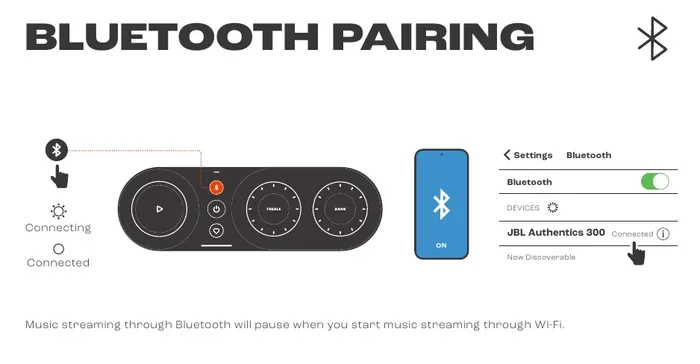
Press and hold the power button on your Edison Bluetooth speaker. You will hear a short tone and see a light indicator. This tells you the speaker is on and ready to pair. Most Edison models flash a blue or red LED when they are in pairing mode.
If the light does not come on, try charging the speaker for at least 30 minutes. A low battery can sometimes prevent the Bluetooth pairing process from starting properly.
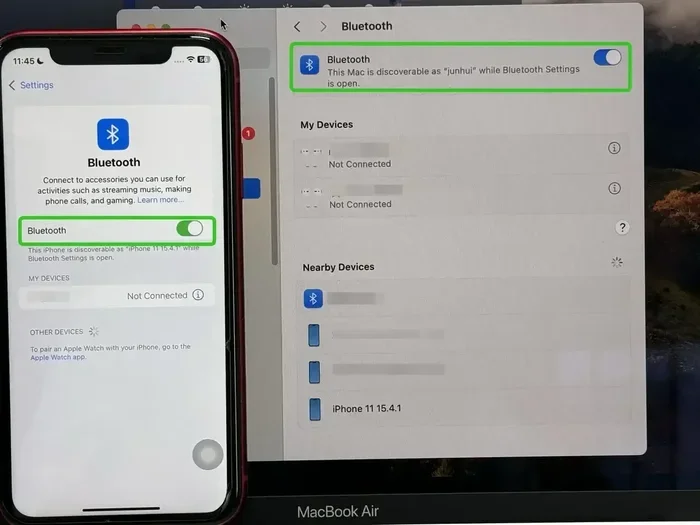
Step 2: Enable Bluetooth on Your Device
Go to the Bluetooth settings on your phone, tablet, or computer. On most devices, you can swipe down from the top of the screen and tap the Bluetooth icon. Make sure Bluetooth is turned on.
Your device will now start scanning for nearby Bluetooth devices. This usually takes a few seconds.
Step 3: Find Your Edison Speaker
Look for the name of your Edison Bluetooth speaker in the list of available devices. It may show up as “Edison BT,” “Edison Speaker,” or a similar name depending on the model.
Tap on the speaker name to begin pairing. You may hear a confirmation tone from the speaker, and the light will usually turn solid blue. This means the wireless connection is established.
Step 4: Test the Connection
Play a song or video on your device. If you hear sound coming from the Edison speaker, you are all set. Adjust the volume using either the speaker controls or your device controls.
If you do not hear anything, do not worry. Move on to the troubleshooting section below. We have you covered.
Troubleshooting Common Connection Issues
Even the simplest setup can sometimes hit a snag. Do not panic if your Edison Bluetooth speaker does not connect right away. Most issues have quick and easy fixes.
Speaker Not Showing Up in Device List
This is the most common problem. First, make sure your speaker is in pairing mode. The flashing LED light is your best indicator. If the light is not flashing, turn the speaker off and on again.
Also, check that Bluetooth is turned on your device. Sometimes the Bluetooth toggle gets turned off accidentally. Restarting your phone or laptop can also help refresh the Bluetooth connectivity.
Connection Keeps Dropping
If your Edison Bluetooth speaker connects but keeps disconnecting, the issue is usually range. Bluetooth works best within about 30 feet with no obstacles. Walls, furniture, and other electronics can weaken the signal.
Try moving closer to the speaker. Also, make sure no other Bluetooth devices are interfering. Sometimes too many devices on the same channel can cause dropouts.
Paired But No Sound
This can happen if your device is still sending audio to a previously connected speaker. Go to your Bluetooth settings and make sure the Edison speaker is set as the audio output device.
On some phones, you need to tap the speaker name and select “Connect” or “Use for audio.” This simple step often solves the speaker connection troubleshooting problem immediately.
Advanced Tips for Getting the Best Experience
Once your Edison Bluetooth speaker is connected, there are some tricks that take your experience to the next level. These tips help you get more out of your wireless audio setup.
Use the Edison Speaker App
The Edison speaker app gives you extra control over your speaker. You can adjust EQ settings, update firmware, and manage connected devices. Download the app from the App Store or Google Play.
The app also lets you check your speaker battery level and update the software. Keeping your Edison BT speaker firmware updated ensures the best performance and Bluetooth range.
Try Multipoint Pairing
Some newer Edison models support multipoint Bluetooth. This means you can connect two devices at the same time. You can switch between your phone and laptop without disconnecting.
Check your speaker manual or the app to see if your model supports this feature. It is incredibly handy for people who work from home and want seamless audio switching.
Keep Your Speaker Firmware Updated
Firmware updates fix bugs and improve Bluetooth audio streaming quality. The Edison speaker app will notify you when an update is available. Always install updates when prompted.
An updated speaker also has better wireless speaker connection stability and may support new features. It is a quick way to keep your sound crisp and clear.
How to Connect Your Edison Speaker to Other Devices
Your Edison Bluetooth speaker is not limited to just phones. You can connect it to a wide range of devices. Here are some common scenarios:
Connecting to a Laptop or PC
If you want to use your Edison Bluetooth speaker with a computer, the process is the same as with a phone. Go to your computer Bluetooth settings, find the speaker, and pair. This is great for watching videos or listening to music on your desktop.
If you are looking for ways to get sound from your laptop without a cable, you might also enjoy learning how to plug speakers into my laptop for a wired alternative.
Connecting to a TV
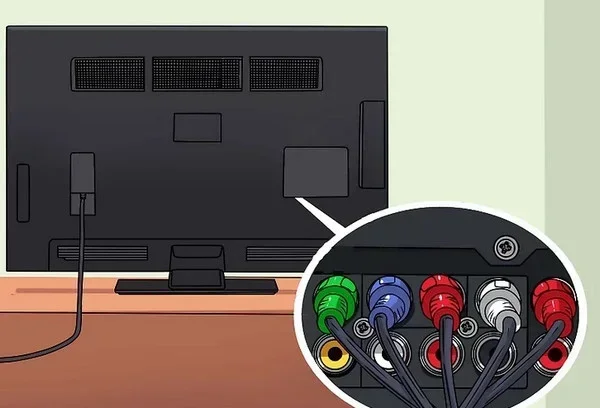
Some smart TVs support Bluetooth audio output. Go to your TV sound settings and look for Bluetooth options. Pair your Edison Bluetooth speaker just like you would with a phone.
This works great for improving TV sound without buying a new soundbar. Your wireless audio setup can transform your movie nights.
Connecting to a Record Player or Turntable
Love vinyl? You can connect your Edison speaker to a record player that has Bluetooth output. Simply pair the speaker with the turntable and enjoy warm analog sound wirelessly.
For more ideas on using Bluetooth with audio equipment, check out how you can play your record player through Bluetooth.
Edison Bluetooth Speaker Care and Maintenance
Taking care of your Edison Bluetooth speaker keeps it sounding great for years. Here are some simple maintenance tips:
- Charge regularly: Do not let the battery drain completely. A good habit is to charge after each use.
- Keep it clean: Wipe the speaker with a soft, dry cloth to remove dust and grime.
- Store properly: When not in use, keep the speaker in a cool, dry place away from direct sunlight.
- Reset when needed: If connection problems persist, a factory reset often solves them. Check your manual for the reset procedure.
- Update firmware: As mentioned above, keeping software current improves performance and Bluetooth device pairing reliability.
These small habits go a long way. A well-maintained Edison Bluetooth speaker will deliver excellent sound quality session after session.
Quick Tips for First-Time Users
Here are some quick tips to keep in mind when you set up your Edison Bluetooth speaker for the first time:
- Always start with a full charge before the first pairing.
- Place your speaker in an open area for the strongest Bluetooth signal.
- Turn off nearby Bluetooth devices that you are not using to avoid interference.
- Name your speaker in your device settings so you can easily identify it later.
- Read the quick start guide that came with your speaker for model-specific details.
These tips seem small but they make a big difference in how smoothly your setup goes. A little preparation prevents most common headaches.
Common Mistakes to Avoid
Even experienced users sometimes make mistakes when setting up a new Edison Bluetooth speaker. Here are a few to watch out for:
- Skipping the charge: A low battery can cause pairing failures and unexpected shutdowns.
- Ignoring firmware updates: Old software can cause Bluetooth connectivity issues and miss out on new features.
- Placing the speaker too far: Bluetooth range is limited. Stay within 30 feet for the best connection.
- Forgetting to disconnect old pairings: If your speaker was previously connected to another device, it may not show up for new pairing.
- Not resetting when stuck: A factory reset is your best friend when nothing else works. Do not skip this step.
Avoiding these mistakes saves you time and frustration. It also helps your Edison BT speaker perform at its best from day one.
Frequently Asked Questions
How long does it take to connect an Edison Bluetooth speaker?
It usually takes less than two minutes to connect your Edison Bluetooth speaker. The process involves powering on the speaker, enabling Bluetooth on your device, and selecting the speaker from the available devices list. Most users complete the entire setup in under three minutes.
Why is my Edison Bluetooth speaker not showing up in the Bluetooth list?
This usually happens when the speaker is not in pairing mode. Make sure the LED light is flashing, which indicates it is ready to connect. Also check that Bluetooth is turned on your device and that the speaker has enough battery charge.
Can I connect my Edison Bluetooth speaker to multiple devices?
Some Edison models support multipoint pairing, which allows you to connect two devices at the same time. Check your speaker manual or the Edison app to confirm if your specific model has this feature. If not, you can manually disconnect from one device and pair with another whenever needed.
How do I reset my Edison Bluetooth speaker?
The reset process varies by model. Generally, you hold down the power button and the volume button together for about 10 seconds. This restores the speaker to factory settings and clears any previous pairings. Always refer to your user manual for model-specific reset instructions.
What is the Bluetooth range of an Edison speaker?
Most Edison Bluetooth speakers work within a range of about 30 feet (10 meters). Walls, furniture, and other electronics can reduce this range. For the best wireless speaker connection, keep your device within a clear line of sight to the speaker.
Can I use my Edison Bluetooth speaker with a smart TV?
Yes, if your smart TV supports Bluetooth audio output, you can pair your Edison speaker with it. Simply go to your TV sound settings, enable Bluetooth, and select your Edison speaker from the list. This is a great way to boost your TV sound without extra equipment.
Conclusion
Connecting your Edison Bluetooth speaker does not have to be complicated. With the steps outlined in this guide, you can have your speaker paired and playing in just a few minutes. From the initial power-on to advanced tips like firmware updates and multipoint pairing, you now have everything you need.
Remember that most connection issues are easy to fix. A quick reset, a firmware update, or moving closer to the speaker often solves the problem entirely. Keep your speaker maintained and your firmware current for the best Bluetooth audio streaming experience.
Now that you know how to connect your Edison Bluetooth speaker, go ahead and enjoy your wireless music. Stream, dance, and relax with the freedom that Bluetooth connectivity brings to your everyday life. Your Edison speaker is ready, and so is your playlist.