How Do I Connect My Dewalt Bluetooth Radio To My Phone
Connecting your Dewalt Bluetooth radio to your phone is easier than you might think. This guide walks you through the entire pairing process step by step. You will learn how to troubleshoot common issues and get the best audio quality from your wireless connection.
Key Takeaways
- Simple Pairing Process: You can connect your Dewalt Bluetooth radio to your phone in just a few minutes using the built-in Bluetooth settings.
- Troubleshooting Is Straightforward: Most connection issues can be fixed by resetting Bluetooth, checking signal strength, and keeping devices close together.
- Audio Quality Depends on Placement: Positioning your radio and phone correctly can significantly improve your wireless audio experience.
- Multiple Devices Work: Your Dewalt radio can remember and switch between different mobile devices with ease.
- Maintenance Matters: Regular firmware updates and proper charging keep your Bluetooth radio performing at its best.
- Advanced Features Add Value: The Dewalt app and multi-device pairing open up new ways to enjoy wireless audio on the job site or at home.
📑 Table of Contents
Understanding Your Dewalt Bluetooth Radio
If you have been wondering how do I connect my Dewalt Bluetooth radio to my phone, you are in the right place. Dewalt Bluetooth radios are built for tough environments. They deliver great sound and wireless freedom. Whether you are on a job site or relaxing at home, these radios give you the freedom to stream music from your mobile device without any hassle.
Before you start, it helps to understand what makes your radio Bluetooth enabled. Bluetooth technology lets two devices talk to each other over short distances using wireless signals. Your Dewalt radio acts like a wireless speaker when paired with your phone. This means you can play music, podcasts, or even take calls through the radio’s speakers.
What Makes It Bluetooth Enabled
Modern Dewalt radios come with built-in Bluetooth chips. These chips handle the wireless connection between your radio and phone. The process uses a standard called Bluetooth pairing. This is the same basic technology used in Bluetooth headphones and wireless speakers everywhere. When you pair two devices, they create a secure link that only they can share.
The Bluetooth range on most Dewalt radios is about 30 feet. This means your phone can be up to 30 feet away and still stay connected. If you move too far, the connection may drop. This is normal behavior for Bluetooth technology. Keeping your devices within range ensures a steady wireless audio experience.
What You Need Before You Start
You do not need much to get started. Here is a quick list of what you will need:
- A Dewalt Bluetooth radio that is fully charged or plugged in
- A smartphone or mobile device with Bluetooth turned on
- About five minutes of your time
- A quiet space to focus on the pairing steps
Make sure your Dewalt radio is powered on before you begin. If the battery is low, plug it in and let it charge for a few minutes. A full battery helps the pairing process go smoothly. Also, make sure your phone’s Bluetooth settings are easy to access.
Step-by-Step Guide To Pairing Your Phone
Now that you understand your radio, let us walk through the actual device pairing process. This is the core of answering how do I connect my Dewalt Bluetooth radio to my phone. Follow these steps carefully and you will be listening to music in no time.
Turn On Bluetooth on Your Phone
First, you need to activate Bluetooth on your phone. On most phones, you can swipe down from the top of the screen to access quick settings. Look for the Bluetooth icon and tap it. If it is not there, go to your phone’s Settings and find the Bluetooth section.
Once Bluetooth is on, your phone will start scanning for nearby devices. You should see a list of available Bluetooth compatible devices appear on your screen. Make sure your Dewalt radio is in pairing mode before you continue to the next step.
Put Your Dewalt Radio in Pairing Mode
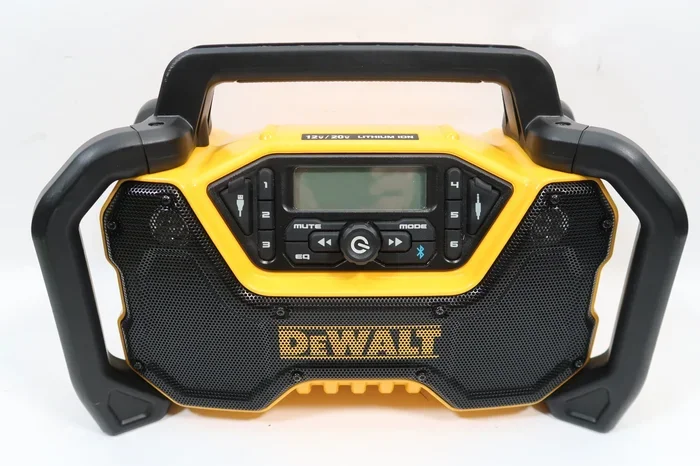
Every Dewalt radio has a slightly different way to enter pairing mode. Most models have a dedicated Bluetooth button on the top or side panel. Press and hold this button for about three to five seconds.
You will usually see a blinking light on the radio. This light tells you the radio is ready to be found. Some models also play a short tone or voice prompt saying “Pairing mode is on.” If you are not sure which button to press, check your radio’s user manual. The manual will have specific instructions for your model.
Complete the Connection
Now go back to your phone. Look for your Dewalt radio in the list of available devices. The name will usually start with “DEWALT” followed by a model number or code. Tap on the radio name to select it.
Your phone will take a few seconds to connect. You may see a message saying “Pairing” or “Connecting.” Once the connection is made, the blinking light on the radio should stop. Your phone will also show a confirmation that the wireless connection is active.
That is it. Your Dewalt radio is now connected to your phone. Try playing a song or a video to test the sound. If you hear audio coming from the radio, you have successfully completed the Bluetooth pairing process.
Troubleshooting Common Connection Problems
Sometimes things do not go as planned. If your radio does not connect the first time, do not worry. Most connectivity issues have simple fixes. Here are the most common problems and how to solve them.
Radio Won’t Show Up on Your Phone
This is the most common issue people face. If your Dewalt radio does not appear in the list of available devices, try these steps:
- Make sure your radio is in pairing mode. The blinking light should be visible.
- Turn Bluetooth off on your phone and then back on again.
- Move your phone closer to the radio. Being within 10 feet helps a lot.
- Restart your phone and try again.
- Check if the radio is connected to another device already. Some Dewalt radios can remember up to eight paired devices.
If none of these work, try resetting the Bluetooth connection on your radio. This usually involves holding down the Bluetooth button for 10 seconds. The radio will clear its memory of old pairings and become fresh and ready to connect.
Connection Keeps Dropping
A steady wireless connection should not drop frequently. If it does, there are a few things to check:
- Signal strength can be affected by walls, metal objects, and other electronics. Move to a more open space if possible.
- Make sure your phone is not too far from the radio. Stay within the 30-foot Bluetooth range.
- Other wireless devices nearby can cause interference. Turn off unused Wi-Fi devices or Bluetooth headphones that are not in use.
- Check if your phone’s Bluetooth settings are set to the correct profile. Some phones have separate settings for audio and data.
If you are still having trouble, you might want to check your Wi-Fi signal strength nearby. Sometimes heavy Wi-Fi traffic can interfere with Bluetooth connections. Moving away from crowded Wi-Fi areas can help stabilize your wireless audio stream.
Audio Sounds Muffled or Distorted
If the sound quality is poor after connecting, the issue is usually easy to fix:
- Move your phone closer to the radio to strengthen the wireless connection.
- Check the volume on both your phone and the radio. Set both to about 75% for the best balance.
- Make sure nothing is blocking the radio’s speakers. Dust or debris can muffle the sound.
- Try disconnecting and reconnecting the Bluetooth pairing from scratch.
Good audio quality depends on a strong and stable connection. Once you fix the connection, the sound should improve right away.
Tips for Getting the Best Sound Quality
Once your wireless connection is working, you can take steps to make the sound even better. These small adjustments make a big difference in how your music sounds.
Positioning Matters
Where you place your Dewalt radio affects the sound. Put the radio on a flat, hard surface for the best bass response. Avoid placing it in corners or against walls. These spots can make the sound muddy.
Keep your phone within direct line of sight of the radio when possible. Walls and large objects can weaken the Bluetooth signal. If you are using the radio outside, stay within range and avoid placing it behind large metal objects like tool boxes or vehicles.
Managing Multiple Devices
Your Dewalt radio can remember several paired devices. This is great when multiple people want to take turns playing music. To switch between devices, simply disconnect the current phone and pair the new one using the same steps above.
Some users also ask whether they can pair Bluetooth headphones to their TV or other devices at the same time. While the Dewalt radio can only stream from one phone at a time, it can store multiple pairings for easy switching. This makes it perfect for shared spaces like workshops or garages.
Advanced Features Worth Exploring
Your Dewalt Bluetooth radio has more features than just basic audio streaming. Once you have your smartphone connection working, explore these extras to get the most out of your radio.
Using the Dewalt App
Dewalt offers a mobile app that works with some of their newer Bluetooth radios. The app lets you control the radio from your phone. You can adjust the volume, change EQ settings, and even check the battery level. The app also helps you update the radio’s firmware, which keeps the Bluetooth technology running smoothly.
To use the app, simply download it from your phone’s app store. Follow the on-screen instructions to connect it to your radio. The app provides a more polished experience than using the radio’s built-in controls alone.
Connecting Multiple Phones
As mentioned, your Dewalt radio can store pairings for several phones. This is perfect for a work crew or family. Each person can connect their own mobile device without needing to reset the radio.
To add a new phone, simply put the radio in pairing mode and have the new phone search for devices. The radio will show up on the new phone’s screen. Once paired, both phones can connect to the radio without any extra setup. This feature makes the radio very versatile for group settings.
Keeping Your Bluetooth Radio in Great Shape
Taking care of your Dewalt Bluetooth radio ensures it lasts a long time and performs well. A little maintenance goes a long way in keeping your wireless audio experience top-notch.
Battery and Charging Tips
Most Dewalt radios use rechargeable batteries. To keep the battery healthy, avoid letting it run completely dead before charging. Charge the radio after each use or when the battery level drops below 20%. This habit extends the overall battery life.
When storing the radio for a long time, charge it to about 50% first. Then keep it in a cool, dry place. Extreme heat or cold can damage the battery and affect the Bluetooth enabled performance of the radio.
Firmware Updates
Dewalt occasionally releases firmware updates for their radios. These updates can improve Bluetooth connectivity and fix known bugs. Check the Dewalt website or the Dewalt app for the latest firmware version for your model.
Updating firmware is usually simple. The app will guide you through the process. Keeping your radio updated ensures it stays Bluetooth compatible with the latest phones and devices. It also helps maintain strong signal strength over time.
Conclusion
How do I connect my Dewalt Bluetooth radio to my phone is a question with a simple answer. The process is quick, straightforward, and works with almost any modern smartphone. By following the pairing steps in this guide, you can start streaming wireless audio from your phone in just a few minutes.
Remember that Bluetooth troubleshooting is part of the process. Most issues have easy fixes. Keep your devices within range, check your Bluetooth settings, and reset connections when needed. With a little patience, you will have a reliable wireless connection every time.
Take care of your radio, explore its advanced features, and enjoy the freedom of wireless streaming wherever you go. Whether you are working on a job site or relaxing at home, your Dewalt Bluetooth radio and your phone make a great team.
If you are curious about other Bluetooth devices and how they work, check out Can I Make My Old Bose Wave Radio Bluetooth for more tips on adding Bluetooth to older audio equipment. You can also learn more about Can I Play Radio Using Bluetooth to explore different ways to stream radio wirelessly. For a deeper look at Bluetooth pairing across different devices, that article covers the same core concepts you use when connecting any two devices.
Frequently Asked Questions
Why Won’t My Dewalt Radio Show Up When I Search for Bluetooth Devices?
The radio may not be in pairing mode. Make sure you press and hold the Bluetooth button until the light starts blinking. Also, check that your phone’s Bluetooth is turned on and that you are within 10 feet of the radio. Restarting both devices often fixes this issue.
Can I Connect More Than One Phone to My Dewalt Bluetooth Radio?
Yes. Most Dewalt radios can remember multiple paired devices. Each person can connect their own phone without removing previous pairings. To switch between phones, simply disconnect one and connect the other through your phone’s Bluetooth settings.
How Far Can My Phone Be From the Dewalt Radio While Connected?
The typical Bluetooth range is about 30 feet. This distance can be shorter if there are walls, metal objects, or other electronics between the devices. For the best wireless connection, stay within direct line of sight and as close as possible.
Why Does the Audio Sound Distorted When I Stream From My Phone?
Distorted audio usually means the Bluetooth pairing is weak or unstable. Move your phone closer to the radio and make sure nothing is blocking the signal. Also check that both the phone and radio volumes are set to a balanced level. Disconnecting and reconnecting often solves this problem.
Do I Need to Download an App to Connect My Dewalt Radio to My Phone?
No. The basic Bluetooth pairing process works without any app. However, the Dewalt app gives you access to extra features like EQ controls and firmware updates. It is optional but recommended if you want to get the most out of your radio.
Can I Use My Dewalt Bluetooth Radio While It Is Charging?
Yes. You can use the radio while it is plugged in and charging. In fact, using it while charging keeps the battery from draining. This is a great option for long workdays or extended listening sessions where you do not want to worry about battery life.