How Do I Connect My Aaxa Led Pico Projector To My Iphone
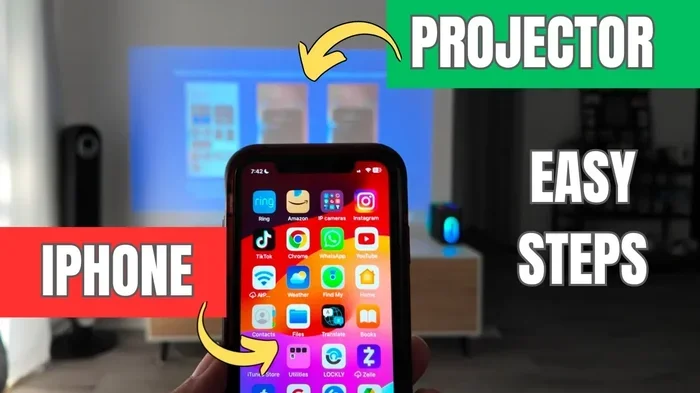
Connecting your Aaxa Led Pico Projector to your iPhone is simpler than you think. Whether you use a wired HDMI adapter or wireless screen mirroring, you can project your iPhone content on a big screen in minutes. This guide covers every method, tip, and troubleshooting step you need for a smooth connection.
Key Takeaways
- Wired and wireless methods work: You can connect using a Lightning to HDMI adapter or through AirPlay and wireless display adapters.
- Setup takes minutes: Most connection methods require just a few simple steps and common accessories.
- Screen mirroring is the easiest wireless option: AirPlay and compatible wireless adapters let you cast your iPhone screen without cables.
- Troubleshooting is straightforward: Most connection issues come from cable compatibility, Wi-Fi settings, or display resolution mismatches.
- You can use any surface as a screen: A white wall or a sheet works great for pico projector viewing.
- Audio routing matters: Make sure your projector or external speakers are set as the audio output source.
📑 Table of Contents
- How to Connect Your Aaxa Led Pico Projector to Your iPhone
- What You Need Before You Start
- Step-by-Step: Wired Connection Methods
- Wireless Options for Aaxa Pico Projector iPhone Connection
- Setting Up Your Projector Screen for iPhone Projection
- Troubleshooting Common Connection Issues
- Tips for the Best Viewing Experience
- Final Thoughts
How to Connect Your Aaxa Led Pico Projector to Your iPhone
Want to connect Aaxa Led Pico Projector to iPhone and watch your favorite shows on a bigger screen? You are in the right place. Aaxa pico projectors are small, portable, and packed with features. They fit in your pocket and turn any wall into a movie screen. Pairing one with your iPhone opens up a world of entertainment.
Maybe you want to share photos with friends. Perhaps you need to present a work deck. Or maybe you just want to binge-watch Netflix on a wall bigger than your phone screen. Whatever the reason, this guide walks you through every step. We cover wired connections, wireless options, and common fixes. By the end, you will know exactly how to get your Aaxa projector and iPhone working together.
The good news is that you have several ways to make this work. You do not need to be tech-savvy. Most methods take less than five minutes. Let us dive in and get your projector and iPhone talking to each other.
What You Need Before You Start
Before you try to connect Aaxa Led Pico Projector to iPhone, gather a few things. Having the right gear makes the process smooth. Here is what you will likely need:
- Your Aaxa LED Pico Projector — make sure it is charged or plugged in
- Your iPhone — any model with a Lightning or USB-C port
- A Lightning to HDMI adapter (for wired connections)
- An HDMI cable — short and high-speed works best
- Wi-Fi access — for wireless mirroring methods
- A blank wall or projector screen — for the best image quality
Some Aaxa models come with built-in Wi-Fi and Bluetooth. Check your specific model. This determines which wireless options are available. If your projector has built-in smart features, you may be able to use apps directly on the device. That can simplify things even further.
Check Your Aaxa Model
Not all Aaxa pico projectors are the same. Some models have USB-C ports. Others use micro HDMI or mini HDMI inputs. Look at the back or bottom of your projector. Identify the ports available. This tells you which cables and adapters you need. If you are unsure, check the user manual or the Aaxa website for your model number.
Step-by-Step: Wired Connection Methods
A wired connection gives you the most reliable result. There is no lag, no buffering, and no Wi-Fi dependency. Here is how to set it up.
Method 1: Lightning to HDMI Adapter
This is the most popular way to connect Aaxa Led Pico Projector to iPhone. Follow these steps:
- Plug the Lightning to HDMI adapter into your iPhone.
- Connect one end of the HDMI cable to the adapter.
- Plug the other end of the HDMI cable into the Aaxa projector’s HDMI input.
- Turn on the projector and select the correct HDMI input source.
- Your iPhone screen should now appear on the projected image.
That is it. You should see your iPhone display on the wall or screen immediately. If the image does not appear, try a different HDMI cable. Sometimes cheap cables do not carry a strong enough signal.
Method 2: USB-C to HDMI (For Newer iPhones)
If you have an iPhone 15 or newer model, it uses a USB-C port. In that case, grab a USB-C to HDMI adapter instead. The process is nearly identical:
- Plug the USB-C to HDMI adapter into your iPhone.
- Run an HDMI cable from the adapter to the projector.
- Switch the projector to the right input.
- Your screen mirrors automatically.
One bonus of USB-C? Some adapters also carry audio. This means you can get sound through the projector without extra steps.
Wireless Options for Aaxa Pico Projector iPhone Connection
Not a fan of cables? You are not alone. Wireless connections offer freedom and flexibility. You can project from across the room. Here are the best wireless methods.
Method 1: AirPlay Mirroring
If your Aaxa projector supports AirPlay, this is the easiest route. AirPlay lets you cast your iPhone screen directly to compatible devices. Here is how:
- Make sure your iPhone and Aaxa projector are on the same Wi-Fi network.
- Open Control Center on your iPhone by swiping down from the top-right corner.
- Tap the Screen Mirroring button.
- Select your Aaxa projector from the list of available devices.
- Enter the PIN if prompted.
Your iPhone screen now appears on the projected image. You can scroll, tap, and interact just like you would on your phone. This method works great for streaming Netflix, showing photos, or sharing presentations.
Keep in mind that AirPlay requires a stable Wi-Fi connection. If your Wi-Fi is weak, you may experience lag or stuttering. For the best experience, stay close to your router.
Method 2: Wireless Display Adapters
What if your Aaxa projector does not support AirPlay natively? You can use a wireless display adapter. These small dongles plug into the projector’s HDMI port. They create a bridge between your iPhone and the projector. Popular options include:
- Miracast adapters — work with most Android and some iOS devices
- Chromecast — great for streaming content
- Airtame — a solid option for screen mirroring
To use one, simply plug the adapter into your projector’s HDMI port. Follow the adapter’s setup instructions. Then cast from your iPhone using AirPlay or the adapter’s app. This method is a great workaround if your projector lacks built-in smart features.
Method 3: Using the Projector’s Built-In Apps
Some newer Aaxa pico projectors come with built-in smart operating systems. These projectors have app stores, just like a TV. You can download streaming apps directly onto the projector. Then use your iPhone as a remote control through a companion app. This is a nice alternative if you do not want to mirror your entire screen.
Setting Up Your Projector Screen for iPhone Projection
Getting the connection right is only half the battle. You also need a good surface to project onto. The screen you use affects picture quality a lot.
Use a White Wall
A plain white wall works surprisingly well. It is free and always available. Make sure the wall is clean and smooth. A textured or painted wall can distort the image. Find the flattest, whitest surface in your room. Point your Aaxa projector at it and adjust the focus ring until the image looks sharp.
If you want a bigger image, move the projector farther from the wall. Just remember that the image may get dimmer as you increase the distance. Most pico projectors work best in dim or dark rooms. Ambient light washes out the colors and reduces contrast.
Use a Sheet as a Screen
Do not have a white wall? No problem. You can use a sheet as a projector screen. Hang a white bedsheet from a wall or a clothesline. Smooth out any wrinkles. The flatter the sheet, the sharper the image. A projector screen works even better, but a clean white sheet does a great job in a pinch.
Use a Portable Projector Screen
For the best results, consider buying a portable projector screen. These fold up small and come with their own stands. They are perfect for movie nights outdoors or presentations at work. A portable screen gives you the crispest image and the truest colors. It is a small investment that pays off every time you use your projector.
Troubleshooting Common Connection Issues
Sometimes things do not go as planned. Your Aaxa projector and iPhone may not play nice at first. Here are the most common problems and how to fix them.
No Image on the Projector
If you see nothing on the projected screen, try these steps:
- Check that the HDMI cable is firmly plugged in on both ends
- Make sure the projector is turned on and set to the correct input
- Try a different HDMI cable or adapter
- Restart your iPhone and the projector
- Adjust the projector’s focus and keystone settings
Image Appears but Is Distorted
A skewed or wavy image usually means the keystone setting is off. Use the projector’s menu to adjust the keystone. Most Aaxa projectors have automatic keystone correction. Turn it on and let the projector fix the image shape for you.
No Sound from the Projector
If you see the image but hear no sound, check a few things:
- Make sure the projector’s volume is turned up
- Check that your iPhone is not muted
- Go to iPhone Settings, then Sounds, and make sure the ringer is on
- Some wired adapters need you to change the audio output in iPhone settings
If your projector has a built-in speaker but it sounds weak, consider plugging in external speakers. You can plug speakers into your laptop or use a Bluetooth speaker paired to your iPhone. This greatly improves the audio experience.
Wi-Fi Connection Drops During Mirroring
Wireless mirroring can be finicky. If the connection keeps dropping, try these fixes:
- Move closer to your Wi-Fi router
- Reduce the number of devices on your network
- Restart your router and projector
- Switch to a 5GHz Wi-Fi band if available
- Use a wired connection instead for a more stable experience
Tips for the Best Viewing Experience
Once you have your Aaxa Led Pico Projector connected to your iPhone, a few tweaks make everything better. Here are some pro tips.
Dim the Room Lights
Pico projectors are not as bright as full-size projectors. They work best in dim environments. Close the curtains. Turn off overhead lights. Even a small reduction in ambient light makes a big difference in image clarity.
Adjust iPhone Brightness
Turning up your iPhone brightness can help the projected image look brighter. But do not max it out. High brightness drains your battery fast. Set it to about 70-80% for a good balance between brightness and battery life.
Use Landscape Mode
Most movies and shows look better in landscape mode. Rotate your iPhone sideways before projecting. This fills the screen better and avoids black bars on the sides.
Keep Your iPhone Charged
Screen mirroring uses a lot of battery. Plug your iPhone into a charger while projecting. Better yet, use a long Lightning cable so you can keep your phone nearby but out of the way.
Explore Streaming Apps
Once you have your connection set up, the content options are endless. You can project Netflix from your laptop to projector, but you can do the same directly from your iPhone. Open the Netflix app, pick a show, and enjoy it on the big wall. You can also use YouTube, Disney+, Hulu, and any other streaming app you already have.
Final Thoughts
Connecting your Aaxa Led Pico Projector to iPhone is a game-changer for entertainment on the go. Whether you choose a wired HDMI connection or wireless AirPlay mirroring, the process is simple and rewarding. You now have the tools to turn any room into a personal cinema.
Start with the wired method if you want reliability. Switch to wireless when you want freedom and flexibility. Use a white wall or a sheet for a quick setup. Invest in a portable screen for the best picture quality. And remember — troubleshooting is normal. A quick restart or cable swap usually fixes most issues.
Now that you know how to get your Aaxa projector and iPhone working together, it is time to try it. Grab your gear, follow the steps in this guide, and enjoy your favorite content on a screen bigger than life. Happy projecting!
Frequently Asked Questions
Can I connect my Aaxa Led Pico Projector to my iPhone without an adapter?
Most wired connections require either a Lightning to HDMI or USB-C to HDMI adapter. However, if your Aaxa projector supports AirPlay or has built-in smart features, you can connect wirelessly without any adapter. Check your projector’s manual to see which wireless options are available.
Why is there no sound when I mirror my iPhone to my Aaxa projector?
This usually happens because the audio output is still set to your iPhone. Go to your iPhone Settings, tap Sounds, and make sure the volume is up. For wired connections, check your adapter settings. Some adapters require you to manually switch the audio output to HDMI in your iPhone’s Control Center.
Can I use my Aaxa pico projector outdoors?
Yes, you can use your Aaxa projector outdoors. Pico projectors work well in dark or dim environments. For the best results, set up in the evening or in a shaded area. You can project onto a white wall, a bedsheet, or a portable projector screen. Avoid areas with bright ambient light for the clearest image.
What is the best distance between my Aaxa projector and the wall?
Aaxa pico projectors typically work best at a distance of 3 to 10 feet from the wall. The exact distance depends on your specific model and the image size you want. Check your projector’s manual for the recommended throw distance. Moving farther away creates a larger image but may reduce brightness.
Can I charge my iPhone while projecting to my Aaxa projector?
Yes, you can charge your iPhone while mirroring to your projector. If you use a wired HDMI adapter, make sure it supports pass-through charging. Plug your iPhone’s Lightning or USB-C charger into the adapter while it is connected to the projector. This keeps your phone powered during long viewing sessions.
Is AirPlay supported on all Aaxa projector models?
Not all Aaxa models support AirPlay natively. Newer smart projectors with built-in Wi-Fi and operating systems are more likely to support it. If your model does not support AirPlay, you can use a wireless display adapter as an alternative. These adapters plug into the projector’s HDMI port and enable wireless screen mirroring from your iPhone.
=== CONCLUSION ===
You now know how to connect Aaxa Led Pico Projector to iPhone using both wired and wireless methods. The process is easier than most people expect. Whether you pick a Lightning to HDMI adapter or use AirPlay mirroring, you can enjoy your iPhone content on a much bigger screen in just a few minutes.
Remember the key steps: gather your cables and adapters, choose your connection method, set up your projection surface, and troubleshoot if needed. With a little practice, this becomes second nature. You will wonder how you ever watched movies on your tiny phone screen.
So go ahead and set up your Aaxa projector tonight. Grab some popcorn, dim the lights, and enjoy the show. Your iPhone and your Aaxa projector are a perfect pair for portable entertainment.