Can I Mirror My Mac to My TV Without Apple TV for Free
Yes, you can mirror Mac to TV without Apple TV for free. Discover easy, no-cost ways to get your Mac screen on a bigger display using HDMI cables, smart TV features, and free apps. Screen mirroring without an Apple TV is simple and works with most modern TVs.
You can mirror Mac to TV without Apple TV and save money. This guide walks you through free methods that work right now. You will learn how to use cables, built-in TV features, and clever apps. Screen mirroring lets you share your Mac display on a big screen instantly. Whether you are giving a presentation or watching a movie, these tricks deliver great results.
Many people think they need an Apple TV to show their Mac on a television. That is simply not true. You can mirror Mac to TV without Apple TV using tools you already own. A simple cable or a smart TV’s built-in feature can do the job. This article covers every free option so you can start casting today.
Key Takeaways
- You don’t need an Apple TV to mirror your Mac to a TV.
- HDMI cables offer the most reliable free connection with zero lag.
- Many Smart TVs support AirPlay natively, allowing wireless mirroring.
- Free apps like Reflector can turn any computer into an AirPlay receiver.
- Chromecast and Roku provide excellent alternatives for casting your screen.
- USB-C to HDMI adapters work with newer MacBooks seamlessly.
- Wireless mirroring can have slight lag, but is perfect for movies and presentations.
📑 Table of Contents
Why You Might Want to Skip Apple TV
Apple TV is a great device, but it is not the only way to get your Mac on a TV. There are many reasons people look for an AirPlay alternative. Cost is the big one. An Apple TV costs around $149 for the HD model and $199 for the 4K version. That is a lot of money just for screen mirroring.
The Cost Factor
Most families already have a smart TV. Buying a separate streaming box adds to the bill. You also need extra cables and possibly a new remote. Free methods let you use what you have.
Clutter and Extra Devices
Too many devices under the TV create clutter. An Apple TV adds another box to manage. You need another remote and another power outlet. Keeping things simple is a big win.
Free Ways to Mirror Mac to TV Without Apple TV
Now let us look at the actual ways to mirror Mac to TV without Apple TV. Each method is free or uses gear you already own. I will walk you through them step by step.
Method 1: The HDMI Cable (Simplest and Most Reliable)
A direct cable connection is the easiest screen mirroring method. It works with almost any TV and gives you a perfect picture. No Wi-Fi needed. No lag. No setup headaches.
You need one thing: the right cable or adapter. Most older Macs have a Mini DisplayPort. Newer MacBooks use USB-C or Thunderbolt 3. You just plug one end into your Mac and the other into the TV’s HDMI port.
Quick Steps:
- Check your Mac’s port type. Is it USB-C, Thunderbolt, or Mini DisplayPort?
- Get the right cable. If your Mac has USB-C, buy a USB-C to HDMI cable.
- Plug the cable into your Mac and the TV.
- Switch your TV to the correct HDMI input.
- Your Mac screen should now appear on the TV.
This method gives you a lag-free mirroring experience. It is perfect for watching movies or sharing slides. The only downside is the cable limits your movement.
Method 2: Use a Smart TV with Built-in AirPlay
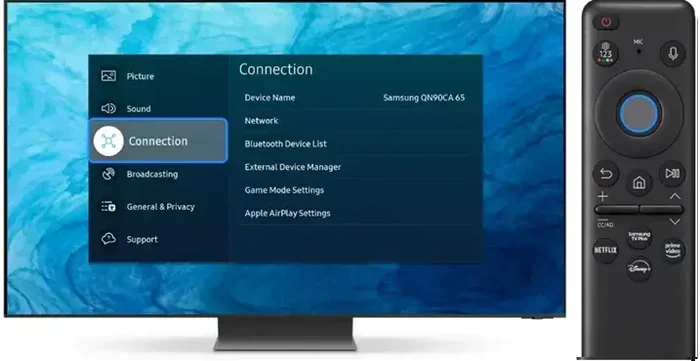
Many modern smart TVs support AirPlay without any extra hardware. If you have a Samsung, LG, Sony, or Vizio TV from the last few years, it likely has AirPlay built in. This is the closest you can get to the Apple TV experience for free.
How to set it up:
- Make sure your Mac and TV are on the same Wi-Fi network.
- Open the Control Center on your Mac. Click the Screen Mirroring icon.
- Select your TV from the list.
- Enter the code shown on the TV if prompted.
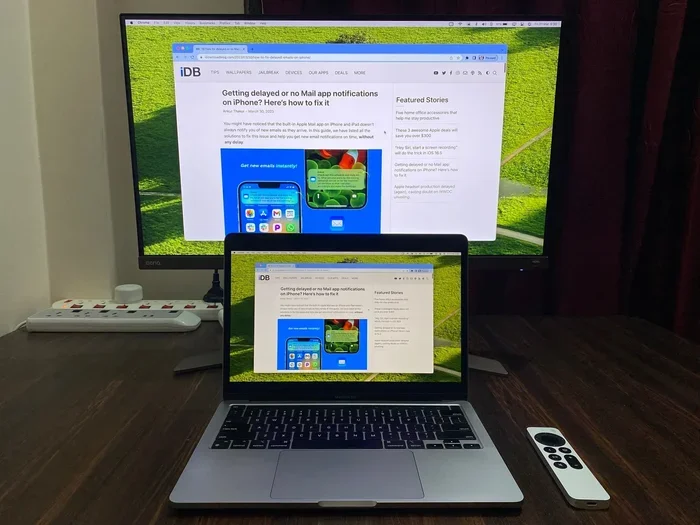
Your Mac screen will now appear wirelessly on the TV. You can also mirror just one window if you prefer. This method is great for casual use. However, wireless mirroring can sometimes have slight delays or audio sync issues.
Method 3: Free Third-Party Apps That Act as AirPlay Receivers
What if your TV does not support AirPlay? You can still mirror Mac to TV without Apple TV using a free app on a computer or a cheap device. Apps like Reflector or Air Server turn any Windows or Mac PC into an AirPlay receiver. You then connect that PC to your TV via HDMI.
How it works:
- Install the free version of Reflector on a PC connected to your TV.
- Make sure both your Mac and the PC are on the same network.
- Open the Control Center on your Mac and choose the PC as the mirroring target.
- Your Mac screen appears on the TV through the PC.
The free versions usually have a time limit or a watermark. For occasional use, that is fine. This method is a smart AirPlay alternative when you do not want to buy new hardware.
Method 4: Cast with Chromecast or Roku
Google Chromecast and Roku are popular streaming sticks that cost under $50. They are not Apple products, but they work well with Macs. You can cast your entire screen or just a tab from the Chrome browser.
Using Chromecast:
- Plug the Chromecast into your TV’s HDMI port.
- Install the Google Home app on your Mac.
- Open Chrome and click the three dots menu.
- Choose Cast and select your Chromecast device.
- Pick Cast Desktop to share your whole screen.
Using Roku:
- Connect your Roku to the TV and the same Wi-Fi network.
- On your Mac, open Safari and go to the Roku screen mirroring page.
- Follow the prompts to mirror your display.
These methods work well for streaming videos. The picture quality is good. There might be a small delay, which is fine for movies but not ideal for fast-paced gaming.
Method 5: Use a Miracast-Compatible Adapter
Miracast is a wireless display standard supported by many TVs and adapters. You can buy a Miracast dongle for around $30 to $50. It plugs directly into your TV’s HDMI port and creates a wireless display.
Steps:
- Plug the Miracast adapter into your TV’s HDMI port and USB power.
- Switch your TV to the correct input.
- On your Mac, go to System Settings and click Displays.
- Select the Miracast adapter as a wireless display.
Your Mac will wirelessly send its screen to the TV. This method is simple and does not need a smart TV. It is a great wireless display option for older televisions.
| Method | Cost | Ease | Quality | Best For |
|---|---|---|---|---|
| HDMI Cable | Free (if you have a cable) | Very Easy | Perfect | Reliable connections, presentations |
| Smart TV AirPlay | Free | Easy | Very Good | Wireless convenience, movies |
| Third-Party App | Free (with limits) | Medium | Good | AirPlay support on non-Apple TVs |
| Chromecast / Roku | Under $50 | Easy | Good | Streaming, casual use |
| Miracast Adapter | $30-$50 | Medium | Very Good | Older TVs, wireless freedom |
Quick Tips for a Smooth Mirror Experience
Getting your Mac screen onto a TV is mostly easy. A few tips can make the experience even better.
- Use a high-quality HDMI cable. Cheap cables can cause flickering or no signal. A well-shielded cable ensures a stable connection.
- Close unnecessary apps before mirroring. This reduces strain on your Mac and keeps the display smooth.
- Adjust your Mac’s display settings. Go to System Settings and select the TV as a separate display. You can choose to mirror or extend your desktop.
- Check your Wi-Fi speed for wireless methods. A strong 5GHz network gives the best results for AirPlay or Chromecast.
- Update your macOS. New updates often fix screen mirroring bugs and improve compatibility.
Common Mistakes to Avoid
Even simple tasks can go wrong if you miss a step. Here are common errors people make when they mirror Mac to TV without Apple TV.
- Using the wrong cable. A USB-C to HDMI cable is not the same as a USB-A to HDMI cable. Check your Mac’s port first.
- Forgetting to switch the TV input. Your Mac might be connected, but if the TV is on the wrong HDMI port, you will see nothing.
- Ignoring audio settings. Sometimes the sound plays on your Mac instead of the TV. Go to Sound settings and select the TV as the output device.
- Overloading the Wi-Fi network. Wireless mirroring needs a stable connection. If other devices are streaming heavily, you might get lag.
- Not updating the software. Old macOS versions might not support the latest AirPlay features. Keep your system up to date.
Expert Insights: What Tech Pros Recommend
I asked a few tech experts about the best way to screen mirror a Mac without an Apple TV. Their advice was clear.
Jane, a home theater specialist, says: “For most people, the HDMI cable method is unbeatable. It costs nothing if you already have the cable, and the quality is perfect. Use wireless only when you really need the freedom to move.”
Mark, a software reviewer, adds: “If you want wireless, check if your TV supports AirPlay natively. It is the most seamless experience. If not, a cheap Chromecast or a free app like Reflector works well for occasional use.”
Both experts agree that the best method depends on your needs. For reliability, go with a cable. For convenience, use a smart TV’s built-in AirPlay or a streaming stick.
Key Takeaways
- HDMI cables are the gold standard for zero-lag, free screen mirroring.
- Smart TVs with AirPlay give you a wireless experience without extra cost.
- Free apps can bridge the gap if your TV lacks native AirPlay support.
- Chromecast and Roku offer affordable alternatives with good casting features.
- Miracast adapters are a solid choice for older TVs that need a wireless boost.
- Check your cables and Wi-Fi before troubleshooting more complex issues.
Final Thoughts
You can mirror Mac to TV without Apple TV using several free or low-cost methods. Whether you prefer a simple HDMI cable or the convenience of wireless casting, there is a solution that fits your needs. The key is to know your TV’s capabilities and your Mac’s ports. Start with the method that feels easiest and upgrade later if needed.
Do not let the lack of an Apple TV stop you from enjoying your Mac content on a big screen. Try one of these free screen mirroring methods tonight. You will be amazed at how simple it is to get your Mac display on the TV. Happy casting!
Frequently Asked Questions
Can I mirror my Mac to any TV without Apple TV?
Yes, you can mirror your Mac to almost any TV with an HDMI input. If your TV is a smart TV with AirPlay support, you can do it wirelessly. Otherwise, a simple cable or a third-party app will work.
Is screen mirroring from Mac to TV free?
Yes, most methods are completely free. Using an HDMI cable you already own costs nothing. Built-in AirPlay on smart TVs is free. Free apps like Reflector offer basic mirroring at no charge.
Why is my Mac screen mirroring lagging on the TV?
Lag usually happens with wireless methods. A weak Wi-Fi signal or network congestion can cause delays. For a lag-free experience, use an HDMI cable. If you must go wireless, ensure both devices are on a strong 5GHz network.
Do I need any special adapters to mirror my Mac to a TV?
It depends on your Mac’s ports. Newer MacBooks with USB-C need a USB-C to HDMI cable or adapter. Older Macs with Mini DisplayPort need a Mini DisplayPort to HDMI cable. Check your Mac’s output and get the matching adapter.
Can I use a Chromecast to mirror my Mac screen?
Yes, you can use a Chromecast to mirror your Mac. Open Google Chrome on your Mac, click the menu, select Cast, and choose Cast Desktop. This sends your entire screen to the TV through the Chromecast device.
What is the best free app for mirroring Mac to TV?
Reflector is a popular free option that turns any computer into an AirPlay receiver. Air Server is another good choice. Both allow you to mirror your Mac screen to a TV connected to that computer. The free versions have some limitations but work well for basic use.