How Can I Play My Iphone On A Projector Without Cables
Playing your iPhone on a projector without cables is easier than you think. You can use AirPlay, wireless adapters, or portable projectors to cast your screen instantly. This guide walks you through every method so you can enjoy big-screen content from your iPhone anywhere.
Key Takeaways
- AirPlay is the easiest wireless method: It lets you mirror your iPhone screen to a compatible projector without any cables.
- Lightning to HDMI adapters work great: They offer a simple wired option when Wi-Fi isn’t available or stable.
- Portable projectors with built-in Wi-Fi are a game-changer: They let you cast directly from your iPhone without extra hardware.
- You can use a plain sheet as a projector screen: It saves money and works surprisingly well for casual viewing.
- Troubleshooting is simple: Most connection issues come from Wi-Fi problems or incompatible settings.
- Multiple methods exist for every budget: Whether you spend nothing or a few hundred dollars, there’s a solution for you.
📑 Table of Contents
- How Can I Play My Iphone On A Projector Without Cables?
- Method 1: Use AirPlay To Mirror Your iPhone Wirelessly
- Method 2: Use A Wireless HDMI Adapter
- Method 3: Use A Lightning To HDMI Adapter (When You Must)
- Method 4: Use A Portable Projector With Built-In Wi-Fi
- Method 5: Use A Streaming Device Connected To Your Projector
- Comparison Table: Which Method Is Right For You?
- Quick Tips For The Best Projection Experience
- Common Mistakes To Avoid
- Expert Insights On iPhone Projection
- Frequently Asked Questions
- Conclusion
How Can I Play My Iphone On A Projector Without Cables?
There’s nothing quite like watching your favorite movies or sharing photos on a big screen. But running cables between your iPhone and a projector can be a real hassle. You want to set up fast, move freely, and enjoy the experience without tangled wires.
The good news is that you have several great options. You can use wireless screen mirroring, built-in projection features, or simple adapters that make the whole process seamless. Whether you’re hosting a movie night, giving a presentation, or just want a bigger display, this guide has you covered.
We’ll walk you through every method step by step. You’ll learn what works best for your setup, your budget, and your needs. By the end, you’ll know exactly how to play your iPhone on a projector without dealing with any cables at all.
Why Go Cable-Free With Your iPhone Projection?
Cable-free projection gives you freedom. You can place your projector anywhere in the room. You don’t have to worry about tripping over wires or being stuck near a wall outlet. It just makes everything more convenient and enjoyable.
Wireless connections also mean less wear and tear on your ports. Constantly plugging and unplugging cables can damage your iPhone’s lightning port over time. Going wireless protects your device and extends its lifespan.
Plus, let’s be honest. It just looks cleaner. No messy cords running across the floor or hanging off the ceiling. Your setup looks professional and organized. Guests will love the seamless experience when you mirror your iPhone to a projector with zero fuss.
Method 1: Use AirPlay To Mirror Your iPhone Wirelessly
AirPlay is Apple’s built-in wireless streaming technology. It lets you cast your iPhone screen to a compatible projector or display. This is the most popular and easiest way to play your iPhone on a projector without any cables.
What You Need For AirPlay
Here’s what you’ll need to get started:
- An iPhone running iOS 12 or later
- A projector that supports AirPlay or wireless mirroring
- Both devices connected to the same Wi-Fi network
- A stable internet connection for smooth streaming
How To Set Up AirPlay Step by Step
First, make sure your projector is turned on and connected to the same Wi-Fi network as your iPhone. Open the Control Center by swiping down from the top-right corner of your screen. Tap the Screen Mirroring button, which looks like two overlapping rectangles.
Your iPhone will search for available devices. Select your projector from the list. You might see a code on the projector screen. Enter that code on your iPhone to confirm the connection.
Once connected, everything you do on your iPhone appears on the projector screen in real time. Open Netflix, show your photos, or share a presentation. It all works wirelessly and smoothly.
If your projector doesn’t natively support AirPlay, you can use an Apple TV box connected to the projector. The Apple TV acts as a bridge and receives the AirPlay signal from your iPhone. This is a very common setup in homes and offices.
Tips For A Smooth AirPlay Experience
Keep your devices close to the router for a strong Wi-Fi signal. Walls and distance can cause lag or disconnections. If you notice any delay, move closer to the wireless router or reduce the number of devices using the network.
Also, make sure your projector’s firmware is up to date. Manufacturers often release updates that improve wireless performance and fix bugs. Check the projector’s settings menu or the manufacturer’s website for the latest firmware.
Method 2: Use A Wireless HDMI Adapter
Not all projectors support AirPlay or smart features. That’s where a wireless HDMI adapter comes in handy. This small device plugs into your projector’s HDMI port and creates a wireless receiver for your iPhone’s signal.
How Wireless HDMI Adapters Work
The adapter receives a wireless signal from your iPhone and converts it to HDMI. You still need to plug the adapter into the projector, but there are no cables running from your phone. It’s the perfect middle ground between full wireless and traditional wired setups.
Popular options include devices like the Amazon Fire TV Stick, Google Chromecast, or dedicated wireless HDMI transmitters. These devices connect to your projector and allow you to cast content from your iPhone using their respective apps.
Setting Up A Wireless HDMI Adapter
Plug the adapter into your projector’s HDMI port. Connect the adapter to your Wi-Fi network using its setup app or remote control. On your iPhone, open the casting app for your specific adapter. Select the adapter from the list and start streaming.
This method works with almost any projector that has an HDMI input. It doesn’t matter if your projector is old or new. As long as it has HDMI, a wireless adapter can make it smart and cable-free.
One thing to keep in mind is latency. Wireless adapters can have a slight delay between your iPhone and the projected image. For movies and slideshows, this is barely noticeable. For fast-paced gaming or live presentations, you might notice a small lag.
Method 3: Use A Lightning To HDMI Adapter (When You Must)
Sometimes you just need a quick and reliable connection. A Lightning to HDMI adapter gives you a direct link between your iPhone and the projector. While this is technically a cable method, the cable only runs from the adapter to the projector. Your iPhone stays free and wireless.
Why Choose This Method?
This method is perfect when Wi-Fi isn’t available or is too unstable. Think outdoor movie nights, hotel rooms with bad internet, or presentations where you can’t risk connection drops. A wired adapter gives you a stable, lag-free connection every time.
You’ll need an Apple-certified Lightning to HDMI adapter. Plug it into your iPhone, connect an HDMI cable from the adapter to the projector, and you’re done. Your iPhone screen appears on the projector immediately.
The downside is that you’re still carrying a cable and an adapter. But for reliability and simplicity, this method is hard to beat. It works with every iPhone model and every projector that has an HDMI input.
Also read: Can I Pair My Phone To A Projector for more wired and wireless connection tips.
Method 4: Use A Portable Projector With Built-In Wi-Fi
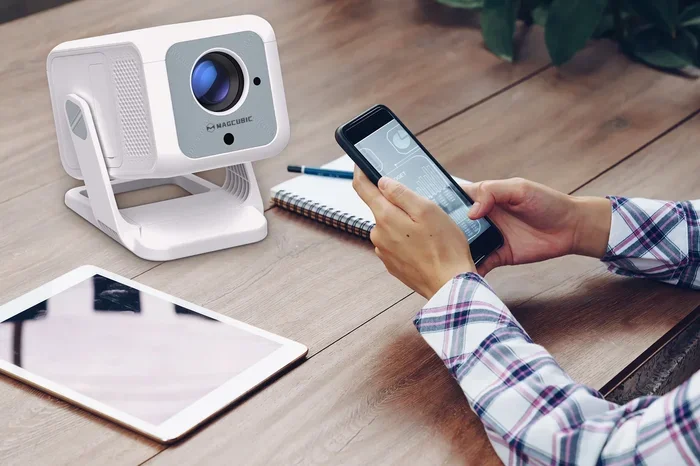
Portable projectors with built-in Wi-Fi are becoming very popular. These projectors connect directly to your iPhone over Wi-Fi or Bluetooth. You don’t need any adapters, cables, or extra devices. Just pair and project.
What To Look For In A Portable Projector
When shopping for a portable projector, look for these features:
- Built-in Wi-Fi and Bluetooth: This lets you connect directly to your iPhone without any extra hardware.
- iOS compatibility: Make sure the projector supports AirPlay or has its own iPhone app for screen mirroring.
- Battery power: A built-in battery lets you use the projector anywhere without a power outlet.
- Decent brightness: Look for at least 500 lumens for indoor use and 1000 lumens for rooms with some ambient light.
- Built-in speakers: Many portable projectors have small speakers built in, so you don’t need external audio.
Top Portable Projector Brands To Consider
Brands like Anker, ViewSonic, and LG make excellent portable projectors that work great with iPhones. These devices range in price from about $100 to $500. The more you spend, the better the image quality and brightness you’ll get.
Anker makes some of the most popular compact projectors on the market. Their models support AirPlay natively and connect to iPhones seamlessly. ViewSonic offers projectors with built-in smart features and apps that make iPhone projection effortless.
Also read: Can I Use A Projector On My Wall to learn about using walls and surfaces as impromptu projector screens.
Method 5: Use A Streaming Device Connected To Your Projector
Streaming devices are another great way to get your iPhone content onto a big screen. Devices like Apple TV, Roku, or Fire TV Stick plug into your projector’s HDMI port and create a smart projection system.
How This Works With Your iPhone
Once the streaming device is connected to your projector and the same Wi-Fi network, you can use AirPlay or the device’s own casting feature. Open the content you want to watch on your iPhone. Tap the AirPlay or cast icon. Select your streaming device. Your content appears on the projector screen.
This method is excellent for people who already own a streaming device. You don’t need to buy anything new. You just use what you have and connect it to your projector. It’s a simple and effective way to cast your iPhone screen wirelessly.
Roku devices also support screen mirroring through their built-in features. Fire TV Stick works with the Amazon app for casting. Apple TV remains the gold standard for iPhone users because of native AirPlay support.
Also read: Can I Project Netflix From My Laptop To Projector for tips on streaming content to a projector from any device.
Comparison Table: Which Method Is Right For You?
| Method | Wireless? | Cost | Setup Difficulty | Best For |
|---|---|---|---|---|
| AirPlay | Yes | Free (if projector supports it) | Easy | Home use, movie nights |
| Wireless HDMI Adapter | Yes | $30-$100 | Moderate | Older projectors without smart features |
| Lightning to HDMI Adapter | No (partial) | $10-$25 | Very Easy | Quick setups, outdoor use |
| Portable Wi-Fi Projector | Yes | $100-$500 | Easy | Travel, outdoor movie nights |
| Streaming Device | Yes | $30-$150 | Easy | Smart home setups, multi-device users |
Quick Tips For The Best Projection Experience
Want the best results when you project your iPhone screen? Follow these quick tips:
- Turn off auto-lock on your iPhone. This prevents your screen from going dark during a presentation or movie.
- Use a dark room. Projectors work best in low-light conditions. Close the curtains and dim the lights for the best image quality.
- Clean the projector lens. A dirty lens makes the image blurry and dull. A quick wipe with a microfiber cloth makes a big difference.
- Adjust the projector focus. Most projectors have a focus ring or digital focus settings. Take a moment to sharpen the image before you start.
- Keep your iPhone charged. Screen mirroring uses a lot of battery. Plug your iPhone into a power bank or wall charger during long sessions.
- Use a projector screen or white wall. A flat, light-colored surface gives the best image. Avoid textured walls or dark surfaces.
Common Mistakes To Avoid
Even with the right setup, people make mistakes that cause frustration. Here are the most common ones to watch out for:
- Using different Wi-Fi networks. Your iPhone and projector must be on the same network. Check both devices and make sure they connect to the same Wi-Fi.
- Ignoring firmware updates. Old firmware can cause compatibility issues. Always update your projector and any streaming devices before trying to connect.
- Overloading the Wi-Fi network. Too many devices on one network slows everything down. Disconnect devices you’re not using for a smoother experience.
- Forgetting to enable screen mirroring. Some projectors need you to manually switch to the mirroring input source. Check your projector’s input settings.
- Using cheap, uncertified adapters. Non-certified adapters can damage your iPhone or produce poor-quality images. Stick with Apple-certified or reputable brand adapters.
Expert Insights On iPhone Projection
Technology experts agree that wireless projection is the future. As projectors become smarter and more affordable, cable-free setups are becoming the norm. AirPlay and similar technologies have made it incredibly easy to share your iPhone screen on a big display.
According to tech reviewers, the best experience comes from combining a Wi-Fi-enabled projector with an iPhone. This native pairing offers the smoothest performance and the least setup time. If you’re buying a new projector, prioritize wireless compatibility above all else.
For those who already own a projector, a wireless HDMI adapter is the best upgrade. It transforms any projector into a smart, wireless-ready device. The cost is low and the results are impressive. Most users report that setup takes less than five minutes.
Also read: Can I Use A Sheet As A Projector Screen for budget-friendly screen alternatives that work great with any projection method.
Frequently Asked Questions
Can I Play My Iphone On Any Projector Without Cables?
Not every projector supports wireless connections. Older projectors without Wi-Fi or smart features will need an adapter. However, most modern projectors support AirPlay or have HDMI ports that work with wireless adapters. Check your projector’s specifications to confirm its capabilities.
Does Screen Mirroring From iPhone To Projector Have Lag?
There can be a slight delay with wireless mirroring, especially over crowded Wi-Fi networks. For movies and presentations, this lag is barely noticeable. For real-time gaming or fast-action content, a wired adapter provides the most responsive experience with zero lag.
Do I Need Special Apps To Mirror My iPhone To A Projector?
If your projector supports AirPlay natively, you don’t need any extra apps. Just use the built-in Screen Mirroring feature on your iPhone. For other devices like Chromecast or Fire TV Stick, you’ll need their respective apps. Most of these apps are free and easy to set up.
Can I Project My iPhone Screen In A Bright Room?
Projecting in bright rooms is challenging but possible. You’ll need a projector with at least 2000 lumens for decent visibility. Using a white sheet or projector screen helps reflect more light. Also, turning off overhead lights and closing curtains significantly improves the image quality.
Is It Safe To Mirror My iPhone Screen To A Public Projector?
Be cautious when connecting to public or shared projectors. Only connect to networks and devices you trust. Avoid mirroring sensitive content like banking apps or personal photos on public displays. Use a private Wi-Fi network whenever possible for screen mirroring sessions.
What’s The Best Budget Option For Playing My iPhone On A Projector?
The cheapest option is using AirPlay with a smart projector that already supports it. If your projector doesn’t support AirPlay, a Lightning to HDMI adapter costs around $10-$15 and works immediately. For wireless options, a basic streaming stick like a Fire TV Stick starts at around $30 and opens up many projection possibilities.
Conclusion
Playing your iPhone on a projector without cables is more accessible than ever before. You have multiple methods to choose from, and each one fits different needs and budgets. Whether you prefer the simplicity of AirPlay, the reliability of a wireless adapter, or the portability of a smart projector, there’s a solution that works for you.
Start with the method that matches your current setup. If your projector already supports AirPlay, you’re just a few taps away from a big-screen experience. If not, a wireless adapter or streaming device can transform your projector in minutes.
Remember the tips we shared. Use a clean surface for projection, keep your devices on the same network, and avoid common setup mistakes. With the right approach, you’ll enjoy seamless iPhone projection every single time.
Now that you know all the methods, pick the one that suits you best and give it a try. Your next movie night, presentation, or photo-sharing session is going to look amazing on the big screen. Happy projecting!