How Can I Get Free Air On My Smart TV Without An Antenna
You can get free air on your smart TV without an antenna by using built-in free streaming apps, screen mirroring from your phone or laptop, and affordable streaming sticks. Apps like Pluto TV, Tubi, and Amazon Freevee offer hundreds of free channels with no cable required. This guide walks you through every method step by step so you can start watching free TV on your smart TV right away.
Watching free TV used to mean setting up a big outdoor antenna on your roof. Those days are long gone. Today, your smart TV can pull in free channels using nothing but your home Wi-Fi connection. You do not need an antenna, you do not need cable, and you do not need to pay a monthly fee.
Whether you want live news, movies, sports, or kids’ shows, there are more ways than ever to get free air on your smart TV without an antenna. In this guide, we will walk you through every method that actually works. Each option is simple, costs nothing, and gets you watching in minutes.
The beauty of modern smart TVs is that they come loaded with built-in apps. These apps stream free content directly through your internet connection. You just need to know where to look and how to set things up. That is exactly what this article covers.
Key Takeaways
- Free streaming apps are the easiest way to watch live TV and movies without an antenna or cable subscription.
- Screen mirroring lets you cast free content from your phone or laptop directly to your smart TV.
- Streaming sticks like Roku or Fire TV open up even more free channel options on any TV.
- Built-in smart TV apps already include free options you may not know about.
- No antenna is needed when you use internet-based free streaming services.
- Setting up takes only minutes and most methods cost absolutely nothing.
📑 Table of Contents
- Why You Do Not Need an Antenna Anymore
- Best Free Apps for Watching TV Without an Antenna
- How to Mirror Your Phone or Laptop to Your Smart TV
- Using a Streaming Stick for More Free Channels
- Can You Get Free Local Channels Without an Antenna?
- Troubleshooting Common Free TV Issues
- Expert Tips for the Best Free TV Experience
- Quick Tips Summary
- Conclusion
Why You Do Not Need an Antenna Anymore
Traditional antennas pick up broadcast signals sent out by local TV stations. This works well if you live close to broadcast towers. But if you live far away or have buildings blocking the signal, an antenna can be frustrating. That is where internet-based streaming comes in.
Free over-the-top streaming uses your Wi-Fi connection to deliver TV content. Instead of catching radio waves in the air, your smart TV downloads video data from the internet. This means your picture quality is often better than what an antenna can provide. There is no snow on the screen and no losing signal during a storm.
Many people do not realize their smart TV already has free apps built in. These apps are often hidden in menus or overlooked during setup. Once you know they exist, you can start watching immediately without any extra equipment.
How Free Streaming Apps Work
Free streaming apps work just like paid services such as Netflix. You open the app on your smart TV, browse the channel guide or library, and hit play. The difference is that these apps are supported by ads instead of monthly fees. This is how they can offer so much content for free.
The content libraries change often. New movies and shows get added regularly. Some apps also offer live TV channels that update throughout the day. This gives you a real TV watching experience without paying a single dollar.
Best Free Apps for Watching TV Without an Antenna
The easiest way to get free air on your smart TV is through built-in apps. Most smart TV brands including Samsung, LG, Sony, and TCL come with several free options already installed. Here are the best ones you should check out right now.
Pluto TV
Pluto TV is one of the most popular free streaming services available. It offers over 250 live channels covering news, sports, movies, and entertainment. You do not even need to create an account to start watching. Just open the app and start browsing.
What makes Pluto TV stand out is its channel layout. It mimics the feel of traditional cable TV. You can flip through channels just like you would with a real remote. This makes it feel familiar and easy to use for everyone in the family.
Tubi
Tubi has a massive library of free movies and TV shows. It partners with major studios like Lionsgate, MGM, and Warner Bros. to offer content legally and for free. The app has a clean interface and great search features that make finding something to watch effortless.
Tubi also has a dedicated kids section with age-appropriate content. Parents will appreciate that there are no inappropriate ads or content mixed in. It is one of the safest free options for family viewing.
Amazon Freevee
Amazon Freevee (formerly IMDb TV) is another excellent choice for free TV. It offers a mix of live channels and on-demand content. If you already shop on Amazon, the app integrates well with your existing account and devices.
Freevee adds new content regularly. You can find popular shows, classic movies, and exclusive original series. The ad load is reasonable compared to other free services, making for a pleasant viewing experience.
The Roku Channel
Even if you do not own a Roku device, The Roku Channel works on most smart TVs. It offers hundreds of free live channels and a large on-demand library. The interface is simple and well organized, making it easy to find something to enjoy.
The Roku Channel also has a great selection of free movies. Many are newer releases that you would normally have to pay to rent. This alone makes it worth installing on your smart TV.
How to Mirror Your Phone or Laptop to Your Smart TV
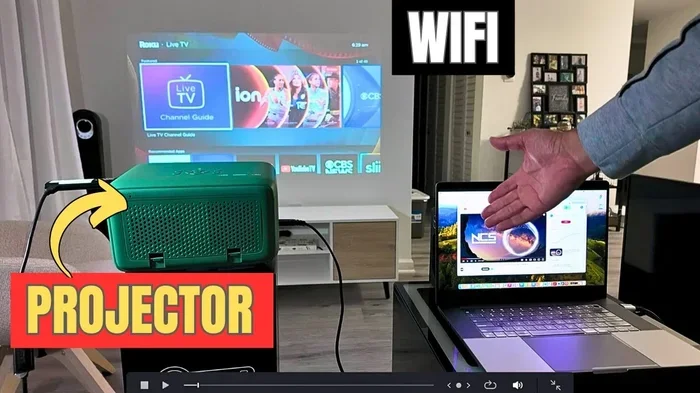
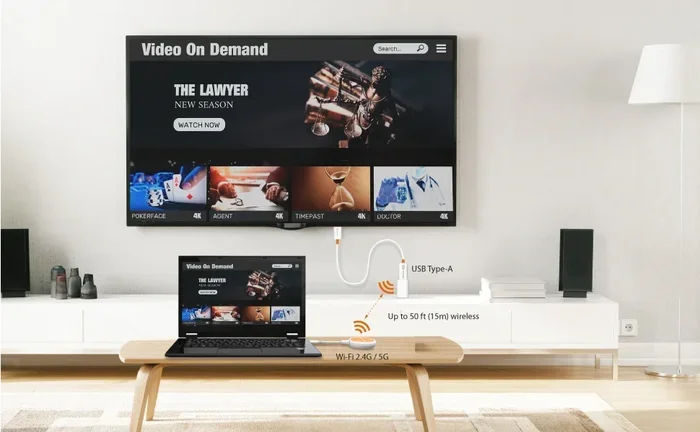
Screen mirroring is another great way to access free content on your TV. You can cast what is on your phone or laptop directly to your big screen. This opens up even more free streaming options beyond what your smart TV apps offer.
Mirroring from an iPhone or iPad
If you have an Apple device, screen mirroring is built right in. Open the Control Center and tap the Screen Mirroring button. Select your smart TV from the list. Your phone screen will now appear on your TV.
You can then open any free streaming app on your phone and watch it on the big screen. Apps like Pluto TV, Tubi, and Crackle all work great with mirroring. The video plays directly on your TV while your phone becomes a remote control.
Can I mirror my Mac to my TV without Apple TV? Yes! Most smart TVs support AirPlay or screen mirroring. You can cast from a Mac using the same method. Just make sure both devices are on the same Wi-Fi network for the best experience.
Mirroring from an Android Phone
Android phones use a feature called Cast or Screen Mirroring. Open your quick settings panel and look for the Cast icon. Tap it and select your smart TV. Your phone screen will appear on the TV within seconds.
Google Chrome also has a built-in cast feature. Open Chrome on your phone, tap the three dots menu, and select Cast. This lets you mirror any webpage or video to your TV. It is a handy trick for watching free content from websites.
Mirroring from a Windows Laptop
Windows laptops can mirror to most smart TVs using the built-in Connect feature. Press Windows key plus K to open the projection menu. Select your TV from the list and your laptop screen will appear on the TV.
This method is great for watching free content from your laptop browser. You can also use it to display photos, videos, or any content saved on your computer. It is one of the simplest ways to get free content on your TV without extra hardware.
Using a Streaming Stick for More Free Channels
If your smart TV does not have many free apps, a streaming stick can help. These small devices plug into your TV’s HDMI port and give you access to hundreds of free channels. They are affordable and easy to set up.
Roku Streaming Stick
The Roku Streaming Stick is one of the best options for free TV. Roku has a dedicated free channel called The Roku Channel with tons of content. Roku also supports many other free apps you can download directly to the device.
Setting up a Roku stick takes about five minutes. You plug it into your HDMI port, connect to Wi-Fi, and follow the on-screen instructions. Once set up, you have access to a huge world of free content.
Amazon Fire TV Stick
The Fire TV Stick from Amazon is another popular choice. It comes with Amazon Freevee built in and supports many other free apps. The interface is fast and user-friendly, making it easy to navigate through channels.
One of the best things about the Fire TV Stick is its voice search. You can use your voice to find free content quickly. Just press the microphone button on the remote and say what you want to watch.
Google Chromecast
Chromecast is a budget-friendly option that works well for casting content from your phone or computer. It does not have as many built-in free apps as Roku or Fire TV. However, it excels at mirroring and casting from other devices.
Chromecast is a great choice if you already use Google apps like YouTube. YouTube has a large selection of free content including music, tutorials, and full-length shows. You can cast all of this directly to your TV.
Can You Get Free Local Channels Without an Antenna?
Many people want to watch local broadcast channels like ABC, NBC, CBS, and Fox without an antenna. The good news is that several free apps now offer local news and weather without requiring an antenna. Here is how it works.
Apps like Pluto TV and The Roku Channel carry some local affiliate content. Additionally, many local TV stations now have their own free apps. You can download these directly to your smart TV and watch local news, weather, and sports for free.
The quality of local content varies by app and location. Some stations stream their full broadcast live while others offer clips and highlights. It is worth checking out a few different apps to see which ones carry your local channels in your area.
Using a Digital TV Tuner as an Alternative
If you do want access to broadcast channels without a traditional outdoor antenna, you have another option. A digital TV tuner plugs into your smart TV’s USB port or HDMI port. These tuners can pick up over-the-air signals using a simple indoor antenna.
This is different from having no antenna at all. However, the indoor antenna that comes with most digital tuners is small and easy to hide. It does not require mounting anything on your roof or outside your home.
This option works best if you live within range of broadcast towers. If you live in a rural area or far from towers, the signal may be weak. In that case, stick with internet-based free streaming for the most reliable experience.
Troubleshooting Common Free TV Issues
Getting free TV on your smart TV is usually straightforward. But sometimes you may run into issues. Here are the most common problems and how to fix them quickly.
Buffering or Slow Streaming
If your free channels keep buffering, your internet connection may be too slow. Try restarting your router by unplugging it for 30 seconds and plugging it back in. This simple step fixes most slow connection issues.
You can also try rebooting your smart TV to refresh the connection. Turn the TV off, unplug it from the wall for a minute, and plug it back in. This clears temporary glitches and often improves streaming speed.
Apps Not Loading or Crashing
If a free app will not open or keeps crashing, try updating it. Go to your TV’s app store and check for updates. Most smart TVs update apps automatically but sometimes manual updates are needed.
If updating does not help, try uninstalling and reinstalling the app. This clears out any corrupted files and gives you a fresh start. It only takes a minute and usually solves the problem.
No Sound or Poor Audio Quality
If you have video but no sound, check your TV’s audio settings first. Make sure the volume is not muted and the correct output is selected. Sometimes the TV defaults to the wrong audio output after an update.
You can also try connecting external speakers for better sound. Many people ask can I plug speakers into my laptop and use them with their TV setup. The same principle applies to smart TVs with audio output options. Check your TV manual for speaker connection options.
TV Not Connecting to Wi-Fi
If your smart TV will not connect to Wi-Fi, move your router closer to the TV. Walls and distance can weaken the signal significantly. If that does not work, try forgetting the network on your TV and reconnecting from scratch.
For persistent connection issues, you can use an ethernet cable instead of Wi-Fi. This provides a stable, fast connection for smooth streaming. Just plug the cable directly from your router into your TV or streaming device.
Expert Tips for the Best Free TV Experience
Want to get the most out of free TV on your smart TV? Follow these expert tips for the best experience.
Use a Strong Wi-Fi Connection
Your streaming quality depends heavily on your internet speed. For smooth HD streaming, aim for at least 10 Mbps. If multiple people in your household use the internet at the same time, you may need faster speeds.
Placing your router in a central location helps improve signal strength throughout your home. Avoid placing it near microwaves or other electronics that can cause interference.
Keep Your Apps Updated
Free streaming apps release updates regularly. These updates add new channels, fix bugs, and improve performance. Make it a habit to check for updates once a week to keep everything running smoothly.
Explore Multiple Apps
No single free app has everything. Each app has different content and channel offerings. Install several free apps on your smart TV to maximize your options. You will be surprised at how much free content is available when you combine them all.
Set Up Parental Controls
Most free streaming apps include parental control features. These let you block inappropriate content for kids. Setting these up takes just a few minutes and gives you peace of mind when the whole family watches together.
Quick Tips Summary
- Start with built-in apps on your smart TV before trying anything else.
- Use screen mirroring to cast free content from your phone or laptop.
- Try a streaming stick if your TV does not have enough free apps.
- Check for local station apps to get news and weather for free.
- Restart your router and TV regularly to keep things running smoothly.
- Install multiple free apps to access the widest variety of content.
Conclusion
Getting free air on your smart TV without an antenna is easier than you might think. You have many options available right now. Free streaming apps like Pluto TV, Tubi, and Amazon Freevee give you hundreds of channels at zero cost. Screen mirroring lets you cast content from your phone or laptop to your big screen. Streaming sticks add even more free channels if your TV needs them.
The best part is that none of these methods require expensive equipment or monthly subscriptions. You just need your smart TV, a Wi-Fi connection, and a few minutes to set things up. Once you do, you will have access to more free content than you could ever watch.
Start with one method and build from there. Try a free app today and see how much content is available. You will wonder why you ever paid for cable. With the right setup, your smart TV becomes a free entertainment center that the whole family can enjoy.
Frequently Asked Questions
Can I get local channels on my smart TV without an antenna?
Yes, you can. Many free streaming apps like Pluto TV and The Roku Channel carry local affiliate content. You can also download your local TV station’s app directly to your smart TV for free news and weather. The availability depends on your location and the stations in your area.
Do I need Wi-Fi to watch free TV on my smart TV?
Yes, most free streaming methods require a Wi-Fi connection. The apps download video content from the internet, so a stable connection is essential. If you do not have Wi-Fi, you can connect your TV to the internet using an ethernet cable for a reliable alternative.
Is screen mirroring safe and legal?
Yes, screen mirroring is completely safe and legal. You are simply displaying content from your own device on a bigger screen. As long as the content you are streaming is from a legitimate free app or website, there are no legal concerns with mirroring to your TV.
Can I use Alexa as a Bluetooth speaker for my TV while watching free channels?
Yes, you can pair Bluetooth headphones or speakers to your TV for private listening. This is helpful if others in the house are sleeping while you watch free channels late at night. Check your TV’s Bluetooth settings to pair compatible audio devices easily.
What is the best free streaming app for smart TVs?
Pluto TV is widely considered one of the best free apps because of its large channel lineup and live TV format. Tubi is another excellent choice with a huge on-demand movie library. The best app for you depends on whether you prefer live channels or on-demand content. Try both to see which one you like better.
Can I control my TV without Wi-Fi if I am using free streaming apps?
Free streaming apps require Wi-Fi to load content. However, basic TV functions like changing volume or switching inputs work without Wi-Fi. If your Wi-Fi goes down, you can still use your TV as a regular television. Once the connection is restored, your free apps will work again immediately.