How Can I Connect My Iphone To My Tv Without Wifi Quickly
Want to connect iPhone to TV without WiFi? This guide shows you the fastest and easiest ways to mirror your iPhone screen to your TV using HDMI adapters, wired connections, and alternative streaming methods. You do not need WiFi, and you do not need an Apple TV to get your iPhone content on the big screen.
There is nothing worse than wanting to watch something on your TV and realizing you have no WiFi connection. Maybe your router is down, or maybe you are at a cabin in the woods with no internet at all. Whatever the reason, the good news is that you can still connect iPhone to TV without WiFi. You have several options, and most of them are surprisingly simple.
Whether you want to share photos with family, watch a downloaded movie, or play games on a bigger screen, this guide covers every method that works. No WiFi required. No Apple TV needed. Just straightforward steps you can follow right now. Let us dive into the best ways to get your iPhone content playing on your TV screen.
Key Takeaways
- Use a Lightning to HDMI adapter for the simplest wired connection from your iPhone to your TV.
- Screen mirroring without WiFi is possible through wired alternatives and third-party apps.
- USB to HDMI cables work for newer iPhones with USB-C ports, offering a clean setup.
- A digital AV adapter provides reliable audio and video output for older iPhone models.
- Check your TV ports first to ensure compatibility before buying any adapter.
- Avoid common mistakes like using the wrong cable to save time and frustration.
📑 Table of Contents
- Why You Might Want to Connect iPhone to TV Without WiFi
- Method 1: Use a Lightning to HDMI Adapter
- Method 2: Screen Mirroring Without WiFi
- Method 3: Connect via USB to HDMI Cable
- Method 4: Use a Digital AV Adapter for Older iPhones
- Quick Tips for the Best Viewing Experience
- Common Mistakes to Avoid
- How This Compares to Wireless Methods
- Final Thoughts
Why You Might Want to Connect iPhone to TV Without WiFi
There are many real-world situations where a WiFi-free connection comes in handy. Maybe you are hosting a movie night and the internet is too slow to stream. Perhaps you are traveling and staying somewhere with limited connectivity. Or maybe you simply prefer a wired connection because it is more stable and does not lag.
Connecting your iPhone to your TV without WiFi also gives you more control. You do not have to worry about signal drops or buffering. The screen mirroring experience is smoother, and the video output quality is often better. This is especially true when you use a direct cable connection instead of a wireless method.
Another big reason is privacy. When you use a wired connection, you are not sending data over a shared network. Nobody else on the same WiFi can see what you are streaming. This matters if you are handling sensitive content or just value your privacy. A wired connection keeps things simple and secure.
Method 1: Use a Lightning to HDMI Adapter
What You Need for This Method
The Lightning to HDMI adapter is the most popular way to connect iPhone to TV without WiFi. It is a small cable that plugs into the bottom of your iPhone on one end and into an HDMI port on your TV on the other end. You can pick one up for under $20 at most electronics stores.
Here is what you will need:
- A Lightning to HDMI adapter (also called a digital AV adapter)
- An HDMI cable (usually included with the adapter)
- A TV with an available HDMI port
- Your iPhone with enough battery or a charging cable
Once you have these items, you are ready to go. This method works with most iPhone models from iPhone 5 and later. The adapter sends both audio and video through a single cable, which makes it very convenient.
Step-by-Step Setup
Follow these simple steps to get your iPhone screen on your TV:
- Plug the Lightning end of the adapter into your iPhone.
- Connect the HDMI cable to the adapter and to your TV.
- Switch your TV to the correct HDMI input channel.
- Your iPhone screen should now appear on your TV.
That is it. No apps to download. No settings to change. The adapter mirrors everything on your iPhone screen to your TV in real time. You can scroll through photos, watch downloaded videos, or even play games. The media streaming experience is smooth and responsive.
If you are wondering about alternatives, you might want to check out how to mirror iPhone to TV with HDMI for more detailed tips on getting the best picture quality.
Method 2: Screen Mirroring Without WiFi
Using Third-Party Screen Mirroring Apps
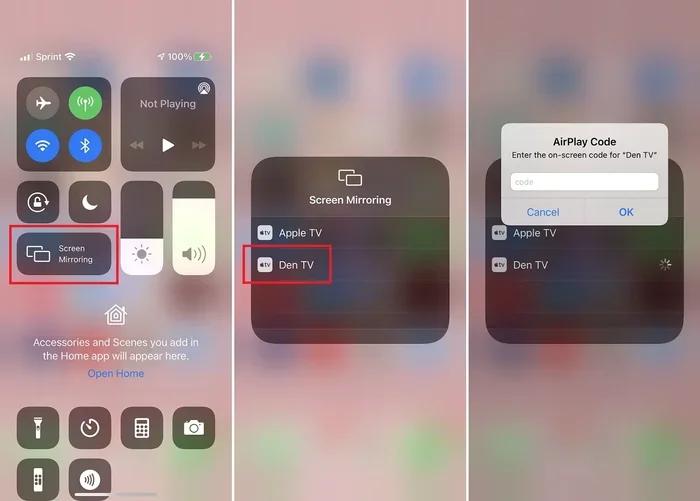
Did you know you can mirror your iPhone screen without WiFi using certain apps? Some third-party apps let you beam your iPhone screen to your TV through a direct connection or a local network that does not require internet access. These apps work by creating a peer-to-peer connection between your devices.
Popular options include apps like Replica, AirScreen, and LetsView. You download the app on your iPhone, install a matching receiver on your TV (if your TV supports app installation), and follow the on-screen prompts. The setup usually takes less than five minutes.
Keep in mind that the quality of these apps varies. Some work great for photos and videos, while others might struggle with fast-moving content like sports or action movies. Always read reviews before downloading. The best apps offer low latency and clear audio output that matches what you see on screen.
Wired Mirroring as an Alternative
If you do not trust wireless mirroring apps, you can always go back to a wired approach. A wired connection eliminates lag, interference, and dropped signals entirely. This is the same principle behind the Lightning to HDMI adapter method, but you can also use USB-based solutions for newer devices.
Some users prefer this approach because it is more reliable. You plug in the cable, and your content appears on the TV. No pairing codes, no network setup, no frustration. For a seamless experience, check out how to mirror my Mac to my TV without Apple TV for additional wired mirroring strategies that work across devices.
Method 3: Connect via USB to HDMI Cable
Checking Compatibility First
If you have a newer iPhone with a USB-C port (like iPhone 15 or 16), you can use a USB to HDMI cable directly. This method is even simpler than using a Lightning adapter. You just plug one end into your iPhone and the other into your TV.
Before you buy a cable, check your iPhone model. You can find this information by going to Settings, then General, then About, and looking at the Model Name. If your iPhone has a USB-C port, a direct USB to HDMI cable will work perfectly.
You can also find more details on USB to HDMI connections if you want to explore this option further.
Setting Up the USB-C to HDMI Connection
Here is how to set it up in just a few minutes:
- Get a USB-C to HDMI cable or adapter.
- Plug the USB-C end into your iPhone.
- Connect the HDMI end to an available port on your TV.
- Switch your TV to the matching HDMI input.
- Your iPhone display will appear on the TV automatically.
This method is fantastic because it charges your iPhone at the same time (if you use a cable with power delivery). You also get excellent video quality since the signal is digital and direct. The cable connection is stable, and you do not have to worry about any wireless interference.
One thing to watch out for: some USB-C to HDMI cables are designed for data transfer only and may not carry video signals. Make sure you buy a cable that supports video output. Look for cables labeled “with video support” or “display compatible.”
Method 4: Use a Digital AV Adapter for Older iPhones
Pros and Cons of the Digital AV Adapter
The Apple Digital AV Adapter is the official adapter made by Apple for older iPhone models. It connects through the Lightning port and outputs both video and audio to your TV via HDMI. It is a reliable option, but it comes with a higher price tag compared to third-party alternatives.
Here are the main advantages:
- Officially supported by Apple, so compatibility is guaranteed
- Delivers high-quality 1080p video output
- Includes a charging port so your iPhone stays powered
- Works with all Lightning-equipped iPhones
And the downsides:
- More expensive than generic adapters
- Only available in white (Apple branding)
- Some features may not work with non-Apple cables
If you have an older iPhone and want a hassle-free setup, the digital AV adapter is worth the investment. It handles home entertainment needs beautifully and requires zero technical knowledge to set up.
Alternative Adapters Worth Considering
Not everyone wants to spend Apple-level money on an adapter. Many third-party options deliver excellent results at a fraction of the cost. Brands like Belkin, Anker, and Amazon Basics all make reliable Lightning to HDMI adapters. Look for adapters that support 1080p or 4K output for the best picture quality.
When shopping, pay attention to the adapter’s build quality. A cheaply made adapter might disconnect during use or produce poor audio. Read customer reviews and buy from reputable sellers. A good adapter should last you for years without any issues.
Quick Tips for the Best Viewing Experience
Now that you know how to connect iPhone to TV without WiFi, here are some quick tips to make everything work better:
- Turn on Do Not Disturb on your iPhone so incoming calls do not interrupt your movie night.
- Put your iPhone in landscape mode for widescreen TV content. The adapter mirrors your screen orientation.
- Keep your iPhone plugged in during long viewing sessions to prevent battery drain.
- Adjust your TV picture settings for the best color and contrast when displaying iPhone content.
- Clean your iPhone screen before mirroring. A dirty screen can affect the quality of the mirrored image.
- Download content in advance if you plan to watch without internet. Use apps like Netflix or Spotify to download movies and music for offline viewing.
These small steps make a big difference. You will notice smoother playback, better colors, and fewer interruptions. A little preparation goes a long way toward an enjoyable viewing experience.
Common Mistakes to Avoid
Even with the right adapter, people sometimes make mistakes that ruin the experience. Here are the most common ones:
- Using the wrong adapter – Make sure you buy a Lightning to HDMI adapter (or USB-C to HDMI for newer phones). Using a USB-A to HDMI adapter will not work with an iPhone.
- Forgetting to switch the TV input – After plugging everything in, remember to change your TV to the correct HDMI channel. This is the number one reason people think their setup is not working.
- Using a low-quality cable – Cheap HDMI cables can cause signal drops, poor audio, or no signal at all. Invest in a decent cable from a trusted brand.
- Not checking TV compatibility – Some older TVs may not support all resolutions. If your picture looks fuzzy, check your TV settings and adjust the output resolution on your iPhone.
- Ignoring audio settings – Sometimes the audio plays through your iPhone speakers instead of the TV. Go to your iPhone settings and make sure the TV is selected as the audio output device.
Avoiding these mistakes saves you time and frustration. Most issues are easy to fix once you know what to look for.
How This Compares to Wireless Methods
You might be wondering how a wired connection stacks up against wireless options like AirPlay or wireless display technology. Here is a quick comparison:
Wired connections offer zero latency, stable performance, and no dependency on WiFi. They are ideal for gaming, presentations, and watching downloaded content. The trade-off is a cable running from your iPhone to the TV, which can be a bit messy if you are not careful with cable management.
Wireless methods are more convenient because there are no cables. But they require WiFi or a direct device-to-device connection, and they can suffer from lag, interference, and dropped connections. If you have a weak WiFi signal, the wireless experience will be frustrating.
For most people who want a reliable setup, a wired connection is the way to go. It is simple, fast, and works every time. If you are curious about extending your WiFi range for wireless methods, you can learn how to extend your WiFi range with a wired connection for tips on improving your overall network setup.
Final Thoughts
Connecting your iPhone to your TV without WiFi is easier than most people think. You have multiple options, from simple Lightning to HDMI adapters to USB-C cables and third-party mirroring apps. The key is choosing the method that fits your iPhone model and your TV setup.
Start by checking what ports your TV has. Then pick the right adapter or cable for your iPhone. Follow the steps in this guide, and you will be watching your favorite content on the big screen in no time. No WiFi, no Apple TV, no hassle.
Whether you are at home, traveling, or somewhere with spotty internet, you now have the knowledge to get your iPhone content on any TV with an HDMI port. Bookmark this guide for future reference, and share it with friends who might need help setting up their own cable connection. Happy viewing!
Frequently Asked Questions
Can I connect iPhone to TV without WiFi using Bluetooth?
Bluetooth alone cannot transmit video from your iPhone to your TV. You need either an HDMI adapter, a USB to HDMI cable, or a third-party screen mirroring app that creates a direct connection. Bluetooth is useful for audio-only connections, like pairing Bluetooth headphones to your TV, but it does not carry video signals.
Do I need an Apple TV to mirror my iPhone to my TV?
No, you do not need an Apple TV at all. You can use a Lightning to HDMI adapter, a USB-C to HDMI cable, or a third-party mirroring app to get your iPhone screen on your TV. These methods work without any Apple device and do not require WiFi.
Will a cheap HDMI adapter damage my iPhone?
Most cheap adapters are safe and will not damage your iPhone. However, very low-quality adapters might cause overheating or connection issues. Stick to adapters from reputable brands or those with good customer reviews. If your iPhone gets unusually hot while using an adapter, disconnect it and try a different one.
Can I use this method with any TV?
You need a TV with an HDMI port, which is standard on almost all modern TVs. If your TV only has older ports like composite or component inputs, you can use a converter to bridge the connection. Check your TV’s available ports before purchasing an adapter.
Why is there no sound when I mirror my iPhone to my TV?
This usually happens when the TV is not set as the audio output device. Go to your iPhone settings and check the audio output. You can also try unplugging and replugging the adapter. Sometimes restarting both your iPhone and your TV fixes the issue quickly.
Can I charge my iPhone while using an HDMI adapter?
Yes, most Lightning to HDMI adapters have a built-in charging port. You can plug in your iPhone’s charging cable while the adapter is connected to your TV. This keeps your iPhone powered during long viewing sessions and prevents battery drain from screen mirroring.