How Can I Access My Bluetooth Device Quickly and Easily
Figuring out how can I access my Bluetooth device doesn’t have to be frustrating. This guide walks you through simple steps to find, pair, and connect your Bluetooth devices in minutes. We cover common problems, quick fixes, and expert tips so you can get back to enjoying wireless audio and connectivity without the headache.
Key Takeaways
- Bluetooth access is simple: You just need to enable it in your device settings and pair your device.
- Distance matters: Keep your Bluetooth device within 30 feet for the best signal strength.
- Restart first: Most Bluetooth problems are fixed by simply restarting your device.
- Check compatibility: Not all devices support Bluetooth, and older models may need an adapter.
- Remove old pairings: Deleting old connections frees up slots and reduces interference.
- Update your software: Outdated firmware often causes Bluetooth connectivity issues.
- Use our FAQs: The troubleshooting tips at the end cover the most common Bluetooth problems.
📑 Table of Contents
- How Can I Access My Bluetooth Device Quickly and Easily?
- Step-by-Step Guide to Accessing Your Bluetooth Device
- Common Bluetooth Problems and How to Fix Them
- Quick Tips for Better Bluetooth Performance
- When You Need Extra Help: Bluetooth Adapters and Accessories
- Understanding Bluetooth Versions and Compatibility
- How Can I Access My Bluetooth Device? (Quick Reference)
- Conclusion
How Can I Access My Bluetooth Device Quickly and Easily?
You just bought a shiny new Bluetooth device, and you want to start using it right away. Maybe it’s a pair of wireless headphones, a portable speaker, or a keyboard. Either way, the first question on your mind is probably how can I access my Bluetooth and get things working. The good news is that connecting a Bluetooth device is easier than most people think. You don’t need to be a tech expert to get it done. In this guide, we’ll walk you through every step, from turning on Bluetooth to fixing common problems. By the end, you’ll feel confident connecting any device wirelessly.
Bluetooth technology has been around for over 20 years, but many people still find it confusing. You might wonder why your phone won’t find your speaker, or why the connection keeps dropping. These are normal frustrations. The truth is, accessing Bluetooth is mostly about knowing where to look and what to check. This guide simplifies everything. We use plain language and real-world examples so you can follow along no matter your skill level. Let’s dive in and get your devices connected.
Why Bluetooth Access Matters in Everyday Life
Bluetooth has become a part of our daily routine. We use it for wireless audio, file sharing, and even controlling smart home devices. When your Bluetooth connection isn’t working, it can disrupt your entire day. You can’t listen to music during your commute. You can’t take hands-free calls. You can’t even print a document wirelessly. Understanding how to access your Bluetooth device quickly saves you time and stress. It also helps you avoid calling customer support for something you can fix in minutes.
Think about all the devices in your home that use Bluetooth. Your phone, your TV, your tablet, maybe even your car. Each one needs to be accessible and ready to connect. When you know the right steps, you can pair a new device in under a minute. That’s the power of understanding Bluetooth technology. Let’s break it down so you can use it with confidence.
Step-by-Step Guide to Accessing Your Bluetooth Device
Getting to your Bluetooth settings is the first real step. The process varies slightly depending on your device, but the general flow is the same. Here’s how to find and turn on Bluetooth on the most common devices.
On Your Smartphone
Both iPhone and Android make it easy to access Bluetooth. On an iPhone, open the Control Center by swiping down from the top-right corner. Tap the Bluetooth icon to turn it on. You’ll see it turn blue, which means it’s active. To pair a new device, go to Settings and tap Bluetooth. Your phone will start scanning for nearby devices.
On Android, the process is similar. Swipe down from the top of your screen to open Quick Settings. Tap the Bluetooth icon to enable it. For a full list of available devices, go to Settings and select Bluetooth. Your phone will show a list of Bluetooth devices nearby. Tap the one you want to connect, and you’re done.
On Your Computer or Laptop
Accessing Bluetooth on a computer works a bit differently. On Windows 10 or 11, click the Start button and go to Settings. Select Devices, then Bluetooth and other devices. Toggle Bluetooth on and click Add Bluetooth or other device. Your PC will search for available devices.
On a Mac, click the Apple menu and select System Preferences. Click Bluetooth and make sure it’s turned on. Your Mac will display a list of nearby devices. Click Connect next to the device you want to pair. If your laptop doesn’t have built-in Bluetooth, you may need a Bluetooth adapter. These small USB devices plug right into your laptop and give it wireless capability. They’re affordable and easy to find online.
On Your TV
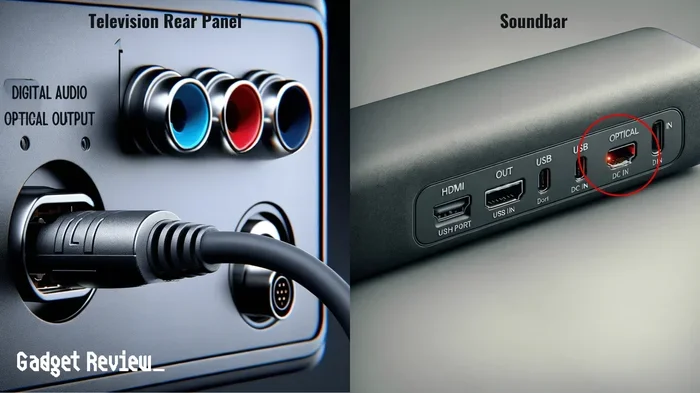
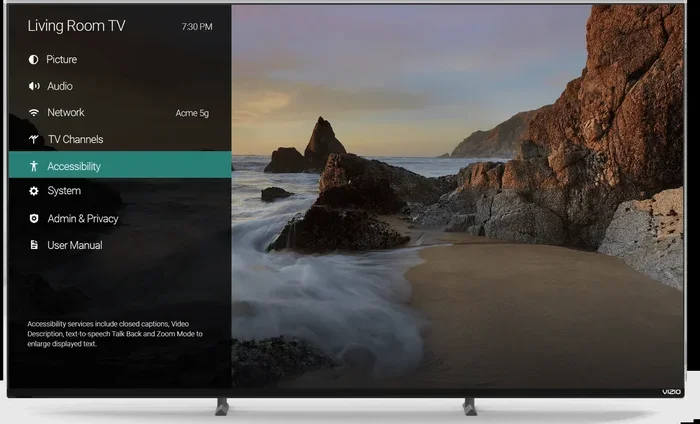
Many modern smart TVs have Bluetooth built in. To access it, go to your TV’s Settings menu and look for Bluetooth or Sound Output. Some TVs, like certain LG models, let you pair Bluetooth headphones directly for private listening. If your TV doesn’t support Bluetooth, you can add a Bluetooth transmitter. This small device plugs into your TV’s audio output and sends sound wirelessly to your headphones or speaker. It’s a simple fix that opens up a lot of possibilities.
Common Bluetooth Problems and How to Fix Them
Even when you follow the steps correctly, things don’t always go smoothly. Bluetooth problems are incredibly common, and most have simple solutions. Here are the issues you’re most likely to run into and how to solve them.
Device Not Showing Up in the List
If your Bluetooth device doesn’t appear when you scan, don’t panic. First, make sure the device is in pairing mode. Most devices need to be held in a specific mode before they can be discovered. Check the user manual or look for a flashing light on the device. Also, make sure Bluetooth is turned on in your phone or computer’s settings.
Distance can also be a factor. Bluetooth works best within about 30 feet. If your device is too far away, move closer and try again. Walls, furniture, and even other electronics can weaken the Bluetooth signal. Remove any physical barriers between your devices and try pairing again.
Connection Keeps Dropping
A stable Bluetooth connection should stay consistent. If it keeps disconnecting, the problem is often interference. Other wireless devices, microwaves, and even USB 3.0 ports can interfere with Bluetooth signals. Move away from these sources and see if the connection improves.
Another common cause is outdated software. Make sure your phone, computer, or tablet has the latest updates installed. Manufacturers often release firmware updates that fix Bluetooth connectivity issues. Check for updates in your device settings and install any that are available.
Paired but No Sound or Data Transfer
Sometimes a device connects but doesn’t work properly. If you paired your headphones but hear nothing, check the audio output settings on your phone or TV. Make sure the Bluetooth device is selected as the audio source. On some devices, you need to manually switch the output from speakers to Bluetooth.
For file transfers, make sure both devices support the same Bluetooth profile. For example, not all devices support Bluetooth file transfer (OPP). Some only support audio streaming (A2DP). Understanding these Bluetooth profiles helps you know what to expect from each connection.
Quick Tips for Better Bluetooth Performance
Getting the most out of your wireless connection is all about small habits. Here are some quick tips that make a big difference.
- Keep your devices updated. Software updates often include fixes for Bluetooth bugs. Check for updates regularly.
- Restart before troubleshooting. A simple restart of both devices clears temporary glitches and often solves connection problems.
- Limit the number of connected devices. Too many paired devices can slow things down. Remove old pairings you no longer use.
- Charge your devices. Low battery can weaken Bluetooth performance. Keep your devices charged for the best signal.
- Stay within range. Keep your devices within 30 feet of each other for the strongest connection.
How to Remove Old Bluetooth Pairings
Over time, your device can build up a long list of old pairings. These take up memory and can cause confusion when you’re trying to connect a new device. To remove old pairings, go to your Bluetooth settings and look for a list of previously connected devices. Tap or click on the device you want to remove and select Forget or Delete. This clears the connection and frees up space for a fresh pairing.
This is especially helpful if you’ve ever connected to a device in a public place, like a rental car or a hotel room. Removing those connections keeps your device clean and secure. It also prevents your phone from accidentally trying to connect to a device you no longer use.
When You Need Extra Help: Bluetooth Adapters and Accessories
Not every device has built-in Bluetooth, and that’s okay. You can add wireless capability to almost any device with the right accessory. A Bluetooth adapter is the most common solution. These small dongles plug into USB ports or audio jacks and give your device wireless ability.
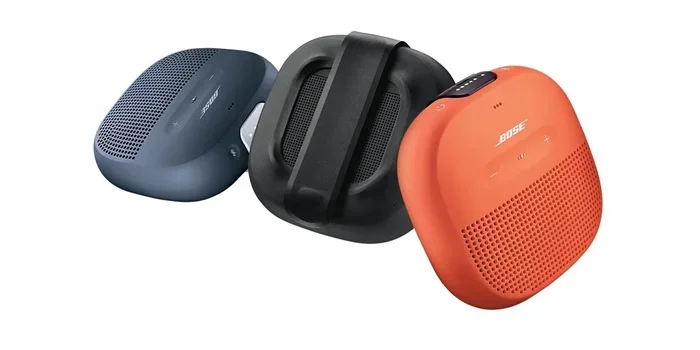
For older speakers or radios, a Bluetooth receiver is a game-changer. You plug it into the speaker’s audio input, and suddenly it can connect to your phone wirelessly. This is a popular way to make an old Bose Wave radio Bluetooth-enabled without buying a new one. Similarly, you can add Bluetooth to a TV that doesn’t support it by using a Bluetooth transmitter.
These accessories are affordable and widely available. You can find them at most electronics stores or online. They’re a great investment if you have devices you love but want to make them wireless. Just make sure the adapter is compatible with your device before you buy.
Understanding Bluetooth Versions and Compatibility
Not all Bluetooth is the same. Different versions offer different speeds, ranges, and features. Here’s a quick look at what you need to know.
- Bluetooth 4.0: The older standard. It works fine for basic audio streaming but has a shorter range.
- Bluetooth 5.0: Faster and more reliable. It offers double the range and better battery efficiency.
- Bluetooth LE (Low Energy): Uses very little power. Common in fitness trackers and smartwatches.
When you’re buying a new device, check which Bluetooth version it supports. Newer versions are backward compatible, so a Bluetooth 5.0 phone can connect to a Bluetooth 4.0 speaker. But you’ll get the best performance when both devices support the same version. This is especially important for wireless audio where you want the clearest sound and the fewest interruptions.
How Can I Access My Bluetooth Device? (Quick Reference)
Here’s a fast summary of the main steps to access any Bluetooth device:
- Turn on Bluetooth in your device settings.
- Put your Bluetooth device in pairing mode.
- Wait for your device to appear in the list of available devices.
- Tap or click the device name to pair.
- Test the connection by playing audio or transferring a file.
That’s it. Five simple steps and you’re connected. If it doesn’t work the first time, don’t worry. Try restarting both devices and moving closer together. Most Bluetooth connectivity issues are solved with these basic steps. Remember, practice makes perfect. The more you connect devices, the easier it becomes.
Also, keep in mind that some devices work better together than others. For example, if you want to use Bluetooth headphones with your TV, check compatibility first. Some smart TVs have built-in support, while others need an external transmitter. If you’re wondering about using Bluetooth with specific devices, you can check out how to use Bluetooth on your hearing aid or how to pair Bluetooth headphones to your LG TV for more detailed guidance.
Finally, don’t forget about the Bluetooth signal strength in your home. Walls and distance can weaken your connection. If you have a large home, consider using a Bluetooth range extender or keeping your devices in the same room. These small adjustments can make a huge difference in your wireless experience.
Conclusion
Now you know exactly how can I access my Bluetooth device and get it connected in just a few minutes. From turning on Bluetooth to troubleshooting common problems, you have all the tools you need. Remember to keep your devices updated, stay within range, and remove old pairings that clutter your list. With these tips, you’ll handle any Bluetooth connection like a pro. Wireless technology is meant to make your life easier, not harder. So go ahead, pair up your devices, and enjoy the freedom of going wireless.
Whether you’re connecting headphones for a workout, streaming music to a speaker, or setting up a wireless keyboard, the process is the same. Follow the steps, stay patient, and don’t be afraid to experiment. You’ll be surprised how quickly Bluetooth becomes second nature. Happy connecting!
Frequently Asked Questions
How can I access my Bluetooth on Windows 10?
Click the Start button and select Settings. Go to Devices and then Bluetooth and other devices. Toggle Bluetooth on, and click Add Bluetooth or other device. Your PC will scan for nearby devices. Select the one you want to pair and follow the on-screen instructions.
Why won’t my Bluetooth device show up on my phone?
This usually happens because the device isn’t in pairing mode. Check the device’s manual for instructions on how to activate pairing mode. Also make sure Bluetooth is turned on in your phone’s settings and that the device is within 30 feet of your phone.
Can I use Bluetooth without Wi-Fi?
Yes! Bluetooth works independently of Wi-Fi. It uses its own wireless signal to connect devices. You can pair headphones, speakers, and keyboards without an internet connection. However, some apps that stream content may need Wi-Fi to work.
How do I remove a Bluetooth device from my phone?
Go to Settings and tap Bluetooth. Find the device in the list of paired devices. Tap the gear icon or the device name and select Forget This Device. This removes the pairing and frees up a slot for a new connection.
What is the range of Bluetooth?
Most Bluetooth devices work within about 30 feet of each other. Bluetooth 5.0 can reach up to 80 feet in open spaces. Walls, furniture, and other electronics can reduce the effective range. Keep your devices close for the best connection.
How do I put my Bluetooth speaker in pairing mode?
Turn on the speaker and press and hold the Bluetooth button until the light starts flashing. The flashing light means the speaker is ready to be discovered. Go to your phone or computer’s Bluetooth settings and look for the speaker in the list of available devices. Tap to connect.