Does Xbox Series Controller Support Bluetooth Connectivity
The Xbox Series controller does support Bluetooth connectivity, but only with specific models. The Xbox Wireless Controller (released with the Xbox Series X and Series S) uses Bluetooth Low Energy to connect to PCs and other devices. However, older Xbox One controllers do not have this feature. In this guide, we walk you through the pairing process, explain the differences between Bluetooth and USB connections, and share expert tips for the best wireless gaming experience.
Have you ever wanted to ditch the cable and play your favorite Xbox games on your PC or laptop without being tethered? Bluetooth connectivity makes that possible. But does your Xbox Series controller actually support Bluetooth? The short answer is yes, but with some important caveats. Let us dive deep into everything you need to know about Xbox Series controller Bluetooth support, pairing, and performance.
If you are a gamer who loves the freedom of wireless play, understanding how Bluetooth connectivity works with your Xbox controller is essential. Whether you are connecting to a PC, a smart TV, or even a tablet, knowing the ins and outs of wireless gaming can make a huge difference. In this article, we cover every detail you need to get started.
Key Takeaways
- Bluetooth Support: The Xbox Series controller supports Bluetooth Low Energy for wireless connections to PCs and compatible devices.
- Model Matters: Only the newer Xbox Wireless Controller (model 1914) has Bluetooth. Older Xbox One controllers do not.
- Pairing Is Easy: You can pair the controller to your PC or device in just a few simple steps.
- USB Is Faster: For the best performance, a USB cable connection offers lower latency than Bluetooth.
- Common Issues: Bluetooth range and interference can cause connection drops, but these are easy to fix.
- Works With Many Devices: Beyond PCs, the controller can connect to phones, tablets, and smart TVs via Bluetooth.
📑 Table of Contents
- What Is the Xbox Series Controller?
- Does Xbox Series Controller Support Bluetooth?
- How to Connect Your Xbox Controller via Bluetooth
- Bluetooth vs USB Connection: Which Is Better for Gaming?
- Common Bluetooth Issues and How to Fix Them
- Tips for the Best Bluetooth Gaming Experience
- Can You Use Bluetooth Headphones with the Xbox Series Controller?
- Final Thoughts
What Is the Xbox Series Controller?
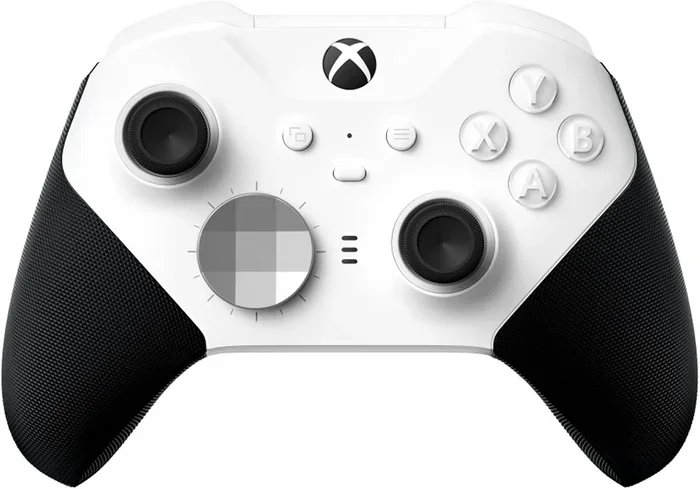
The Xbox Wireless Controller is the main gamepad that ships with the Xbox Series X and Xbox Series S consoles. It features a sleek new design, textured grip, and a share button for easy streaming and screenshots. Under the hood, it supports both Xbox Wireless and Bluetooth Low Energy technology.
This controller is a big step forward from the Xbox One controller. It feels better in your hands and offers more connectivity options. The wireless controller can connect to your console, your PC, and even other devices without needing a USB adapter in many cases.
Key Features of the Xbox Series Controller
- Bluetooth Low Energy: Allows wireless pairing with PCs, phones, and tablets.
- Built-in rechargeable battery: No need for AA batteries anymore.
- Share button: Capture and share clips and screenshots instantly.
- Improved D-pad: Better precision for fighting and platforming games.
- USB-C port: Faster charging and wired connectivity.
Does Xbox Series Controller Support Bluetooth?
Yes, the Xbox Series controller does support Bluetooth connectivity. However, not all Xbox controllers are created equal. The newer Xbox Wireless Controller (model 1914) that comes with the Xbox Series X and Series S has built-in Bluetooth. Older Xbox One controllers, even the newer ones, do not have this capability.
How can you tell if your controller has Bluetooth? Look at the plastic around the Xbox button. On Bluetooth-enabled models, the plastic matches the color of the face buttons. On non-Bluetooth models, the plastic around the Xbox button is a different shade. This small detail matters a lot when you are trying to pair Bluetooth devices.
Which Xbox Models Have Bluetooth?
- Xbox Wireless Controller (Model 1914): This is the controller that ships with the Xbox Series X and Series S. It has full Bluetooth support.
- Xbox Elite Series 2 Controller: This premium controller also supports Bluetooth connectivity.
- Xbox One Controllers: Most Xbox One controllers do not support Bluetooth. They use a proprietary wireless protocol and require the Xbox Wireless Adapter for PC.
If you are unsure about your controller model, check the packaging or look up the model number on the back of the battery compartment. Knowing this will save you a lot of frustration when trying to connect wireless accessories.
How to Connect Your Xbox Controller via Bluetooth
Pairing your Xbox Series controller to a device via Bluetooth is straightforward. Here is a step-by-step guide to get you connected quickly.
Pairing to a Windows PC
- Turn on your Xbox Series controller by pressing the Xbox button.
- Press and hold the Pair button on the top of the controller near the USB-C port. The Xbox button will start flashing rapidly.
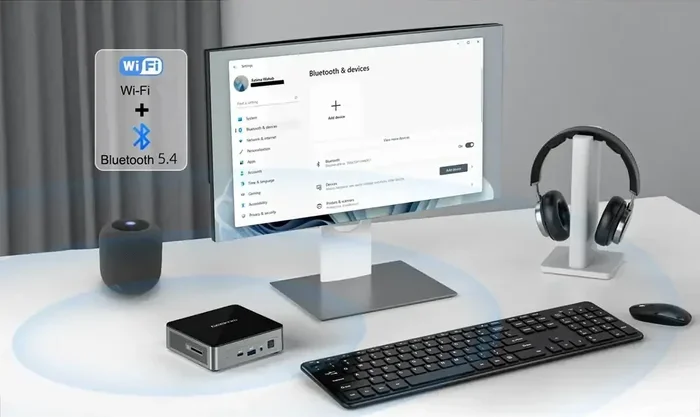
- On your PC, go to Settings > Bluetooth & devices > Add device.
- Select Bluetooth and look for your controller in the list.
- Click on the controller to pair it. The Xbox button will stop flashing and stay solid.
Pairing to a Phone or Tablet
The process is similar for mobile devices. Go to your phone’s Bluetooth settings, turn on Bluetooth, and put the controller in pairing mode. Your phone should detect the controller, and you can connect with a single tap. This is great for gaming on the go or using Bluetooth audio apps.
Pairing to a Smart TV or Android TV
Some smart TVs support Bluetooth gamepad input. If your TV does, you can pair your Xbox controller directly. Go to your TV’s Bluetooth settings, put the controller in pairing mode, and select it from the list of available devices. Keep in mind that not all apps on smart TVs support controller input, so your mileage may vary.
If you are looking to expand your Bluetooth setup beyond gaming, you might wonder about other devices. For example, Can I Use Bluetooth Headphones With Roku is a related topic that explores Bluetooth connectivity with streaming devices. Similarly, if you are curious about broader Bluetooth capabilities, check out Can I Make My Tv Have Bluetooth for tips on adding wireless audio to your setup.
Bluetooth vs USB Connection: Which Is Better for Gaming?
When it comes to wireless gaming, you have two main options with the Xbox Series controller: Bluetooth or USB. Each has its pros and cons. Let us break them down so you can decide which works best for your setup.
Bluetooth Connection
Bluetooth connectivity gives you the freedom to move around without any cables. It is perfect for casual gaming, media playback, and playing games on devices that do not have USB ports. The Bluetooth range is typically around 30 feet, which is plenty for most living room or desk setups.
However, Bluetooth has some limitations. There is a slight delay, known as input latency, compared to a direct USB connection. For competitive or fast-paced games, this latency can be noticeable. Also, Bluetooth connections can be affected by other wireless devices in your home, such as your Wi-Fi router or microwave oven.
USB Connection
A USB cable connection provides the most reliable and fastest link between your controller and your device. There is virtually no input lag, making it the preferred choice for serious gamers and competitive play. The USB-C port on the Xbox Series controller makes charging and wired play quick and convenient.
If you want to use a USB connection on your PC, you simply plug in the controller with a USB-C cable, and Windows will recognize it instantly. No pairing is needed. This is also the best option if you experience Bluetooth connectivity issues.
Comparison Table
| Feature | Bluetooth | USB Cable |
|---|---|---|
| Wireless Freedom | Yes | No |
| Input Latency | Slight delay | Near zero |
| Range | Up to 30 feet | Limited by cable length |
| Setup | Pairing required | Plug and play |
| Best For | Casual gaming, media | Competitive gaming |
| Battery Usage | Moderate | Charges while connected |
For most casual gamers, Bluetooth connectivity works perfectly fine. But if you are playing competitive multiplayer games, a USB connection is the way to go. Many gamers keep both options available and switch between them depending on the situation.
Common Bluetooth Issues and How to Fix Them
Even though Bluetooth technology has improved a lot, you may run into some issues when connecting your Xbox controller. Here are the most common problems and their solutions.
Controller Not Showing Up in Bluetooth Settings
If your PC or device does not detect the controller, make sure it is in pairing mode. Press and hold the Pair button until the Xbox button flashes. Also, check that Bluetooth is turned on and that your device is not already connected to too many Bluetooth devices. Sometimes, simply restarting Bluetooth on your device fixes the issue.
Connection Drops or Intermittent Disconnects
This is a common problem with Bluetooth range and interference. If your controller keeps disconnecting, try moving closer to your device. Remove other wireless devices from the area that might be causing interference. Also, make sure your controller firmware is up to date through the Xbox Accessories app on Windows.
Audio Issues When Using Bluetooth
If you want to use Bluetooth audio with your controller, such as connecting wireless headphones, you might run into some limitations. The Xbox Series controller does not support audio over Bluetooth directly. You will need a separate Bluetooth transmitter or a headset connected via the 3.5mm jack. For more on this topic, you might find it helpful to read about using Bluetooth headphones with gaming consoles, as the principles are similar.
Controller Won’t Stay Paired
If your controller keeps unpairing, try forgetting the device in your Bluetooth settings and pairing it again. Also, check that your device’s Bluetooth drivers are up to date. On Windows, you can update drivers through Device Manager under the Bluetooth section.
Tips for the Best Bluetooth Gaming Experience
Getting the most out of your Xbox Series controller Bluetooth connection is easier than you think. Here are some expert tips to ensure a smooth and lag-free experience.
Keep Your Controller Firmware Updated
Microsoft regularly releases firmware updates for the Xbox controller. These updates can improve Bluetooth connectivity, fix bugs, and add new features. Use the Xbox Accessories app on Windows to check for updates. Keeping your controller updated is one of the easiest ways to maintain a strong wireless connection.
Reduce Wireless Interference
Bluetooth operates on the 2.4 GHz frequency band, which is shared by many other devices. If you have a lot of wireless devices in your home, try to keep your controller and your PC or device in the same room. Avoid placing your router too close to your gaming setup, as it can cause interference.
Use a Bluetooth Transmitter for Non-PC Devices
If you want to connect your Xbox controller to a device that does not have built-in Bluetooth, such as a smart TV or a monitor, you can use a Bluetooth adapter. These small USB dongles plug into the device and add Bluetooth capability. They are affordable and work well with the Xbox Series controller.
Charge Your Controller Before Gaming
Nothing ruins a gaming session faster than a dead battery. Keep your controller charged, especially if you are using Bluetooth connectivity, which can drain the battery faster than a wired connection. The built-in rechargeable battery makes this easy with the included USB-C cable.
Consider a Controller for Different Devices
If you game on multiple devices, having one controller that supports Bluetooth is a huge advantage. You can switch between your PC, your phone, and your smart TV without needing multiple controllers. This versatility is one of the biggest benefits of the Xbox Series controller.
For those who enjoy gaming across different platforms, it is worth noting that Bluetooth connectivity opens up new possibilities. You can even explore how Bluetooth headphones work with other consoles and devices. If you are interested in learning more, check out Can I Play My Xbox On My Laptop Through Hdmi for another way to expand your Xbox gaming setup.
Can You Use Bluetooth Headphones with the Xbox Series Controller?
This is one of the most common questions among gamers. The answer is a bit complicated. The Xbox Series controller itself does not transmit audio over Bluetooth. This means you cannot directly connect Bluetooth headphones to the controller for in-game audio.
However, there are workarounds. You can use a Bluetooth transmitter that plugs into the controller’s 3.5mm jack or USB-C port. This lets you connect wireless headphones for chat and game audio. Some gamers also use the Xbox Wireless Adapter for Windows, which supports audio through the Xbox app on PC.
If you are exploring Bluetooth audio options for other devices, you might want to check out Can I Use Alexa As A Bluetooth Speaker For My Tv for tips on using Bluetooth speakers with your entertainment setup.
Final Thoughts
The Xbox Series controller does support Bluetooth connectivity, and it is a great feature for gamers who want more freedom and flexibility. Whether you are playing on your PC, connecting to a smart TV, or using your controller on the go, Bluetooth makes it all possible.
Just remember that not all Xbox controllers have Bluetooth, so check your model first. When you do have a Bluetooth-enabled controller, the pairing process is simple and quick. For the best gaming performance, consider using a USB connection for competitive games and Bluetooth for casual play and media consumption.
With the tips and information in this guide, you are now well-equipped to make the most of your Xbox Series controller’s wireless capabilities. Happy gaming!
Frequently Asked Questions
Can I use any Xbox controller with Bluetooth?
No, only the newer Xbox Wireless Controller (model 1914) and the Xbox Elite Series 2 controller support Bluetooth connectivity. Older Xbox One controllers do not have Bluetooth and require the Xbox Wireless Adapter for PC connections.
What is the Bluetooth range of the Xbox Series controller?
The Bluetooth range is typically around 30 feet (about 9 meters). Obstacles like walls and other electronic devices can reduce this range. For the best experience, keep your controller within a clear line of sight of your connected device.
Does Bluetooth affect controller battery life?
Yes, using Bluetooth connectivity can drain the controller’s battery faster than a USB wired connection. However, the built-in rechargeable battery makes it easy to keep your controller charged between gaming sessions.
Can I connect my Xbox controller to a smart TV via Bluetooth?
If your smart TV supports Bluetooth gamepad input, you can pair your Xbox Series controller directly. However, not all apps on smart TVs support controller input, so the experience may vary depending on the apps you use.
Why does my Xbox controller keep disconnecting via Bluetooth?
This is usually caused by wireless interference or outdated firmware. Try moving closer to your device, reducing the number of active wireless devices nearby, and updating your controller firmware through the Xbox Accessories app.
Can I use Bluetooth headphones with the Xbox Series controller?
The controller does not support audio over Bluetooth natively. You will need a Bluetooth transmitter connected to the controller’s 3.5mm jack or USB-C port, or use the Xbox Wireless Adapter on PC for wireless audio.
=== CONCLUSION ===
The Xbox Series controller brings Bluetooth connectivity to the table, making it a versatile choice for gamers who want to play across multiple devices without cables. From pairing with your PC to connecting to smart TVs and phones, the wireless controller offers flexibility and convenience. While Bluetooth has its limitations compared to a direct USB connection, it works wonderfully for casual gaming and everyday use.
Remember to check your controller model, keep your firmware updated, and follow the tips in this guide for the best experience. With the right setup, your Xbox Series controller becomes a powerful wireless gaming tool that works seamlessly across your entire entertainment setup. Enjoy the freedom of wireless play and make the most of your gaming sessions!