Does Apple Superdrive Play Dvds And Bluray Discs Well
The Apple Superdrive is a compact optical drive designed for Mac users, but its disc capabilities are often misunderstood. It handles DVD playback and CD burning with ease, but it does not support Blu-ray discs. Many Mac owners wonder if this external drive can handle their movie and media needs. This guide covers everything you need to know about DVD and Blu-ray compatibility, device support, and real-world performance.
Key Takeaways
- The Apple Superdrive plays DVDs and CDs perfectly: It reads and writes DVDs and CDs without any issues on compatible Macs.
- It does NOT play Blu-ray discs: The Superdrive lacks the hardware needed for Blu-ray playback, which surprises many users.
- Compatibility is limited to certain Macs: It works best with MacBook Air, MacBook Pro, and select iMac models that lack built-in optical drives.
- Common issues are usually easy to fix: Disc reading problems often stem from dirty lenses, outdated software, or incompatible disc formats.
- Alternative solutions exist for Blu-ray needs: If you need Blu-ray playback, third-party drives or software options can fill the gap.
- The Superdrive is great for basic media tasks: For watching DVDs and backing up files on discs, it remains a reliable Apple accessory.
📑 Table of Contents
- What Is The Apple Superdrive And What Does It Do?
- Does The Apple Superdrive Support DVD Playback?
- Can The Apple Superdrive Play Blu-ray Discs?
- Which Devices Work With The Apple Superdrive?
- Common Issues With The Apple Superdrive And How To Fix Them
- Apple Superdrive Vs. Third-Party Optical Drives
- Final Verdict: Is The Apple Superdrive Worth It?
What Is The Apple Superdrive And What Does It Do?
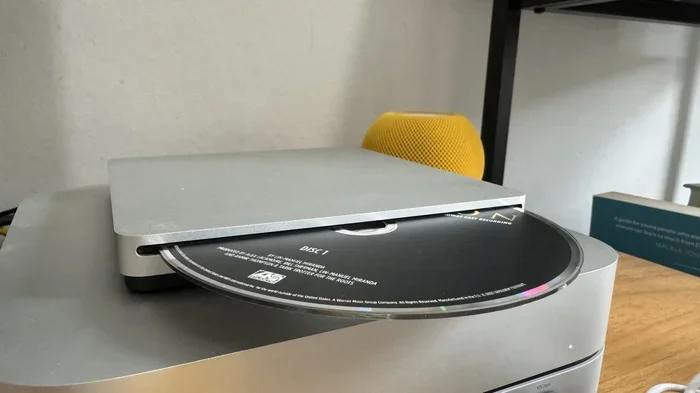
The Apple Superdrive is a small external optical disc drive made by Apple. It connects to your Mac using a USB cable and lets you read and write CDs and DVDs. Apple designed it specifically for Mac users who need a way to play or burn discs without a built-in optical drive.
Many people ask, does Apple Superdrive play DVDs and Blu-ray discs? The short answer is yes for DVDs, but no for Blu-ray. This distinction matters a lot if you have a collection of discs you want to watch or use. Understanding what the Superdrive can and cannot do saves you time, money, and frustration.
The drive is slim, portable, and easy to carry around. It plugs right into any USB port and starts working almost instantly. Apple has kept the design simple over the years, which makes it user-friendly even for people who are not tech-savvy. You do not need to install any special drivers or software to get it working on most Mac computers.
However, the Superdrive has limitations. It only works with certain disc formats and certain Apple devices. Before you buy one or rely on it for your media needs, it is important to understand exactly what it supports and what it does not.
Does The Apple Superdrive Support DVD Playback?
Yes, the Apple Superdrive plays DVDs very well. This is one of its core functions. Whether you want to watch a movie, install software from a disc, or back up files, the Superdrive handles standard DVDs without any problems. The disc reading quality is solid, and most users report smooth playback with no skipping or buffering.
Here is what the Superdrive can do with DVDs:
- Read DVD movies: Watch commercial DVDs directly on your Mac.
- Burn data DVDs: Create backup discs with your files and documents.
- Read DVD-ROM discs: Install software or access data stored on DVDs.
- Burn DVD movies: Create playable DVD videos from your own content.
The DVD playback experience on the Superdrive is reliable. The drive spins discs at a good speed and reads data accurately. If you have a MacBook Air or a newer MacBook Pro that does not have a built-in disc drive, the Superdrive is the perfect solution for DVD needs.
DVD Region Codes And The Superdrive
One thing to keep in mind is DVD region codes. Commercial DVDs are often locked to specific regions. The Apple Superdrive respects these region codes, just like a regular DVD player. You can change the region setting on your Mac a limited number of times before it locks permanently. This is a standard practice across all DVD drives, not just Apple’s.
If you travel or buy DVDs from different countries, you might run into region restrictions. This is not a flaw of the Superdrive itself but rather a standard DVD protection measure. For most casual users watching DVDs from their own region, this is not a problem at all.
Can The Apple Superdrive Play Blu-ray Discs?
This is the question most people really want answered. The Apple Superdrive cannot play Blu-ray discs. It simply does not have the hardware or laser technology needed to read Blu-ray format discs. Blu-ray discs use a different wavelength of laser light and a different data structure than DVDs, and the Superdrive is not equipped to handle that.
If you are hoping to watch your Blu-ray movie collection on your Mac using the Superdrive, you will be disappointed. The drive will either not recognize the disc at all or will show an error message. This is a hard limitation that cannot be fixed with software updates or drivers.
So why does Apple not include Blu-ray support? The answer comes down to design philosophy. Apple has always pushed users toward digital downloads and streaming. They believe physical media is becoming outdated, and they have designed their products accordingly. The Superdrive was built for basic disc needs, not for high-definition media playback.
If you need Blu-ray playback on your Mac, you will need a third-party external Blu-ray drive. Several brands make USB-connected Blu-ray drives that work with Mac computers. These drives are slightly more expensive than the Apple Superdrive, but they offer full Blu-ray and even 4K UHD support.
For those who want to explore alternatives, you can check out what options exist for playing Blu-ray on laptops in general, as some of those solutions may also apply to Mac users looking for a workaround.
Which Devices Work With The Apple Superdrive?
The Apple Superdrive is not compatible with every computer. Apple has specific requirements for which devices can use it. Here is a breakdown of what works and what does not.
| Device | Compatible? | Notes |
|---|---|---|
| MacBook Air | Yes | Works with all models that lack a built-in drive |
| MacBook Pro | Yes | Works with models without a built-in optical drive |
| iMac | Yes | Works with iMacs that do not have a built-in drive |
| Mac mini | Yes | Works with all Mac mini models |
| Mac Pro | Yes | Works with all Mac Pro models |
| Windows PC | No | The Superdrive is Mac-only |
| iPad | No | iPads do not support external optical drives |
| iPhone | No | iPhones cannot use the Superdrive |
The Superdrive works best with MacBook Air and MacBook Pro models from 2012 and newer. Older Macs with built-in optical drives do not need the Superdrive, but it can still be used as a secondary drive if needed. The key requirement is that your Mac must have macOS support for external USB optical drives.
One thing to note is that the Superdrive needs its own USB power source. If you are using it with a MacBook, you should plug the MacBook into power while using the drive. This ensures stable performance and prevents any power-related issues during disc playback.
Common Issues With The Apple Superdrive And How To Fix Them
Like any hardware device, the Apple Superdrive can encounter problems from time to time. Most of these issues are easy to fix with simple troubleshooting steps. Here are the most common problems users face and how to solve them.
Disc Not Recognized
If your Superdrive does not recognize a disc, start by cleaning the disc. Dust, fingerprints, and scratches can prevent the drive from reading the disc properly. Use a soft, lint-free cloth and wipe the disc from the center outward. Avoid using paper towels or rough fabrics.
Next, try a different disc to see if the problem is with the specific disc or the drive itself. If the drive works with other discs, the original disc may be damaged or incompatible. If the drive does not work with any disc, try a different USB port on your Mac.
Slow Disc Reading Or Playback Stuttering
Slow performance can happen if the disc is scratched or if the drive lens is dirty. You can clean the lens using a compressed air canister designed for electronics. Hold the canister upright and give the drive’s opening a few short bursts of air.
Also, make sure your Mac’s software is up to date. Apple occasionally releases updates that improve disc drive compatibility. Keeping your system updated ensures the best performance from your Superdrive.
Drive Not Showing Up In Finder
If the Superdrive does not appear in Finder or Disk Utility, check the USB connection. Try a different USB cable or a different USB port. You can also restart your Mac, which often resolves temporary recognition issues. If the drive still does not show up, you may need to reset the System Management Controller (SMC) on your Mac.
Burning Discs Fails Or Creates Unreadable Discs
When burning DVDs, use high-quality blank discs from reputable brands. Cheap or counterfeit discs often fail to burn properly. Also, make sure you are using the correct disc format. For data backups, use DVD+R or DVD-R. For video DVDs, use DVD-R and make sure your burning software supports video DVD creation.
Apple Superdrive Vs. Third-Party Optical Drives
When it comes to playing discs on a Mac, you have options beyond the Apple Superdrive. Third-party optical drives offer different features and price points. Here is a quick comparison to help you decide which option is right for you.
The Apple Superdrive is the safest choice for Mac users. It is guaranteed to work with macOS, and Apple provides full support. It is simple, reliable, and easy to use. However, it only supports CDs and DVDs, not Blu-ray.
Third-party Blu-ray drives from brands like LG, ASUS, and Samsung offer more disc format support. They can read and write Blu-ray discs, DVDs, and CDs. The trade-off is that they may require third-party software for full functionality on a Mac, and they do not always integrate as smoothly with macOS as Apple’s own products.
For users who also want to explore media playback options beyond just discs, some people look into whether they can play music through a USB-C connection or use other modern connectivity methods to enjoy their media library.
If you are considering a third-party drive, make sure it is compatible with your Mac model and macOS version. Look for drives that explicitly list Mac support and come with Mac-compatible software or drivers.
Final Verdict: Is The Apple Superdrive Worth It?
The Apple Superdrive is worth it if you need DVD and CD playback or burning on your Mac. It is a reliable, well-built device that does exactly what it promises. For users who still have DVD collections, need to install software from discs, or want to back up files on DVDs, the Superdrive is a great accessory.
However, if you need Blu-ray playback, the Superdrive will not meet your needs. You will need to invest in a third-party Blu-ray drive instead. For casual users who mostly stream content and only occasionally need to play a DVD, the Superdrive is a solid choice.
Apple has not updated the Superdrive in several years, and the company continues to push users toward digital media. Still, the drive remains a useful tool for anyone who works with physical discs on a regular basis. It is affordable, portable, and easy to use.
If you are also looking to expand how you enjoy media from your Mac, consider whether you can mirror your Mac to your TV without Apple TV for a bigger screen experience when watching DVDs or other content.
In summary, the Apple Superdrive is a dependable DVD and CD solution for Mac users. Just know its limitations going in, and you will be happy with your purchase.
Frequently Asked Questions
Can the Apple Superdrive burn DVDs?
Yes, the Apple Superdrive can burn both data DVDs and video DVDs. You just need blank DVD discs and compatible burning software on your Mac. The drive writes at standard DVD speeds, which is fast enough for most users.
Why does the Apple Superdrive not play Blu-ray discs?
The Superdrive uses a standard DVD laser that cannot read the smaller pits and lands on a Blu-ray disc. Blu-ray requires a different laser wavelength and higher-resolution optics, which the Superdrive does not have. This is a hardware limitation, not a software issue.
Is the Apple Superdrive compatible with Windows computers?
No, the Apple Superdrive is designed exclusively for Mac computers. It does not work with Windows PCs or any other non-Apple devices. If you need a DVD drive for a Windows computer, you will need a different brand of external optical drive.
Can I use the Apple Superdrive with a MacBook Pro M1 or M2?
Yes, the Apple Superdrive works with MacBook Pro models that have M1, M2, or M3 chips, as long as they have a USB-A port or you use a USB-C to USB-A adapter. The drive relies on USB connectivity and does not need any special drivers on newer Macs.
What disc formats does the Apple Superdrive support?
The Superdrive supports DVD+R, DVD-R, DVD+RW, DVD-RW, CD-R, and CD-RW formats. It can read and write all of these formats. It does not support any Blu-ray formats, HD DVD, or other high-definition disc types.
How do I clean the Apple Superdrive lens?
Use a can of compressed air designed for electronics. Hold the can upright and spray short bursts into the disc slot. Do not use cotton swabs or liquids, as these can damage the internal components. Cleaning the lens once every few months helps maintain good disc reading performance.
=== CONCLUSION ===
The Apple Superdrive remains a useful tool for Mac users who need reliable DVD and CD playback. It handles standard DVDs with ease and makes burning discs a simple process. However, it is important to understand that the Superdrive does not support Blu-ray discs. If Blu-ray playback is something you need, you will need to look at third-party alternatives.
For most users, the Superdrive does exactly what it should. It is compact, reliable, and works seamlessly with macOS. Whether you are watching movies, installing software from discs, or backing up files, the Apple Superdrive is a solid choice. Just keep its limitations in mind, and you will get great value from this Apple accessory.