Can I Connect Sonos Speakers To A Projector At Home
Yes, you can connect Sonos speakers to a projector and transform your home entertainment experience. This guide covers wired and wireless connection methods, speaker compatibility, step-by-step setup instructions, and troubleshooting tips to get your home theater audio running perfectly.
Key Takeaways
- Multiple connection methods exist: You can link Sonos speakers to projectors using HDMI, auxiliary cables, Bluetooth, or Sonos Amp.
- Speaker compatibility matters: Not every Sonos speaker works best for projector setups. Choose based on your audio needs.
- Wired connections deliver the most reliable sound: HDMI and auxiliary cables provide stable audio with minimal lag.
- Wireless setups offer flexibility: Bluetooth and Wi-Fi connections let you place speakers anywhere in the room.
- Proper setup enhances movie nights: A well-configured system brings cinema-quality sound to your home projector setup.
- Troubleshooting is straightforward: Most connection issues have simple fixes involving settings adjustments or cable checks.
📑 Table of Contents
- Why Connect Sonos Speakers to a Projector?
- Understanding Sonos Speaker Compatibility
- Step-by-Step: How to Connect Sonos Speakers to a Projector
- Wireless vs Wired Connection Methods
- Setting Up Your Home Theater Audio System
- Troubleshooting Common Connection Issues
- Enhancing Sound Quality for Your Projector Setup
- Conclusion
Why Connect Sonos Speakers to a Projector?
Projectors are fantastic for big-screen viewing. But let’s be honest. The built-in speakers on most projectors sound pretty terrible. They’re thin, tinny, and lack any real bass. That’s where Sonos comes in.
Sonos speakers are some of the best wireless speakers on the market. They offer rich, room-filling sound. Pair them with a projector, and you get a home theater experience that punches way above its weight.
Whether you’re watching movies, streaming shows, or playing games, the right audio makes everything better. Connecting your Sonos system to your projector gives you cinema-quality sound without the complicated wiring of traditional home theater systems.
So, can I connect Sonos speakers to a projector? Absolutely. And it’s easier than you might think. Let’s walk through everything you need to know.
Understanding Sonos Speaker Compatibility
Before you start connecting anything, you need to know which Sonos speakers work best with projectors. Not all speakers are created equal when it comes to home theater audio setups.
Best Sonos Speakers for Projector Connections
Some Sonos products are designed specifically for multi-room and home theater use. Here’s a quick breakdown:
- Sonos Five: This is Sonos’s premium speaker. It delivers powerful, room-filling sound. Great as a main speaker for your projector setup.
- Sonos Era 100 and Era 300: These newer models support spatial audio. They work well for immersive movie watching.
- Sonos Ray: A budget-friendly option. It’s compact but still delivers clear sound for smaller rooms.
- Sonos Sub (Gen 3): Add a subwoofer for deep bass. Movies and games feel so much more alive with it.
- Sonos Amp: This is the key to unlocking wired speaker connections. It lets you connect passive speakers and your projector through HDMI.
Speakers to Avoid for This Setup
Some Sonos products don’t work well with projectors. The Sonos Move and Sonos Roam are portable Bluetooth speakers. While they can connect via Bluetooth, they weren’t designed for permanent home theater setups. They’re better suited for outdoor use or casual listening.
Quick Tip
Always check the latest compatibility information on Sonos’s official website. Sonos regularly updates its software, and new features can change what works with what.
Step-by-Step: How to Connect Sonos Speakers to a Projector
Now let’s get into the good stuff. Here’s exactly how to connect Sonos speakers to a projector using different methods. I’ll cover each approach so you can pick the one that works best for your setup.
Method 1: Using HDMI with Sonos Amp
This is the most popular and reliable method. The Sonos Amp connects directly to your projector through HDMI, giving you clean, uninterrupted audio.
- Connect the Sonos Amp to your projector using an HDMI cable.
- Plug your passive speakers into the Sonos Amp using speaker wire.
- Open the Sonos app and follow the on-screen setup instructions.
- Set your Sonos system as the default audio output in your projector settings.
- Test the connection by playing a video or movie.
This method gives you the best audio quality. HDMI carries both video and audio signals, so everything stays in sync.
Method 2: Using an Auxiliary Cable
If your projector has a 3.5mm audio jack, this method is super simple. You’ll need a 3.5mm aux cable and a Sonos speaker that supports line-in or aux input.
- Plug one end of the aux cable into your projector’s audio output.
- Plug the other end into your Sonos speaker’s auxiliary input.
- Open the Sonos app and enable the line-in source.
- Your speaker should now play audio directly from the projector.
Expert Insight: Audio professionals often recommend the aux method for its simplicity. It introduces almost zero latency, which means your sound and picture stay perfectly in sync. However, the sound quality depends on your projector’s built-in audio output. If your projector has a basic audio chip, the sound might still be underwhelming even through the aux cable.
Method 3: Using Bluetooth
Bluetooth offers the easiest wireless connection. But it comes with trade-offs. Here’s how it works:
- Put your Bluetooth-enabled Sonos speaker into pairing mode.
- Go to your projector’s Bluetooth settings.
- Find your Sonos speaker in the list of available devices.
- Select it to pair and connect.
- Play your content and enjoy wireless audio.
Common Mistake: Many people forget that Bluetooth has a range limit. If you move your projector too far from your speaker, the connection drops. Keep them within about 30 feet of each other. Also, Bluetooth audio often has a slight delay. This isn’t a big deal for TV shows, but it can be annoying during action movies or gaming where lip-sync matters.
Method 4: Using Sonos Port
The Sonos Port is another great option. It connects to your projector’s audio output and streams the sound to your Sonos system over your home Wi-Fi network. This method gives you wireless freedom without the latency issues of Bluetooth.
- Connect the Sonos Port to your projector’s audio output (RCA or 3.5mm).
- Set up the Sonos Port through the Sonos app.
- Add your existing speakers to the Sonos system.
- Stream audio from your projector to your speakers seamlessly.
Wireless vs Wired Connection Methods
Choosing between wireless and wired connections depends on your priorities. Let’s compare them so you can make the best decision for your home entertainment setup.
| Feature | Wired (HDMI/Aux) | Wireless (Bluetooth/Wi-Fi) |
|---|---|---|
| Audio Quality | Excellent | Good to Very Good |
| Latency | Near Zero | Slight Delay Possible |
| Ease of Setup | Moderate | Very Easy |
| Cable Clutter | More Cables | Minimal |
| Range | Limited by Cable Length | 30+ Feet (Bluetooth) or Whole Home (Wi-Fi) |
| Reliability | Very High | High (Subject to Interference) |
Both methods work well. If you want the absolute best sound, go wired. If you value clean aesthetics and flexibility, wireless is a solid choice. You can even mix and match. Use HDMI for your main speakers and Bluetooth for a secondary room.
Quick Tips for Better Wireless Connections
- Keep your router close to both the projector and your speakers.
- Use a dedicated Wi-Fi network for your Sonos system to reduce interference.
- Update your Sonos speakers’ firmware regularly for the best performance.
- Avoid placing speakers near microwaves or thick walls that block signals.
Setting Up Your Home Theater Audio System
Once you’ve connected your Sonos speakers to your projector, it’s time to fine-tune your home theater audio system. A little setup goes a long way toward improving your listening experience.
Configuring the Sonos App
The Sonos app is your control center. Here’s what to do after connecting your speakers:
- Open the Sonos app on your phone or tablet.
- Go to Settings and select your connected speakers.
- Run the room calibration feature. This adjusts the sound based on your room’s size and layout.
- Set your audio source to the projector input.
- Adjust the bass and treble levels to your liking.
Room calibration is one of the coolest features Sonos offers. It uses a microphone to test how sound bounces around your space. Then it automatically adjusts the output. The result is perfectly balanced audio no matter where you’re sitting in the room.
Creating a Multi-Room Audio Setup
One of the biggest advantages of the Sonos system is multi-room audio. You can group multiple speakers together and have them all play the same audio from your projector. Or, you can set up different rooms with different content.
- In the Sonos app, go to the Devices section.
- Select the speakers you want to group.
- Tap the Group button to combine them.
- Your grouped speakers will now play audio from the projector together.
This works great for backyard movie nights where you have speakers set up in different areas. Everyone gets great sound.
Adding a Subwoofer for Deeper Bass
If you watch a lot of action movies or play games, a subwoofer makes a huge difference. The Sonos Sub (Gen 3) pairs perfectly with other Sonos speakers. It handles all the low-frequency sounds so your main speakers can focus on mid and high tones.
Setting it up takes just a few minutes:
- Connect the Sonos Sub to power and place it in your room.
- Add it to your Sonos system through the app.
- Pair it with your other speakers.
- Enjoy rumbling bass that you can actually feel.
Expert Insight
Home theater enthusiasts often recommend placing the subwoofer near a wall or corner. This positioning enhances bass response through something called boundary loading. You don’t need to do anything special in the app. Just the physical placement alone makes a noticeable difference in how deep and full the bass sounds.
Troubleshooting Common Connection Issues
Even with a straightforward setup, you might run into issues. Don’t worry. Most problems have simple solutions. Here are the most common ones people encounter when trying to connect Sonos speakers to a projector.
No Sound Coming Through
This is the most common complaint. Usually, it’s a settings issue. Check these things:
- Make sure your projector’s volume is turned up.
- Verify that the audio output setting on your projector matches your connection type.
- Check that your Sonos speaker is not muted in the Sonos app.
- Confirm that the cable is firmly plugged in on both ends.
- Restart both your projector and Sonos speaker.
Audio Delay or Lip-Sync Issues
Nothing ruins a movie experience like sound arriving a second after the video. This usually happens with wireless connections. Try these fixes:
- Switch from Bluetooth to a wired connection if possible.
- Reduce the distance between your projector and speaker.
- Check for Wi-Fi congestion. Too many devices on the same network can cause delays.
- Update your Sonos speaker’s firmware. Sonos frequently releases fixes for audio sync issues.
Speaker Not Showing Up in the Sonos App
If your speaker won’t appear during setup, try these steps:
- Make sure your speaker is powered on and connected to the same network as your phone.
- Hold the setup button on the speaker for five seconds.
- Close and reopen the Sonos app.
- Check that your phone’s Bluetooth is enabled if you’re using a Bluetooth connection.
- Move closer to the speaker during the setup process.
Intermittent Sound Cutting Out
This usually points to a connection issue. A few things to try:
- Replace your cables. Damaged cables cause random audio dropouts.
- Move your router closer to the setup area.
- Reduce the number of devices competing for bandwidth on your network.
- Check for interference from other wireless devices nearby.
Quick Tip
Always start troubleshooting with the simplest fix first. A restart or a cable reseat solves more problems than people realize. Don’t jump to complex solutions before checking the basics.
Enhancing Sound Quality for Your Projector Setup
Connecting your speakers is only half the battle. You also want to make sure the sound quality improvement is noticeable and impressive. Here are some ways to get the most out of your setup.
Speaker Placement Matters
Where you put your speakers affects how they sound. Follow these guidelines:
- Place front speakers at ear level when you’re sitting in your viewing position.
- Keep speakers at least a few feet from walls to reduce muddy bass.
- Angle speakers slightly toward your seating area for the best sound projection.
- Don’t push speakers into corners. This boosts bass too much and makes everything sound boomy.
Adjust Audio Settings in Your Projector
Many modern projectors have audio settings you can tweak. Look for options like:
- Equalizer presets (Movie, Music, Standard)
- Bass and treble adjustments
- Audio output format (PCM vs Bitstream)
- Volume normalization
Setting your projector to PCM output often gives you cleaner audio when sending it to external speakers. Bitstream is designed for surround sound systems with dedicated decoders. For a Sonos setup, PCM usually works better.
Use Sonos’ Built-in Audio Processing
Sonos speakers have built-in processing that enhances audio automatically. But you can take control yourself:
- Use the Sonos app to adjust the equalizer settings manually.
- Enable or disable TruePlay (now called room calibration) based on your room’s acoustics.
- Experiment with the loudness setting. Turning it on makes quiet dialogue easier to hear during movies.
Key Takeaway
Small adjustments add up. You don’t need expensive equipment to get great sound. Proper placement and a few settings tweaks can make your home theater audio sound dramatically better than factory defaults.
Conclusion
So, can I connect Sonos speakers to a projector? Absolutely yes. You have multiple reliable methods to choose from. Whether you go with a wired HDMI connection through the Sonos Amp, a simple aux cable, or a wireless Bluetooth setup, you’re going to dramatically improve your audio.
The Sonos system brings affordable, high-quality home theater audio to any projector setup. You get rich sound, wireless flexibility, and easy control through the Sonos app. Add a subwoofer for deep bass, and you’ve got a home cinema experience that rivals commercial theaters.
Take the time to set everything up properly. Run room calibration, adjust your settings, and place your speakers in the right spots. The effort pays off with every movie night, gaming session, and streaming show you enjoy.
Now go ahead and connect those speakers. Your projector setup is about to sound incredible.
Frequently Asked Questions
Can I connect any Sonos speaker to a projector?
Not all Sonos speakers connect directly to projectors. Speakers with aux inputs, like the Sonos Five or Era series, work well with a 3.5mm cable. The Sonos Amp and Sonos Port are specifically designed for connecting to external audio sources like projectors. Bluetooth-enabled speakers can pair wirelessly with projectors that support Bluetooth.
Do I need a Sonos Amp to connect to a projector?
No, you don’t need a Sonos Amp. It’s one of the best options for a clean HDMI connection, but you can also use an aux cable, Bluetooth, or a Sonos Port. The Amp is ideal if you want the highest audio quality and plan to use passive speakers alongside your projector.
Will there be a delay in audio when using Bluetooth?
Yes, Bluetooth connections typically introduce a slight audio delay of about 100-200 milliseconds. This is usually fine for TV shows and casual viewing. However, for movies with precise lip-sync or gaming, a wired connection through HDMI or aux is strongly recommended to avoid noticeable lag.
How do I get sound from my projector through Sonos speakers?
First, connect your projector’s audio output to your Sonos speaker using your preferred method. Then, open the Sonos app and set the connected speaker as your audio source. Make sure your projector’s volume is turned up and its audio output is set to the correct port. Test by playing a video to confirm sound flows through your Sonos system.
Can I use Sonos speakers for surround sound with a projector?
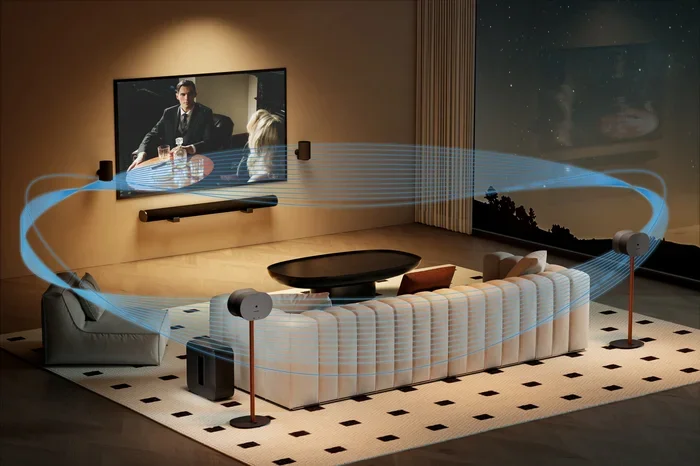
Yes, you can create a surround sound setup. Use the Sonos Amp to power your front and rear speakers. Group them in the Sonos app to create a home theater system. Add a Sonos Sub for deep bass. The Sonos system supports Dolby Atmos through certain speakers, giving you immersive surround sound that pairs beautifully with projector viewing.
What’s the best budget-friendly way to connect Sonos to a projector?
The simplest budget option is using a 3.5mm aux cable if both your projector and Sonos speaker support it. You’ll also need a Sonos speaker with an aux input, like the Sonos Ray or an older Sonos model. This setup costs virtually nothing beyond the cable and works surprisingly well for most home entertainment needs.